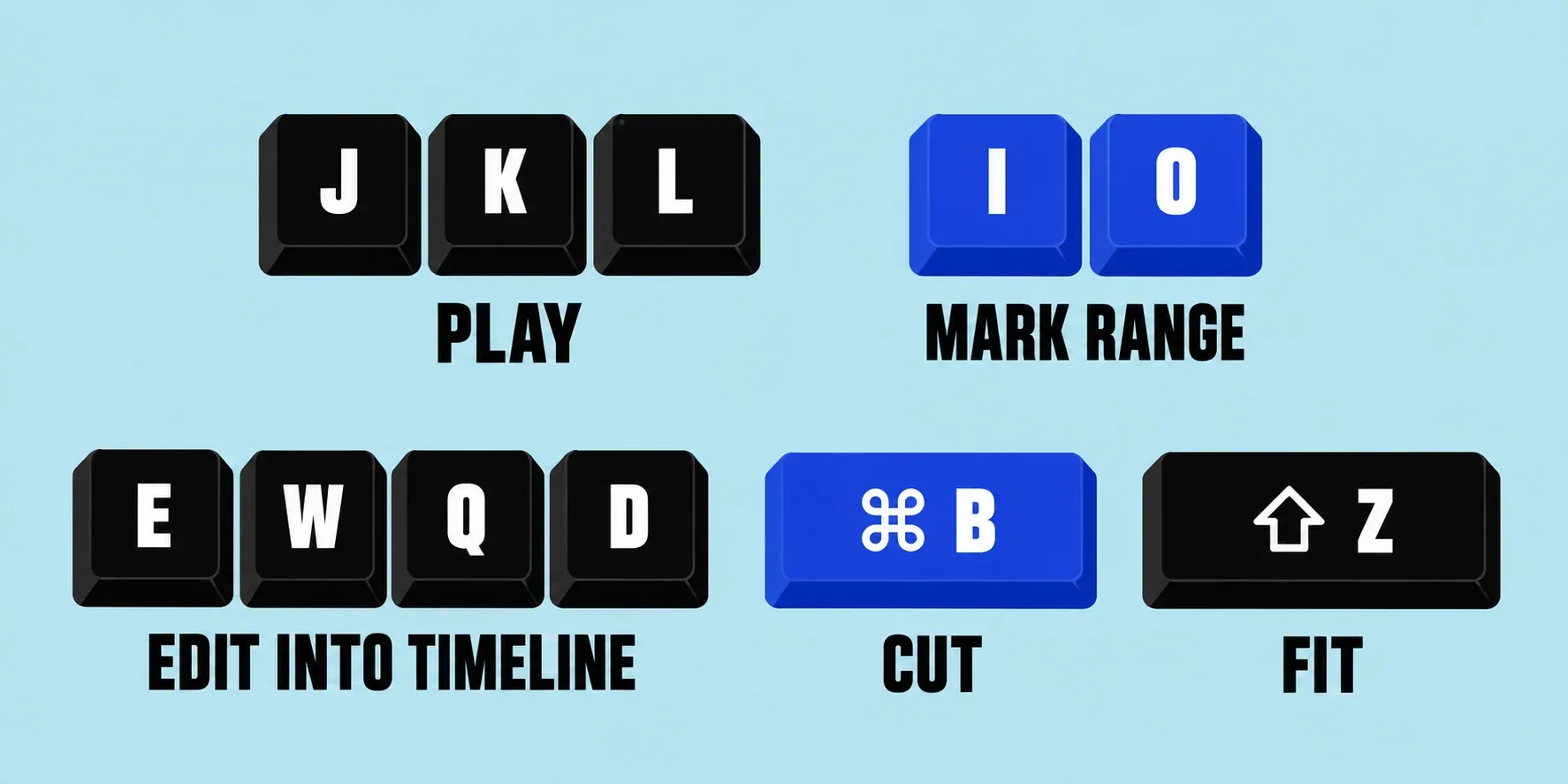
Apple's keyboard shortcut reference for Final Cut Pro for Mac lists about 380 entries, but a dozen or so carry most of an edit: J, K, and L to play, I and O to mark a range, E, W, Q, and D to put it in the timeline, Command-B to cut, and Shift-Z to see the whole project. Press Option-Command-K to open the Command Editor, where you can search every command and give it your own keys. I'd learn the playback and marking keys before anything else, because every edit key acts on a range or a playhead position that's already set.
The tables below follow the order of a real edit, from playback to export, and every key matches Apple's table for the default command set. After them come the steps for building your own set, the reasons a shortcut sometimes does nothing, and what changes on iPad. If you're still learning the timeline itself, start with the Final Cut Pro beginner tutorial and come back for the keys.
The shortcuts to learn first
These keys work with the default command set. Most are single letters with no modifier, which is why they stick quickly.
| Shortcut | What it does |
|---|---|
| Space bar | Start or pause playback |
| J / K / L | Play reverse, stop, play forward; press J or L again to play faster |
| I / O | Set the range start and end at the skimmer or playhead |
| E | Append the selection to the end of the storyline |
| W | Insert the selection at the skimmer or playhead |
| Q | Connect the selection to the primary storyline |
| D | Overwrite at the skimmer or playhead |
| Command-B | Blade: cut the primary storyline clip, or the selection, at the skimmer or playhead |
| Delete | Delete the timeline selection (in the browser, it rejects the clip instead) |
| A / B / T | Select tool, Blade tool, Trim tool |
| Shift-Z | Zoom the timeline, browser, or viewer to fit |
| Command-Plus / Command-Minus | Zoom in or out |
| N | Turn snapping on or off |
| S | Turn skimming on or off |
| Command-Z / Shift-Command-Z | Undo / redo |
| Command-E | Share to the default destination, which is Export File unless you change it |
I'd build the J, K, and L habit before relying on the Space bar, because pressing L a second time plays faster and K stops on the exact frame to mark, while the Space bar only starts and pauses. The edit keys also need one thing to click: Apple describes them as acting "at the skimmer or playhead position." With skimming on and the pointer resting over the timeline, an edit can land where the pointer is rather than at the playhead, so press S when you want edits to follow the playhead only.
Playback and moving around
| Shortcut | What it does |
|---|---|
| Shift-Space bar | Play in reverse |
| Option-J / Option-L | Play in reverse or forward at half speed |
| Slash (/) | Play the selection |
| Shift-Question Mark (?) | Play around the playhead |
| Command-L | Turn looped playback on or off |
| Left Arrow / Right Arrow | Move one frame back or forward |
| Shift-Left Arrow / Shift-Right Arrow | Move 10 frames back or forward |
| Up Arrow / Down Arrow | Previous or next edit point in the timeline (previous or next item in the browser) |
| Semicolon (;) / Apostrophe (') | Previous or next edit point in the timeline |
| Home / End | Beginning or end of the timeline; Fn-Left Arrow and Fn-Right Arrow on keyboards without those keys |
| Control-Semicolon (;) / Control-Apostrophe (') | Previous or next marker |
| Shift-I / Shift-O | Go to the range start or end |
| Control-P | Move the playhead by typing a timecode |
| Shift-Command-F | Play full screen |
| Shift-S | Turn audio skimming on or off |
Typing numbers often beats scrubbing. Press Control-P and type a timecode to send the playhead there. The Equal Sign (=) and Hyphen (-) keys do more: with nothing selected they move the playhead forward or back by the value you type, and with a clip or range selected they move the clip later or earlier or trim it, depending on what's selected.
Marking ranges, ratings, and keywords
| Shortcut | What it does |
|---|---|
| X | Set a range that matches the clip under the skimmer or playhead |
| Option-I / Option-O | Clear the range start or end |
| Option-X | Clear the range selection |
| Shift-Command-I / Shift-Command-O | Add another range start or end in the same browser clip |
| R | Range Selection tool |
| F | Rate the browser selection as a favorite |
| Delete | Mark the browser selection as rejected |
| U | Remove ratings |
| Control-F / Control-H / Control-C | Browser filter: favorites, hide rejected, all clips |
| Control-Delete | Browser filter: show rejected clips |
| Command-K | Show or hide the keyword editor |
| Control-1 to Control-9 | Apply keyword tags 1 to 9 |
| Control-0 | Remove all keywords from the browser selection |
| M / Option-M | Add a marker; add a marker and edit its text |
| Control-M | Delete the selected marker |
| Option-C | Add a caption at the playhead (Control-Option-C if the caption editor is open) |
Delete behaves differently in the browser. With the browser active it marks clips as rejected rather than removing anything, and rejected clips stay in the event, out of sight until you press Control-Delete. With the timeline active, the same key deletes the selected items from the project. Ratings and keywords only pay off once events are organized, which the guide to libraries, events, and projects covers.
Editing clips into the timeline
| Shortcut | What it does |
|---|---|
| Shift-Q | Connect, aligning the end of the selection with the skimmer or playhead (backtimed) |
| Shift-D | Overwrite backward from the skimmer or playhead (backtimed) |
| Shift-R | Replace the selected timeline clip with the browser selection |
| Option-R | Replace from the start of the timeline clip |
| Shift-1 / Shift-2 / Shift-3 | Edit audio and video, video only, or audio only |
| Option-W | Insert a gap clip |
| Option-F | Insert or connect a freeze frame |
| Shift-Command-B | Blade all clips at the skimmer or playhead |
| Shift-Delete | Replace the selected clip with a gap clip |
| Option-Command-Delete | Delete the selection and attach its connected clips to the resulting gap clip |
| Option-Command-Up Arrow | Lift the selection from the storyline and connect it to the resulting gap clip |
| Option-Command-Down Arrow | Overwrite to the primary storyline |
| Command-G | Create a storyline from connected clips that don't overlap |
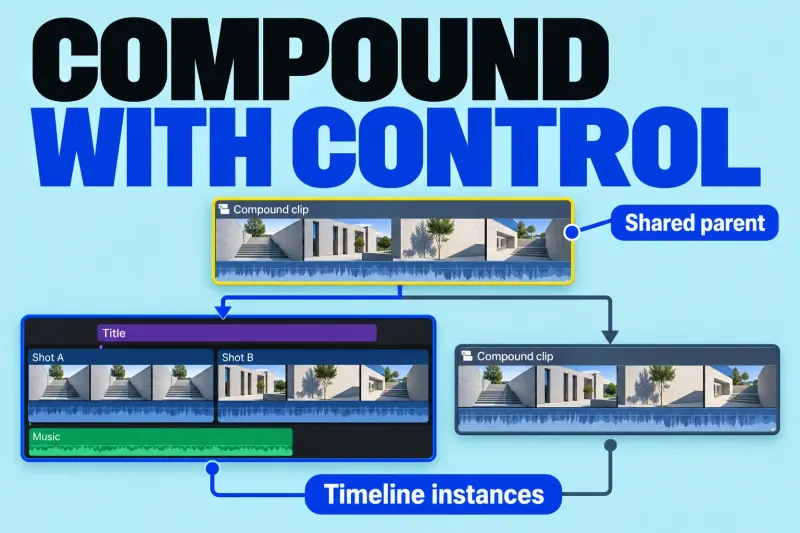
| Option-G | Create a compound clip |
| Shift-Command-G | Break apart clip items |
| V | Enable or disable playback of the selection |
| Comma (,) / Period (.) | Nudge the selection one unit left or right; add Shift for 10 units |
| Grave Accent (`) | Hold to override clip connections while you edit |
Delete in the primary storyline ripples: Apple's page on removing clips says later clips move left to close the gap, and deleting an entire clip also deletes the clips and storylines connected to it. Shift-Delete keeps the project's timing by leaving a gap clip, and it attaches connected clips to that gap. I'd press Option-Command-Delete instead of Delete whenever a clip carries titles, B-roll, or music connected to it, because plain Delete takes those connected pieces out with the clip. Holding the Grave Accent key while you press Delete also keeps the connected clips in the project. How the storylines and connections behave is laid out in the magnetic timeline guide, and the freeze-frame key has its own comparison in freeze frame vs hold.
Trimming edit points
| Shortcut | What it does |
|---|---|
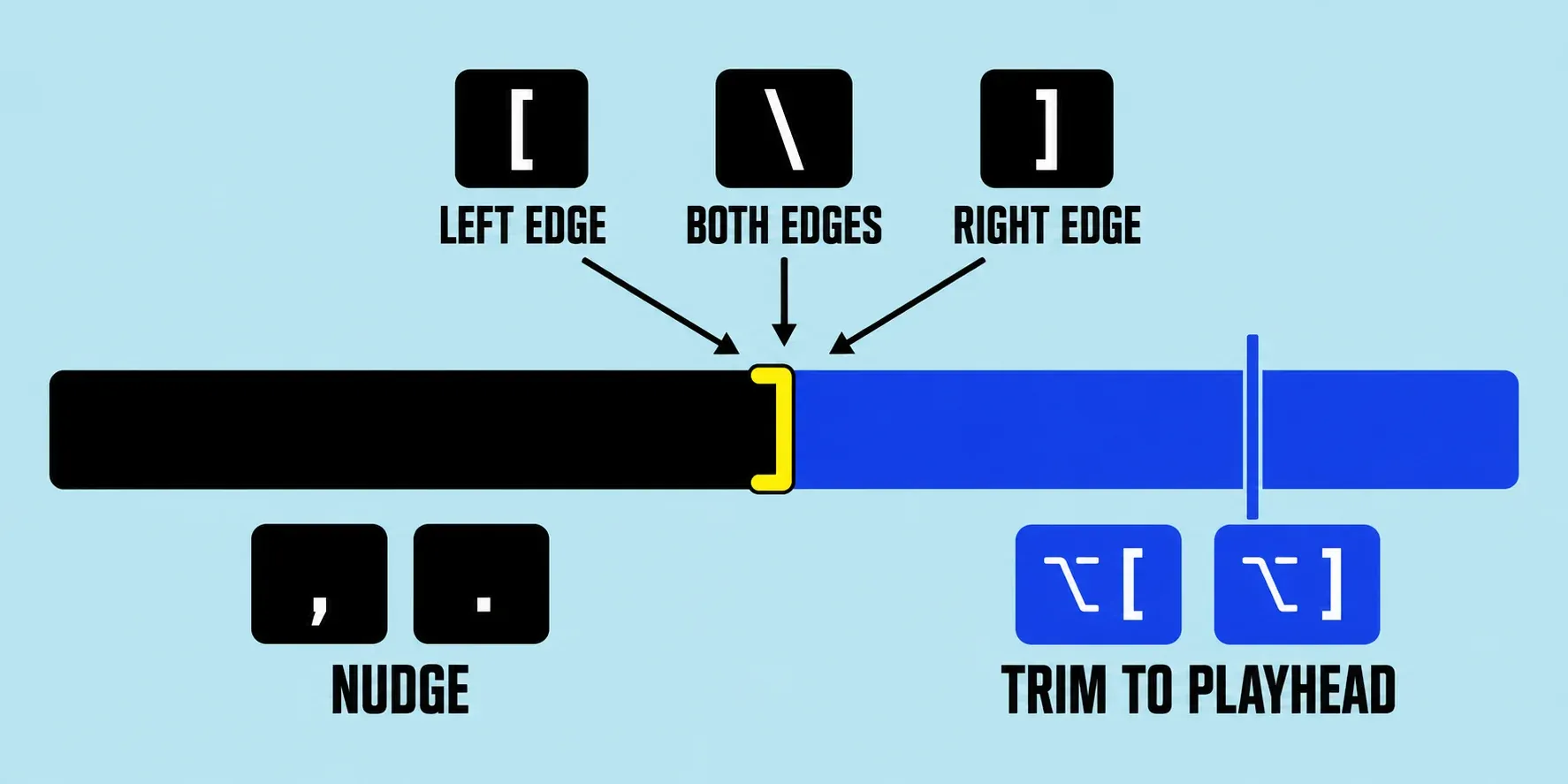
| Option-[ / Option-] | Trim the clip start or end to the skimmer or playhead |
| Option-Backslash (\) | Trim the clip start and end to the range selection |
| [ / ] | Select the left or right edge of the edit point |
| Backslash (\) | Select both edges of the edit point |
| Comma (,) / Period (.) | With an edge selected, nudge it one unit; add Shift for 10 units |
| Shift-X | Extend the selected edit point to the skimmer or playhead |
| Control-E | Show or hide the precision editor for the selected edit point |
| Option-U | Show or hide the two-up view while trimming |
| Control-D | Change the duration of the selection |
| Shift-[ / Shift-] / Shift-\ | Select the left, right, or both audio edges of an expanded clip |
| Control-[ / Control-] / Control-\ | Select the left, right, or both video edges of an expanded clip |
I'd learn Option-[ and Option-] before the Trim tool, because they trim the selected or topmost clip to the playhead without selecting an edge first. Park the playhead on the frame where the shot should start or end and press one key. When the cut point itself needs to move, select both edges with Backslash and nudge with Comma or Period. The full set of trim types, including roll, slip, and slide, is in the guide to trimming and splitting clips.
Audio
| Shortcut | What it does |
|---|---|
| Control-Equal Sign (=) / Control-Hyphen (-) | Raise or lower the volume by 1 dB |
| Control-L | Adjust the volume of all selected clips by the same dB value |
| Control-Option-L | Set the volume of all selected clips to a specific dB value |
| Option-T | Apply a crossfade to the audio edit point between selected clips |
| Control-S | Expand audio: view audio and video separately |
| Control-Shift-S | Detach audio as a connected clip |
| Option-S | Solo the selected items |
| Shift-Command-M | Match audio between clips |
| Option-Command-E | Add the default audio effect |
| Command-8 | Make the Audio Enhancements inspector active |
| Shift-Command-8 | Show or hide the audio meters |
| Option-Command-8 | Show or hide the Record Voiceover window |
| Control-A | Show or hide the Audio Animation editor |
| Control-Z | Zoom to audio samples |
Before reaching for Detach Audio, I'd expand audio with Control-S, because an expanded clip still moves as one clip, even with its audio and video edges pulled apart for a split edit. Detaching turns the sound into a separate connected clip, which is right only when it has to move on its own.
Titles, effects, color, and speed
| Shortcut | What it does |
|---|---|
| Control-T / Control-Shift-T | Connect the default title or lower third |
| Command-T | Add the default transition, Cross Dissolve unless you change it |
| Option-E | Add the default video effect |
| Option-A | Add an adjustment clip |
| Command-5 / Control-Command-5 | Show or hide the Effects browser or the Transitions browser |
| Option-Command-1 | Show or hide the Titles and Generators sidebar |
| Command-6 | Open the Color inspector and add a Color Adjustments effect |
| Option-Command-B | Turn Balance Color on or off |
| Option-Command-M | Match color between clips |
| Command-7 | Show or hide the video scopes |
| Option-Command-C / Option-Command-V | Copy or paste effects |
| Shift-Command-V | Paste attributes you choose |
| Option-Command-X | Remove all effects from the selection |
| Command-R | Show or hide the retime editor |
| Shift-H | Create a 2-second hold segment |
| Shift-N / Option-Command-R | Normal speed segment; reset to normal speed |
| Shift-Command-C / Shift-Command-S | Transcribe spoken words as closed captions or subtitles |
When the target clip already has its own effects, I'd paste a grade with Shift-Command-V, because Paste Attributes pastes only the attributes ticked in its window instead of every copied effect. Command-T adds a Cross Dissolve unless you've changed the default, and Apple's transition shortcut page notes that video with attached audio gets a crossfade on the sound as well. For the grade itself, the color correction guide walks through the wheels, curves, and scopes those keys open. Speed changes built with Command-R and Shift-H are covered step by step in retiming and speed ramps, and caption roles and exports in the SRT captions guide.
Windows, rendering, and export
| Shortcut | What it does |
|---|---|
| Command-1 / Command-2 / Command-3 | Make the browser, timeline, or viewer active |
| Command-4 | Show or hide the inspector |
| Control-Command-1 / Control-Command-2 | Show or hide the browser or the timeline |
| Shift-Command-2 | Show or hide the timeline index |
| Command-F | Filter window in the browser, timeline index in the timeline |
| Command-9 | Show or hide the Background Tasks window |
| Control-R / Control-Shift-R | Render the selection; render everything in the project |
| Command-I | Import media |
| Command-N / Option-N | New project; new event |
| Command-J | Open the project properties |
| Shift-Command-R | Reveal the selected clip's source file in the Finder |
| Command-E | Share to the default destination |
| Command-Comma (,) | Open Final Cut Pro Settings |
Command-E doesn't always export a file. Apple's destinations page says it shares to the default destination, which is Export File by default: a selected browser clip is shared on its own, and with the timeline active the whole project goes out. To point Command-E somewhere else, choose Final Cut Pro > Settings, click Destinations, Control-click a destination or bundle, and choose Make Default. The settings worth saving into that destination for uploads are in the YouTube export settings guide, and Command-I opens the window described in the guide to importing media.
Shortcuts that cheat sheets get wrong
Several popular shortcut lists carry keys that don't do what they claim in Final Cut Pro for Mac. Here are the ones that don't match Apple's table:
| Shortcut | Listed as | What it actually does |
|---|---|---|
| Command-M | Make a movie | Minimizes the Final Cut Pro window |
| Option-L | Loop | Plays at half speed; loop playback is Command-L |
| Shift-Command-R | Render all | Reveals the source file in the Finder; render all is Control-Shift-R |
| Option-Command-N | New event | Creates a Smart Collection; a new event is Option-N |
| Shift-R | Replace from start | Replace; Replace from Start is Option-R |
| Command-E | Export | Shares to the default destination, which you can change |
Make your own shortcuts in the Command Editor
Many commands have no key at all, and the Command Editor is where you give them one. Apple's steps for modifying keyboard shortcuts start with a copy of the default set:
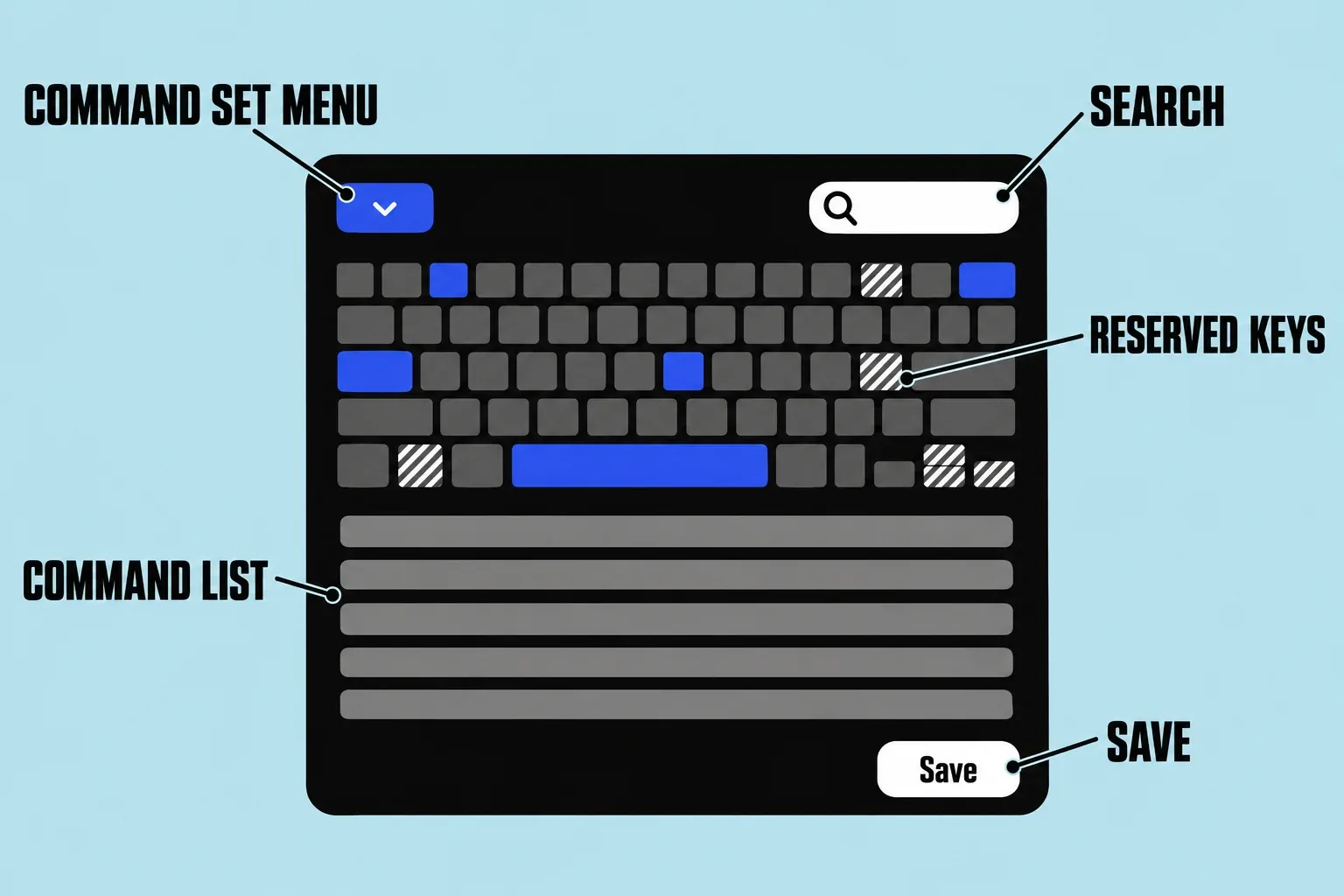
- Open the Command Editor. Choose Final Cut Pro > Command Sets > Customize, or press Option-Command-K.
- Duplicate the set. Click the pop-up menu in the top-left corner, choose Duplicate, type a name, and click OK. The copy appears in the Command Sets submenu.
- Find the command. Type its name in the search field at the top right, or browse the command list.
- Press the new keys. Keys shaded with diagonal lines are reserved for the system and can't be assigned. If the combination already belongs to another command, Final Cut shows that assignment and asks you to confirm the change.
- Save. Click Save in the lower-right corner. Closing the editor with unsaved changes brings up a prompt to save them.
- Export a copy. Choose Export from the same pop-up menu, or Final Cut Pro > Command Sets > Export. Apple's page on exporting and importing command sets says the file gets the .commandset extension; on another Mac, choose Final Cut Pro > Command Sets > Import.
I'd always work in a duplicate rather than building a set from scratch, because the copy keeps every default key alongside the new ones, and Default stays one choice away in Final Cut Pro > Command Sets when something stops behaving. Keep the exported .commandset file with your library backups so a new Mac gets the same keys in one import.
When a shortcut does nothing
A key that seems dead usually reached the wrong place. Check these in order:
- The wrong pane is active. Shortcuts act on the active area, so Delete rejects in the browser and deletes in the timeline. Press Command-1 for the browser, Command-2 for the timeline, or Command-3 for the viewer, then try again.
- A text field has focus. While you type in a field, letters go into the field. Apple lists Control versions that still work there: Control-Space bar to play or pause, Control-J and Control-K to play reverse and stop, Control-I and Control-O to set a range, and Control-Up Arrow or Control-Down Arrow to move between items or edit points.
- macOS takes the key first. Mission Control uses Control-Up Arrow, and Control-Down Arrow shows the current app's windows, so while those Mac shortcuts are on, the two text-field versions go to macOS instead of Final Cut. Change or turn them off in Apple menu > System Settings > Keyboard > Keyboard Shortcuts.
- There's no Home or End key. On keyboards without them, press Fn-Left Arrow or Fn-Right Arrow.
- A tool is still selected. After B or T, a click cuts or trims instead of selecting. Press A to return to the Select tool.
- The skimmer moved the edit. With skimming on, an edit can land under the pointer instead of at the playhead. Press S and repeat the edit.
- A custom command set is active. Choose Final Cut Pro > Command Sets, switch to Default, and see whether the key works there.
Final Cut Pro for iPad shortcuts
Final Cut Pro for iPad takes shortcuts from a connected or paired keyboard, and the menu bar lists and searches them. Many keys match the Mac: E, W, Q, D, I, O, J, K, L, Command-B, and Command-T, which adds a Cross Dissolve. A few work differently, according to Apple's iPad shortcut list:
| Task | Mac | iPad |
|---|---|---|
| Reject a browser clip | Delete (R is the Range Selection tool) | R |
| Go to the beginning or end | Home / End | Shift-Up Arrow / Shift-Down Arrow |
| Command-E | Share to the default destination | Export the project |
| Command-3 | Make the viewer active | Enter or exit Picture in Picture |
| Start or stop voiceover recording | Option-Shift-A | Option-Shift-R |
If you edit on both, the R and Command-3 rows are the ones that catch people out. On the Mac, R switches tools instead of rejecting the clip.