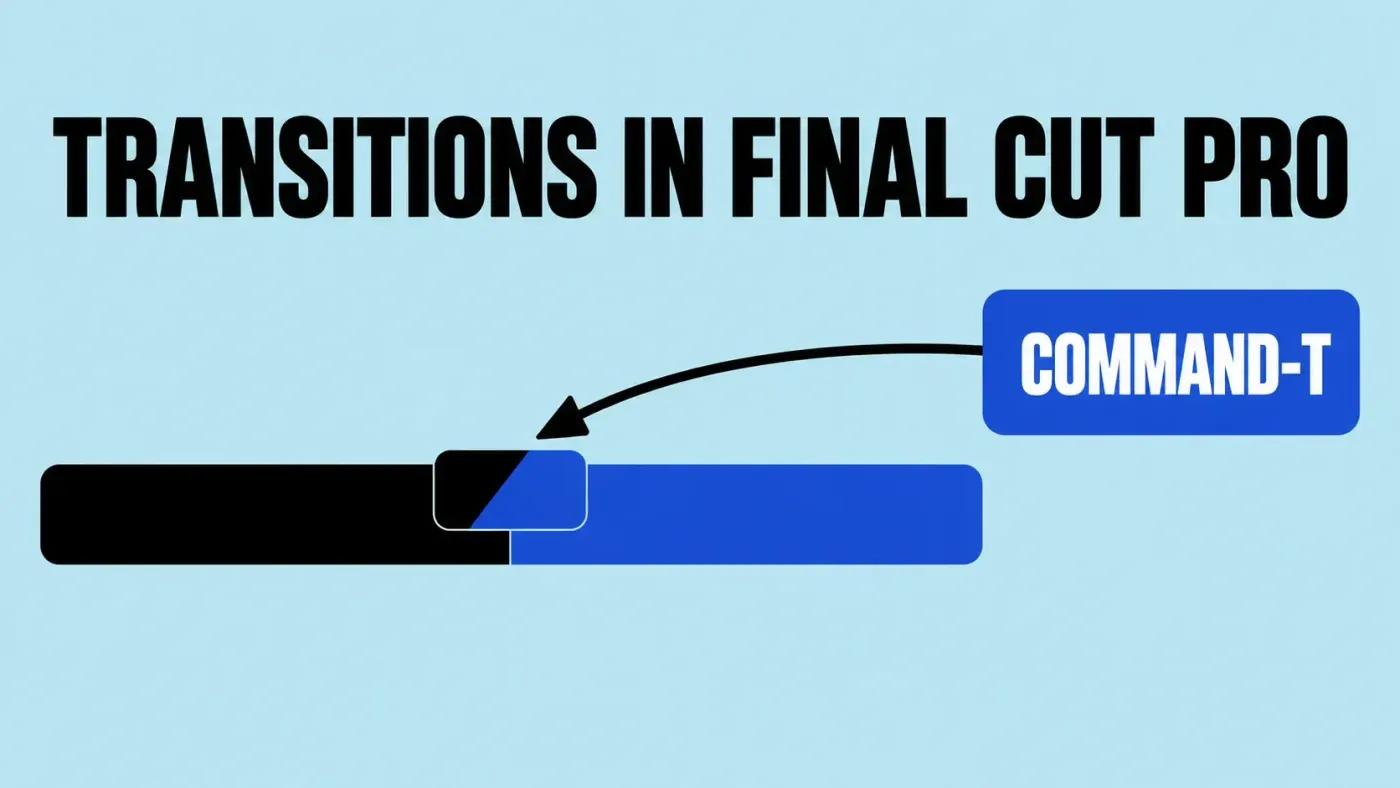
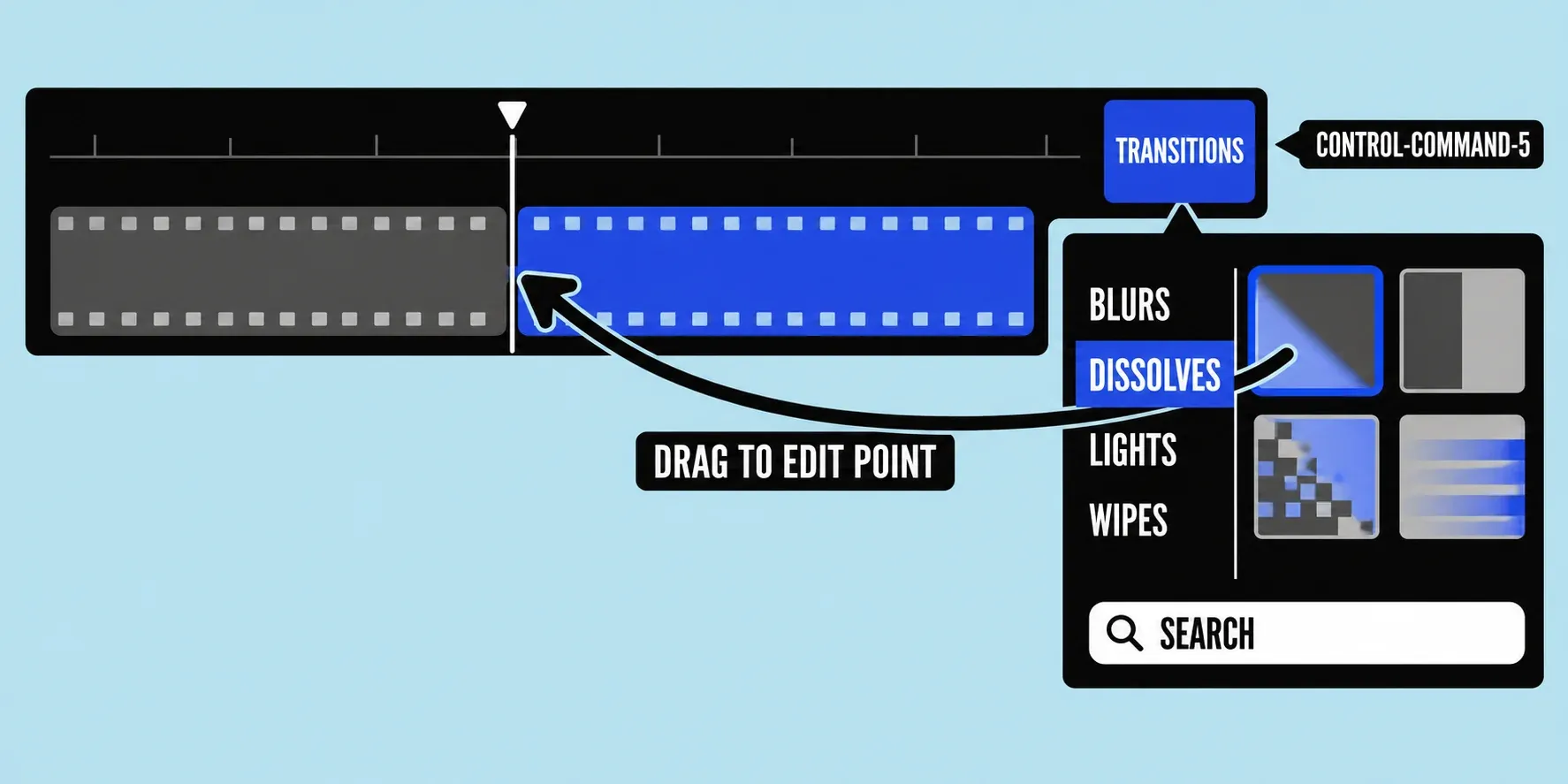
To add a transition in Final Cut Pro, click the edit point between two clips and press Command-T. Final Cut puts its default transition, Cross Dissolve, across the cut. For anything else, open the Transitions browser with the button in the top-right corner of the timeline or with Control-Command-5, and drag a transition onto the edit point. If Final Cut asks whether to overlap media, the clips are short of spare footage, and the section on media handles below explains what saying yes does to your edit.
Below: where the browser is, the three ways to add a transition, changing the default and its length, why the overlap prompt appears, changing duration and trimming under a transition, the inspector controls, fades from black, Flow for jump cuts, what happens to the audio, and what to check when a transition won't go on.
Find the Transitions browser
Click the Transitions button in the top-right corner of the timeline, or press Control-Command-5. Categories such as Blurs and Dissolves are listed on the left, and the search field is at the bottom. Skim a thumbnail and the viewer previews that transition. Apple's guide to adding transitions has two tips for when one seems to be missing: clear the search field, then use the Filter pop-up menu at the top of the browser to look in other locations.
Three ways to add a transition
- Drag it to an edit point. Drop a transition from the browser onto the cut between two clips. Dropping it onto an existing transition replaces that one.
- Select the edit point, then double-click. Click the cut, then double-click a thumbnail in the browser. This is handy when the timeline is zoomed out and the edit is hard to hit with a drag.
- Select the edit point, then press Command-T. This adds the default transition. The same command appears in the Edit menu as Add followed by the default's name, so it reads Edit > Add Cross Dissolve until you change it.
To select an edit point, choose the Select tool (press A) and click the line between two clips. If you select whole clips instead, Command-T adds a transition at both ends of each selected clip, as Apple's page on adding a transition with a shortcut describes. That's the quickest way to put a dissolve between every photo in a slideshow: select all the stills and press Command-T once.
A transition on a clip connected above the primary storyline works too, but Final Cut wraps that clip in a storyline first. Apple's page on storylines says this happens automatically, so the new storyline around the clip is expected. The magnetic timeline guide explains how storylines move and why they exist.
Change the default transition and its length
Cross Dissolve is the default until you pick another. Control-click any transition in the browser and choose Make Default, and Command-T uses that one from then on.
The default length lives in settings. Choose Final Cut Pro > Settings (Command-Comma), click Editing, and use the Transition slider in the Durations section, which is set in seconds. Apple's page on the default duration suggests changing it before you add transitions to many clips at once, and notes that some transitions have a fixed duration this setting doesn't change.
I'd keep Cross Dissolve as the default and change only its length, because the default ends up on dozens of cuts in a project, and a wipe repeated that often starts to look like a template. Save the styled transitions for the few moments that earn them.
Why Final Cut asks to overlap media
A transition blends two shots, so it needs footage beyond the part you edited in. Apple's explanation of how transitions are created puts it this way: a one-second transition needs a second of video from the end of the left clip and a second from the start of the right clip. Final Cut fills that overlap with media handles, the unused footage past each clip's edges. With enough handles, the transition sits half on each clip and the project's length stays the same.
When a clip has no spare footage, because you used it to the last frame, Final Cut offers to overlap media. Say yes and it slides the clips over each other to make room, which works like a ripple edit: the project gets shorter by the overlap, and anything after the cut moves earlier. That matters if you've cut to music or lined up titles later in the timeline.
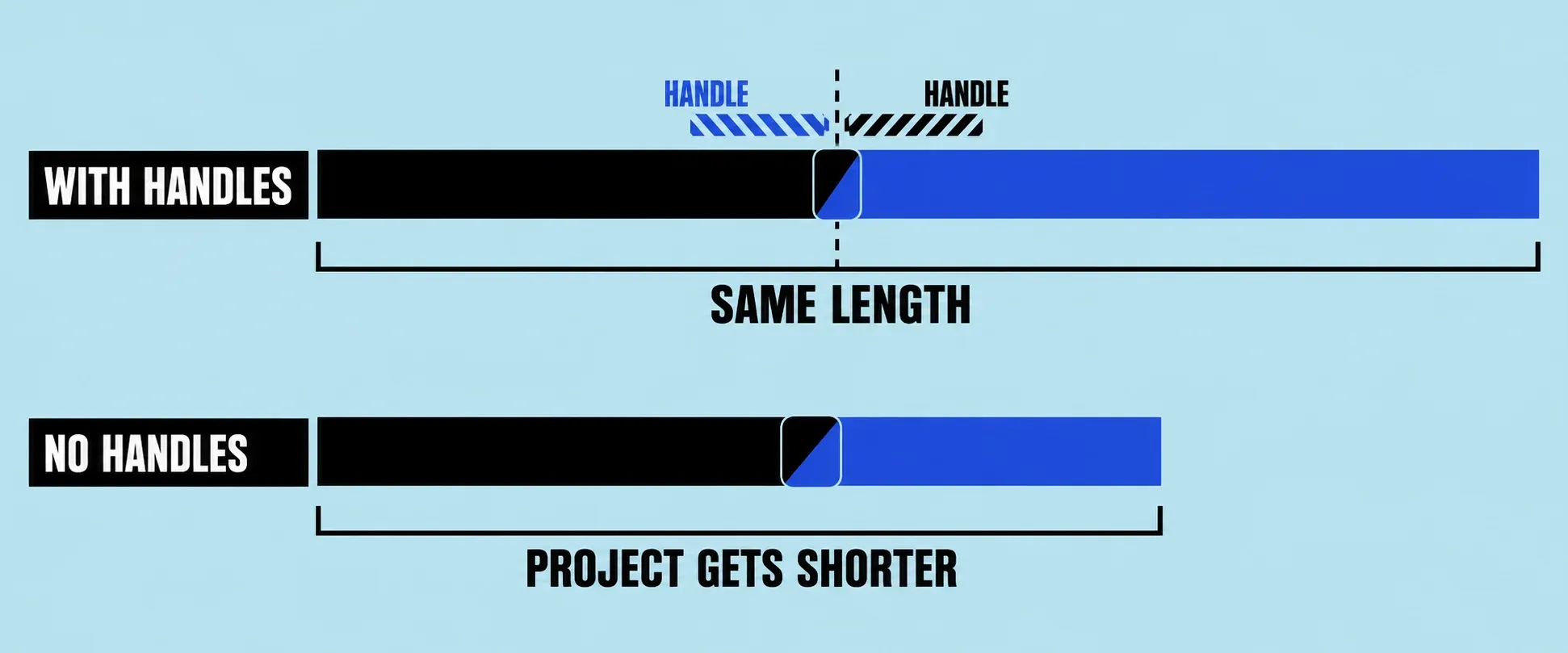
Two clues tell you a clip is out of handles. A clip edge turns red when it's at its maximum length, and the dimmed areas in the precision editor show how much spare footage exists on each side. If there's none, trim a few frames off the end of the left clip or the start of the right one before adding the transition. The guide to trimming and splitting clips covers the trim keys. Handles have one more catch: whatever is in them shows up in the transition, so a clapperboard or a camera shake right after the shot you used will flash on screen.
I'd trim the clips and decline the overlap on anything synced to music or voiceover, because the overlap quietly shortens the timeline and pulls every later cut off the beat.
Change the duration and move a transition
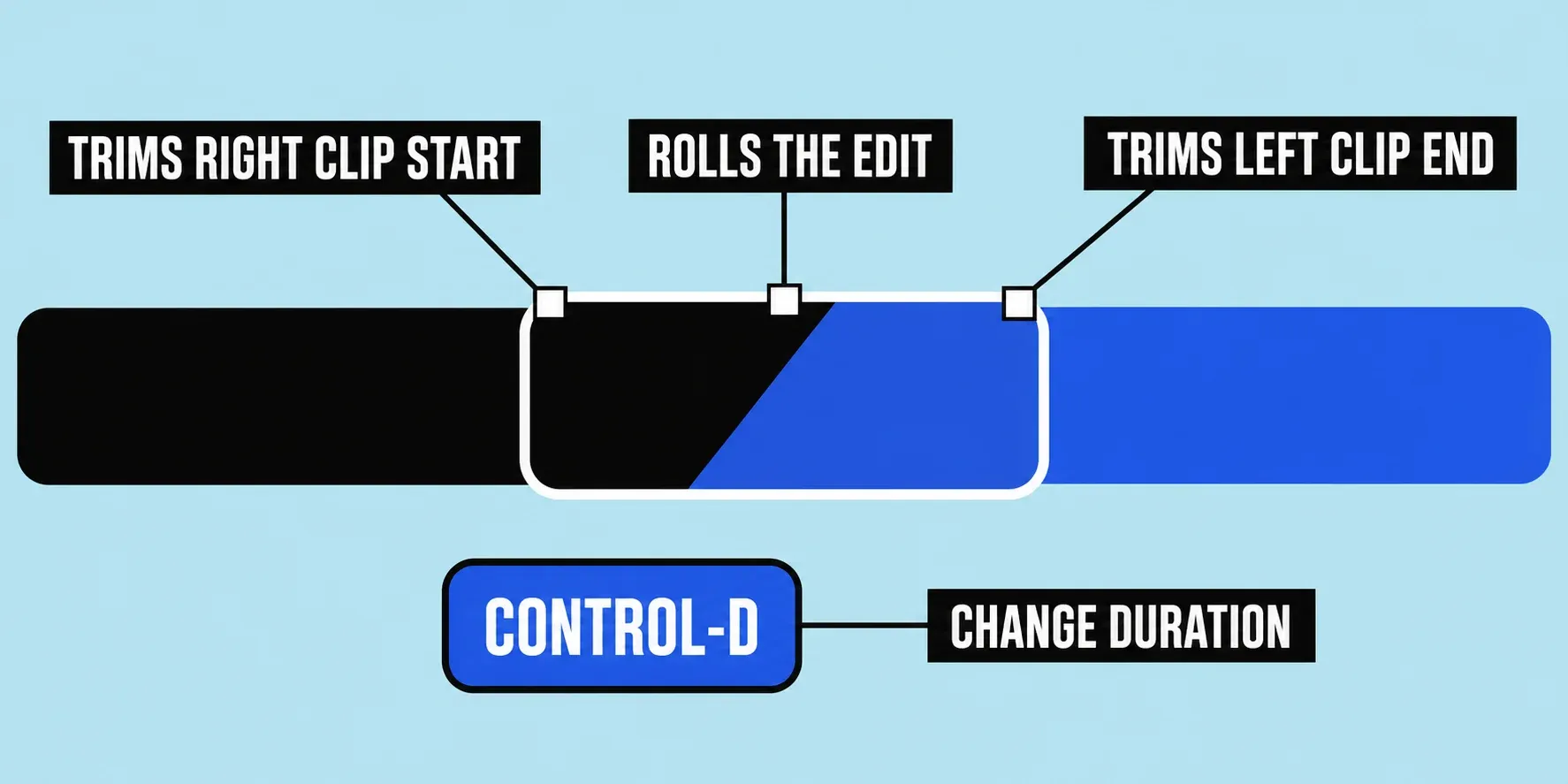
Select the transition, choose Modify > Change Duration (or press Control-D), type the new length, and press Return. You can also drag either end of the transition; it keeps its center, and both ends change by the same amount. Apple's page on adjusting transitions in the timeline describes the three small trim icons along the top of a selected transition, which you may need to zoom in to see:
| Icon | What dragging it does | Project length |
|---|---|---|
| Upper center | Moves the transition by rolling the edit underneath: one clip gets longer, the other shorter. Needs handles on the clip being extended. | Unchanged |
| Upper left | Trims the start of the right clip without changing the transition's length. | Changes |
| Upper right | Trims the end of the left clip without changing the transition's length. | Changes |
The left icon changing the right clip catches most people the first time. For frame-accurate work, open the precision editor by selecting the edit point and pressing Control-E. It shows both clips with their handles dimmed, and you can roll or trim from there. Press Esc to close it.
Adjust a transition in the inspector
Select a transition and press Command-4 to open the Transition inspector. Some transitions also show onscreen controls in the viewer, such as the center point and border of the Circle wipe. Apple's page on the Transition inspector lists the common controls:
- Ease and Ease Amount: how gently the transition starts or ends, and how quickly it ramps.
- Direction: which part of the frame a wipe or other animated transition begins from.
- Edge Type: how hard or soft a wipe's edge is.
- Graphics HDR Level: brightens transitions with SDR graphics or colors that look dim in an HDR project.
- Audio Transition Fade In Type and Fade Out Type: the curve of the audio crossfade. +3dB is the default; Linear, –3dB, and S-curve are the alternatives.
Many transition parameters can be keyframed, so a wipe's center can travel across the frame while it plays. Transitions with several images, such as Bulletin Board, show numbered handles in the viewer when the playhead sits at the transition's center.
Fade in from black and fade out to black
For a fade from black at the start, select the start point of the first clip and press Command-T. For a fade to black at the end, select the end point of the last clip and do the same. Command-T adds the default transition, so if you've changed it, drag Cross Dissolve from the browser onto the clip edge instead.
Two limits come with this shortcut. A fade on the primary storyline doesn't include titles or other connected clips above it, so put them in a compound clip with the video first if they should fade together; the compound clips guide shows how. And the quick method leaves little room for fine-tuning. For a fade with a shape you set yourself, keyframe the clip's opacity in the Video inspector instead, which is the route Apple recommends for precise control.
Copy, paste, and delete transitions
To reuse a transition you've already adjusted, select it and press Command-C, click another edit point, and press Command-V. Option-dragging a transition onto another edit point copies it too. Either way, a transition already on that cut is replaced.
To remove one, select it and press Delete, and the edit goes back to a straight cut. If Final Cut overlapped media to make room for the transition you just added, choose Edit > Undo (Command-Z) instead, which removes it and returns the clips to their original length.
Flow for jump cuts
Flow, in the Dissolves category, is built to merge jump cuts, the cuts you make when you remove a pause or a mistake from an on-camera interview. Apple's page on the Flow transition says to leave it at its default duration, because any other length gives unexpected results. It always runs 6 frames, whatever the Editing settings say, and on a generator it acts as an ordinary dissolve.
I'd try Flow only when the head barely moves between the two frames, because a big change in position makes the morph visible. If it doesn't hold up, a cutaway or a punch-in hides the jump better.
What happens to the audio
When the video has attached audio, a video transition adds an audio crossfade automatically. If the audio is detached or expanded from the video, it doesn't. Apple's crossfade page also gives the audio-only route: select two adjacent clips and choose Modify > Adjust Audio Fades > Crossfade, or press Option-T. The length of those comes from the Crossfade slider in the same Editing settings.
If the sound should cut cleanly while the picture dissolves, expand the audio with Control-S before you add the transition. I'd do that rather than fix the crossfade afterward, because with the audio expanded Final Cut doesn't add a crossfade in the first place.
Speed transitions are a different feature
Retime > Speed Transitions smooths the switch between speed segments inside one clip, and it has nothing to do with the Transitions browser. If you're building a speed ramp, the speed ramp guide covers that setting.
When a transition won't go on
- Final Cut asks to overlap media. One clip is out of handles. Trim a few frames off the clip edge you used to the end, or accept the overlap if the project's length doesn't matter.
- A transition you installed isn't in the browser. Clear the search field, then check the Filter pop-up menu at the top of the browser. If it still isn't there, see the section on third-party transitions below.
- Command-T adds nothing. The edit point isn't selected in the timeline, often because the browser still has focus. Click the edit point with the Select tool and press it again.
- The transition shows a slate or a wrong frame. That footage is in the handle. Trim the clip so the handle starts after it, or use the center trim icon to roll the edit.
- The audio dips or doubles in the middle. Check the Fade In Type and Fade Out Type in the inspector, or expand the audio and set the crossfade by hand.
- A title doesn't fade with the picture. The fade is on the storyline clip only. Put the title and video in a compound clip, or fade the title itself.
For the keys in this article and the rest of the editing set, the Final Cut Pro keyboard shortcuts guide groups them by task.
Free and third-party transitions
The transitions in the browser come with Final Cut, so you don't need a pack to dissolve, wipe, or blur between shots. Free and paid packs from other developers are Motion templates or FxPlug plug-ins, which install and fail in different ways, and the Final Cut Pro plugins guide explains both, including what to check when one won't load. I'd learn the built-in set first, because after one real edit with it you'll know which look you're actually missing.
If you own Motion, you can also make your own version of a built-in transition. Control-click it in the browser, choose Open a copy in Motion, change it, and publish it back. Apple's page on modifying transitions in Motion notes that both apps need to be current and compatible versions, and both either Creator Studio or one-time purchases.
Final Cut Pro for iPad follows the same handles rule and adds the audio crossfade automatically too, and Apple's iPad guide to transitions says the subscription includes downloadable transitions as well.
What I'd do
Use straight cuts for most of the edit and add transitions where time or place changes. Keep Cross Dissolve as the default, set its length once in Settings, and add it with Command-T. When Final Cut offers to overlap media on a music edit, decline and trim the clip instead. Use Control-D for exact lengths, and remember that the left trim icon changes the right clip. If you're new to the timeline, the Final Cut Pro beginner tutorial covers the edit before transitions, and the guide to text and titles covers the titles that often sit on top of them.