The Final Cut Pro Magnetic Timeline keeps the main sequence together as you rearrange it. Connected clips attach supporting picture or sound to that sequence. If clips move together unexpectedly, first identify their connection: switching snapping off changes alignment, but it does not release the attachment.
For most story changes, let the supporting material follow the moment it belongs to. When its current timing must survive a particular edit, hold Grave Accent while editing the primary clip. When you need to remove picture while reserving its time, use Replace with Gap. Those choices solve different problems.
The primary storyline is the edit’s backbone
The primary storyline carries the main video and audio sequence. In an interview, that might be the selected conversation; in a montage, the chosen visual order. Supporting shots, titles, graphics, and sound can connect to it.
With ordinary magnetic edits, inserting, trimming, or moving primary-storyline clips makes surrounding clips move to accommodate the change. Dragging a primary clip to another place closes the space left behind and makes room at the destination, as the clip-rearrangement instructions describe. This keeps the sequence continuous. It can also surprise you if you expect every clip to keep an absolute position on a fixed track grid.
The storyline exists inside a project. It is not an event or a library; review the library, event, and project guide if those terms still overlap for you.
How connected clips attach
A cutaway can follow the interview answer it illustrates, and a sound effect can follow the action it supports. What matters is the connection to the primary storyline, not how close the two blocks look on screen.
- Select a source clip or range in the browser.
- Position the playhead over the intended frame of the primary-storyline clip.
- Choose Edit > Connect to Primary Storyline, or press Q.
With this connect command, video goes above the primary storyline and audio goes below it. The first frame of the source selection connects at the playhead or skimmer position. Q uses the skimmer if it is present in the timeline, so check that position before pressing the shortcut.
By default, a connected clip or storyline attaches at its first frame. Inspect the connection line to see which primary clip owns the attachment. A cutaway can span two interview clips yet depend on only the primary clip at its connection point.
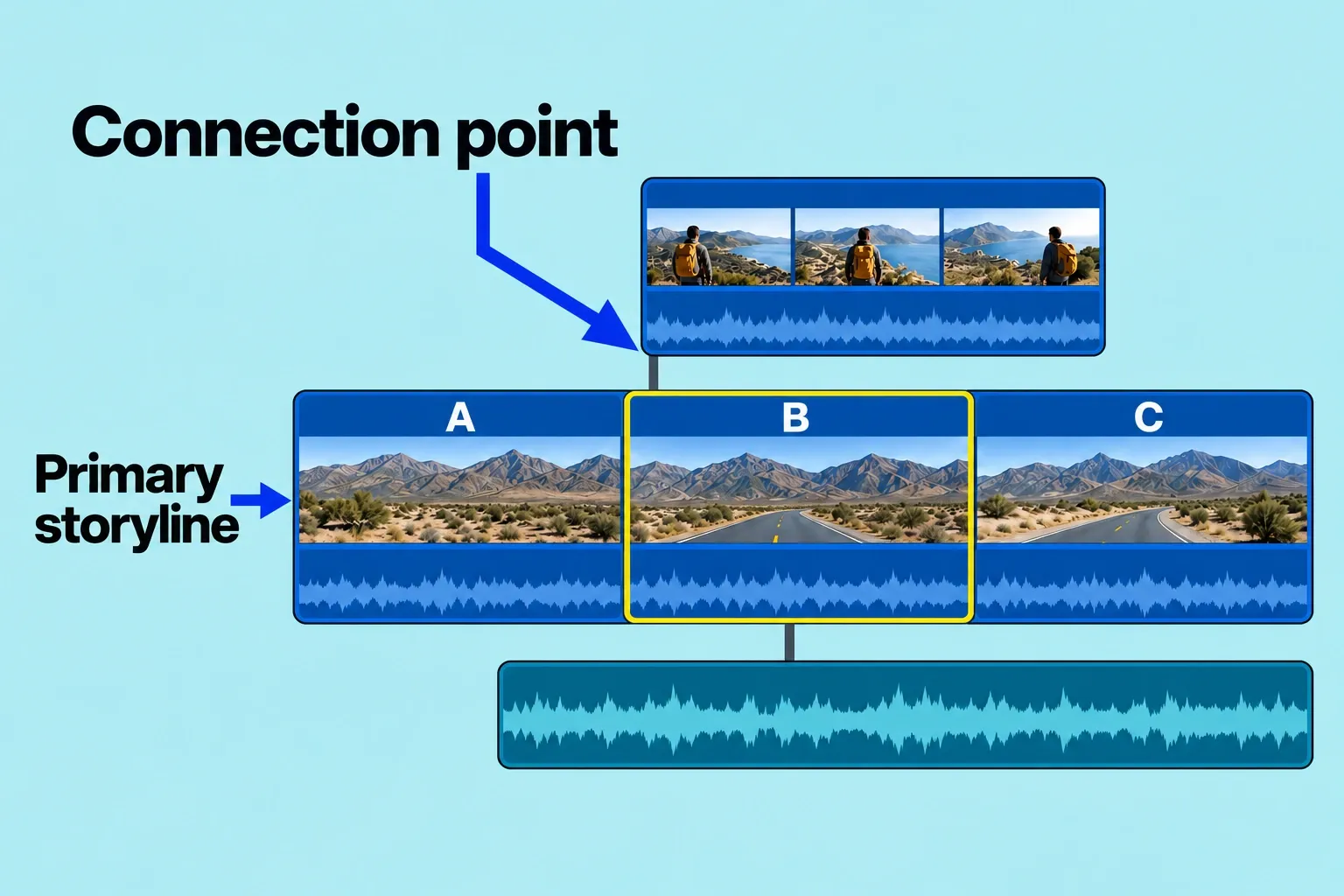
Choose the moment the cutaway should follow
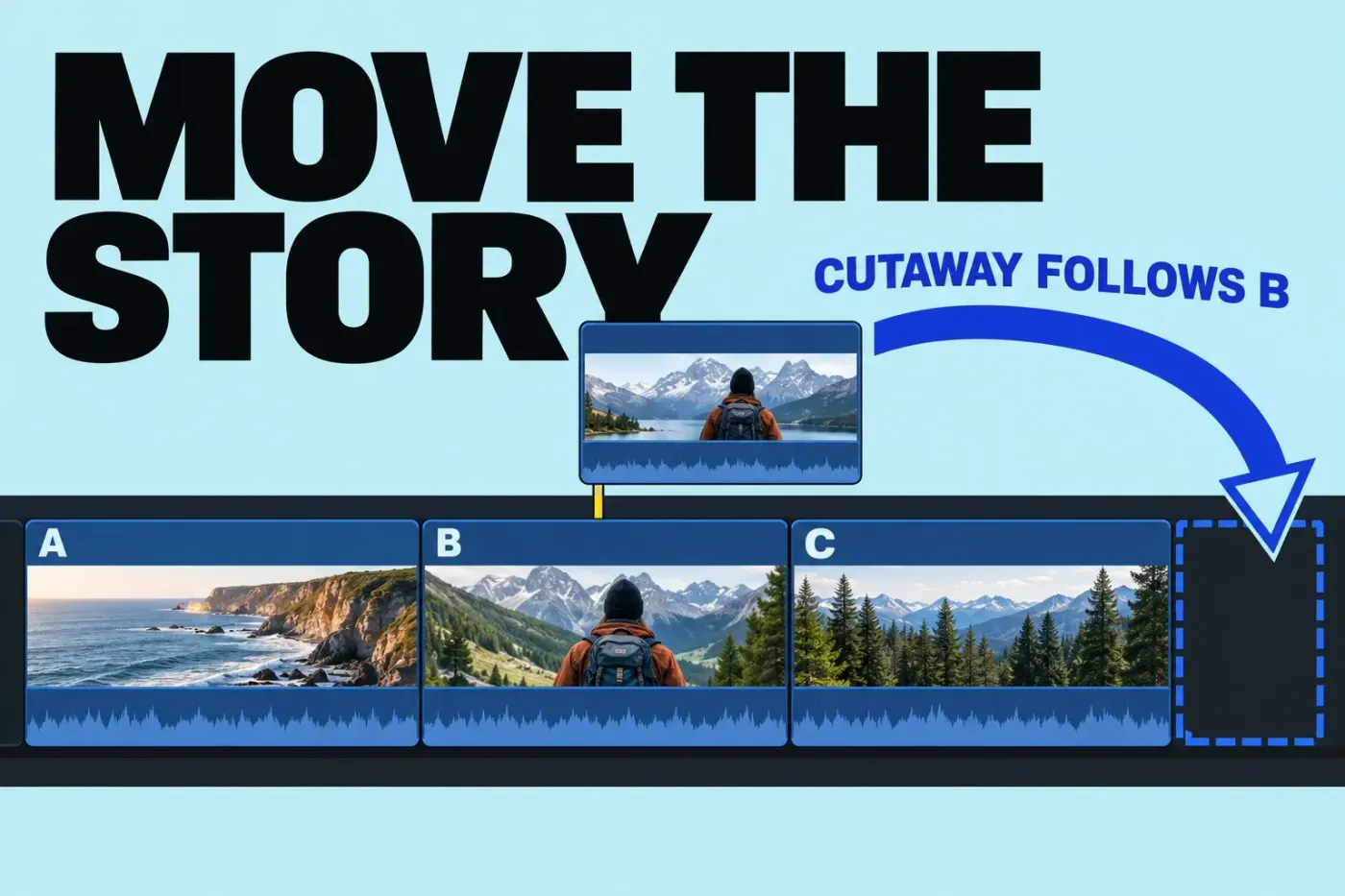
Take a simple example sequence of three interview sections: A, B, and C. A cutaway is connected to B. If you move B after C, the cutaway normally moves with B. That is useful when the picture illustrates B’s answer.
Now suppose the picture belongs with the narration under C instead. Keeping it connected to B gives it the wrong dependency. Before moving anything, decide which primary moment should carry it through later revisions.
To change a connection point, hold Command-Option and click inside the connected clip at the point you want attached to the primary storyline below. Choose a point within the connected clip that lies over the intended primary clip. For a connected storyline, click its gray border at the intended point. The connection moves where you click; it does not mean “attach this clip to any other clip I choose.”
Recheck the connection line after the change. Move the associated primary clip in a practice project, then undo, to confirm which material follows it. Reanchoring changes the relationship that subsequent edits use.
Keep a connected clip at its current time
Sometimes the cutaway or cue needs to stay at its current timeline position while you change the primary sequence beneath it. For that, there’s a temporary override: hold the Grave Accent key (`) while moving, trimming, or deleting a primary-storyline clip. Its connected material keeps its position and timing. For a move, you can use either the Select tool or the Position tool while holding the key.
Try it on the A–B–C sequence: with the Select tool, move B after C normally and watch the cutaway follow B. Undo with Command-Z. Repeat the same move while holding Grave Accent and check that the cutaway stays at its old time. These are alternative edits from the same starting state.
Inspect its new connection and play across the changed area. If the shot now illustrates the wrong sentence, it has kept its time but lost its meaning in the edit. I would use this override for a specific timing decision, then review the resulting relationship before the next rearrangement.
Use a secondary storyline for a sequence of connected shots
If several cutaways need to be edited as a sequence above the interview, put them in a connected, or secondary, storyline. Apple’s storyline instructions allow normal insert, append, replace, overwrite, and trim edits inside it, including ripple edits. This gives the cutaways an editable sequence of their own while the container remains connected to the primary storyline.
Select two or more connected clips and choose Clip > Create Storyline (Command-G). A gray border appears around them. If the selected clips are separated in time, Final Cut Pro inserts gap clips between them; creating the storyline does not close those existing spaces.
Click the gray border at the top to select the whole storyline, then drag that border to move the group. Selecting a clip inside it instead lets you work on that clip. Check what is selected before dragging: moving the container changes where the sequence sits; editing within it changes the cutaway sequence. The whole storyline has the connection behavior described above, including the default first-frame connection.
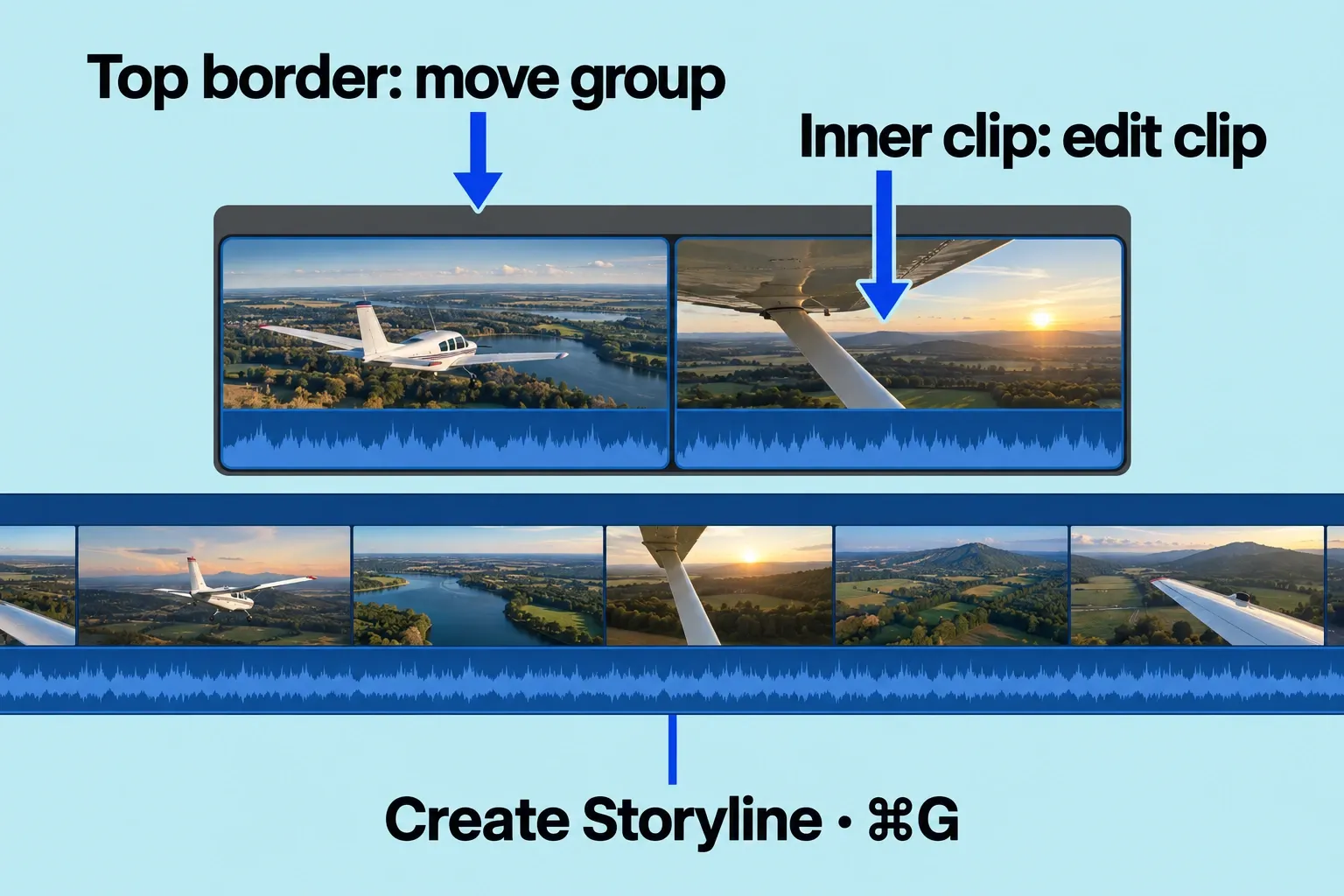
If you need to return to separate connected clips, select the gray border and choose Clip > Break Apart Clip Items (Shift-Command-G). I would use a secondary storyline for this cutaway sequence: its border makes the group easy to select, while its shots remain available for normal timeline edits.
Delete or replace with a gap?
Check both the selected range and its attachments before deleting. Deleting an entire primary clip and deleting only part of it have different consequences:
| Your goal | Command | What to check afterward |
|---|---|---|
| Remove a whole primary clip and close its slot | Edit > Delete, or Delete | Following primary clips ripple to close the gap. Connected clips or storylines attached to the deleted clip are normally deleted too. |
| Remove a primary clip while keeping connected material at its current time | Hold Grave Accent while selecting the primary clip and pressing Delete | Connected material stays in place. This remains a ripple deletion; the override does not reserve the deleted primary clip’s slot or guarantee unchanged project duration. |
| Remove a selected part of a primary clip | Select that partial range, then use Edit > Delete | The range is removed and the storyline ripples. Connected items within that partial range are retained and shifted to the closest primary-storyline clip. Inspect their timing and attachment. |
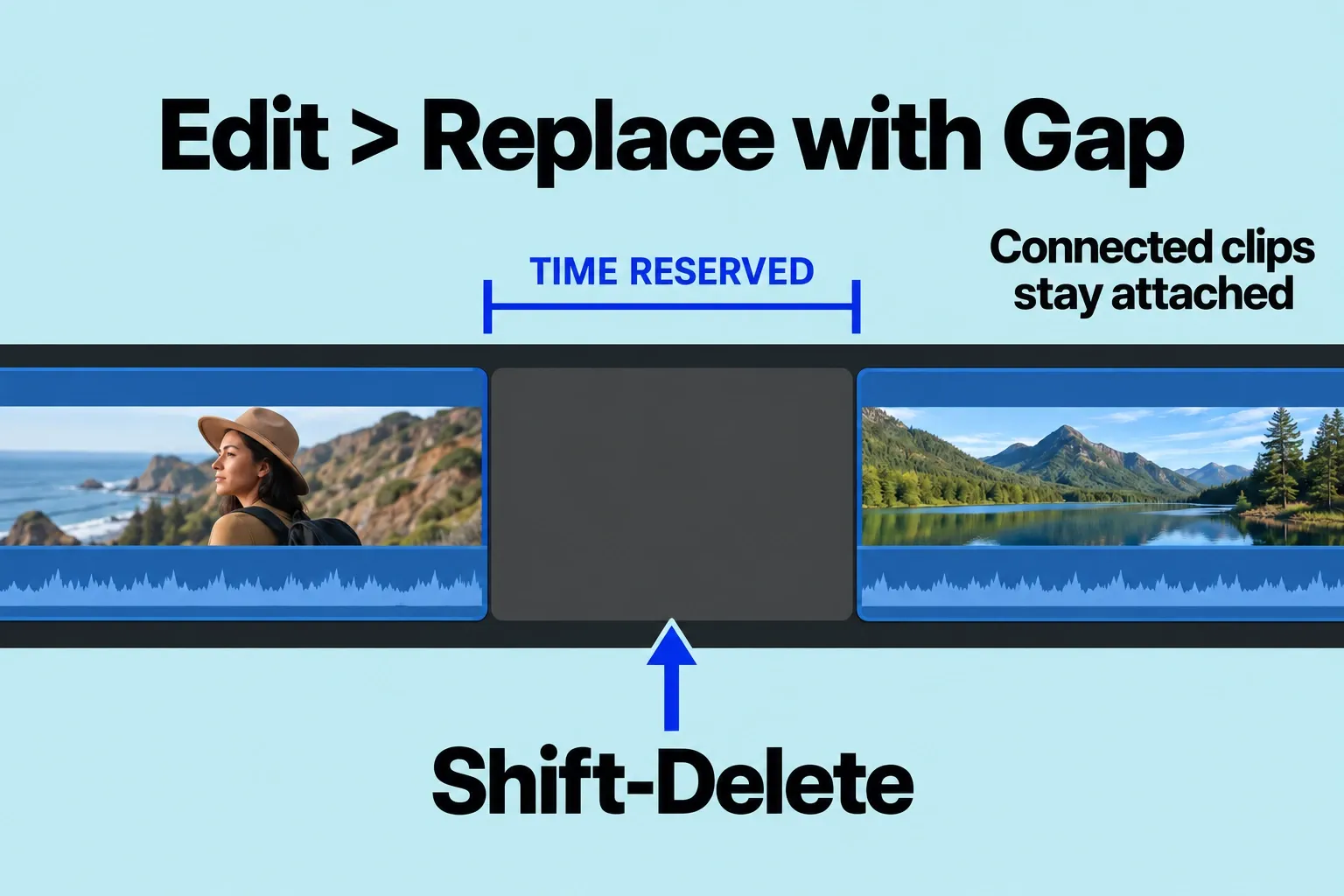
| Remove content while preserving total duration and timing | Edit > Replace with Gap, or Shift-Delete | A gap replaces the selection without a ripple edit. Connected clips remain attached to the resulting gap. |
A gap reserves time in the primary storyline. Review the viewer and audio across that time; an intact slot doesn’t mean the finished picture and sound are right. If you deleted the wrong selection, use Command-Z immediately. Removing clips from the project timeline does not delete their source media from the browser or Finder.
Position tool and snapping
Use the Position tool when you deliberately need to move a primary clip without making room at the destination. Choose it from the Tools menu or press P. It leaves a gap at the old location and overwrites material at the new one. Inspect the destination before dropping the clip, then press A to return to the Select tool.
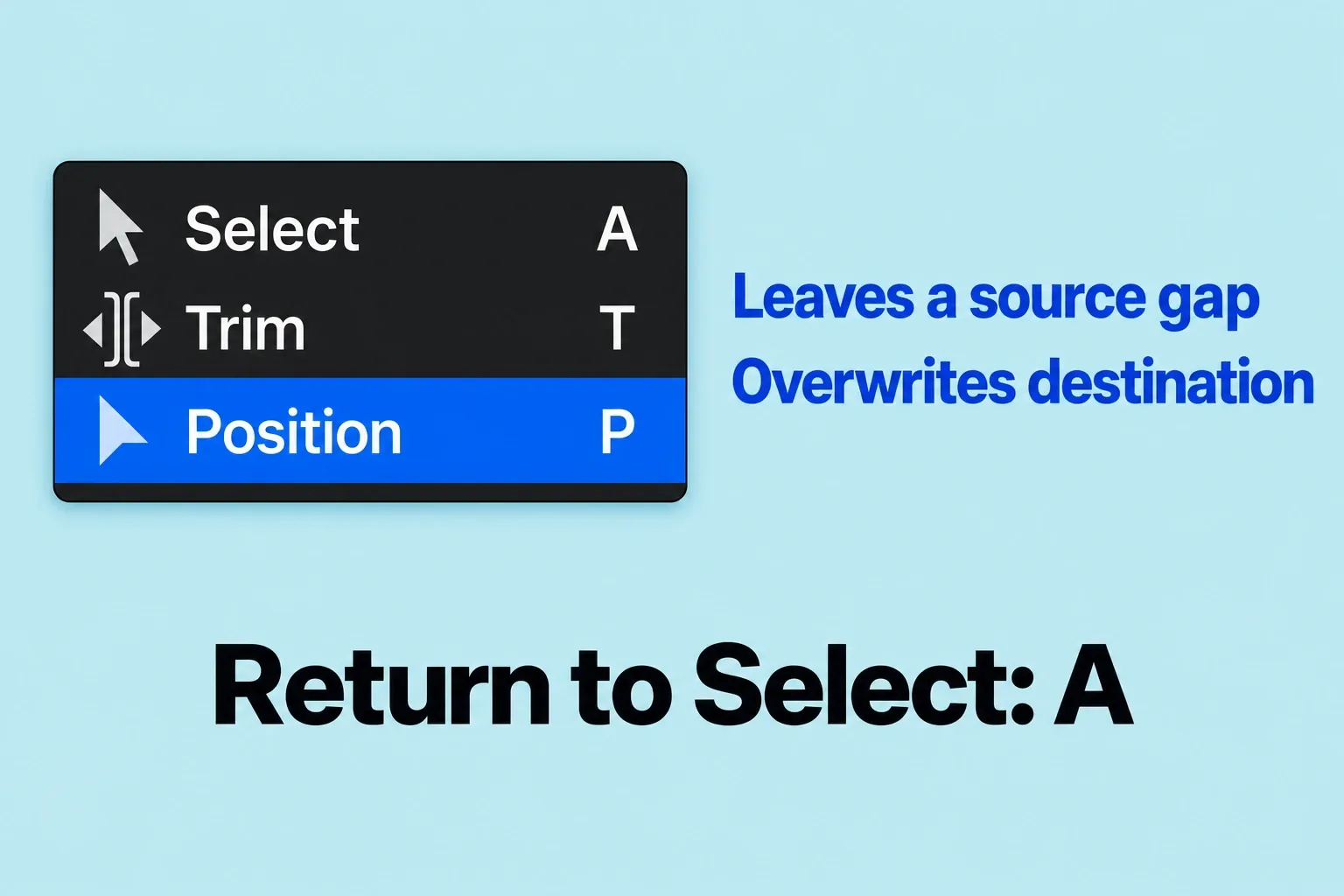
The Position tool handles the placement itself. For connected material, decide whether to let it follow the parent or use Grave Accent to keep its time. Because an overwrite replaces what was at the destination, review any displaced picture or sound there before continuing.
Snapping aligns items with clip boundaries, the playhead or skimmer, markers, and other timeline points. Choose View > Snapping (N) to toggle it; a menu checkmark means it is on. Snapping also applies with the Position tool. If a drag keeps jumping to a nearby boundary, N is the control you want; if later clips close up or attached material follows a primary clip, look at the edit operation and connection instead.
A short practice check
Use three disposable primary clips and a cutaway in a practice project. Note the starting order, cutaway position, connection, and project duration. Make one change at a time, undoing before trying the next alternative:
- Move B after C with Select, then repeat with Grave Accent held. Compare what happens to the cutaway.
- Move B with Position. Check the source gap, overwritten destination, and attached material.
- Delete B normally, then try Grave Accent with Delete, then Replace with Gap. Compare both attachments and duration.
After each change, play across the affected area and inspect the connection line. Keep the operation that fits the intended story and timing. For frame-level work after those relationships are clear, use the separate trim and split guide.