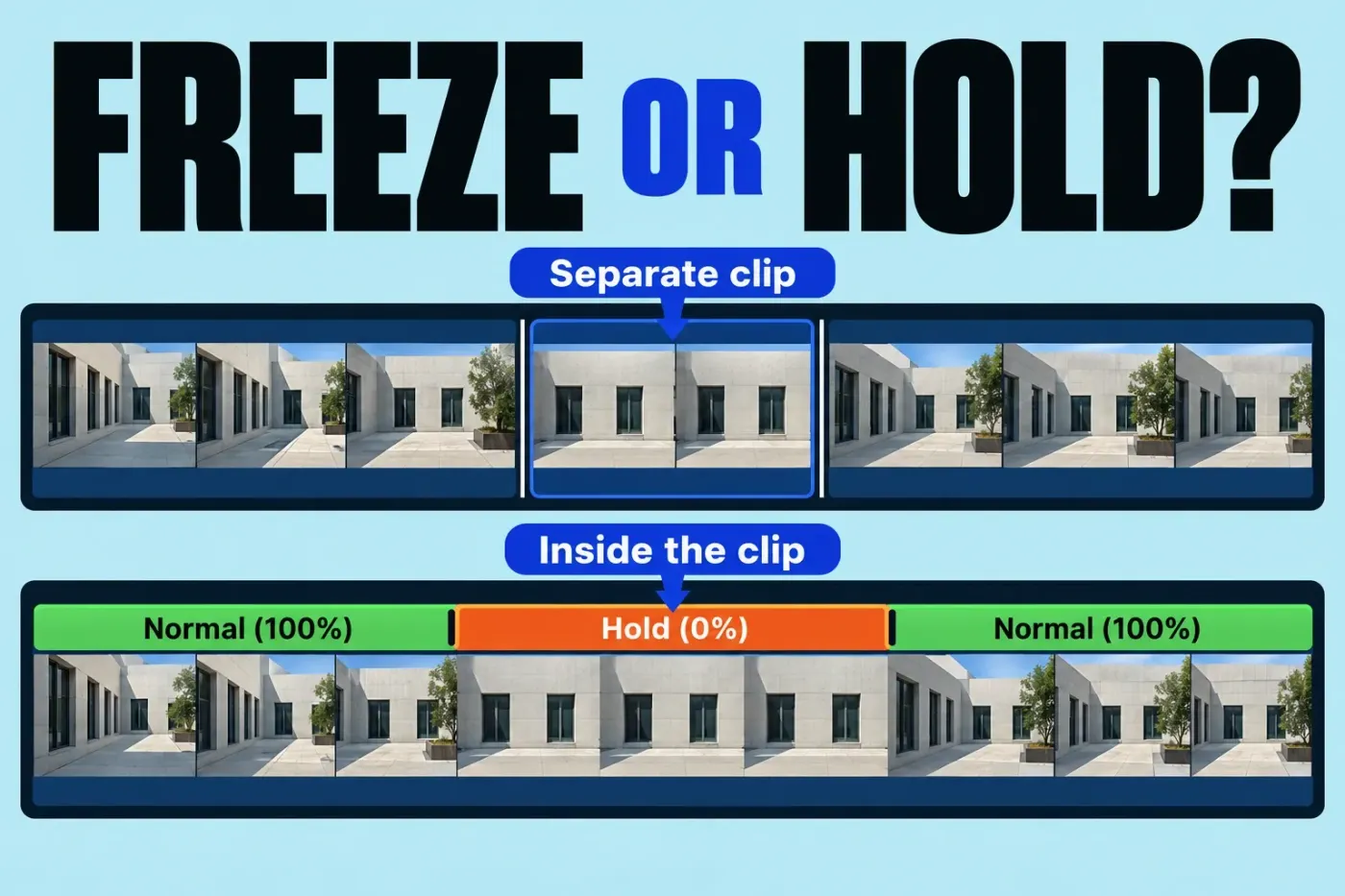
Use a freeze-frame clip when you want a separate still clip that can be moved in the project. Use a hold segment when the pause should remain inside the original clip and you need to adjust its duration there. Both temporarily stop the action onscreen; neither is the same as exporting a still-image file. Apple's Final Cut Pro for Mac 12.4 freeze-frame guide and hold-segment guide make that distinction explicit.
Pick the structure before adding the pause
A freeze-frame clip is a new piece of timeline media. You can create it from a clip in the timeline or the browser. From a timeline clip, it is inserted at the skimmer or playhead position; from the browser, it is attached to the primary storyline as a connected clip at the playhead. That difference matters if you later rearrange the pause or reuse the still elsewhere. Settings and effects previously applied to the source clip are rendered into the freeze-frame clip, so check how it looks instead of expecting it to follow every later change to the moving source.
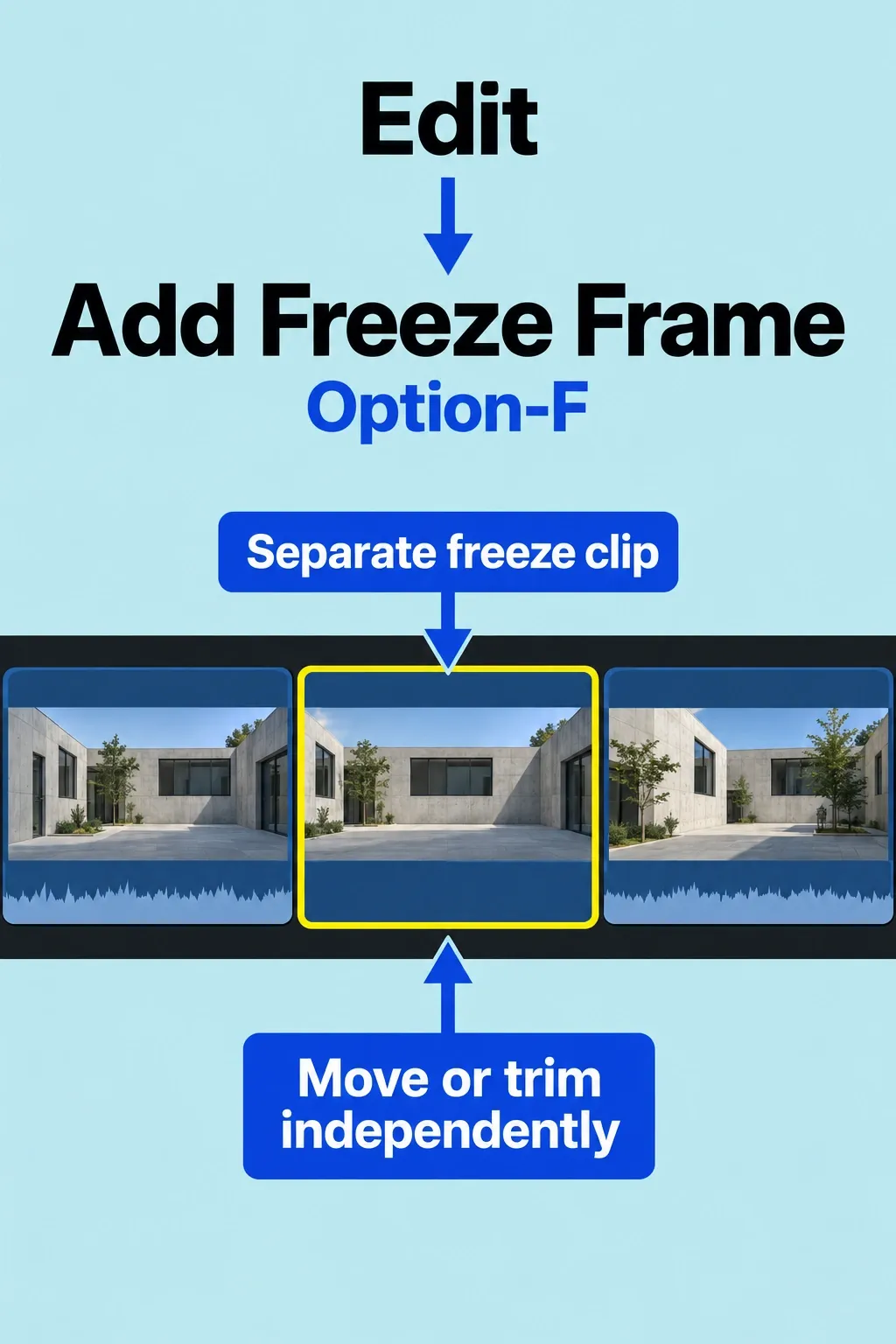
A hold segment stays within the original clip. It gives you more precise control, particularly in variable-speed work. Adding one lengthens the clip, so check downstream timing and any synchronized sound afterward. The magnetic timeline guide explains how surrounding items behave when an edit changes length. I'd reach for a hold when the motion should stop and resume inside the same shot; a separate clip is easier to treat as its own edit decision.
Create a separate freeze-frame clip
Move the skimmer or playhead to the desired frame in a timeline or browser clip. Choose Edit > Add Freeze Frame (Option-F). You can also add one on the fly during playback. Check where the new clip appears: inside the timeline at the chosen frame if you started there, or as a connected clip if you started from the browser. Its default duration is four seconds; change that default in Final Cut Pro > Settings > Editing > Still Images.
Review the still's framing and the cut on either side. A pause on a frame with motion blur or a blink may look awkward when held, even though the command succeeded. If the surrounding scene needs a different rhythm, adjust the placement or duration of the new clip rather than adding another freeze frame by accident.
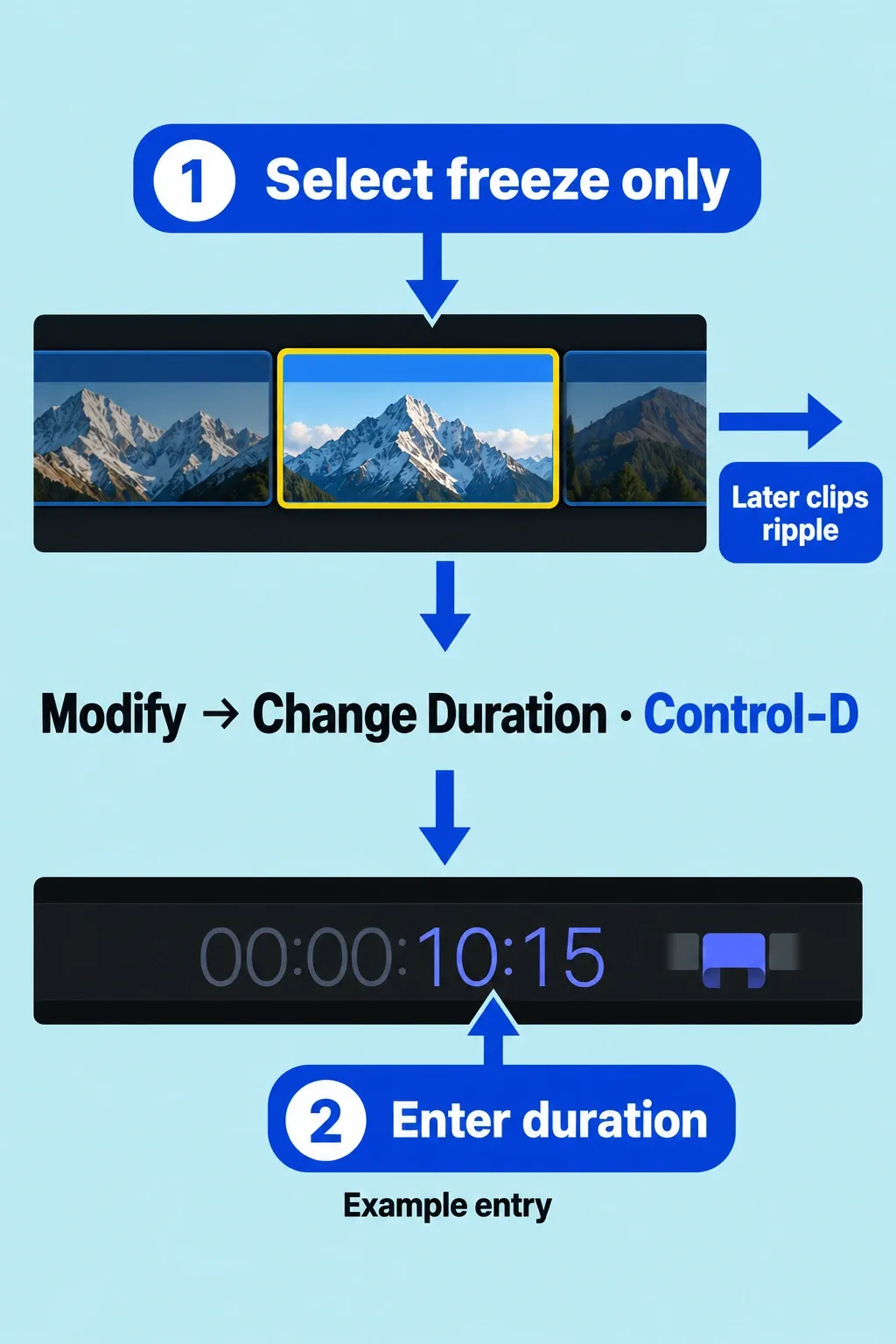
To change the duration of just the new freeze-frame clip, select only that clip in the timeline, choose Modify > Change Duration (Control-D), then type the new duration in the timecode display. This changes the selected clip rather than the Still Images default for future freeze frames. Recheck the following cut and surrounding titles or audio after the duration change.
Create a hold inside the clip
In the timeline, click the clip you want to pause and move the skimmer or playhead to the desired frame, or select a range within that clip. Choose Hold from the Retime pop-up below the viewer, or press Shift-H. A playhead-based hold is two seconds by default. With a range selected, the hold lasts for that range and uses its first frame. Drag the hold segment's retiming handle to change its duration.
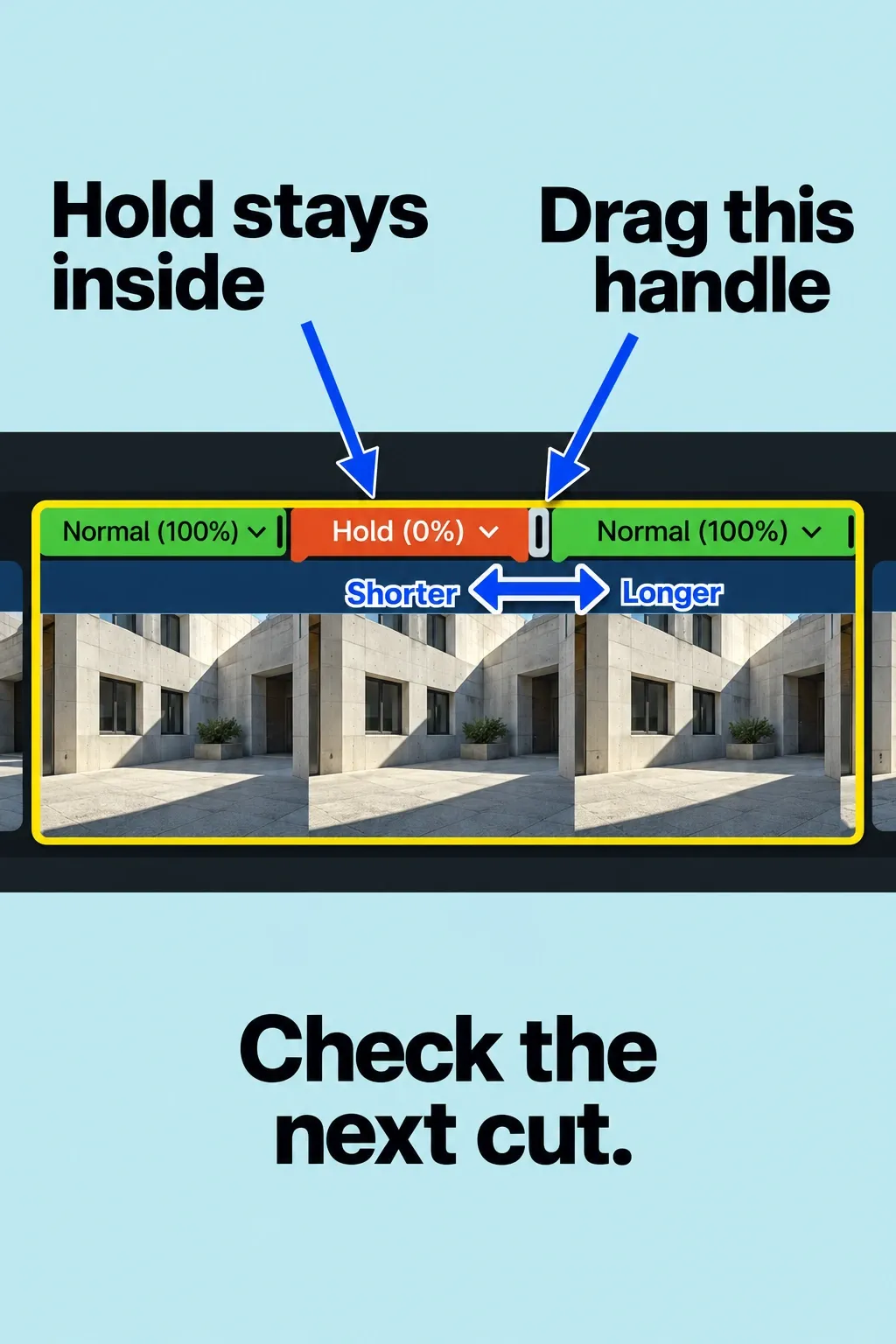
Play through the lead-in, pause, and return to motion. Because the hold lengthens the clip, check titles, connected items, music cues, and the following cut in the full project. If your intended result is a JPEG or another image file for delivery rather than a pause in the movie, use Apple's Export still images workflow instead.