Audio and captions
Import and Export SRT Closed Captions in Final Cut Pro
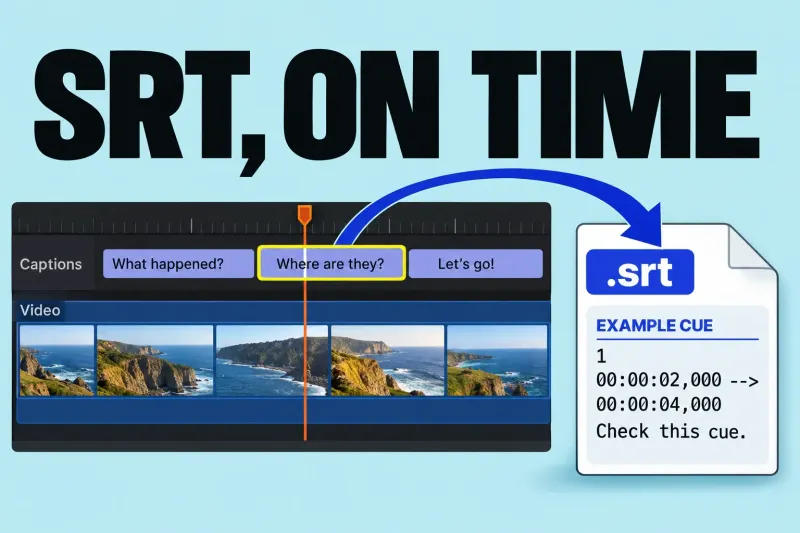
To export an SRT from Final Cut Pro, the project needs an SRT closed-caption role. Then export the required language from File >
Final Cut Pro guides
Make speech clear and decide how the viewer will read it. Choose a route for sound, timing or caption delivery, then check the result in the exported file as well as the timeline.
Start with what the viewer cannot follow: the words, their timing, the balance with music or the text on screen. Fixing all four at once makes it harder to tell which change helped.
Check that the intended recording is active before applying cleanup. Final Cut Pro lets you view and edit audio components within a clip. Work on the relevant component when the problem belongs to one part of the recording.
Judge dialogue, music and effects together. Apple's audio meters show levels and peak warnings; also listen through the loudest overlaps. A dialogue clip that sounds clear alone may still be buried by music.
If the speech is out of time, solve that relationship before spending time on its tone. If noise is the issue, compare a short treated section with the untreated sound, then listen in the sequence. Keep a change because it improves intelligibility, not because every available enhancement is switched on.
For a later sound hand-off, roles can organize clips and support separate stem exports. Check the assignments while the edit is still understandable. Delivery choices belong in the export workflow.
A caption you can see in the timeline is only the starting point. Apple's closed-caption export options distinguish separate sidecar files, CEA-608 embedding and permanent burn-in; available options depend on the destination.
If you already have an SRT file, the SRT import and export guide follows that specific route, including timing and formatting checks.