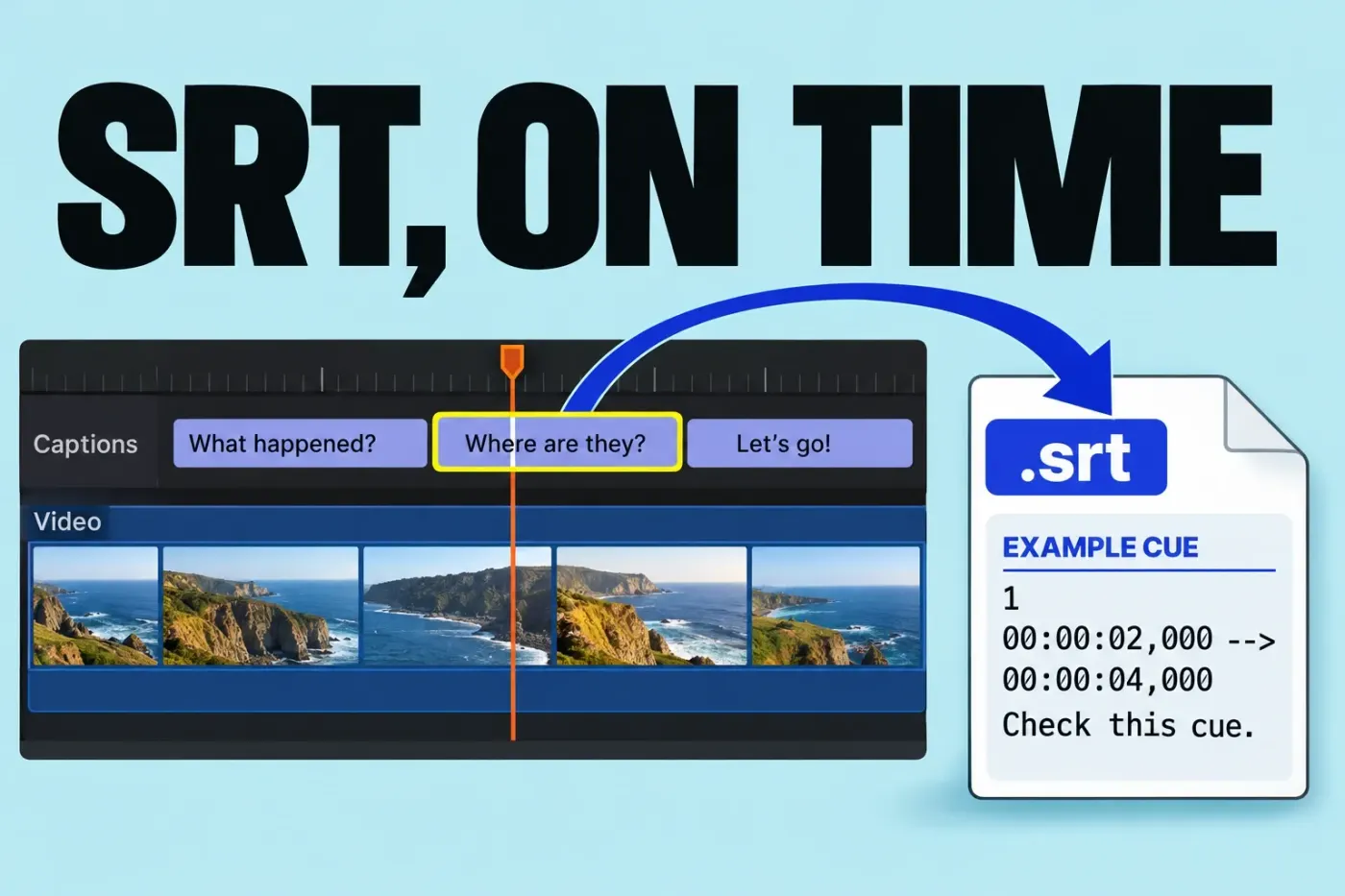
To export an SRT from Final Cut Pro, the project needs an SRT closed-caption role. Then export the required language from File > Export Closed Captions. An SRT is a separate timed-text file, a different deliverable from subtitles permanently drawn into the video image.
Decide whether you need an SRT or visible text in the picture
Use a sidecar SRT when the receiving platform or client requests a separate caption file. Final Cut Pro treats sidecar export, CEA-608 embedding, and permanent burn-in as different deliverables, so pick the one the recipient needs.
Final Cut Pro 12.3 added Generate Captions for customizable subtitles and conversion from closed captions. A styled subtitle item on the timeline is not an SRT closed-caption role; identify the object and its role before export.
The import workflow starts with an existing SRT file and does not depend on automatic speech transcription. If you already have closed captions in another format, use the conversion step below before exporting. If you have only a transcript, you still need to assign caption timings to its text.
Import SRT captions into the project
If the library has no SRT role for the required language, open Modify > Edit Roles and click Captions. Choose Caption Role > SRT, check the language subrole, and add the required language with the Language button if needed. Click Apply. Once saved, the caption-role setup makes these roles and subroles available to projects in that library.
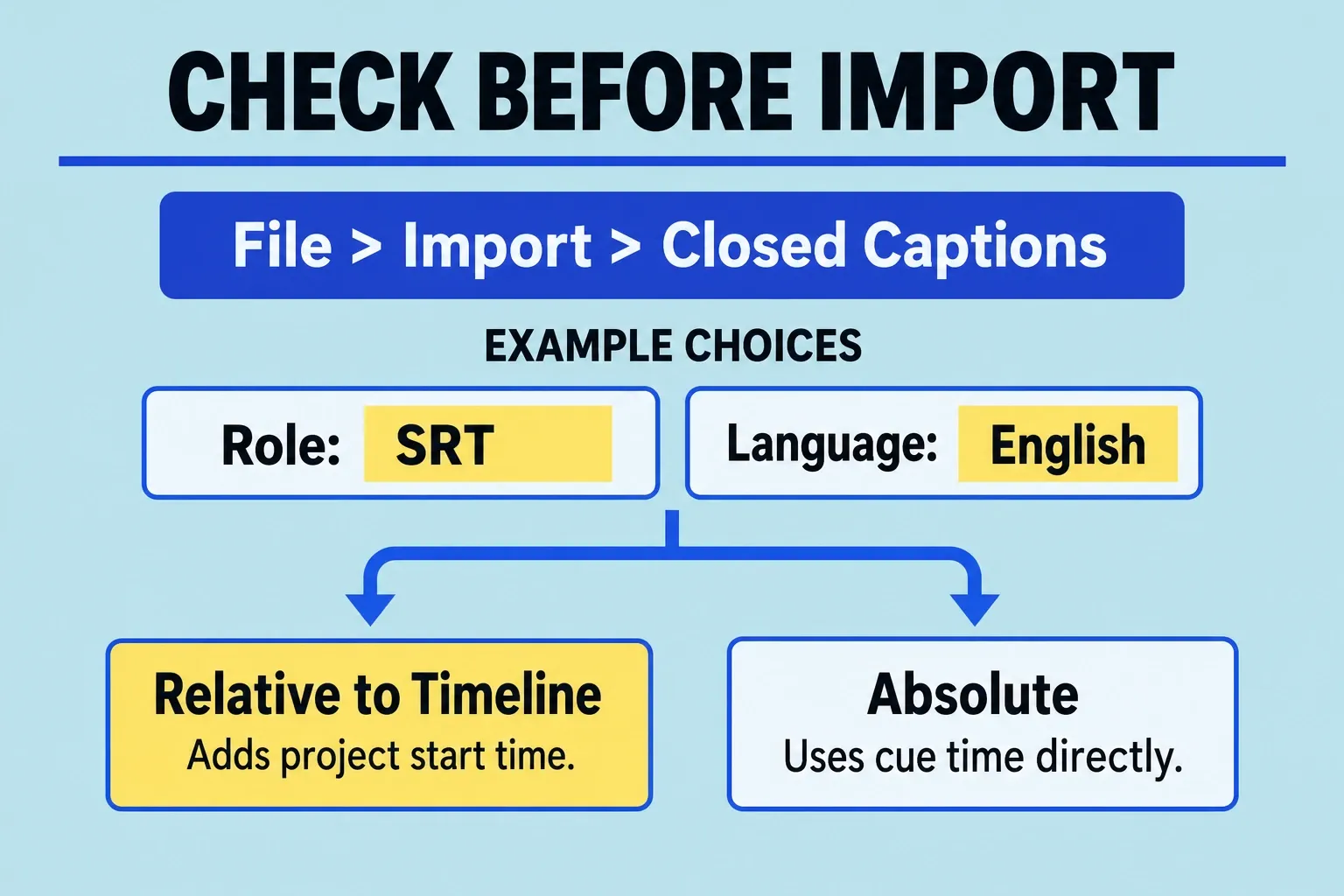
Open the intended project and choose File > Import > Closed Captions. In the closed-caption import dialog, select a valid .srt file. Under Import as Role, the left menu selects the SRT caption role and the right menu selects its language subrole. Choose Relative to Timeline if the file's timings are elapsed from the start of the movie, or Absolute if they already use the project's timeline time. The example below explains the difference. Click Import; the captions appear in a lane at the top of the timeline.
If you only have a video with text visibly burned into its pixels, that is not an SRT file waiting to be imported. Likewise, changing a document's filename extension to .srt does not supply valid timestamps and cue structure.
Before importing a complete caption file, inspect the two-cue formatting example below. Each cue has a number, a start and end timestamp, and text. The timestamps only show the format; they aren't synced to your footage.
1
00:00:02,000 --> 00:00:04,000
This is a caption timing example.

2
00:00:06,000 --> 00:00:08,000
Check this cue against your own media.
If you have no timed file and automatic transcription is unavailable for your setup, you can create closed captions manually: position the timeline playhead at the first cue, choose Edit > Closed Captions > Add Caption, and type the text in the caption editor. Repeat for the remaining cues and drag each caption's start or end to set its duration. Check the resulting caption format and language; convert to SRT before export if necessary. This is caption work, not a way to turn burned-in picture text back into a timed file.
Relative vs absolute timing: prevent the one-hour offset
Suppose a project begins at 01:00:00:00, while the first SRT cue begins at two seconds. If those timestamps describe elapsed time from the start of the movie, choose Relative to Timeline. Apple defines this as adding the project's start time to each cue's timestamp, placing the cue two seconds into the project. Absolute uses each caption's timestamp directly, regardless of the project's start time.
On export, relative timing subtracts the project's start time. In this example, a cue two seconds after the one-hour project start becomes 00:00:02,000 in a relative SRT export or 01:00:02,000 with Absolute timing.
Don't apply a one-hour correction on reflex. First work out whether you're looking at a constant offset or drift that keeps growing. If captions are equally early throughout, investigate their start-time basis. When they gradually diverge, check whether the caption file was made for the same edit, speed, and duration; moving all cues by one fixed amount can't repair a changing mismatch.
Review captions against the finished edit
Check the first cue, a middle section, and the last cue for timing, then review the entire program. Correct names, technical terms, punctuation, and missing speech. Include meaningful speaker or sound information where the delivery's accessibility requirements call for it.
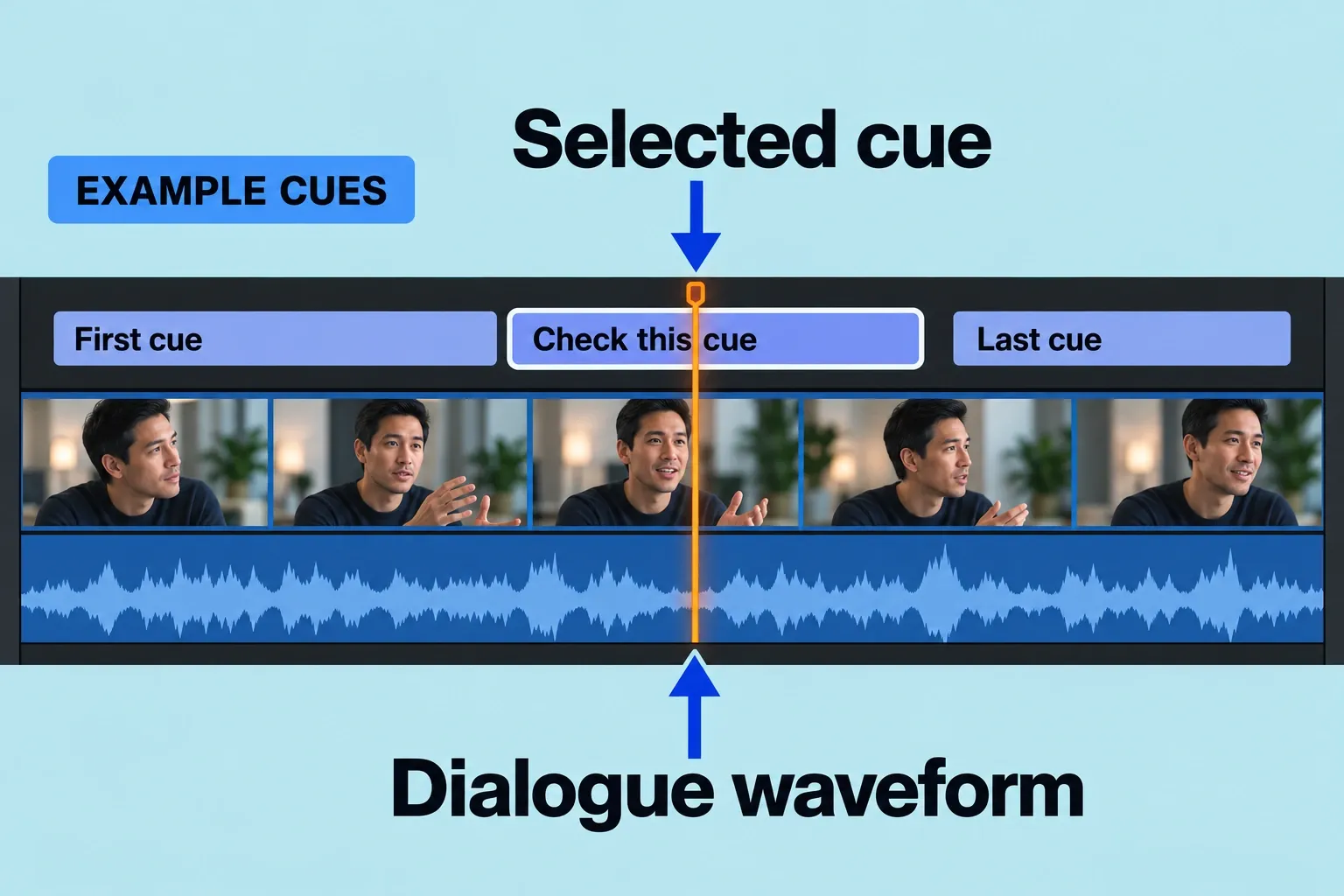
Compare the caption text with the final sequence, not an earlier transcript. An interview rearranged in the Magnetic Timeline may no longer match an SRT prepared before those changes. A valid text file can still be editorially wrong.
If a caption turns red in the timeline or Captions pane of the timeline index, select it and open the inspector. Read and resolve the caption-format warning before export. A clean import doesn't prove the captions are right: the software accepting a file and a viewer understanding it are different checks.
Export the SRT file
If the current closed captions use another standard, select the captions you need, Control-click, then choose Duplicate Captions to New Format > SRT. Duplication retains the original caption set and creates a language subrole in the new format. Review the SRT copy because some text or formatting can be lost. A styled subtitle title clip is not a closed caption that this command can convert.
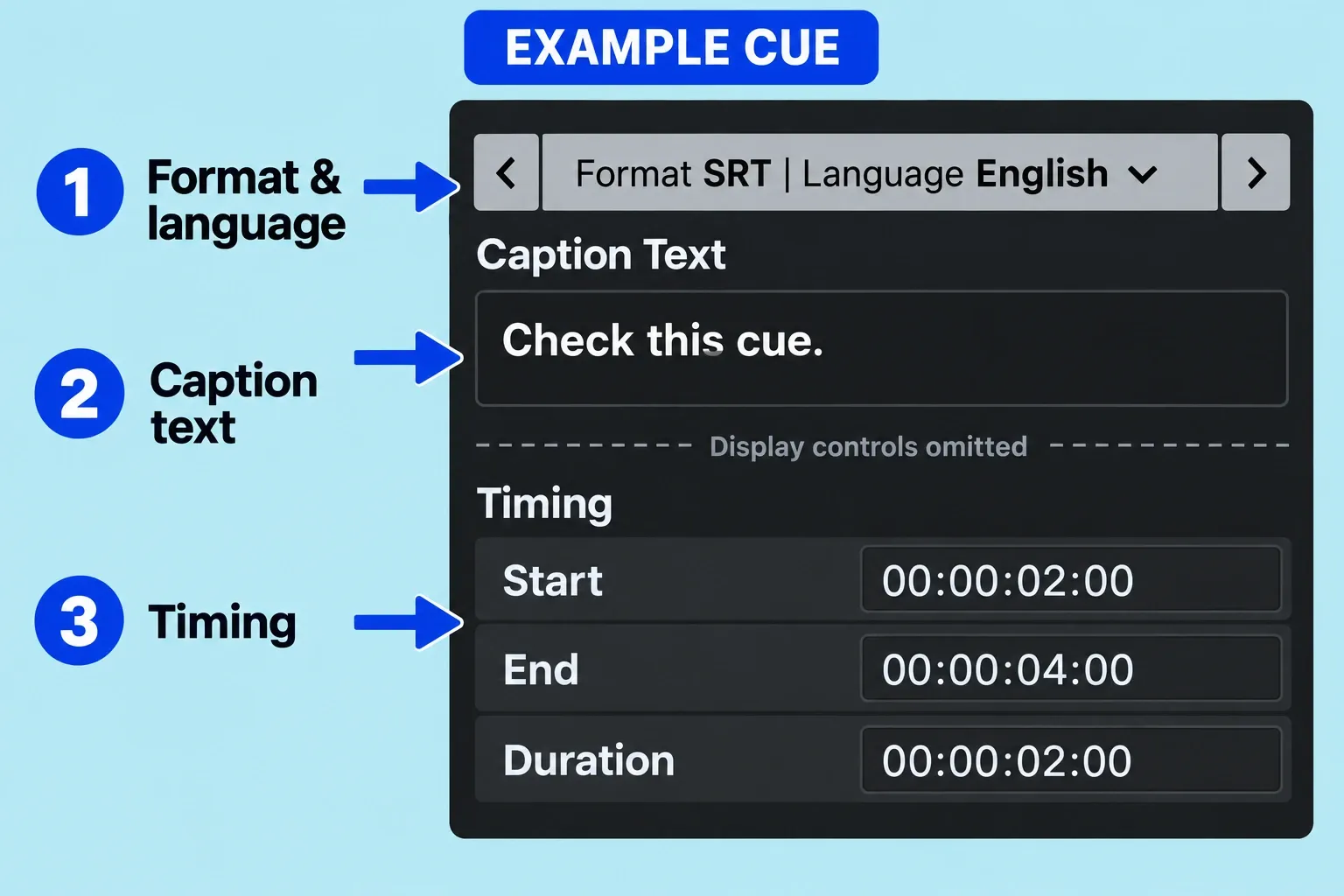
With the project open in the timeline, choose File > Export Closed Captions. Set the file name and save folder. Under Roles, select only the required language subroles belonging to the SRT role; leave unrequested formats and languages unchecked. Each selected language subrole creates a separate file.
Choose Relative to Timeline or Absolute start time to match the receiving workflow. For SRT, Apple recommends deselecting Include Formatting in most cases: SRT has no standard text-formatting specification, so styling may appear incorrectly in the intended player. Leave it off unless the receiver has a specific supported formatting requirement, then click Export.
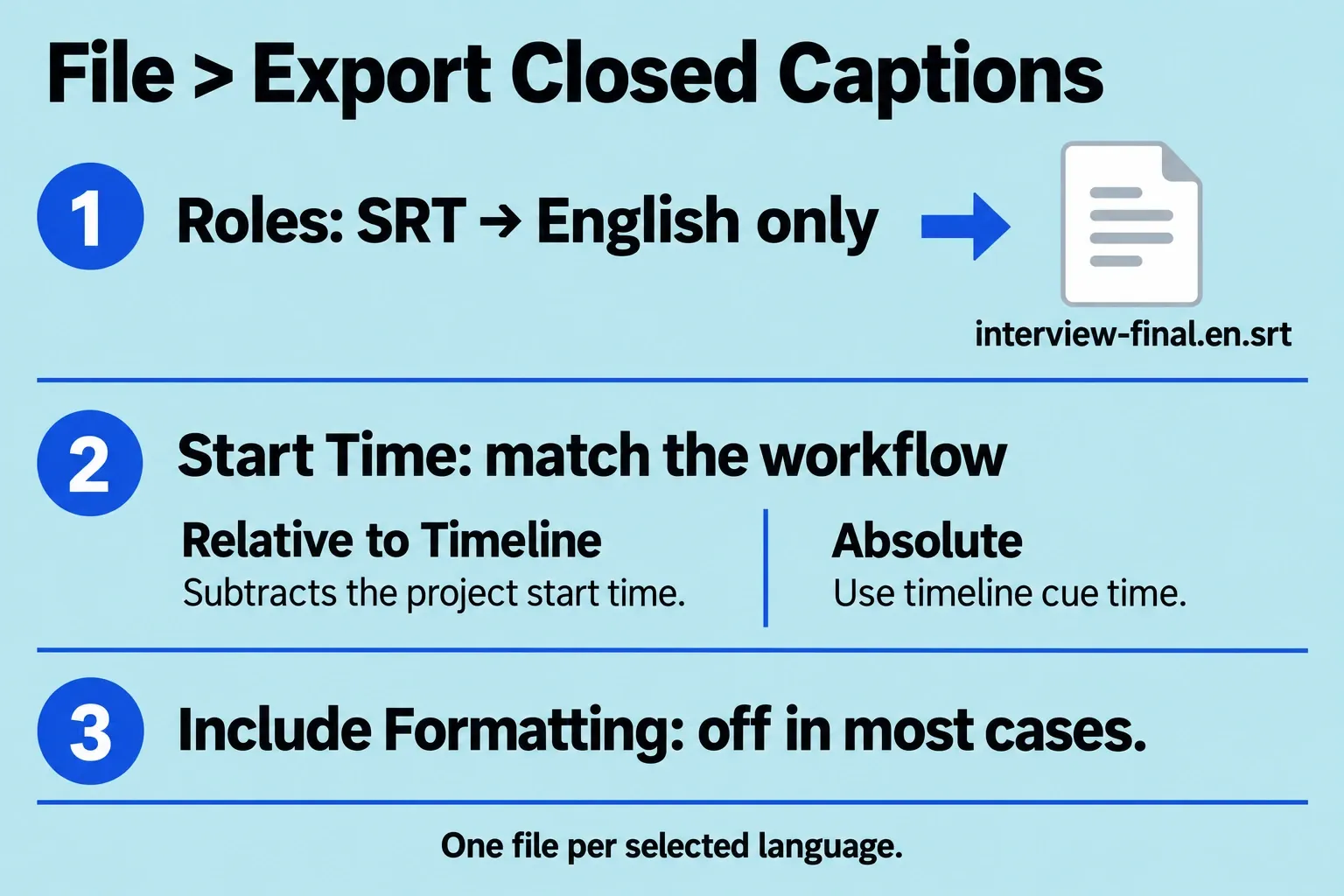
Selecting one English SRT subrole produces one SRT file. Select more language subroles only when the handoff calls for additional files.
Give the video and SRT matching, clear names such as interview-final.mp4 and interview-final.en.srt. This is a handoff convention, not an instruction to rename a video container. Open the SRT as text and inspect its cue numbers, timestamps, and wording. For YouTube, the file must be plain UTF-8; its basic SRT support ignores styling markup.
Captions not exporting: check the deliverable first
No visible words in the video? You may have exported a sidecar SRT instead of burned-in text. If no SRT was created, check the selected SRT role and language subroles. When styling disappears, consider the SRT formatting limitations before recreating the entire file.
Finally, load the finished video and its SRT in the intended player or platform, using that destination's caption-import workflow. Check that the selected caption track contains the expected language and matches the same picture at the opening, middle, and end, then review the whole program. Confirm captions can be switched on and off where the destination supports it. If the file imports but starts an hour early or late, revisit the relative/absolute time basis; if the mismatch grows, compare the captions with the actual final edit. For YouTube delivery, pair this check with the video export workflow.