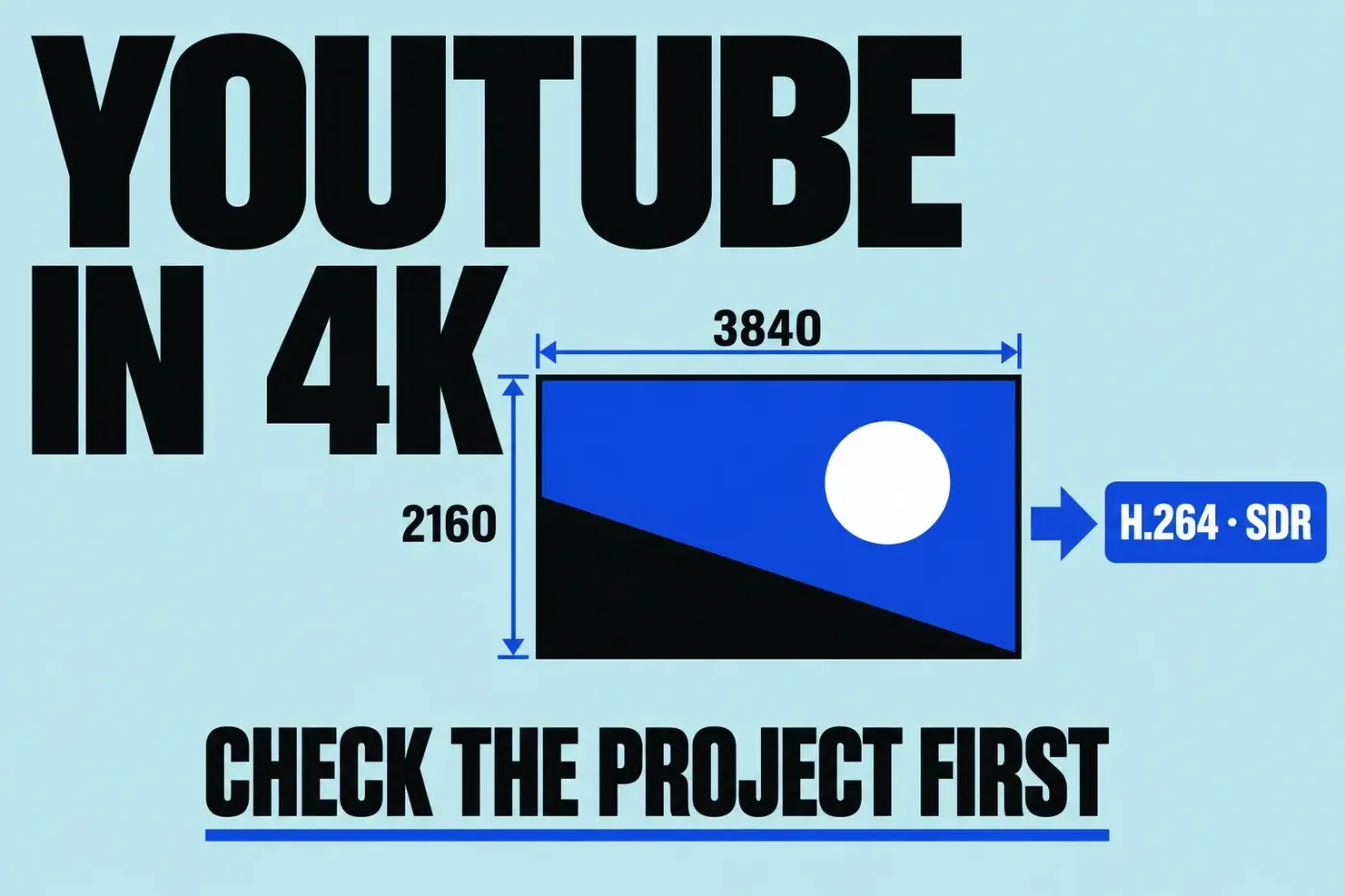
For a conventional 4K SDR YouTube video, use a 3840 × 2160 project, an intentional frame rate, Rec. 709 color, and an H.264 delivery file. Switch playback to Optimized/Original before exporting. Start with a correctly configured project; an export preset cannot restore detail that the source or edit does not contain.
This workflow is for landscape SDR delivery on Mac. HDR and vertical video need their own project and delivery checks.
Check the project before choosing a format
Confirm the sequence you intend to deliver, its duration, frame size, frame rate, and color space. Select the project in the browser, choose Window > Project Properties (or press Command-J), then click Modify in the Project Properties inspector. In these project settings, inspect Video resolution and rate, Rendering color space, and Audio channels and sample rate. For this conventional stereo delivery, check Stereo and 48 kHz. After any intended changes, click OK. Exporting a 1080p edit at 4K won’t give you genuine 4K detail, and a 60 fps file won’t necessarily make motion smoother if the source was recorded at a lower rate.
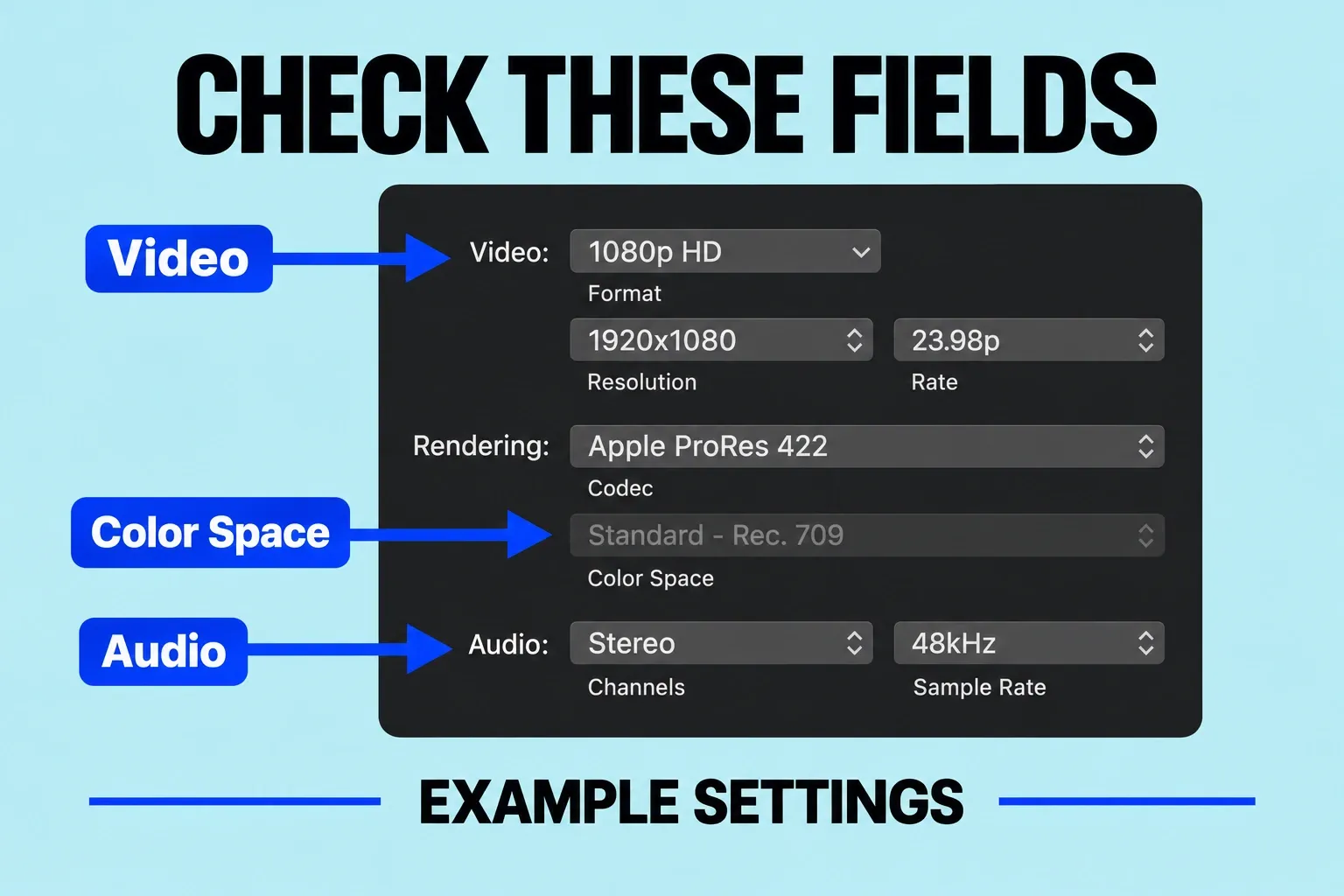
For a straightforward project with a single capture rate, preserve that rate through delivery. YouTube recommends matching the recording frame rate and using BT.709 for SDR. For mixed-rate footage, decide the timeline rate deliberately rather than changing it as an upload “optimization.” Apple states that you cannot change an existing project’s frame rate unless its timeline is completely empty. Opening Modify does not remove that restriction.
If exposure and white balance still need work, correct them before export. If the local file changes appearance after export, compare the project and export color spaces before changing compression settings. Do not use this SDR recipe unchanged for an HDR project.
Vertical video is a separate job: for a 9:16 project, check reframing, titles, captions, and output dimensions together before exporting.
Export from Final Cut Pro
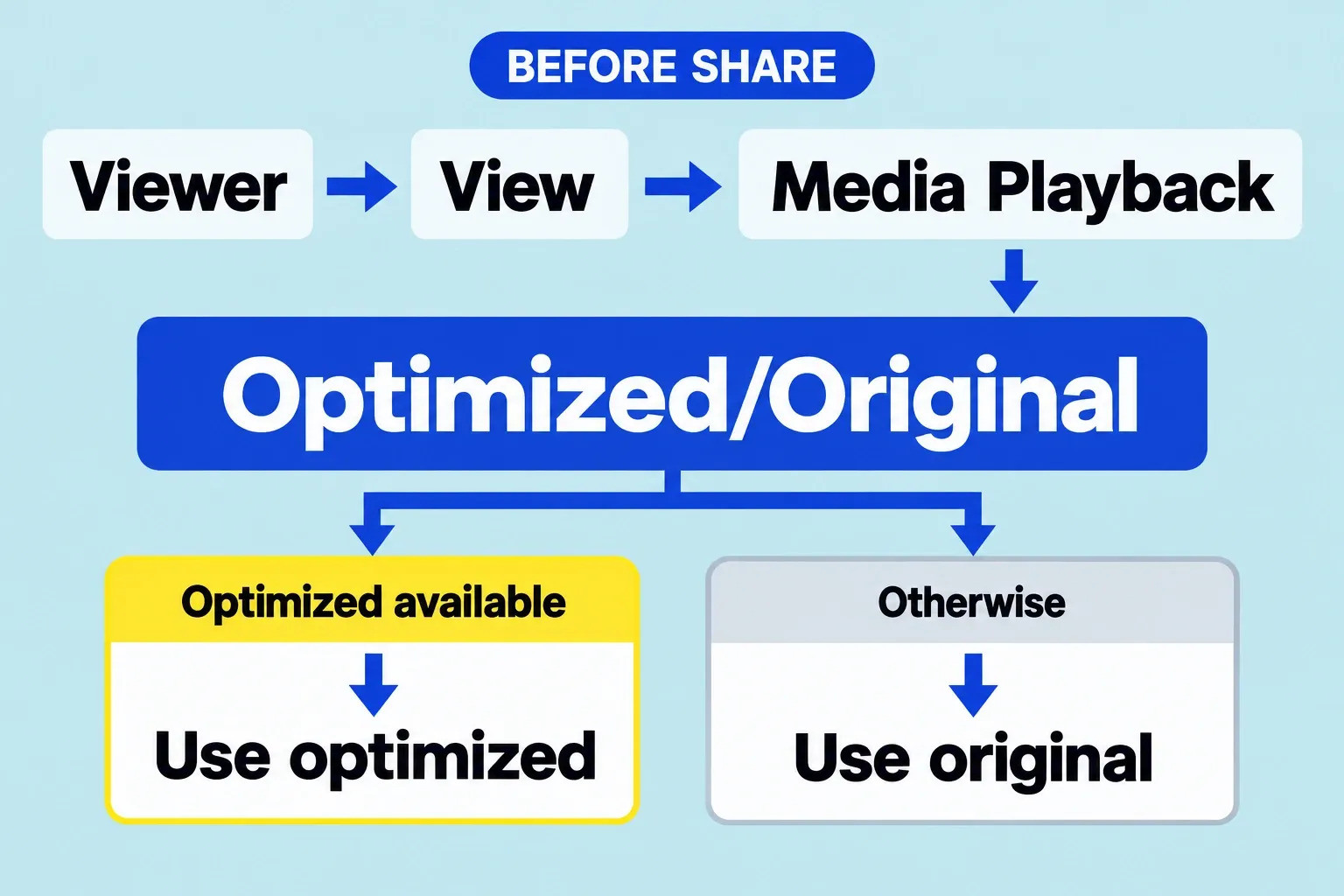
- Open the finished project. In the viewer’s View menu, choose Optimized/Original and ensure the needed full-resolution media is online. This uses optimized media when available, otherwise original media.
- For the whole movie, select the intended project in the browser. For an intentional excerpt, set a timeline range with I and O. Selecting a timeline clip alone does not define the exported range.
- Choose File > Share > Export File.
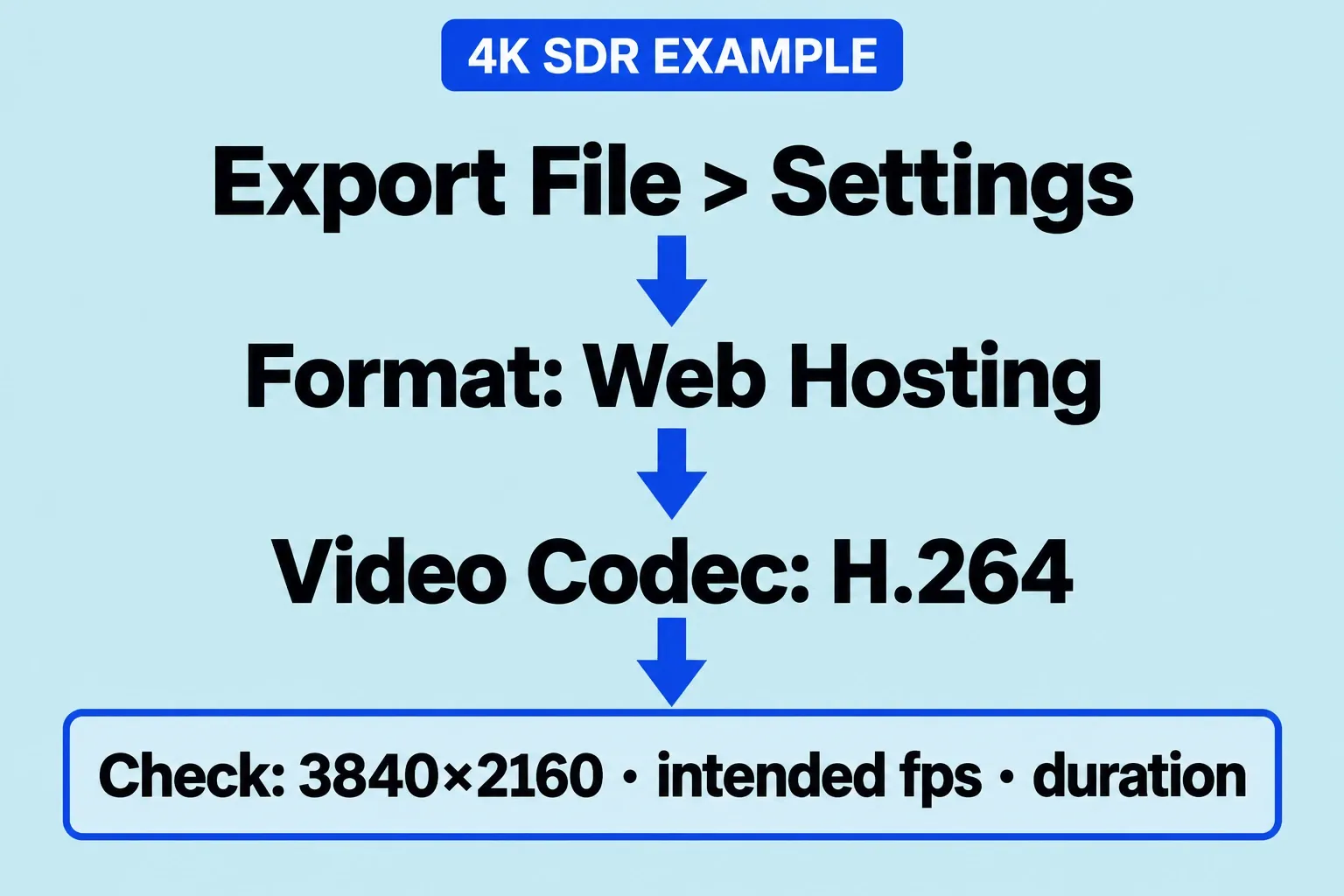
- Open Settings and choose Web Hosting from Format for this YouTube example. Select H.264, and choose 3840 × 2160 for a genuine 4K project. Check the listed Color Space and Audio Format; don’t treat them as blanks to fill in from an online checklist. Trust the actual output summary over the preset’s name.
- At the bottom of the Share window, confirm frame size and rate, audio channels and sample rate, duration, output file type, and estimated file size. The duration must match the whole movie or excerpt you intend to deliver. Click Next, choose a location with sufficient space, then click Save. Monitor the transcode in Background Tasks and wait for the completion notification before checking the saved file.
If you created alternate media for editing, the proxy workflow explains why creating proxies and selecting a playback mode are separate steps.
If the output summary does not show the intended 4K dimensions or frame rate, or the listed Color Space does not match the intended SDR delivery, return to the project and destination settings before exporting. Renaming the output file won’t fix any of it.
For Web Hosting, Audio Format lists the audio format that will be used; Apple makes it selectable when Format is Audio Only. Destination Color Space depends on the project settings and video codec. If a listed result differs from the intended SDR file, check those dependencies rather than searching for a missing manual field.
YouTube recommends MP4 with H.264 video and accepts MOV and other upload formats. H.264 describes a codec, while .mp4 and .mov describe containers. If your destination produces a supported MOV, upload it as is: renaming the extension converts nothing, and YouTube doesn’t require it.
How much bitrate does a 4K YouTube export need?
YouTube’s SDR upload guidance gives these reference ranges:
- 2160p at 24, 25, or 30 fps: 35–45 Mbps.
- 2160p at 48, 50, or 60 fps: 53–68 Mbps.
For conventional stereo audio, YouTube’s upload recommendations include AAC-LC, stereo channels, and a 48 kHz sample rate; Google also lists other audio formats and channel layouts. Use that guidance as a reference to compare against the actual Audio Format and channels/sample-rate summary, not as a list of controls to hunt for in Export File. The video bitrate ranges work the same way: your chosen destination may not expose a manual bitrate field at all, and no particular number guarantees a visual result.
If a delivery specification requires a precise custom setting unavailable in your current destination, check whether Compressor offers that control. I wouldn’t buy another app just because an online checklist names a field that your export window handles automatically.
File size can be estimated from average bitrate and duration. For example, 40 megabits per second over 600 seconds is about 3,000 megabytes of video data before audio and container overhead: 40 × 600 ÷ 8. That is an arithmetic estimate, not a measured Final Cut Pro output. Variable bitrate and the chosen codec can change the actual size.
Open the exported file before uploading
Inspect the exported file, not just the timeline preview. Open the saved file in QuickTime Player and choose Window > Show Movie Inspector (or press Command-I) to check its size and frame rate. Confirm the duration matches the intended movie or excerpt. Watch the opening, a detailed or fast-moving section, and the ending, then complete a full playback check before release.
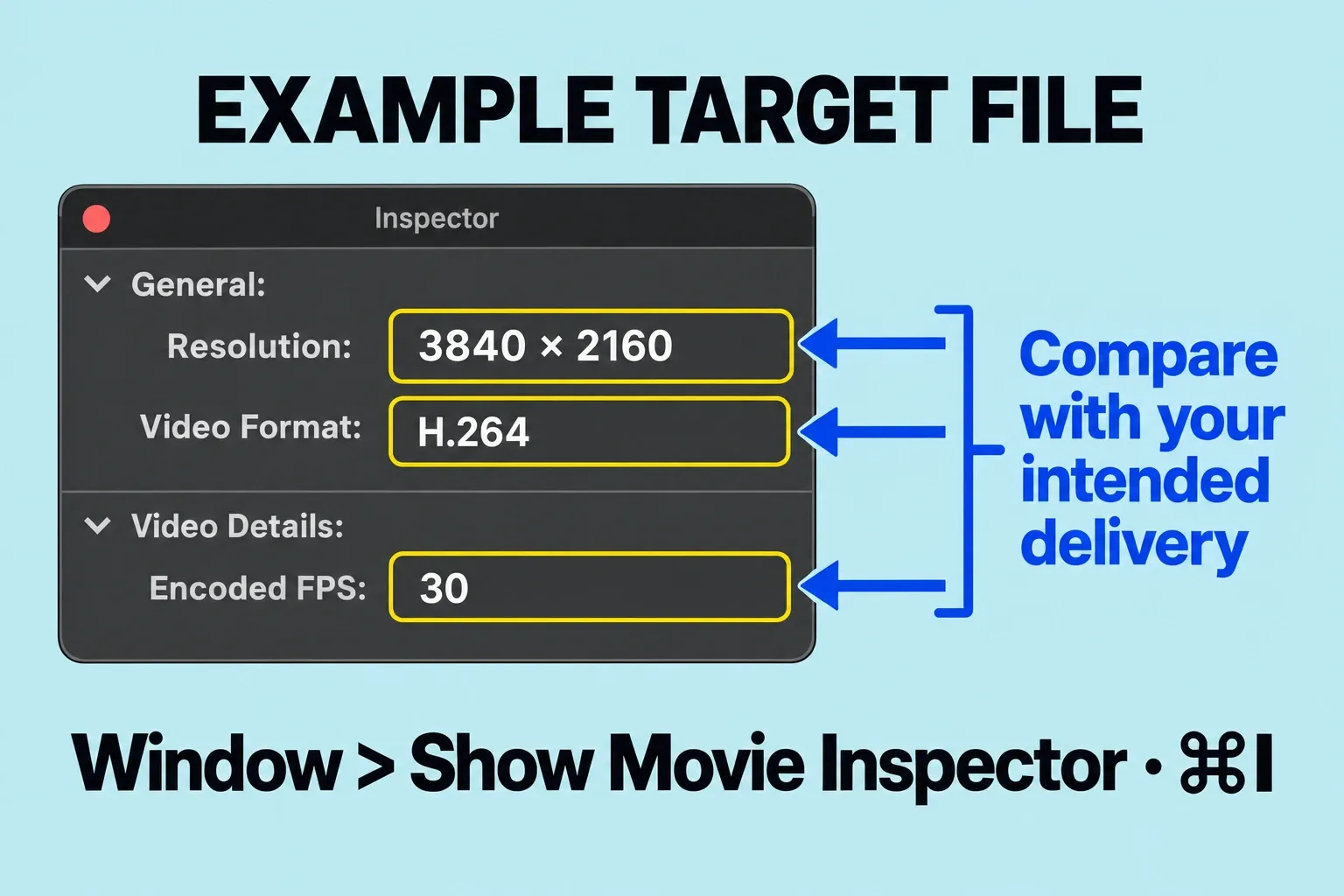
Look for a truncated ending, black gaps, wrong music balance, missing graphics, and unintended captions. If Final Cut Pro does not create the file, stop changing quality settings and diagnose the export failure separately. And if the local export already looks wrong, uploading it won’t tell you why.
For switchable captions, prepare a separate timed caption file. Decide deliberately whether text should be optional or permanently visible in the picture, and avoid delivering both by accident.
Why is the YouTube upload blurry?
Separate three observations: the source footage, the local export, and YouTube playback. Compare the same moment in each. If the local file looks correct but the player offers only low resolutions, check processing status before exporting again.
YouTube makes lower-quality versions available before higher-resolution processing finishes. Check the watch page’s Quality menu and wait for the intended resolution to become available before judging the processed 4K result. Processing time varies with the file and current traffic.
If 4K is available and the result remains poor, inspect the selected playback quality and compare the local export’s detail again. Raising the export resolution again and again won’t fix an underlying source, scaling, or focus problem.
Do I need ProRes for YouTube?
A ProRes master can be useful for further post-production. That does not make it necessary for every YouTube viewing copy. Choose the file for its job: preserve an appropriate master when the workflow needs one, and verify a manageable delivery file for upload.