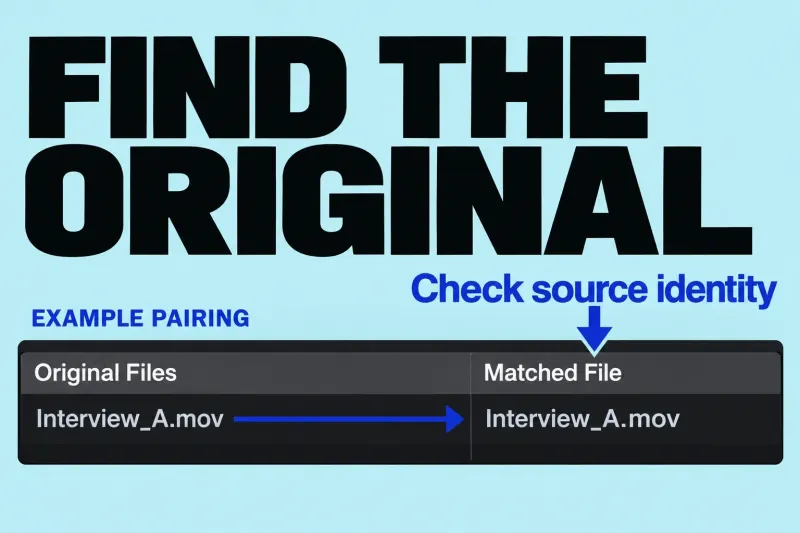
A Final Cut Pro proxy workflow uses alternate video files for editing, then returns to optimized or original media for finishing and export. The critical distinction is between creating proxies and selecting them for playback. Doing one doesn’t mean the other is in effect.
Original, optimized, and proxy media
Original media is the imported source. Optimized media uses ProRes 422 as an editing representation. Proxy media provides another representation for editing, often at a reduced frame size. Keep the originals to protect your source footage and regenerate optimized or proxy files later. Available optimized media can be used for finishing; a proxy does not replace your source archive.
When comparing Final Cut Pro optimized vs proxy media, begin with the actual problem. If original clips already play acceptably, transcoding everything adds preparation and storage work for no benefit you can point to. If playback struggles, a representative proxy trial can tell you whether a lighter representation helps your particular edit.
ProRes Proxy vs HEVC in Final Cut Pro 12.3
Apple’s 12.3 release notes introduced HEVC in place of H.264 for newly generated compressed proxies. The current playback guide and proxy creation guide list Apple ProRes 422 Proxy and HEVC. Older H.264 instructions describe earlier releases.
Try both available formats on a short sample of your own footage. Compare the space used, preparation time, and responsiveness, then keep whichever one meets your playback and storage needs on your Mac.
Create proxy media after import
Start with a few representative clips: include motion, the source codec you use most, and any unusually demanding shot. Confirm that the original drive is connected and the selected media storage location has room for additional files.
Before creating proxies, check the destination for the selected library:
- Select the library in the Libraries sidebar, then choose File > Library Properties.
- Click Modify Settings and check the current Media destination. Leave it as it is if it suits the edit. If you need another folder, select Choose, navigate to the folder, then click Choose.
- Click OK.
The library storage settings put imported, optimized, proxy, and consolidated files under Media. Cache is for render files, analysis files, thumbnails, and audio waveforms. Changing Media sets the destination for future operations. Existing source files stay in place, so don’t expect proxies you generated earlier to turn up in the new folder.
Then create the proxies:
- Select the source clips in the browser.
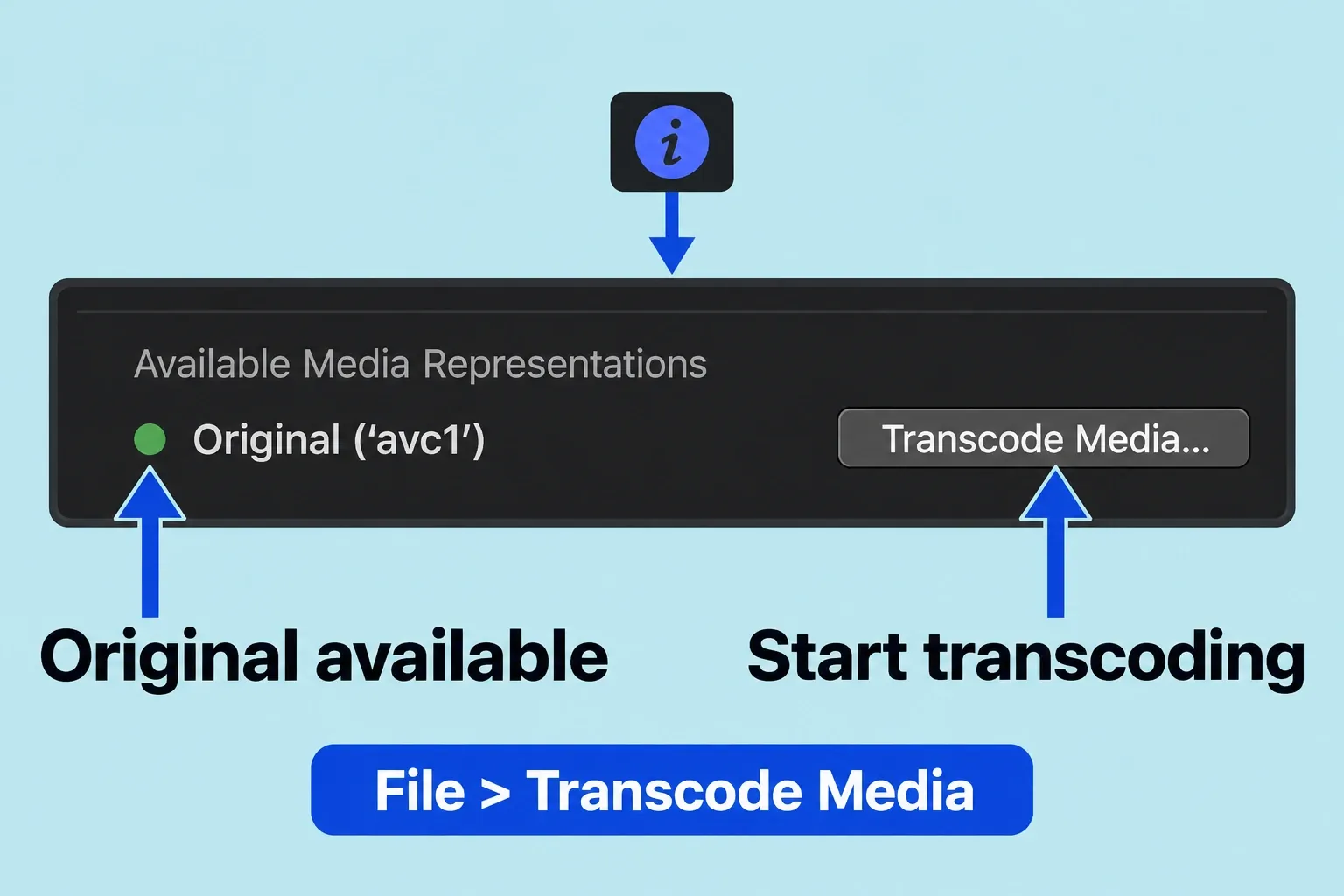
- Choose File > Transcode Media.
- Enable Create proxy media and choose the available format and frame size.
- Click OK, then monitor Background Tasks and wait for transcoding to finish.
- Confirm in the selected clip’s media information that its proxy actually exists.
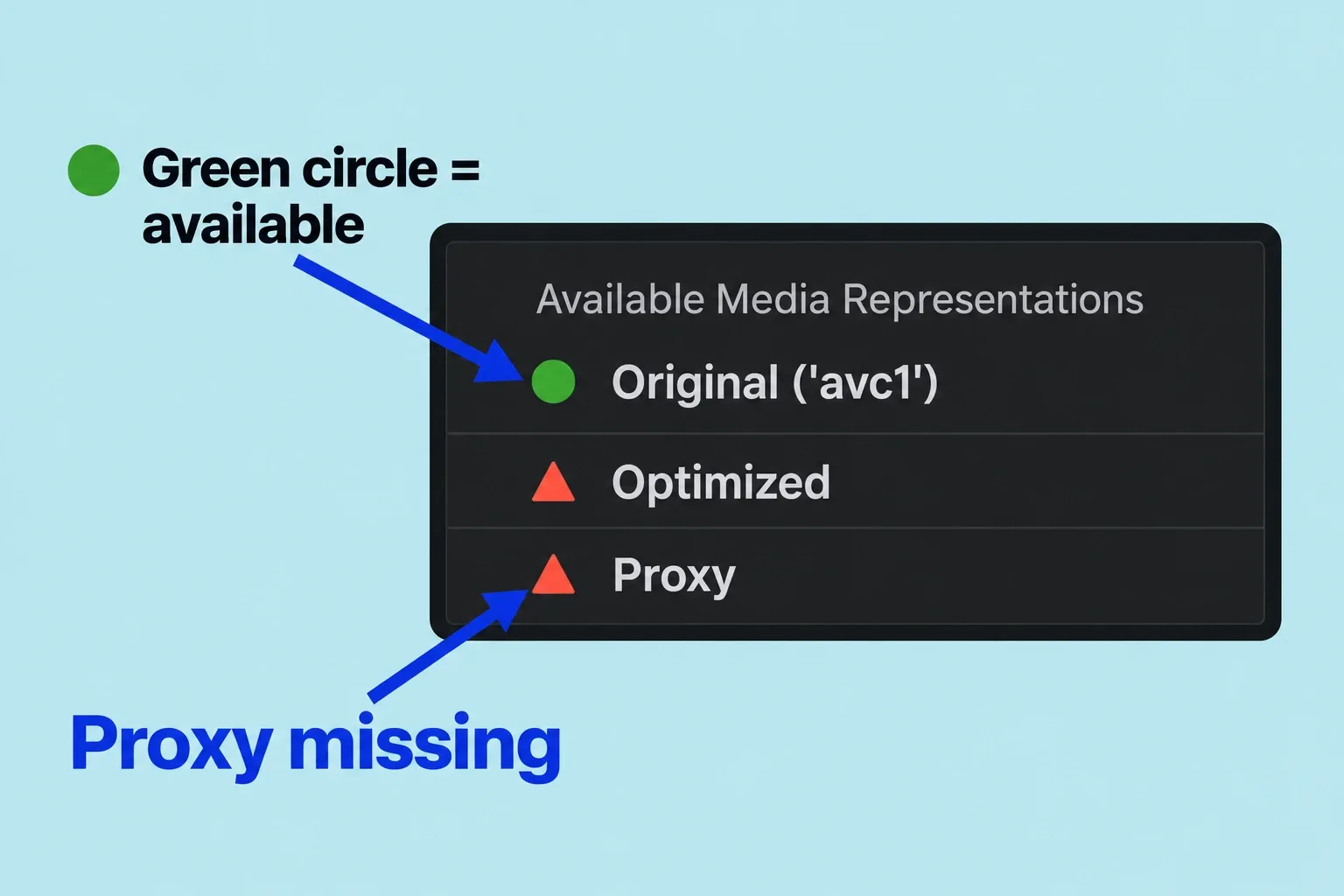
After transcoding finishes, select a source clip in the browser. If the inspector is hidden, press Command-4 or choose Window > Show in Workspace > Inspector, then click Info at the top. Scroll to Available Media Representations. As the creation and inspection instructions explain, a red triangle means that the selected clip has no proxy; a green circle beside Proxy means its proxy is available. A dimmed transcode option can simply mean the representation already exists, not that the library is damaged.
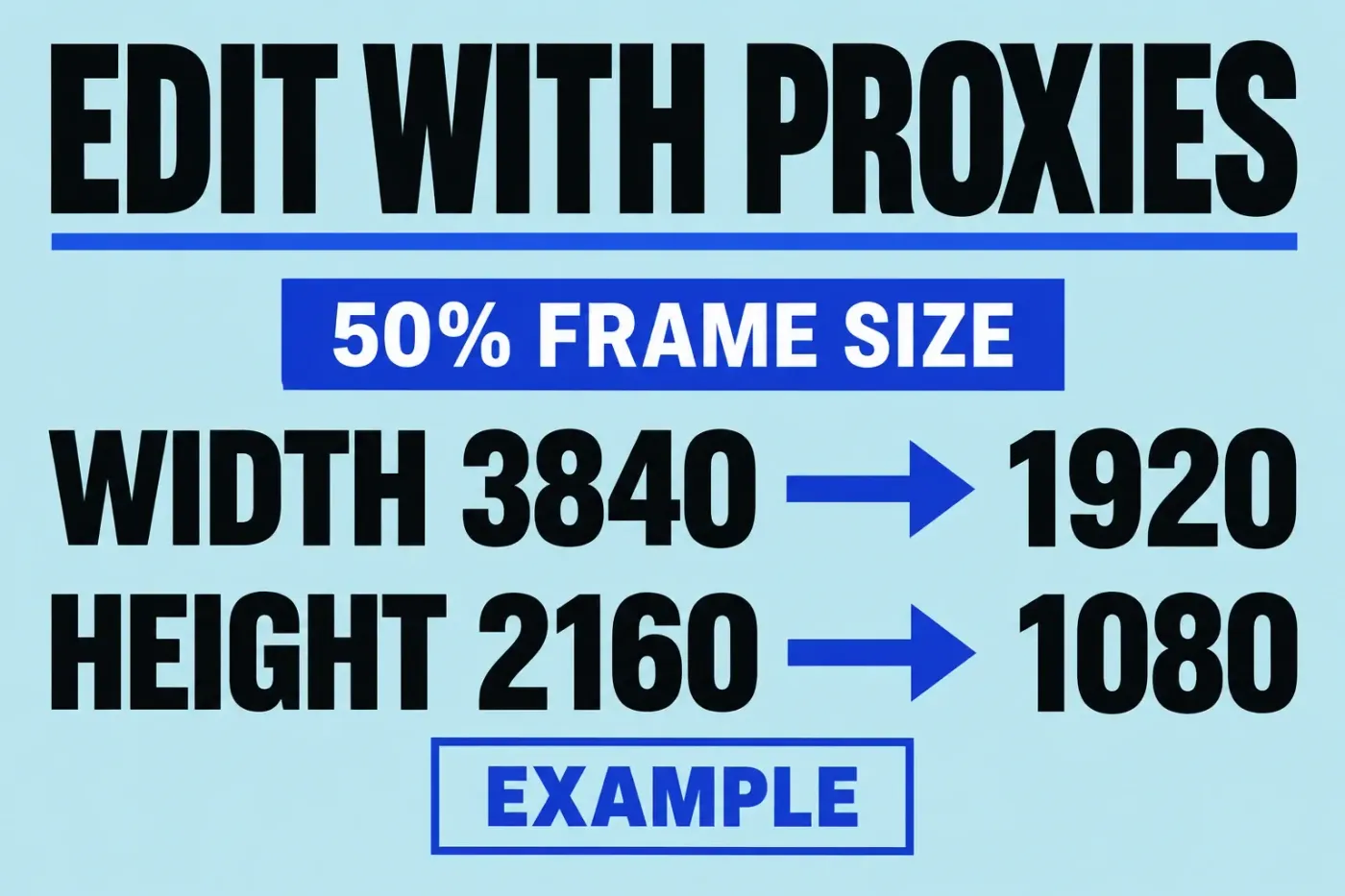
For a first trial, 50% frame size is a reasonable editorial starting point, not a required setting. On a 3840 × 2160 source, halving each dimension gives 1920 × 1080. Frame size describes pixel dimensions; it does not promise half the file size.
Switch playback to proxies
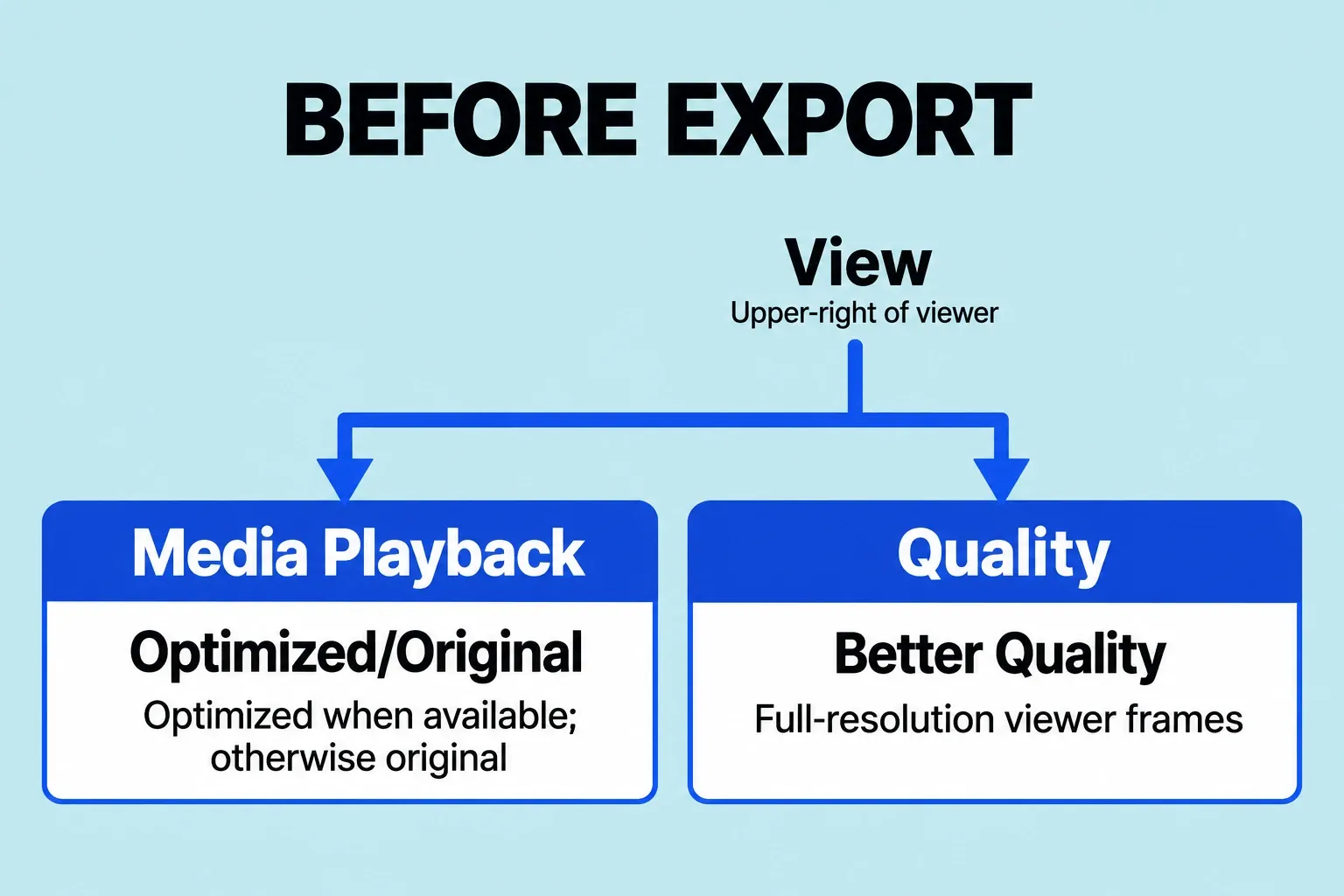
Open the View pop-up menu in the upper-right corner of the viewer. Its Quality and Media Playback controls do different jobs. Under Quality, Better Quality displays full-resolution frames from the selected media representation; Better Performance displays a reduced-resolution preview. Better Quality does not restore original detail missing from a reduced proxy. Under Media Playback, choose the file representation. Changing viewer Quality does not select proxy files.
Choose one of these Media Playback modes:
- Proxy Preferred uses an available proxy and falls back to optimized or original media when needed.
- Proxy Only helps expose gaps in proxy coverage: a clip without an available proxy can show a Missing Proxy File alert.
- Optimized/Original uses optimized media where available, otherwise original media.
Under the playback rules, a timeline that plays in Proxy Preferred may still contain original-media sections. And a Missing Proxy File alert in Proxy Only tells you the proxy is missing, not that the original recording is lost.
When a clip fails in Proxy Only, switch to Optimized/Original as a diagnostic check. If Optimized/Original plays, determine whether it is using optimized media or the actual original before investigating proxy creation and availability. If neither representation plays, the problem goes beyond proxy selection: check the media’s location, and don’t delete or relink files at random.
Check whether the change actually helps
Use the same short timeline section for the comparison. Keep effects and background activity as consistent as possible, and keep the same Quality setting while switching Media Playback modes. Otherwise, a change in preview resolution can blur the comparison. Note whether playback stalls, audio breaks up, or scrubbing remains difficult.
If proxies make little difference, the source codec may not be the only constraint. A heavy effect, unavailable drive, or another part of the workflow may still need investigation. Making smaller and smaller proxies won’t tell you which of these it is.
Return to full-resolution media before export
Before a delivery export, choose Optimized/Original, confirm the required media is available, and inspect the finished sequence. Apple’s mastering export instructions call for this switch to obtain the highest-quality output: Final Cut Pro uses optimized media when it exists, otherwise original media. You do not have to force camera originals in place of usable optimized media for every high-quality export.
For the finishing inspection, also choose View > Quality > Better Quality so you see full-resolution viewer frames. Check critical detail, especially text, masks, and edges. Then follow the YouTube export checklist. Even if the export finishes without complaint, open the actual file and check it.
Keep storage and organization separate
Proxies can be stored according to the library’s configured media locations. Knowing the library’s name does not tell you where all representations live. If that distinction is unclear, start with libraries, events, and projects.
This article covers creating, choosing, and finishing with proxies. If generated media is consuming unexpected disk space, identify which render, optimized, and proxy files exist before deleting anything. Proxy-only travel libraries, missing-file relinking, storage cleanup, and measured codec comparisons deserve their own procedures; combining them here would obscure the basic workflow.