Diagnose missing original media before relinking, replacing, resetting, or deleting anything.
A missing-media warning identifies a problem with a particular representation, not necessarily the camera original. Read the exact Final Cut Pro alert before choosing a file to relink: missing original, proxy, camera media, and effects call for different checks.
Protect the edit first
For important work, make an isolated copy of the library and verify that its external originals are also available. As the library backup guidance makes clear, a database backup is not a media backup. While you diagnose, leave suspected source folders as they are, and write down the library, clip, volumes, and exact warning.
If the library points to files outside itself and you are unsure where they were placed, review the import storage choices before moving anything.
Identify the representation and scope
Look up the warning in the alert descriptions; the dependency it names sets your first check:
| Warning | First check |
|---|---|
| Missing File | Check the expected volume and file path in Finder. Reconnect missing storage before searching for a replacement original. |
| Missing Camera | Reconnect the camera containing the media, then finish copying the media during import before disconnecting it again. Original-media relinking is not a camera import. |
| Missing Proxy File | Check the proxy path and playback mode. Follow the proxy workflow to relink known proxies or recreate them from available originals; leave original references alone if they are correct. |
| Missing Effect / Missing Generator / Missing Title / Missing Transition | Identify the missing effect or template and any plug-in it requires. Replacing a camera original does not restore that dependency. |
| Missing LUT | Identify the LUT the clip requires and check its availability. Resolve the LUT dependency before choosing different source footage. |
If an effect warning followed a move to another Mac, remember that a library transfer does not move third-party plug-ins or special fonts. Check the manufacturer's installer and the plug-in's compatibility with that Mac's macOS and Final Cut Pro versions.
Switch the viewer to Optimized/Original. That mode may play an optimized file instead of the original, so successful playback does not itself prove the original is online. If the warning appears only in a proxy playback mode, inspect the proxy location and regenerate or relink those files before changing the originals. If the original is unavailable, continue here.
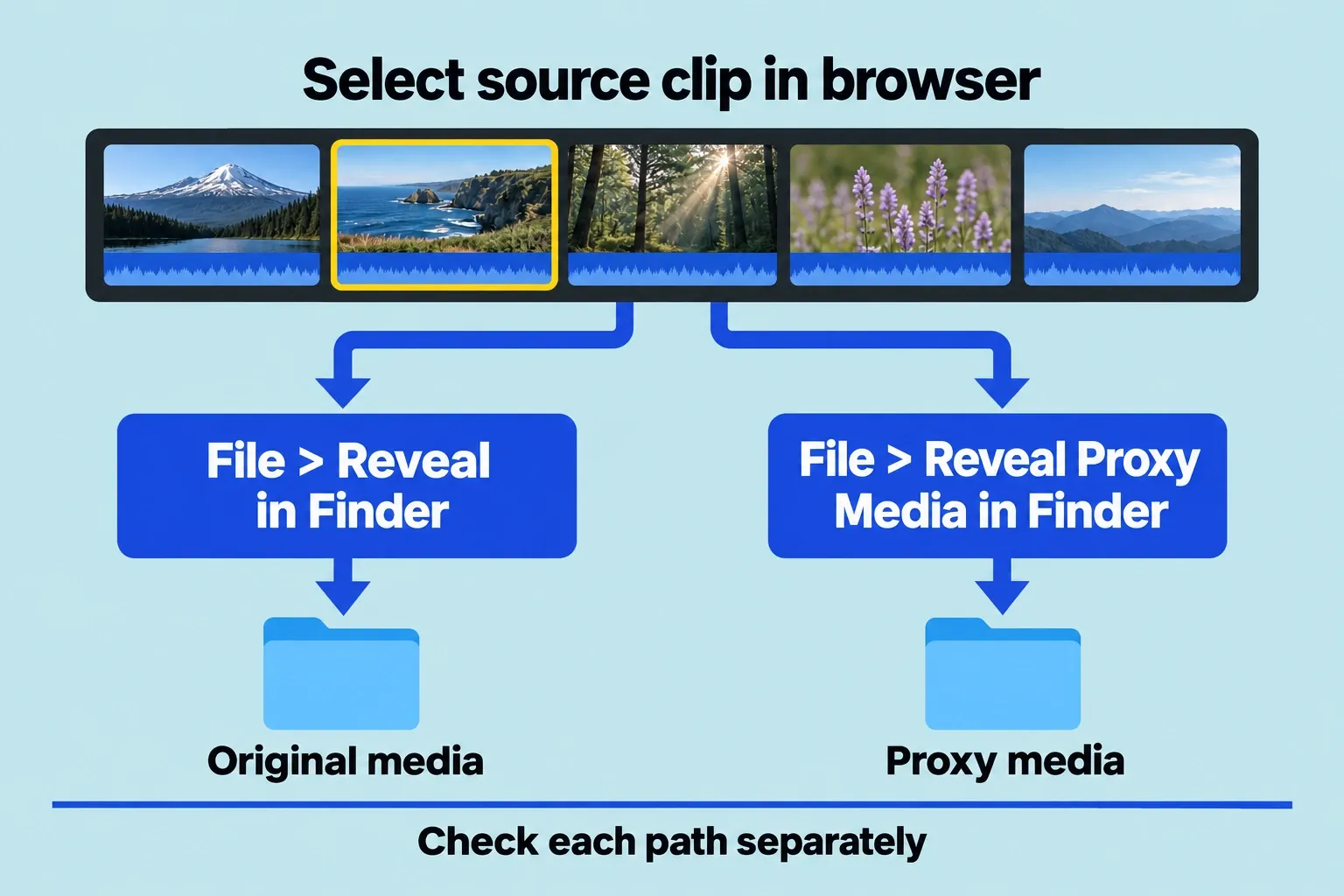
To inspect a clip's file references, select its event in the Libraries sidebar, then select the source clip in the browser. Use File > Reveal in Finder for the original or File > Reveal Proxy Media in Finder for the proxy. These separate reveal commands locate the selected clip's media only, so one successful reveal doesn’t mean every file is available.
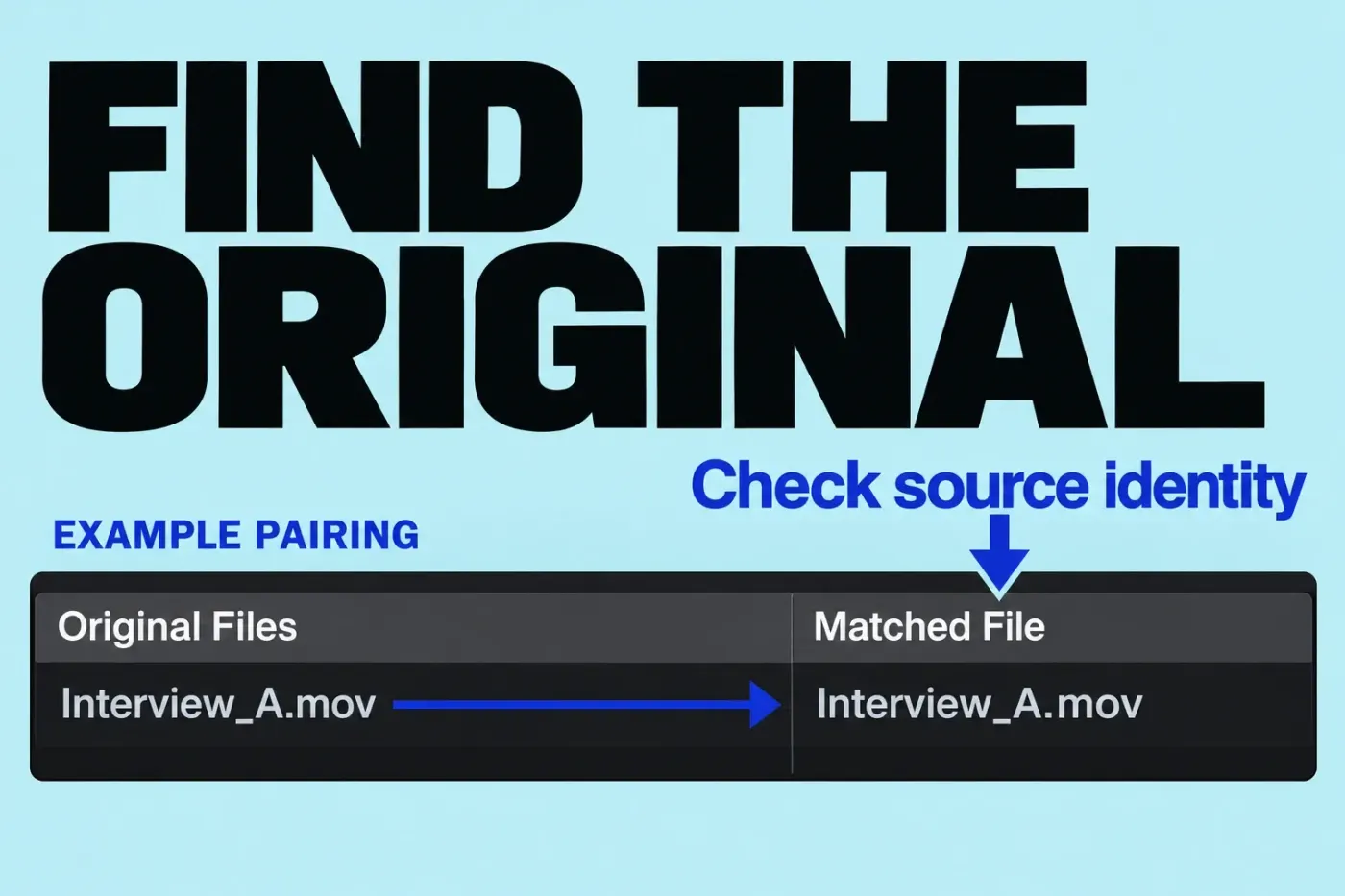
Check whether the expected disk is mounted. Locate the candidate in Finder, then compare its content and media type, frame rate, available duration, audio layout, and other relevant properties. A filename match is a lead, not proof of file identity.
First determine the scope. One clip offline? Compare neighboring clips from the same source folder. If an entire event is offline, check for a missing volume or moved parent folder, though the clip count alone won’t tell you the cause. If only one library copy warns, compare its storage references with a working copy.
Check the cause before relinking
Disconnected storage: the expected volume is absent from Finder. Reconnect it before relinking; a needless relink to a backup path can create a second, harder-to-understand dependency.
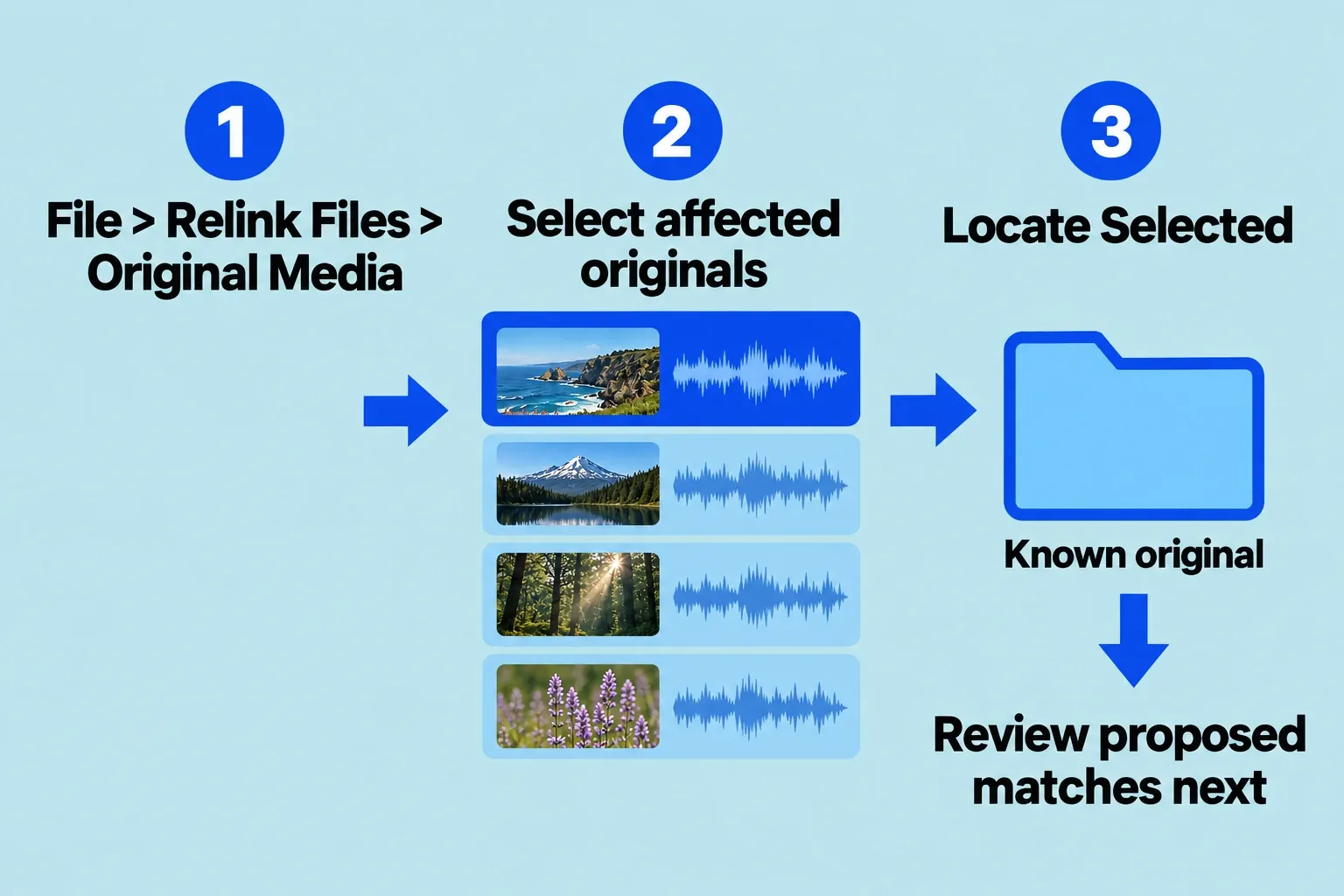
Moved or renamed folders: the volume is present, but the recorded path no longer exists. Locate a known original or parent folder; use Locate All or Selected as appropriate, and review each proposed pairing rather than assuming a high-level folder is safe.
Same name, different file: a candidate matches the filename but its content or properties differ. Stop. Repeated camera filenames are a possible risk, not evidence that Final Cut Pro will accept the wrong file.
Generated media missing: use the alert and playback mode to distinguish missing proxy or optimized media from ordinary render regeneration. Confirm the actual originals before creating new proxies or optimized files. Do not delete generated media just to test a guess.
Relink known originals in an isolated library
Select the affected clips or event and choose File > Relink Files > Original Media. Click Locate Selected for the chosen missing items or Locate All for the full list. Locate a known original or its folder, click Choose, then expand the analysis results to compare the old files on the left with the proposed new files on the right. If a match is incorrect, select that pairing and press Delete. This excludes the proposed match and returns the item to the original list; it does not delete the media file. Apple's relink instructions warn that a confirmed Relink Files command cannot be undone. Confirm only after source identity and the compatibility checks below are clear.
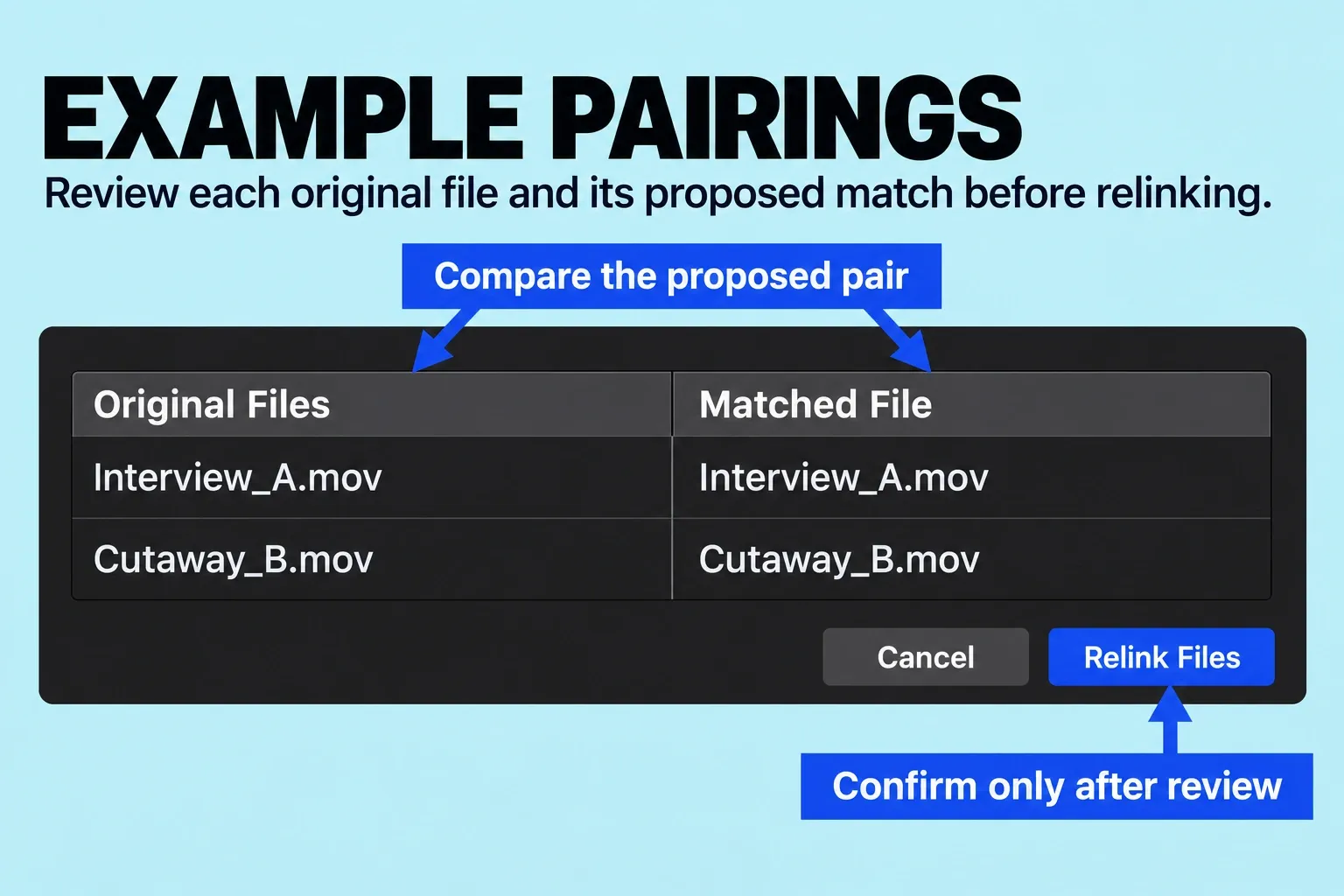
If Final Cut Pro rejects a candidate or proposes a plausible but uncertain match, stop before pressing Relink Files. Go back to the relink compatibility requirements: the candidate must include all media referenced by the clips, have the same media type and frame rate, and have similar audio channels. Compare those conditions with the intended source, including the required duration. Passing those checks still doesn’t make it the right source, and a file that merely opens is no substitute. While the match is uncertain, preserve the current library and media.
An ordinary project duplicate preserves an edit version but does not isolate the relink operation: Apple says relinking matching clips can update other projects and events in the same library. For a risky trial, work in a verified separate library copy with its media dependencies. Relink one known clip or small group there, then play across its uses and check dialogue sync, retimes, freeze frames, multicam angles, and range-based effects.
Check every use, then reopen
After relinking, skim more than the first frame. Check image, audio, in/out timing, retimed sections, multicam references, and the exported result.
When the sample passes, relink the remaining known originals and repeat the check at the project level. Save, close, and reopen the library. If the media goes offline again after restart, investigate the storage path, permissions, or mount behavior rather than repeating the same relink.
Safe stopping conditions
Stop before confirming a relink when the candidate is an unapproved transcode, its properties disagree, multiple same-named files exist, or the source drive behaves unreliably. A compatible transcode may be technically accepted, but it is not automatically the approved original. Preserve the library and suspected media; avoid renaming, replacing, or deleting uncertain files during diagnosis.