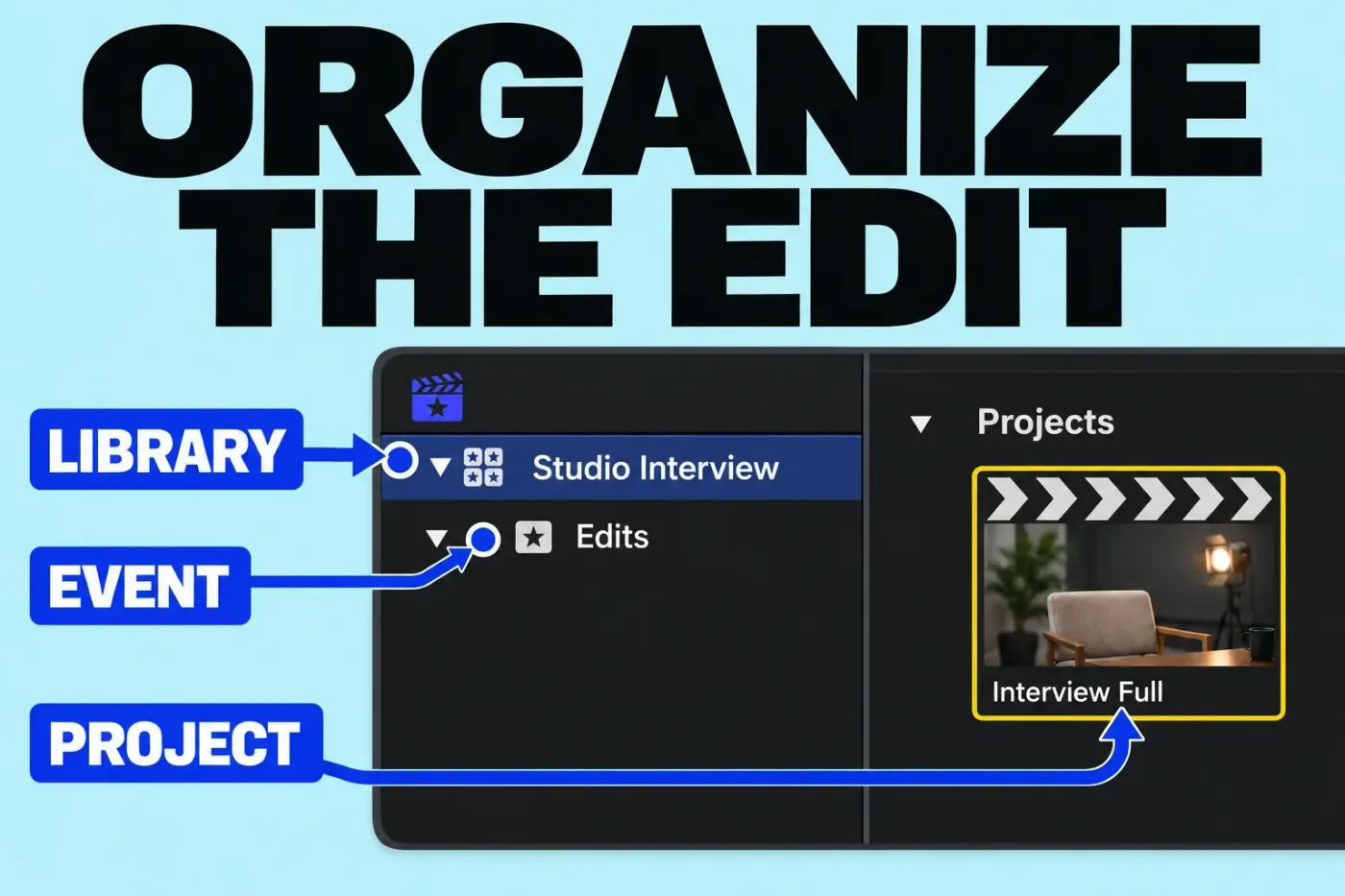
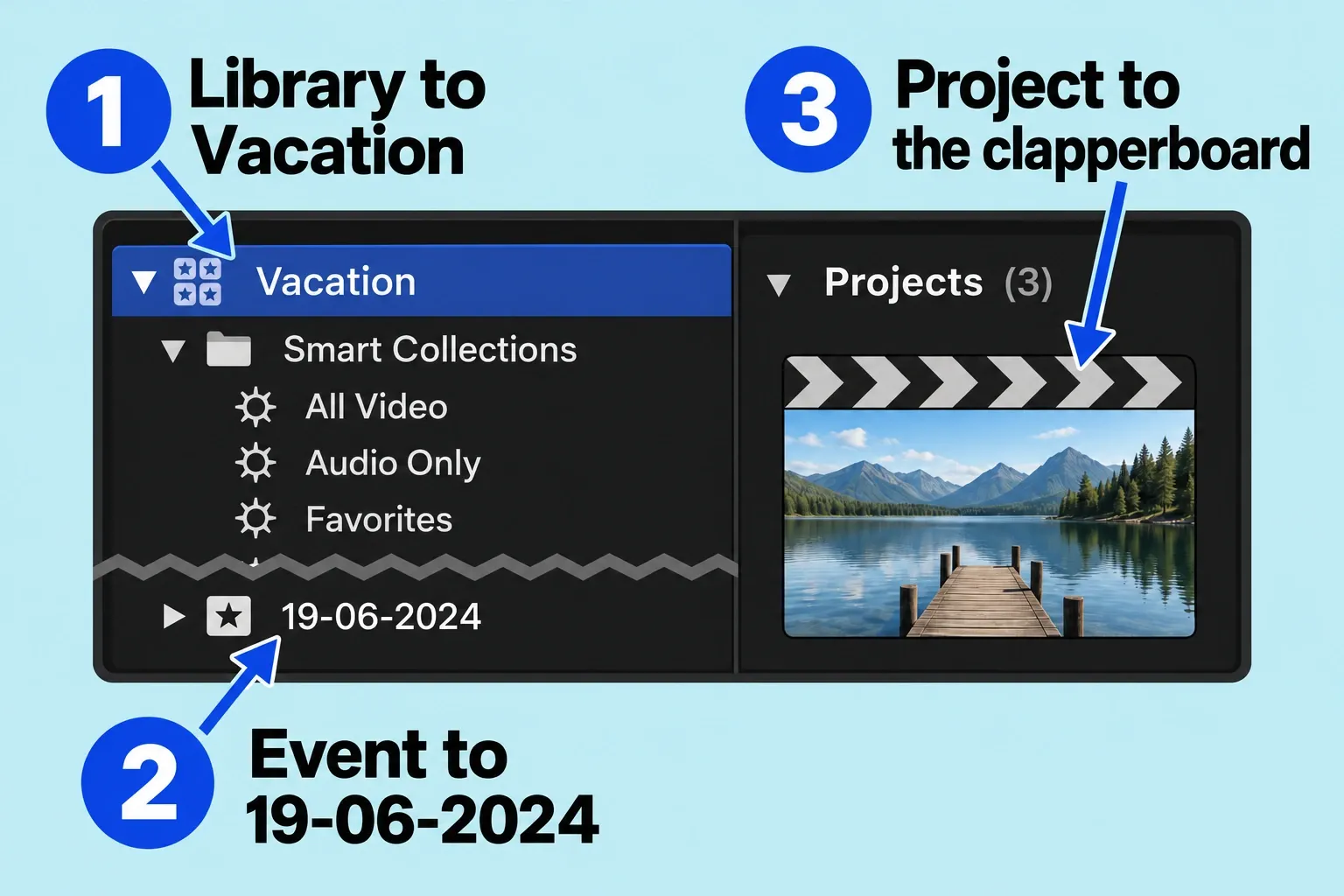
A library holds your editing work, an event organizes items inside that library, and a project is the sequence you edit in the timeline. Keep that organization separate from the location of your video files: a clip can appear in a library while its source file lives on an external drive.
Library, event, or project: which do you need?
Think of a short interview with three deliverables: a full conversation, a one-minute highlight, and a short teaser. You do not need three independent copies of every camera file to make those edits.
- Library: the working container for the interview job, including its organization and editing information.
- Event: a grouping inside the library, such as Interview, B-roll, or Edits. An event can contain both clips and projects.
- Project: one edited sequence, such as Interview Full or Interview Teaser. This is what you assemble in the timeline and eventually export.
These are different levels of organization, rather than three names for a finished movie. Apple’s library overview describes how a library tracks media, edit decisions, and metadata. The browser clips refer to underlying source files.
What is an event in Final Cut Pro?
An event is a useful boundary for finding material. For a small job, one event may be enough. For a larger job, separate events might represent shoot days or episodes. Neither approach requires a separate library for every camera angle.
Choose names that help you find material. “Day 02 Interview” tells you where to look for a take; “New Event 7” does not. Avoid building an elaborate folder scheme before you know what you need to find. Two clearly named events can be more useful than ten almost empty ones.
For the interview example, an uncomplicated structure is:
- A library named
Studio Interview. - An event named
Footage, containing camera and audio clips. - An event named
Edits, containing the full interview and shorter projects.
Final Cut Pro doesn’t require this layout; it’s simply one way to organize the job. Reuse it across jobs only if the pattern helps you find and hand over work.
Final Cut Pro project vs library
A project answers “Which sequence am I editing?” A library answers “Which body of work am I opening?” Opening a library does not mean every project in it becomes part of one movie.
Your full interview project might contain pauses and complete answers. A teaser might reuse a few of the same source clips in another order. The timeline edits describe how those clips are used; trimming a timeline clip does not trim its source file. This nondestructive relationship is why you can make alternate edits without manually duplicating all your footage.
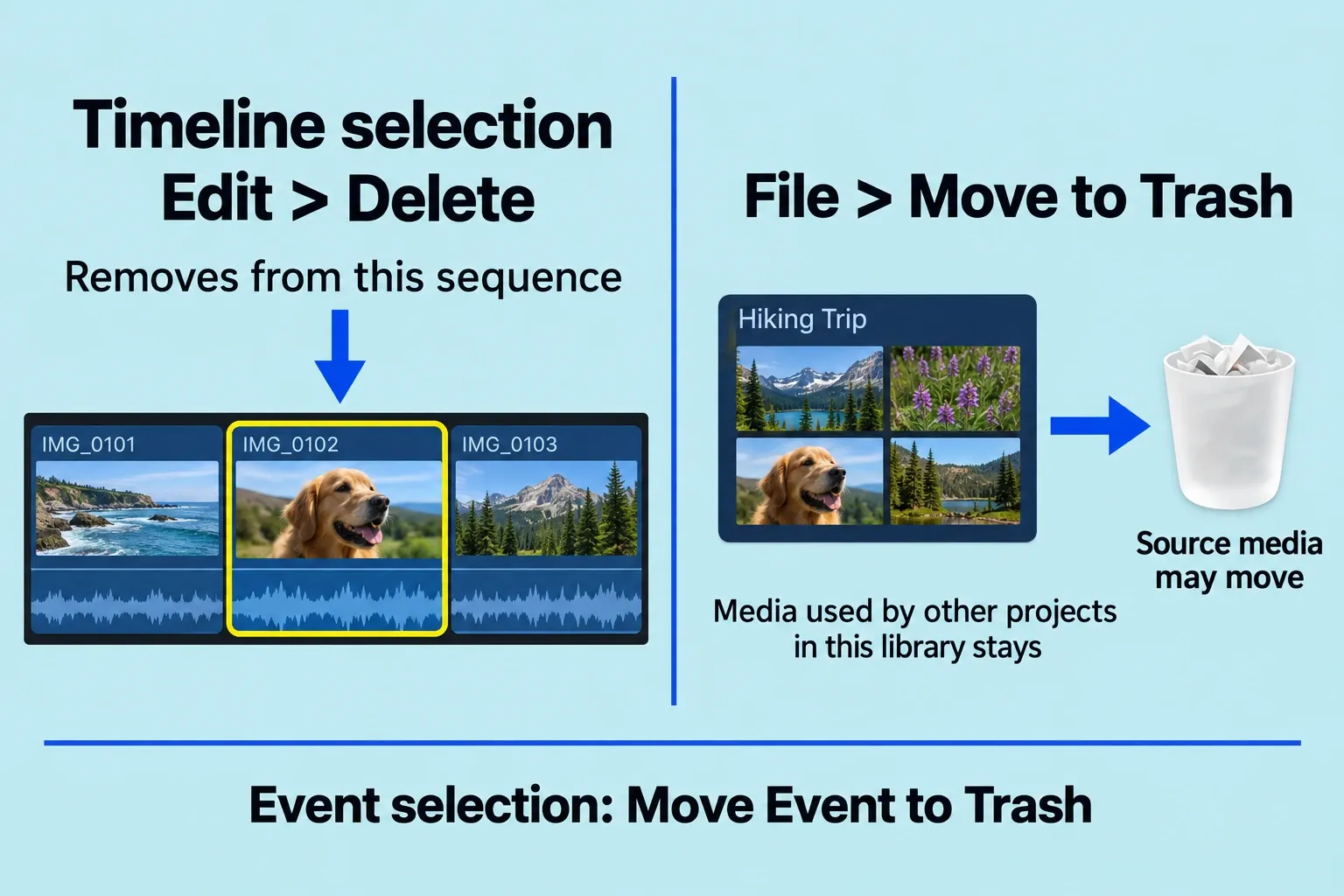
Selection matters when you remove something. In a project timeline, Edit > Delete removes clips or ranges from that sequence without deleting their source files. Deleting items from an event is a different matter.
The browser’s File > Move to Trash for clips or projects, and File > Move Event to Trash for an event selected in the sidebar, follow Apple’s library-deletion rules: associated source files move to the Trash, except media used by other projects in the same library. That exception doesn’t cover a different library. Check dependencies and keep a separate media backup before emptying the Trash, because an automatic database backup won’t contain the deleted source media.
Once the organization is clear, the next question is how clips behave inside the sequence. Start with the trim and split guide, which gives you a small editing exercise and explains how to inspect the result.
Where does Final Cut Pro store files?
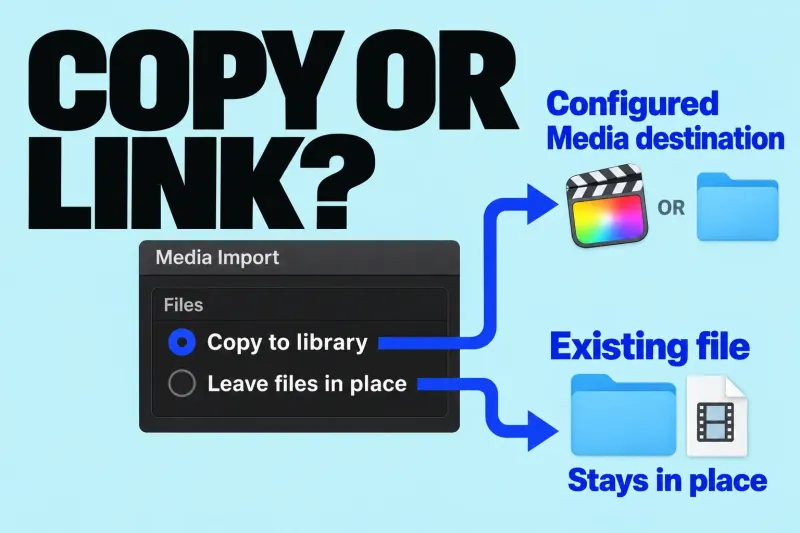
An event’s name tells you nothing about where its files are stored. Final Cut Pro supports managed media inside the library and linked external media. Generated files, including optimized media, proxies, and render files, introduce another storage decision.
Before moving a library, answer three practical questions:
- Where is the library file?
- Where are the original camera and audio files?
- Where are generated media and backups stored?
To locate the library file, select the library in the Libraries sidebar, then choose File > Reveal in Finder. Finder selects the library file. Selecting an event and a browser clip instead reveals that clip’s source file, as described in the check below.
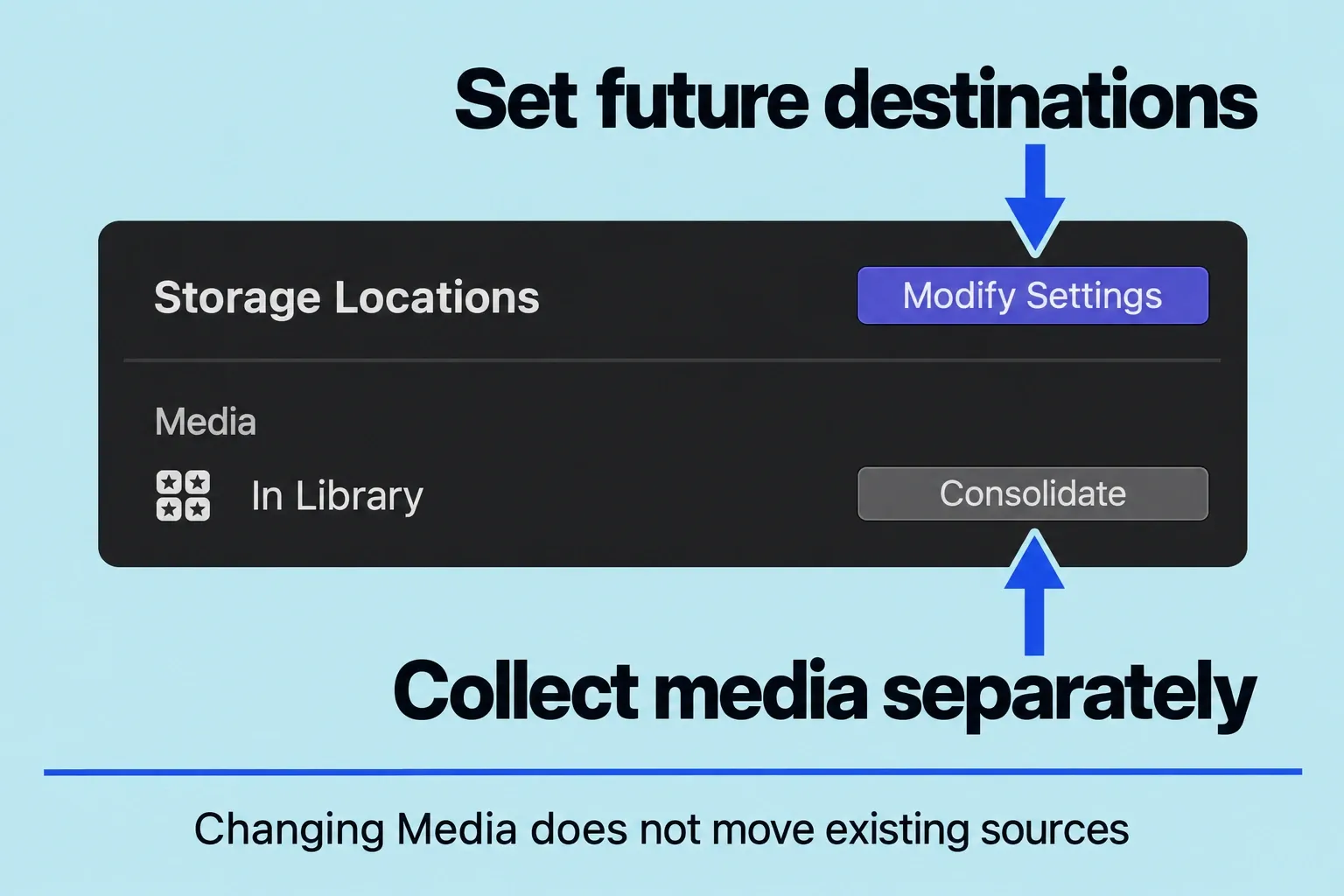
With the library selected, open File > Library Properties (Control-Command-J). Read the storage locations for Media, Motion Content, Cache, and Backups. Click Modify Settings to inspect or change those pop-up menus; confirm with OK. Media is the destination for imported and consolidated media, including optimized and proxy files; Cache covers render and analysis files, thumbnails, and audio waveforms.
The inspector’s Storage Used for Media and Motion Content section lists devices holding existing media and custom Motion content, with original, optimized, and proxy media totals per device. Use it to check where those files already live. Read the separate Cache and Backups settings for those locations; the media-device list is not a complete inventory of every library dependency.
Changing a storage destination does not relocate previously imported source media or existing backup files. New locations apply to future imports, Motion content, cache files, and backups. Cache has a separate choice: if you change its location, Final Cut Pro asks whether to move existing active render files. To collect media, consolidation is a separate operation that uses the library’s current storage destination and the items and media types you select. So a changed Media setting doesn’t mean the footage has moved.
Automatic library backups contain only the database, not the media files. Check that Backups is enabled; Do Not Save disables it. Keep a separate backup of originals on another storage device. A dated library backup can recover editing information, but it cannot supply source files that were lost or permanently deleted.
Write those locations in a short job note. A library on your internal SSD with externally linked footage is a different handoff from a library containing its own media. Copying only the library doesn’t mean the recipient has everything. Before changing drives, inventory the media and other dependencies, then verify the copied library in its new location. Disconnect an old source drive only if it is a detachable external drive that can be safely ejected; leave internal or startup storage connected and inspect the copied media locations instead.
For a handoff using custom Motion effects, titles, transitions, or generators, store the used Motion content In Library and consolidate it before copying or moving. Track third-party FxPlug content separately; it is not managed inside the library. These dependencies are another reason to check the receiving setup before discarding the original.
That’s also why a modest edit can take up substantial storage: the finished sequence’s length says little about how much source footage and generated media sit behind it. Read the proxy workflow guide before creating extra copies solely to improve playback.
A simple organization check before editing
Use a new, disposable practice job rather than reorganizing a live client library. Give the library, event, and project deliberately different names. When the project is open, identify which name belongs to the timeline and which belongs to the library in the sidebar. The first-edit exercise turns that structure into a short sequence you can finish and inspect.
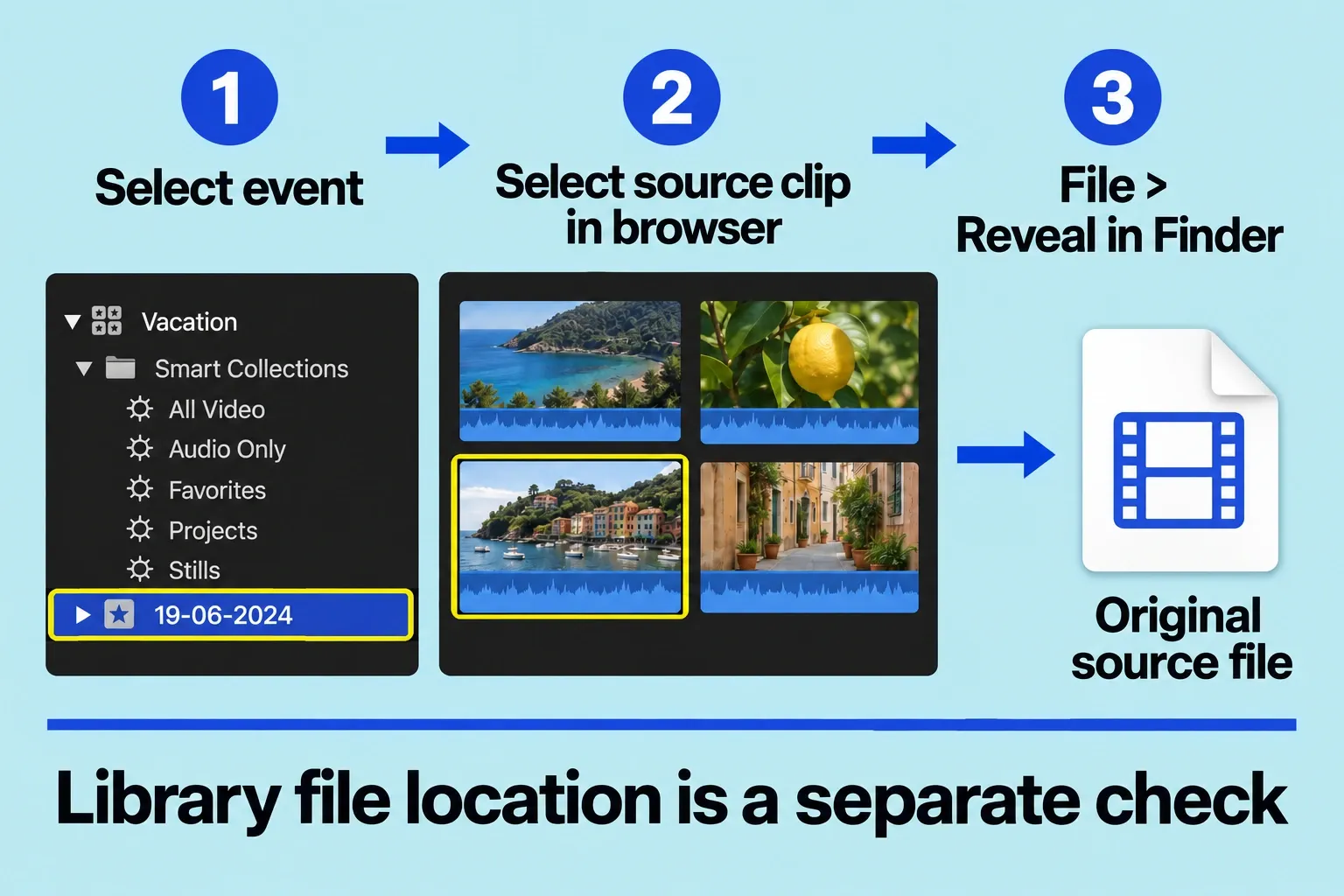
To find a clip’s source file, select its event in the sidebar, select the clip in the browser, then choose File > Reveal in Finder. Finder highlights the source file. Record its location before disconnecting any drive. Use Reveal Proxy Media in Finder only when you specifically want the proxy representation. You’ve got it when you can explain where the edit is organized and which files it depends on; no complicated naming convention required.
Don’t use Finder to rearrange files inside a library package. This guide explains how the parts relate; it is not a procedure for changing the library’s internal structure by hand.
Common questions
Is a library the video I send to a client?
Confirm whether the recipient needs a playable exported video or the editable library. They are different deliverables. For a viewing copy on YouTube, continue to the 4K SDR export guide. A project handoff requires additional media and dependency checks.
Does making a second project create another full copy of the footage?
Another timeline is not another set of camera originals, because projects reference media. Storage may still grow through generated files and other operations, so judge disk usage separately from the number of projects.
Should every video have its own library?
Use a separate library when the work needs a separate handoff, archive, or lifecycle. I’d keep related versions of one job in the same library, since they’re usually easier to manage together. This is an organization choice, not a performance guarantee.