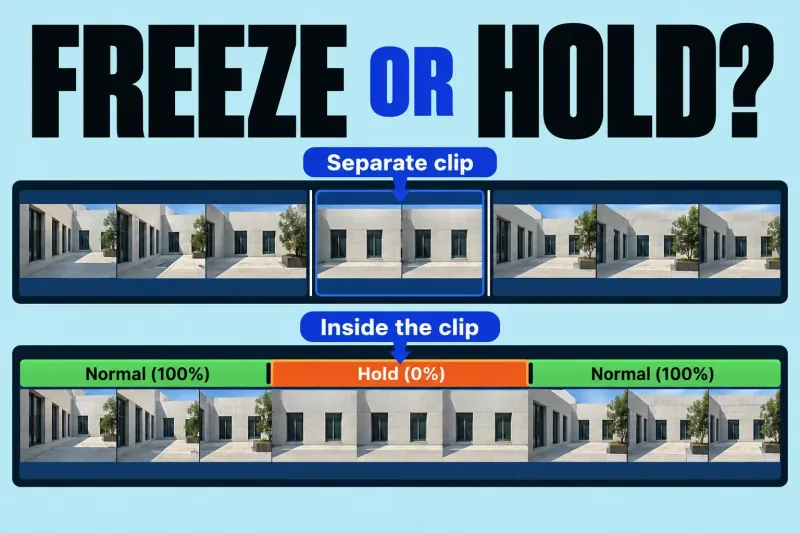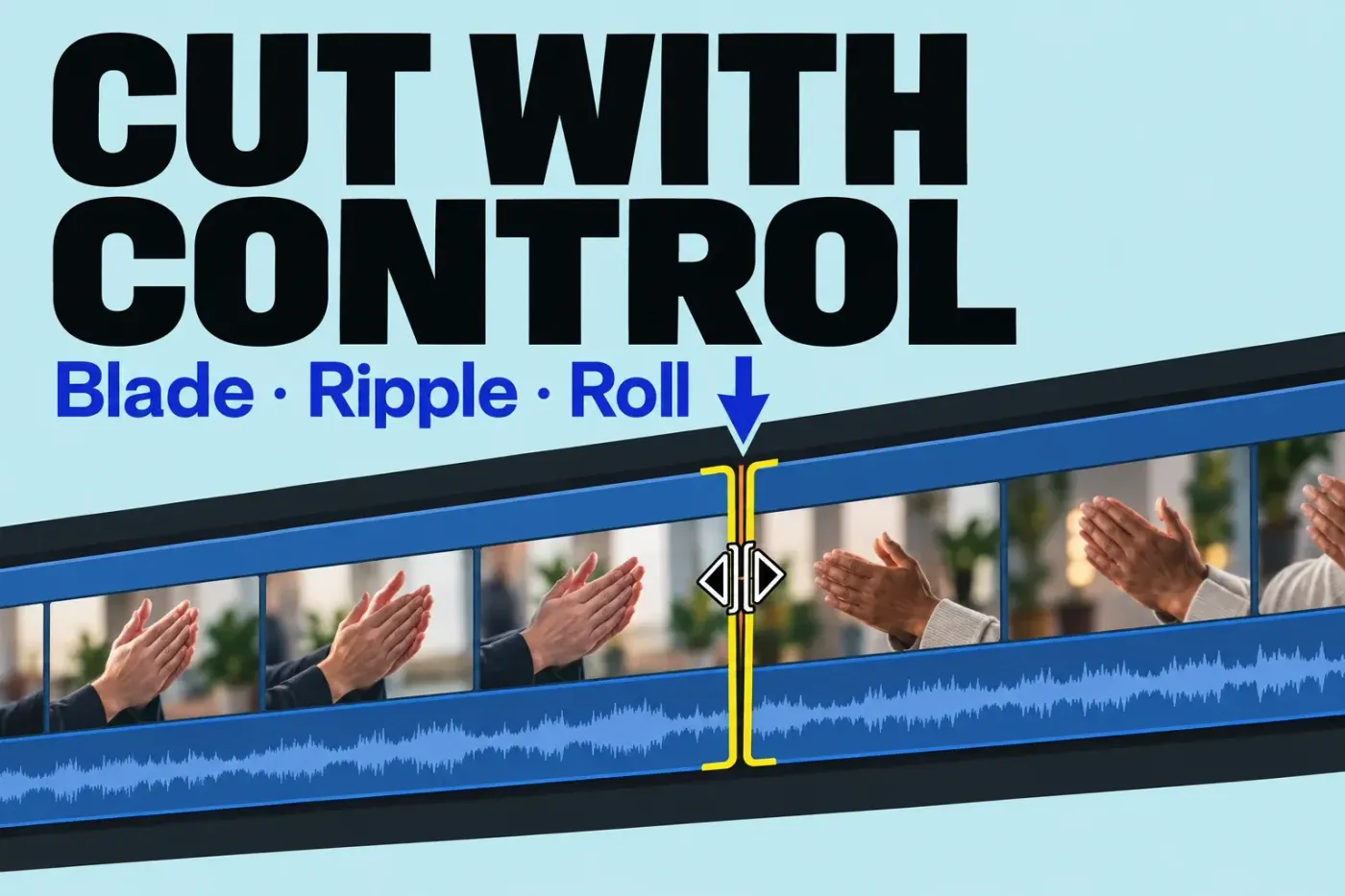
Use Blade to split a clip without changing its duration, ripple to shorten or extend the timeline, and roll to move a cut while preserving the combined duration of two adjacent clips. Keep an eye on connected clips before deleting anything.
Splitting a clip and changing its duration are different operations, and in Final Cut Pro both interact with the Magnetic Timeline. Before each edit, think about where the cut goes and what it should do to everything after it.
Build a visible sync reference
Use a short dialogue clip with a clear hand clap, mouth movement, or other picture-and-sound event. Add a connected cutaway so the clip relationships are visible. For a basic exercise, select the project in its event’s browser and choose Edit > Duplicate (Command-D). If the exercise edits shared compound or multicam contents, use a project snapshot instead: Edit > Snapshot Project (Shift-Command-D) embeds copies of those parent clips so other instances do not change the snapshot. Neither choice replaces a backup of the source media.
Split without changing duration
Choose Blade from the Tools pop-up menu above the timeline (B), move the skimmer to the intended frame, and click the clip you want to cut. Return to Select (A) afterward. For the keyboard route, select the actual clips, move the skimmer to the cut frame, then choose Trim > Blade (Command-B). Without a selection, Apple’s Blade instructions say the command acts only on the primary storyline clip. Inspect the result before continuing; a cut leaves the combined duration unchanged until you remove or trim material.
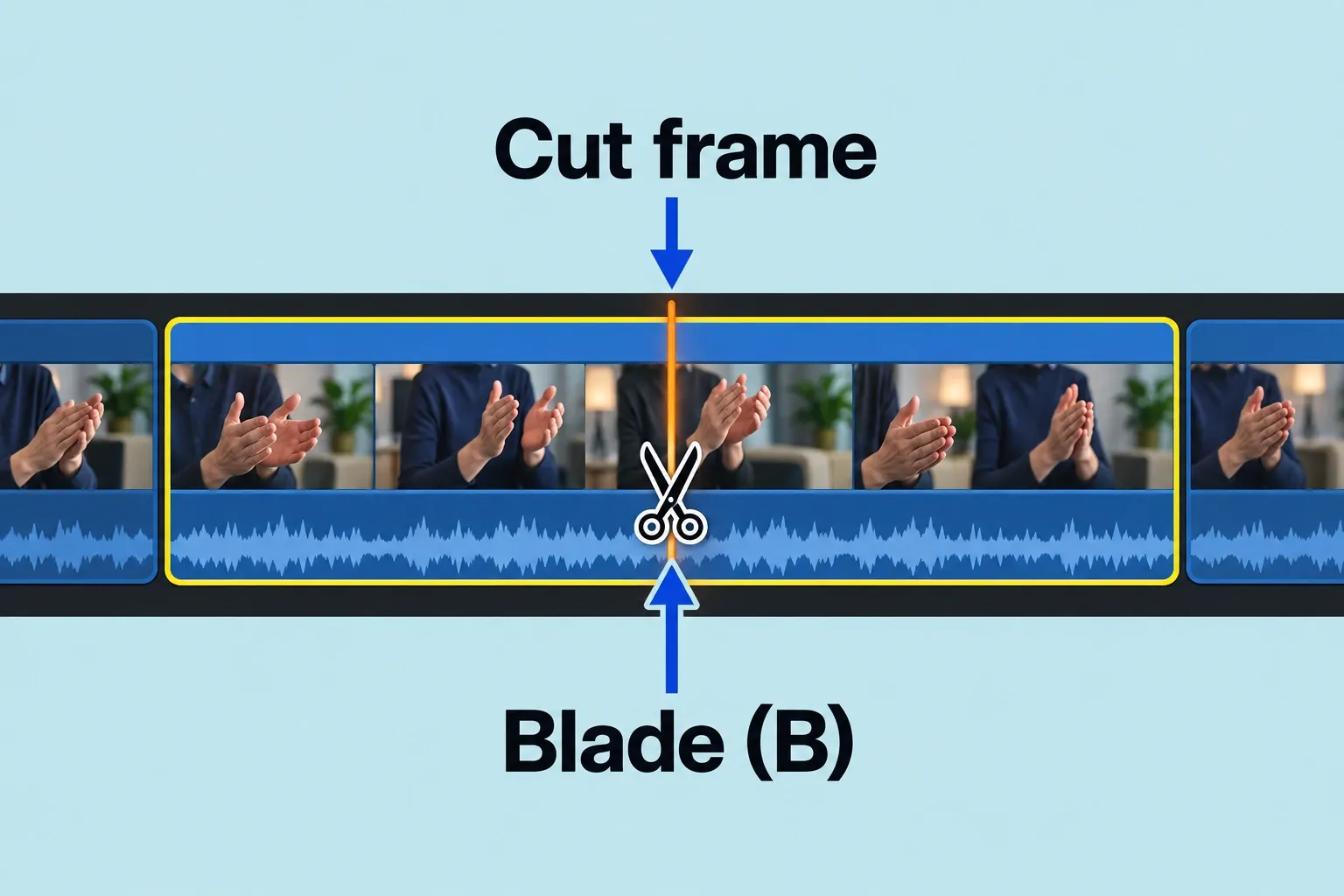
After the split, play across the edit. A cut at the wrong frame can sound like a sync error even when picture and audio are technically aligned.
If an accidental split shows a dotted through edit, the source media is continuous on both sides. Select either or both sides of that edit point, then choose Trim > Join Clips to remove the boundary.
Ripple, roll, or extend an edit
Ripple: choose Select from the Tools menu (A), then drag the start or end of a primary storyline clip. The clip changes duration and later storyline material moves to close or make room for the change. That is Final Cut’s default ripple trim. Trimming a connected clip works differently, so check its attachment instead of expecting the primary storyline to ripple.
Roll: choose Trim from the Tools menu (T). Click the center of the boundary between two adjacent clips so both sides are selected, then drag left or right. The outgoing and incoming clips exchange frames while their combined duration stays the same. A roll edit needs available source handles; a red edge indicates that the source limit has been reached.
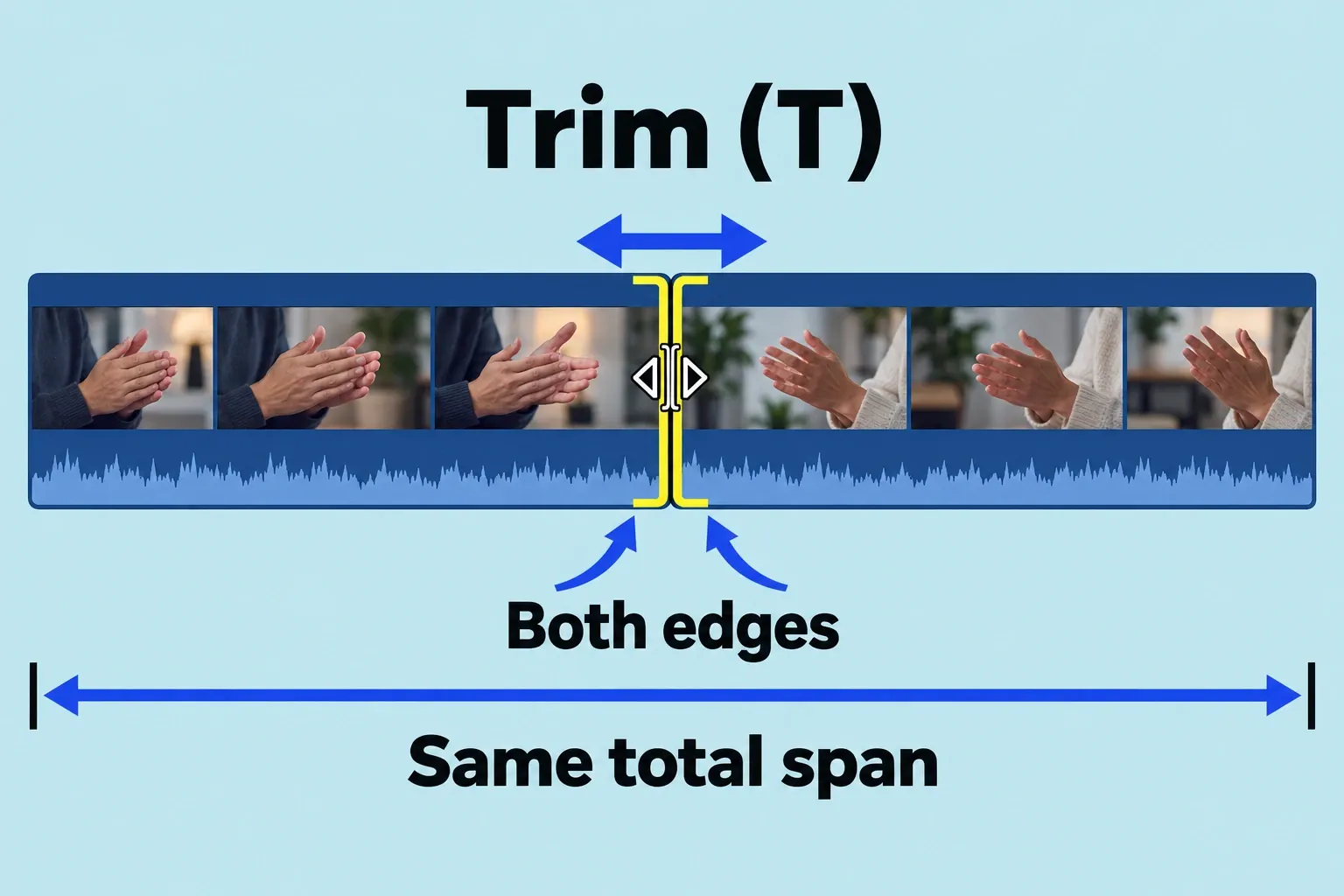
Slip: use this when the clip is already in the right place and has the right duration, but you want a different portion of its source. Choose Trim (T) and drag inside the clip left or right. A slip edit keeps the clip’s timeline position and duration fixed. It needs unused source media (handles) on both sides. A red start or end edge means you have reached that side’s available-media limit. After slipping, review the sound and picture: boundaries that stayed put don’t prove every audio relationship is still correct.
Extend: select the edit point, place the playhead or skimmer at the intended frame, and choose Trim > Extend Edit (Shift-X). Check both positions before you use it. Select one side and you get a ripple extension or shortening; select both sides with the Trim tool and you get a roll. Either way, Extend Edit moves the boundary to that position, so you don’t have to drag it there.
Judge each trim from the trim display and playback around the edit, not from a single stopped frame. If the delivery length matters, keep an eye on the total project duration.
Protect connections and dialogue sync
Start with an ordinary clip whose picture and sound are still together. If you want the next shot’s sound before its picture, that is a J-cut; if the previous shot’s sound continues after the picture changes, that is an L-cut. These split edits give audio and video different start or end boundaries. They do not mean dividing the clip with Blade, and they do not require detaching its audio.
Attached audio and video: select the adjacent clips and choose Clip > Expand Audio (Control-S). The separate view lets you select an audio or video edge while the two portions remain attached and in sync. For a controlled audio-only roll, start with matching audio/video cut points and enough source handles on both clips. Place the playhead at the cut; Up Arrow or Down Arrow moves it to the previous or next edit point. Press Shift-Backslash to select both sides of the audio edit point, then Comma or Period to roll it one frame left or right. Backslash without Shift selects the video edit point instead. Before you nudge anything in this keyboard split-edit sequence, check which boundaries are selected.
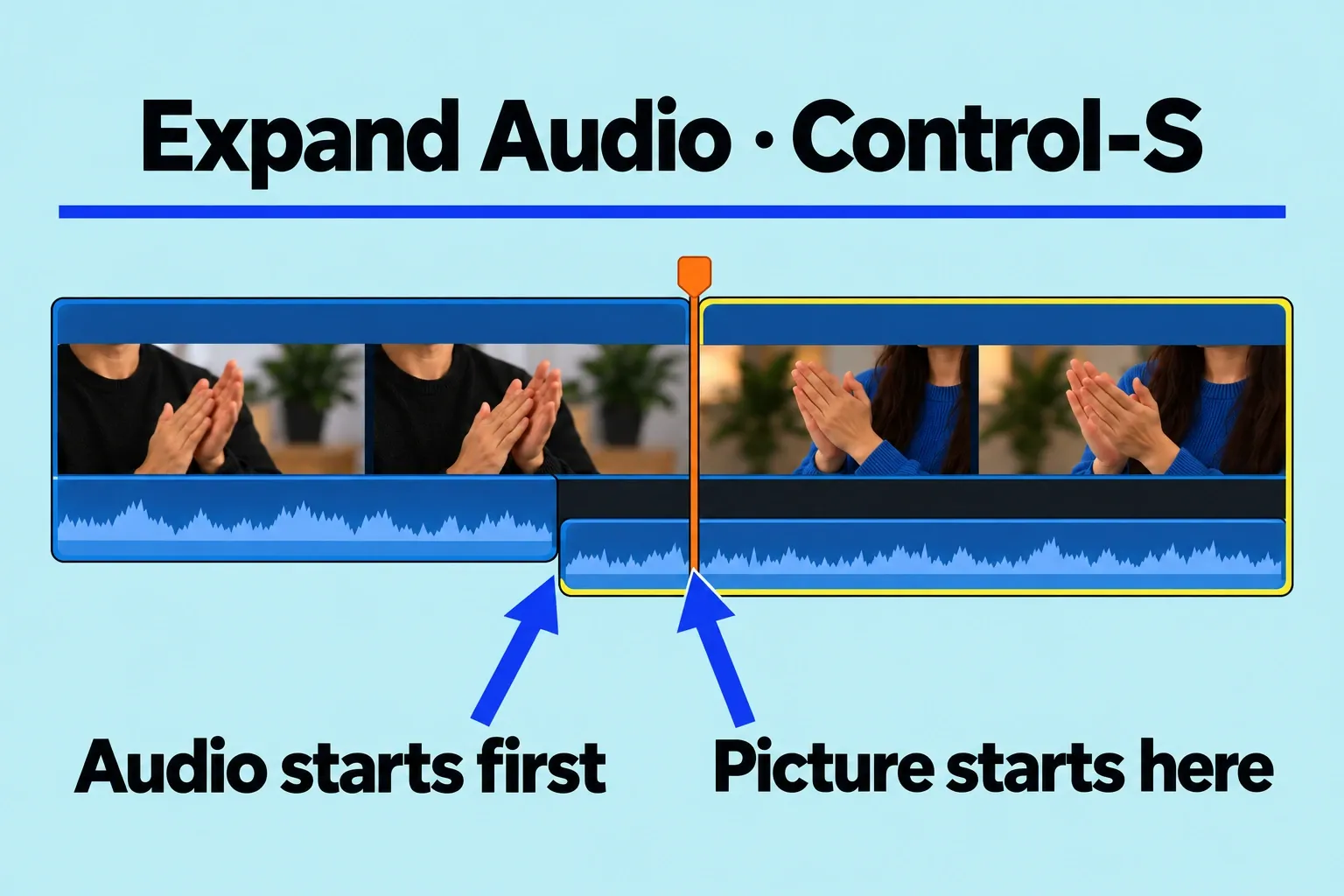
If you trim just one audio edge and create an overlap, expand the neighboring clip too. Trim its audio edge or adjust levels and fades so the overlap serves the dialogue. Listen across the transition. Clip > Collapse Audio (Control-S) only hides the expanded view; it does not clear the split edit. To deliberately match the endpoints again, select the affected clips and choose Trim > Align Audio to Video. This clears the split boundaries; it is not a repair for audio whose recorded content was already offset from the picture.
Audio components: Clip > Expand Audio Components (Control-Option-S) reveals components for more detailed sound editing. Their structure depends on the clip’s Audio Configuration; compound, multicam, and synchronized clips expose role components. Use the component’s start and end edges for trims, or adjacent component edges for a roll. Use Range Selection inside a component to target volume or silence changes. Selecting an expanded component doesn’t mean Command-B will cut it like a separate connected clip. Collapse Audio Components (Control-Option-S) changes that display.
Detached audio: select the timeline clip and choose Clip > Detach Audio (Control-Shift-S). The audio becomes a separate, independent connected clip below the video. It keeps an attachment, but independently moving it can change its timing relative to the picture. To Blade only that separate audio, select the actual audio clip before Command-B; without a selection, the command targets the primary storyline. Collapsing the view does not reattach it. Apple’s reattachment route uses a compound clip, so confirm the timing rather than assuming a display change restored sync.
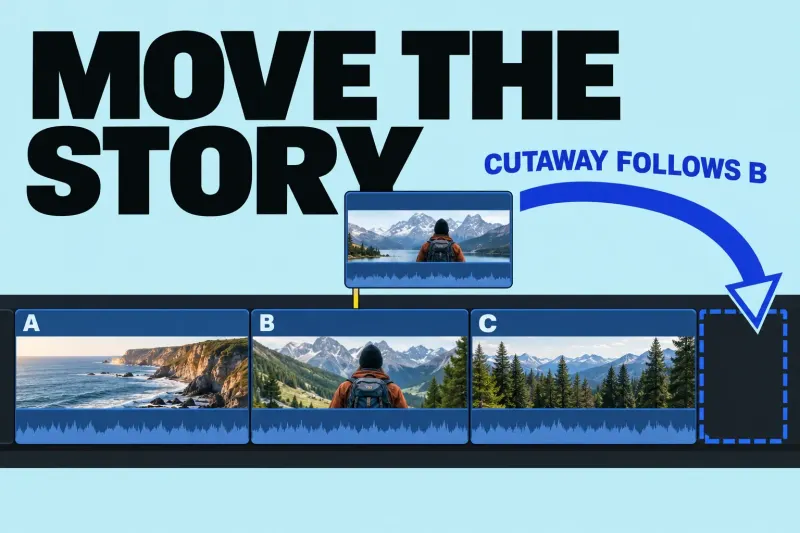
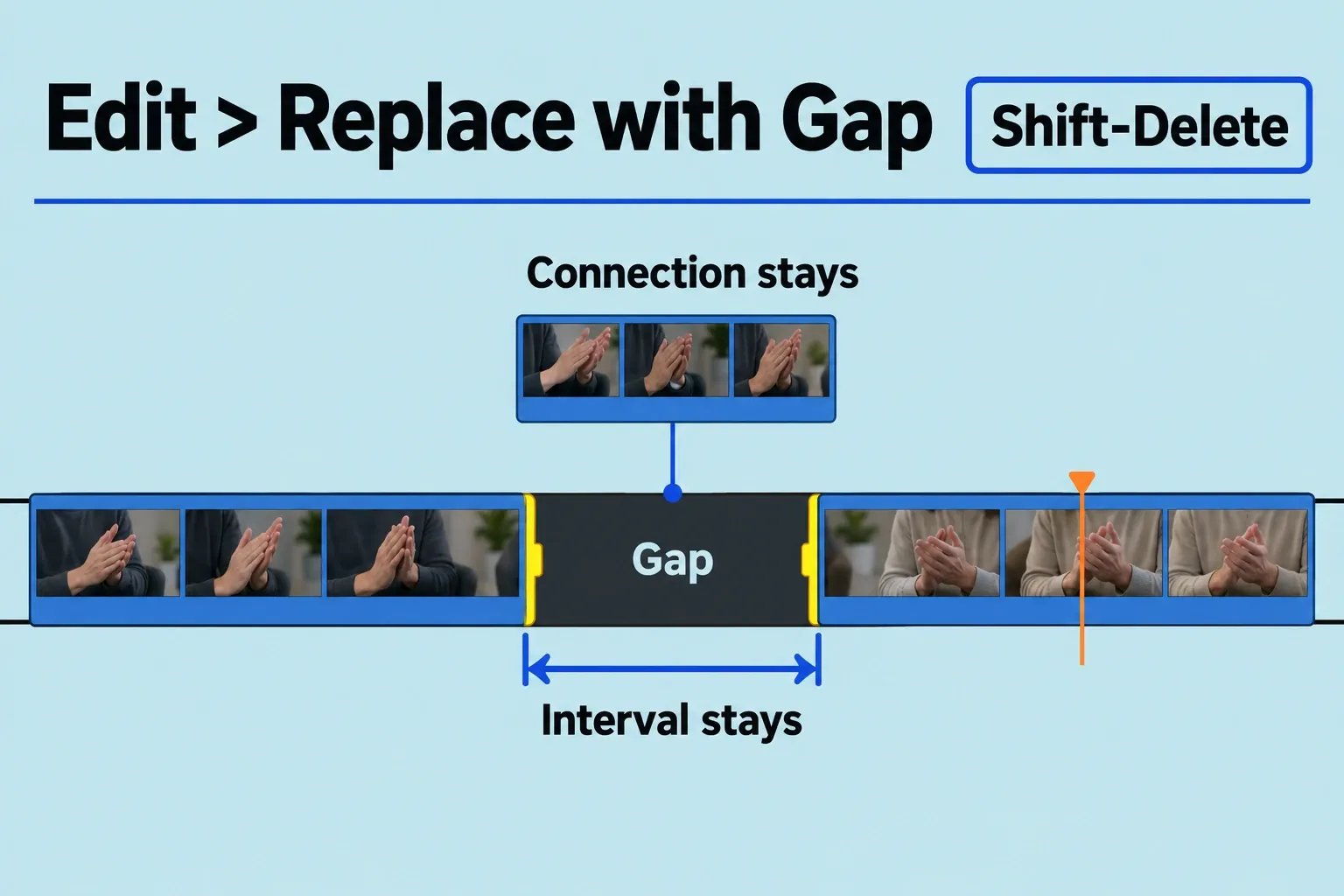
Connected cutaways, titles, sound effects, and secondary storylines attach to a point in the primary storyline. Before removing picture underneath them, decide whether you want to shorten the primary storyline, keep the connected material in place, or preserve the interval. Timeline deletion leaves the source media intact, but its effect on connected items depends on the selection and operation.
- Close the primary-storyline gap: select the clip or range and choose Edit > Delete. Later primary clips ripple left. Delete an entire primary clip and its connected clips or storylines go with it. If the deleted range is partial and includes a connection, those items stay but shift to the closest primary storyline clip, so check their new attachment.
- Keep connected clips where they are: hold the Grave Accent key (
`) while selecting the primary clip and pressing Delete. This preserve-connected-clips operation keeps their timing and position. It does not reserve the removed primary-storyline interval; later primary clips still close the gap. - Keep the interval and project duration: select the clip or range and choose Edit > Replace with Gap (Shift-Delete). The gap prevents a ripple and retains connected clips, attaching them to the gap. Review what picture and sound cover that interval; a gap is a timing choice, not a sync repair.
Listen through each changed boundary without watching the viewer, then watch it again to assess picture and sound together. For synchronized, compound, or multicam material, confirm the source relationship before trimming. Changing timeline endpoints cannot diagnose or fix an offset inside the original recording or container.
Compare the timing results once
In the duplicate project, note the project duration and your visible picture-and-sound reference. Start each alternative from the same unchanged timeline, with sufficient handles for any extension:
- Blade: split the intended clip without removing frames. Its two pieces retain the original combined span. Undo back to the starting state.
- Ripple: with Select (A), choose only the outgoing primary clip’s end edge and make a short deliberate drag. Check its duration and the following material’s position. Undo and confirm the baseline is restored.
- Roll: with Trim (T), select both adjacent edges at the cut and make a short drag. Check that one clip gains what the other loses and the pair’s span stays fixed. Undo back to the same baseline.
- Extend Edit: choose the intended edge, place the playhead or skimmer at a nearby target frame, and press Shift-X. One selected side ripples; both sides selected with Trim roll. Check the result and undo.
You’ve learned it when you can predict the duration and movement before you apply the edit. Undo after each case and confirm that the timeline returns to the same state. I’d practice this way rather than memorize pointer shapes, because it ties each tool to a result you can see.
After each operation, play through the visible sync event and both ends of the edited section. If picture and sound still align but the rhythm feels wrong, reconsider the cut frame. Inspect the connected cutaway and its attachment after a ripple. This check distinguishes a timing choice from an unintended movement of audio.
Stop and reset when the relationship is unclear
If several clips move, audio overlaps unexpectedly, or the connection point is no longer obvious, undo back to the last known checkpoint. Do not add gaps or detach more audio merely to make the timeline resemble a track editor. Duplicate the project, isolate the two clips around the edit, and repeat the intended blade, ripple, or roll operation once. A small timeline makes it easier to inspect the selected edges and attachments without several compensating moves.
If you have not yet built a short sequence from import to export, start with the first-edit tutorial before practicing these trim operations.