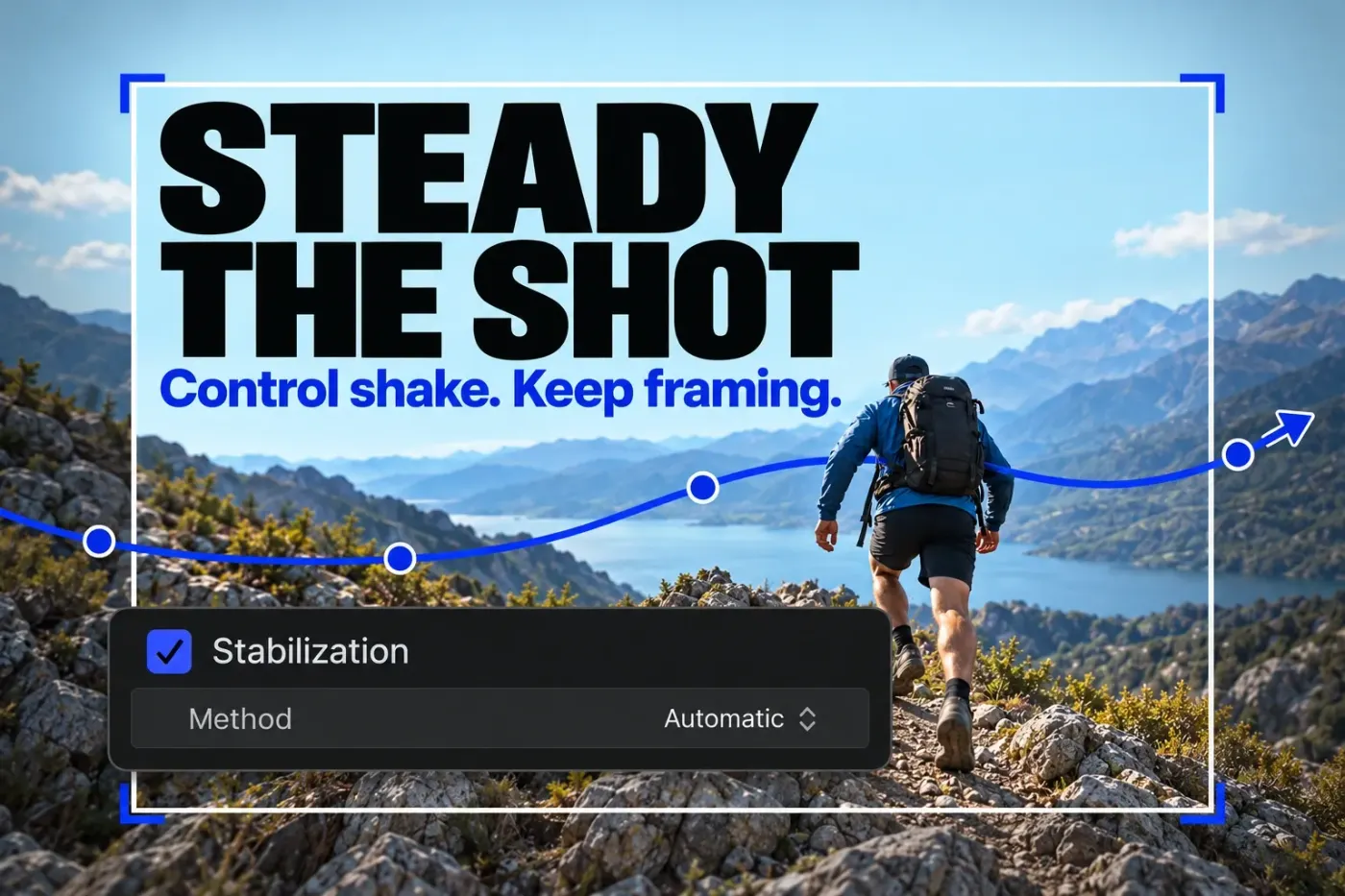
In Final Cut Pro, select the shaky clip in the timeline and turn on Stabilization in the Video inspector. Let the analysis finish, then play the corrected section and inspect the frame edges. If the picture looks skewed or wobbly rather than merely shaky, inspect Rolling Shutter as a separate correction. Apple's Final Cut Pro for Mac guide documents both controls. Neither guarantees that a badly recorded shot will become usable.
Isolate the part that needs correction
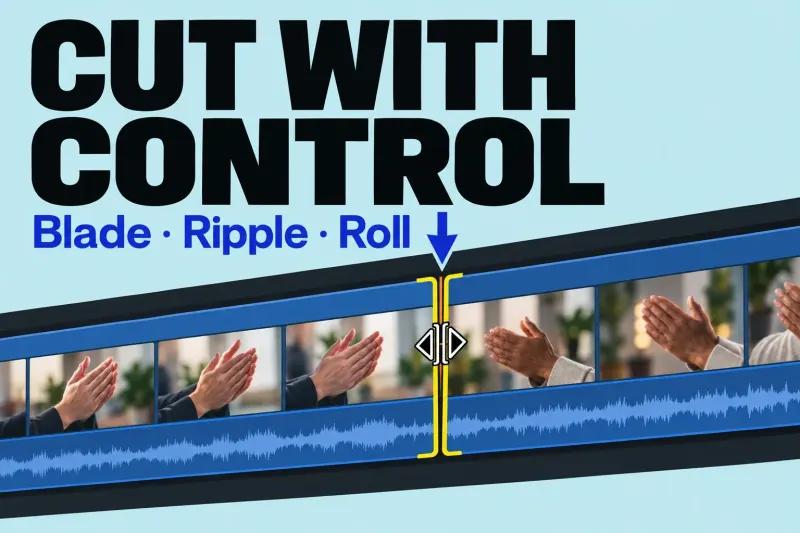
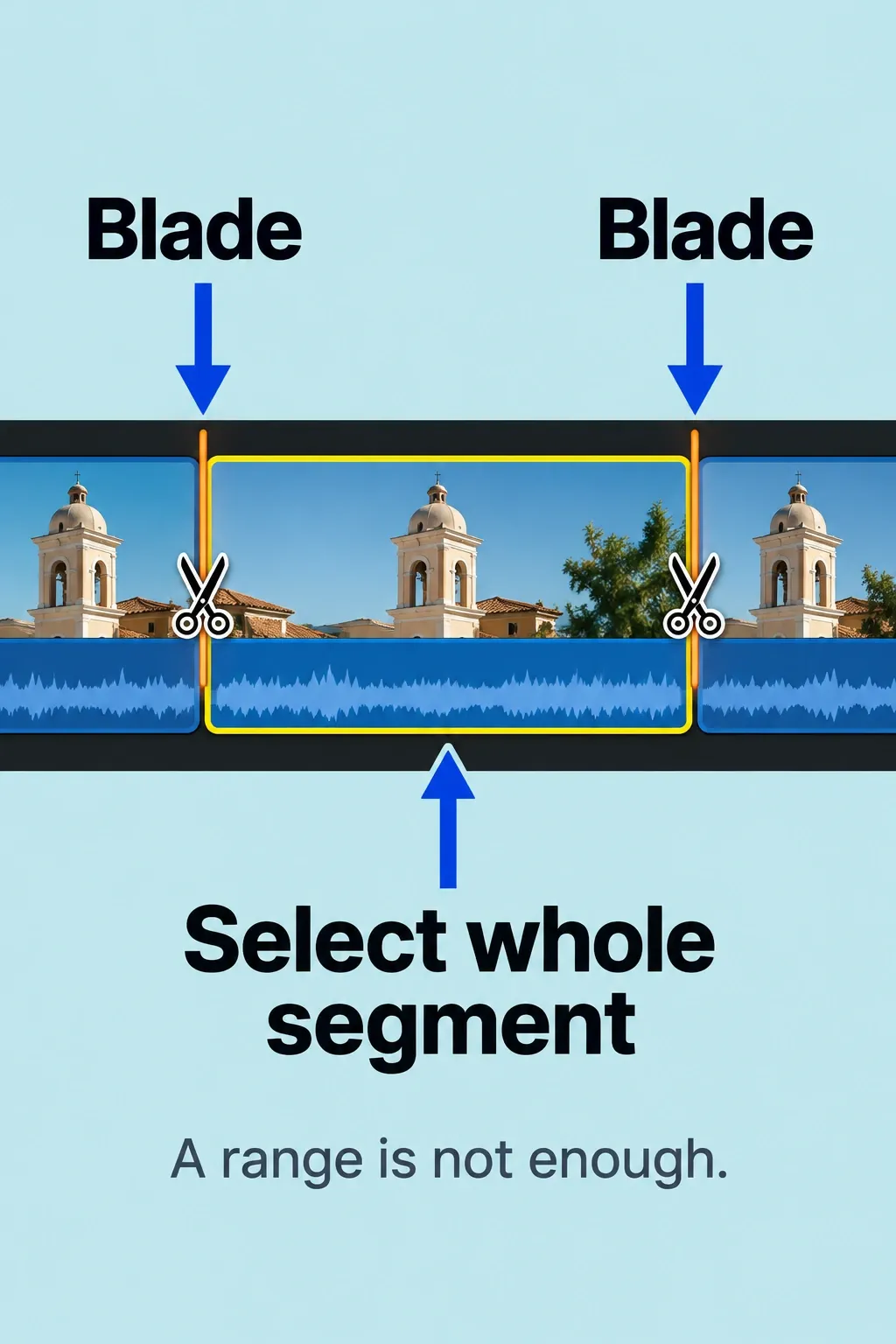
Apple says stabilization and rolling-shutter corrections operate on whole-clip selections, not on a selected range inside a clip. If only a short section is troublesome, cut around that section with the Blade tool in the timeline and apply the correction to the new clip segment. That confines analysis and the visual change to the footage that needs it. For the mechanics of making a clean split, see the trim and split guide. Keep the uncorrected neighboring segment available for comparison.
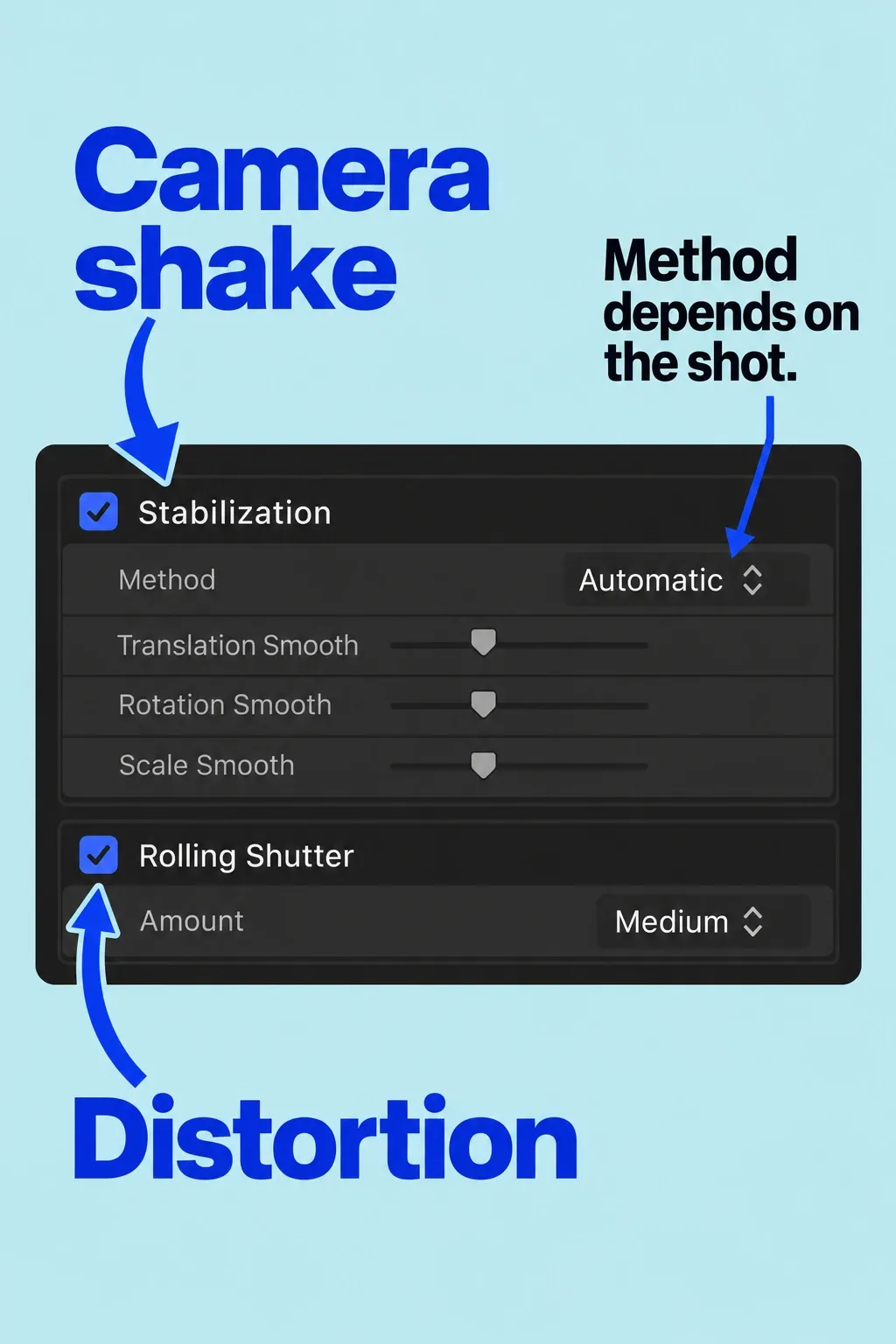
Select the segment. Open Window > Show in Workspace > Inspector or press Command-4, then click the Video button at the top. Scroll to the Stabilization and Rolling Shutter sections. Turn on Stabilization, then wait for Final Cut Pro to analyze the clip. Playback shows the correction; disabling the checkbox returns that clip to its original motion. This makes a before/after check possible without baking the correction into your source file.
Choose the method for the camera movement
Leave Method: Automatic as a first comparison. Apple says Automatic chooses between InertiaCam and SmoothCam. InertiaCam is optimized for footage with intentional camera movement such as pans and zooms; its Smoothing control changes the amount of correction. Depending on the clip analysis, Final Cut Pro may also offer Tripod Mode, which aims for a static-camera effect. Do not assume that option appears for every shot.
SmoothCam exposes separate Translation Smooth, Rotation Smooth, and Scale Smooth controls. They handle x/y movement, rotation around the image center, and forward/backward movement respectively. A higher value compensates for more movement; 0.0 turns that parameter off. Adjust the smallest number of controls needed for the observed problem, then replay the whole segment. A smooth-looking still frame is not enough to judge moving footage.
Watch the frame edges and the actual motion
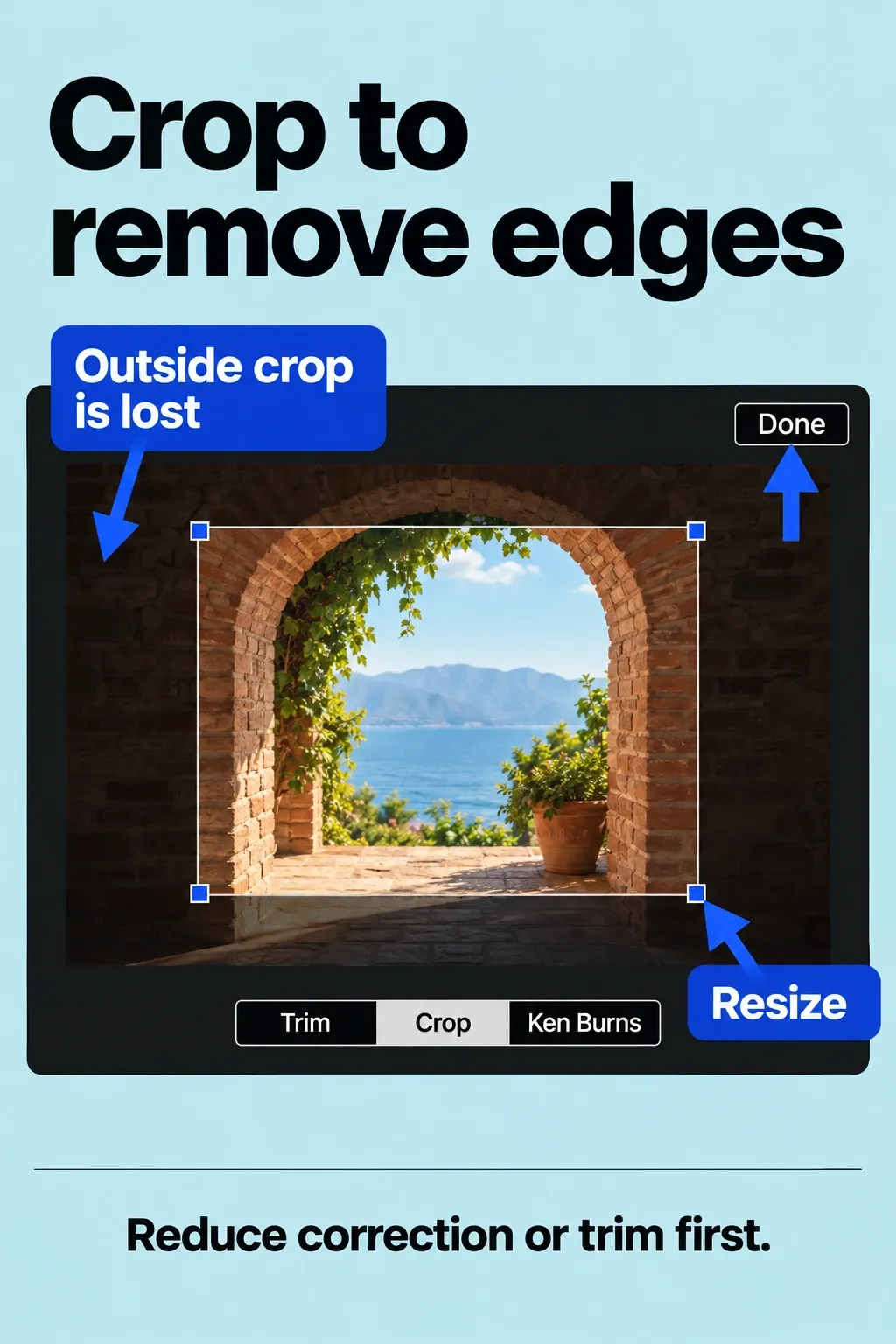
Stabilization can leave black bars at the edges when the source has too much movement, especially a large pan. Apple lists three possible responses: reduce the SmoothCam correction values, cut or trim away the most severe section, or crop the stabilized image. Cropping trades field of view for clean edges; it can remove useful subject detail. If the required crop compromises the shot, keep a less aggressive correction or choose another take instead of hiding the loss.
To locate the worst sections, open the timeline index’s Tags pane and click an Excessive Shake tag to select its range. Use that range to plan the cut, then select the whole new clip segment for correction.
If straight structures bend or skew during camera movement, try the separate Rolling Shutter checkbox and compare the motion. Rolling-shutter distortion can arise when a sensor exposes the image progressively while the camera or subject moves; it isn't just another name for hand shake. You can use stabilization, rolling-shutter correction, or both, but inspect the result: more processing isn't always better.
For an important delivery, export a short test range and inspect the resulting file at its intended size, including the edges and any fast movement.