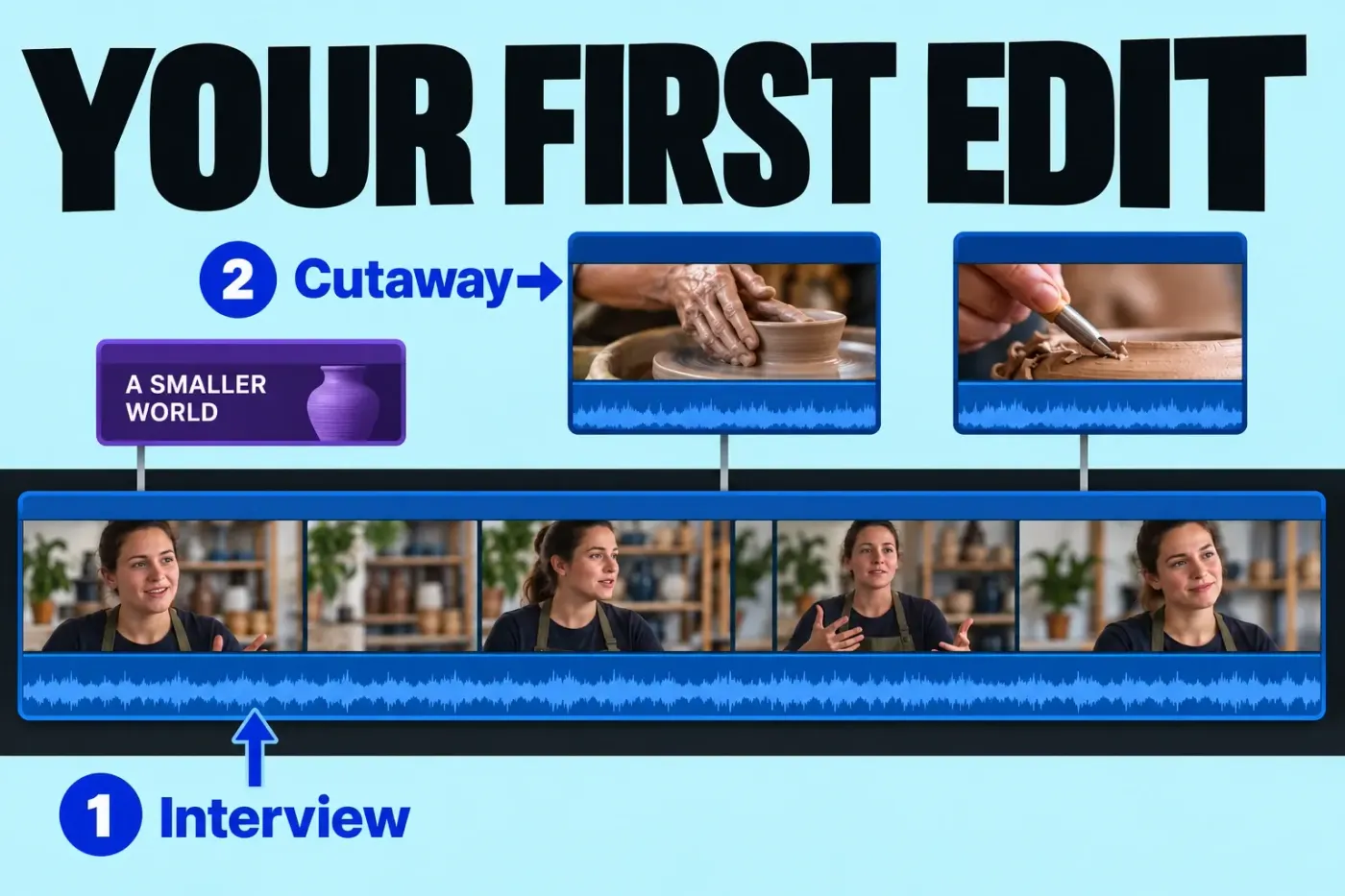
Your first Final Cut Pro edit can be a short interview answer with two cutaways and one opening title. Aim for about 60 seconds, then export a viewing copy and check it outside the editor. I recommend this exercise because it teaches the decisions you need to finish a video: where the files live, which sequence you are editing, and how picture and sound stay together.
Prepare a small job and learn the four workspace areas
Use three video files already saved on your Mac: a short interview with clear dialogue and two short, silent shots that relate to the answer. For this exercise, choose HD or UHD landscape footage intended for SDR delivery. Keep the camera originals in a separate folder and leave them intact. Check your Mac against Apple’s current Final Cut Pro requirements before starting.
Create a Finder folder named First edit, with a Deliverables folder inside it. You will save the library in the job folder and the finished viewing copy in Deliverables. Keeping those two items distinct prevents an exported movie from becoming your only record of the edit.
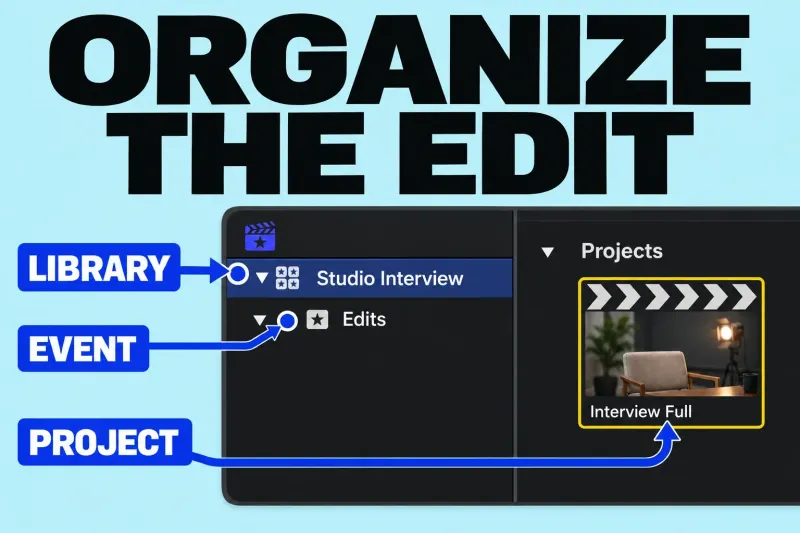
In Final Cut Pro, the library holds your editing organization; an event groups clips and projects within it. A project is the particular sequence you arrange in the timeline. We will use one library, one event, and one project, each with its own name.
- Libraries sidebar: select the library or event you want to work in. If it is hidden, choose Window > Go To > Libraries (Command-1).
- Browser: find the source clips and projects belonging to the selected event.
- Viewer: inspect the picture you are previewing.
- Timeline: build and change the open project. Its primary storyline will carry the interview; the supporting shots will connect above it.
The library, event, and project guide explains a larger organization scheme. One event is enough for the first edit.
Create the library and import your clips
- Choose File > New > Library. Save it in the First edit job folder, name it First edit library, and click Save.
- Select that library in the Libraries sidebar. Choose File > New > Event (Option-N), name it First edit sources, and check that the Library menu names your new library. Leave Create New Project unchecked for now, then click OK.
- Choose File > Import > Media (Command-I). Select your Mac or source device on the left, locate the three files, and select them. Command-click lets you select multiple files.
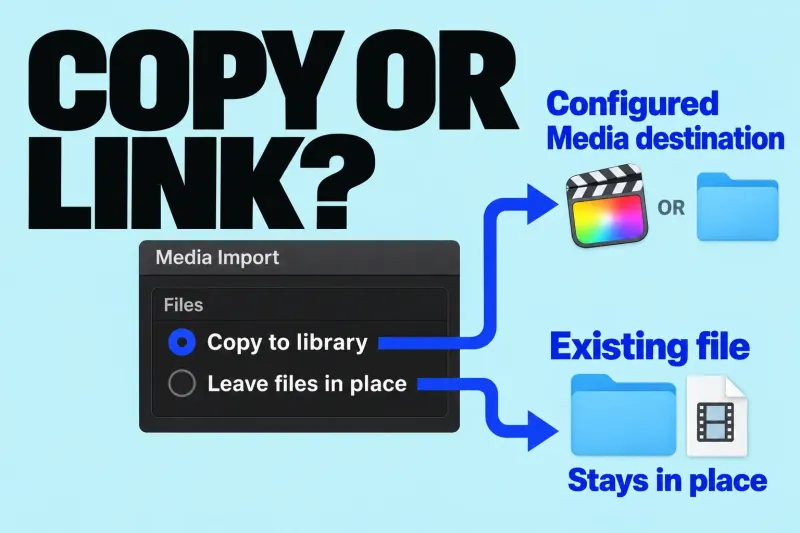
- On the right, choose Add to existing event and select First edit sources. Under Files, choose Copy to library, then click Import Selected.
Copy places a duplicate in the library’s current media storage location. If that location is external, the option names the external destination; it does not necessarily copy into the library package. Leave files in place keeps the library dependent on the existing files at their current location. For this exercise, Copy is the clearer choice; just look at where that destination actually is. The Copy or Leave Files in Place guide covers that decision in detail.
Import continues in the background. Wait for the background tasks to finish before disconnecting a device you are copying media from. In the event’s browser, preview each file. Confirm that the interview has its expected dialogue and that the two cutaways show suitable picture. Resolve a missing-media warning before editing; changing clip timing cannot fix an unavailable source file.
Create the right project before cutting
For this SDR exercise, use Standard color processing in the new library. Select First edit library, choose File > Library Properties (Control-Command-J), click Modify at the top of the inspector, and select Standard. This library setting is separate from the color space of an individual project.
Let your intended output decide the project settings. For a practice edit that should match the interview recording, there is a direct route: Control-click the interview clip in the browser and choose New Project. Name it First edit, confirm the destination event, and click OK. This creates a project with that clip’s video properties without asking you to guess them.
You can also select the event and choose File > New > Project (Command-N). In the automatic video-settings view below, the first clip added to the empty timeline determines the project properties when its properties match a built-in preset. Add the interview first, so a cutaway with a different frame rate does not determine the initial format. Final Cut Pro can remember settings from the previous project; read the dialog before accepting it.
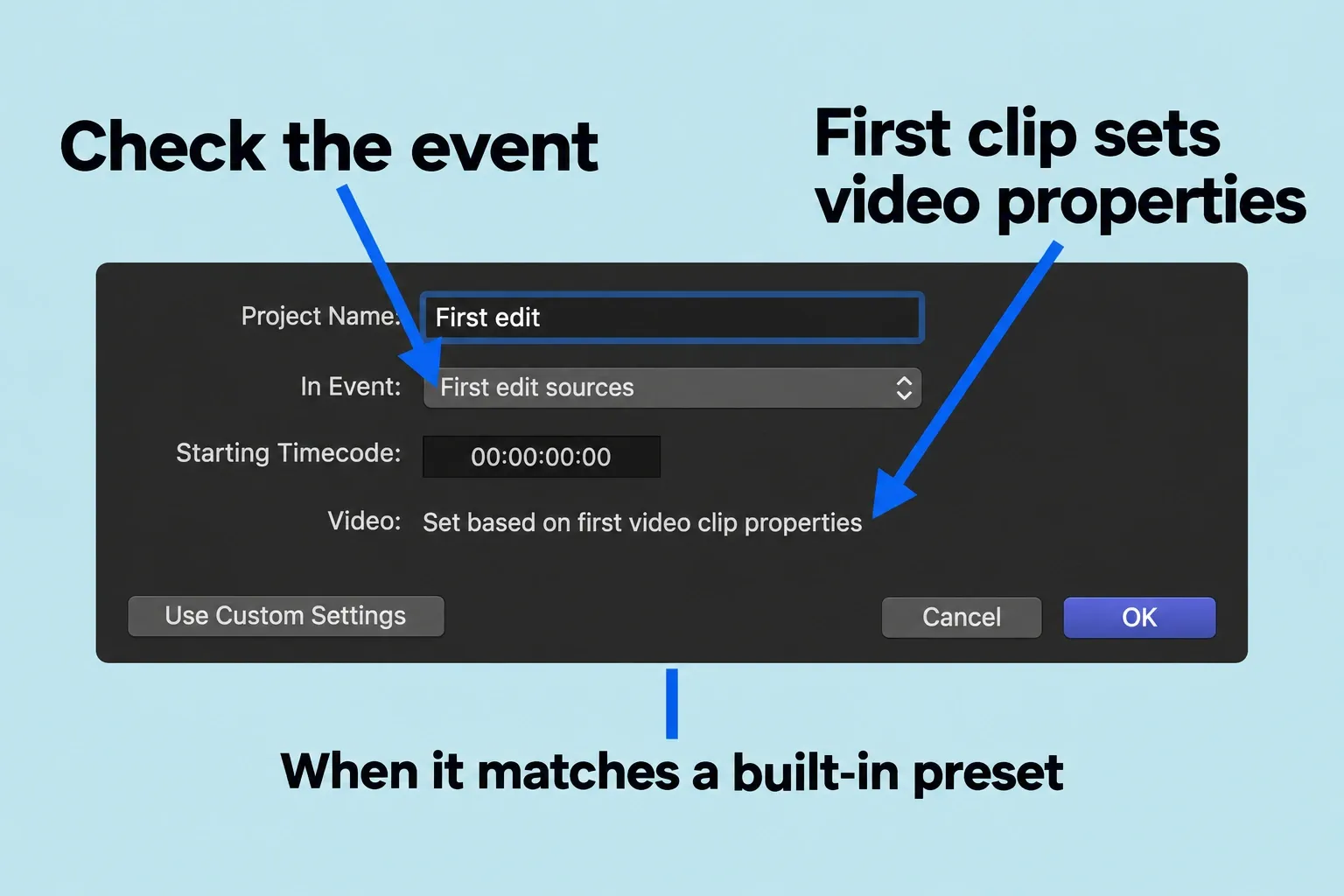
If you already have a required delivery format, use File > New > Project > Use Custom Settings. Set Format, Resolution, and Rate to that requirement. Resolution is the frame size; Rate is the frame rate. For the HD or UHD SDR project in this exercise, confirm Color Space: Standard - Rec. 709. In a Standard library, the rendering color space can be fixed by the other project settings; keep the SDR setup instead of switching the library to HDR just to get more choices. A 4K project is unnecessary when the task calls for a smaller viewing copy. The Rendering Codec field controls background rendering, so it is separate from the codec you will choose for the exported file.
Find First edit in the event’s browser and double-click it to open it. If the timeline is empty, select the interview clip in the browser and choose Edit > Append to Storyline (E). With no storyline selected, append adds the clip to the end of the primary storyline. Start with the complete short interview, then shorten it in the timeline.
Now select the project in the browser and choose Window > Project Properties (Command-J), then click Modify. Check the resulting resolution, frame rate, and color space against the intended output before making cuts. If the frame rate is wrong, create a correctly configured new project now and add the interview there. You cannot change an existing project’s frame rate while its timeline contains material. Modify is not a workaround for that limit.
Shorten the interview before adding cutaways
Open the correct First edit project again if you have been inspecting another item. Choose Select from the Tools menu (A). Drag the interview’s left or right edge to remove empty space at the beginning or end. This ripple trim changes the clip’s duration and moves later storyline material. Play across the new start and end to make sure words and breaths still sound natural.
To remove a pause inside the answer, choose Blade from the Tools menu (B). Click the interview at the start and end of the pause, then return to Select (A). Select only the isolated pause and choose Edit > Delete. The remaining storyline closes the gap; the original media file stays intact. If the cut removes part of a word or the wrong section, choose Edit > Undo (Command-Z) immediately.
I recommend finishing these deletions before connecting the cutaways. Deleting a whole primary-storyline clip can also delete the items attached to it. If you later need to remove picture while retaining the same project duration and connected items, Edit > Replace with Gap (Shift-Delete) is a different operation. It leaves space to review and fill; ordinary Delete shortens the sequence.
Listen to the complete shortened answer. The roughly 60-second target is a useful boundary, but a complete answer can be shorter. Keep hard cuts for this exercise; add a transition only when it helps explain a genuine change of scene or time.
Connect two cutaways without interrupting the dialogue
A cutaway changes the picture during part of the interview while the interview’s sound continues. Select the first cutaway in the browser and place the playhead at its intended starting point over the interview. Choose Edit > Connect to Primary Storyline (Q). The video connects above the primary storyline instead of entering the interview sequence.
When you use Q, the timeline skimmer, if it is present, takes priority over the playhead, so note its position before connecting. By default, the cutaway’s first frame attaches to that point in the interview. Look for the connection line, then trim the cutaway’s edges with Select (A) so it covers only the relevant part of the answer. Repeat for the second cutaway.
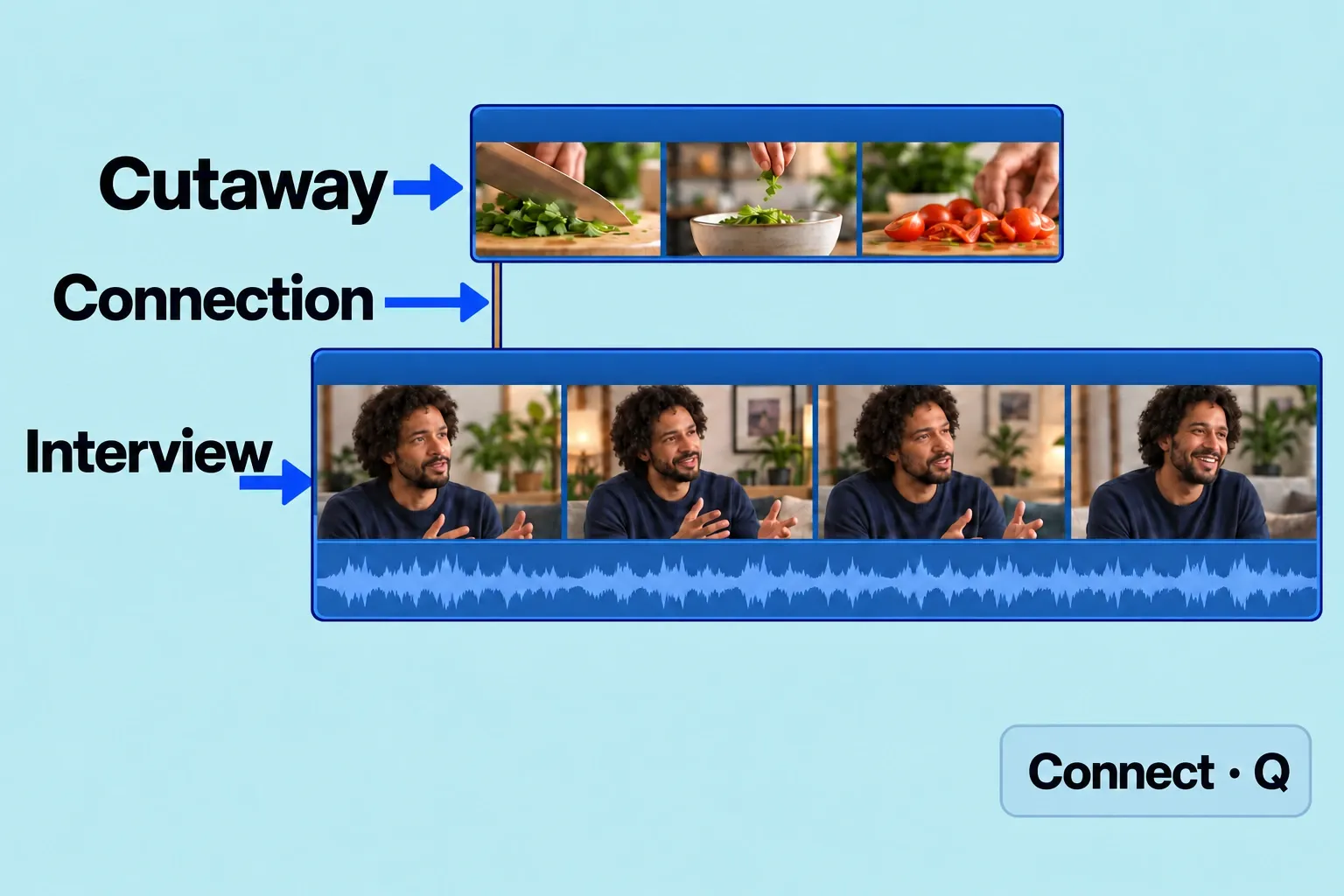
Keep these shots silent. If a cutaway has unwanted camera audio, select that cutaway in the timeline and choose Modify > Adjust Volume > Silence (−∞). Confirm which clip is selected first, so you don’t silence the interview by mistake. Play through both cutaways: you should see the supporting picture and hear the continuing answer.
If a later trim or move shifts a cutaway, inspect its attachment before dragging it back. Connected clips normally follow changes to their parent storyline clips. Undo one unexpected operation and examine the connection; several compensating moves make the relationship harder to understand. The Magnetic Timeline guide explains deliberate connection-point changes.
Check dialogue and add one readable title
On the interview’s waveform, drag the horizontal volume line up or down. Choose Window > Show in Workspace > Audio Meters, then play the loudest phrase. Yellow indicates approaching peak level; red and a red peak indicator warn that the level has exceeded the peak.
Lower the dialogue level when it clips, replay that phrase, and then check quieter words for intelligibility. The meter warning is about the output level, not a universal gain number for every recording: the combined level of concurrent clips should not exceed 0 dB at the loudest points. Check each dialogue piece created by your cuts. If the sound is still distorted at a lower level, stop adjusting volume and inspect the source recording.
Place the playhead or skimmer at the beginning of the interview. Choose Edit > Connect Title > [title name] (Control-T). The initial default is Basic Title, but the menu name follows your current default. The title connects at the skimmer or playhead position, so confirm its start in the timeline.
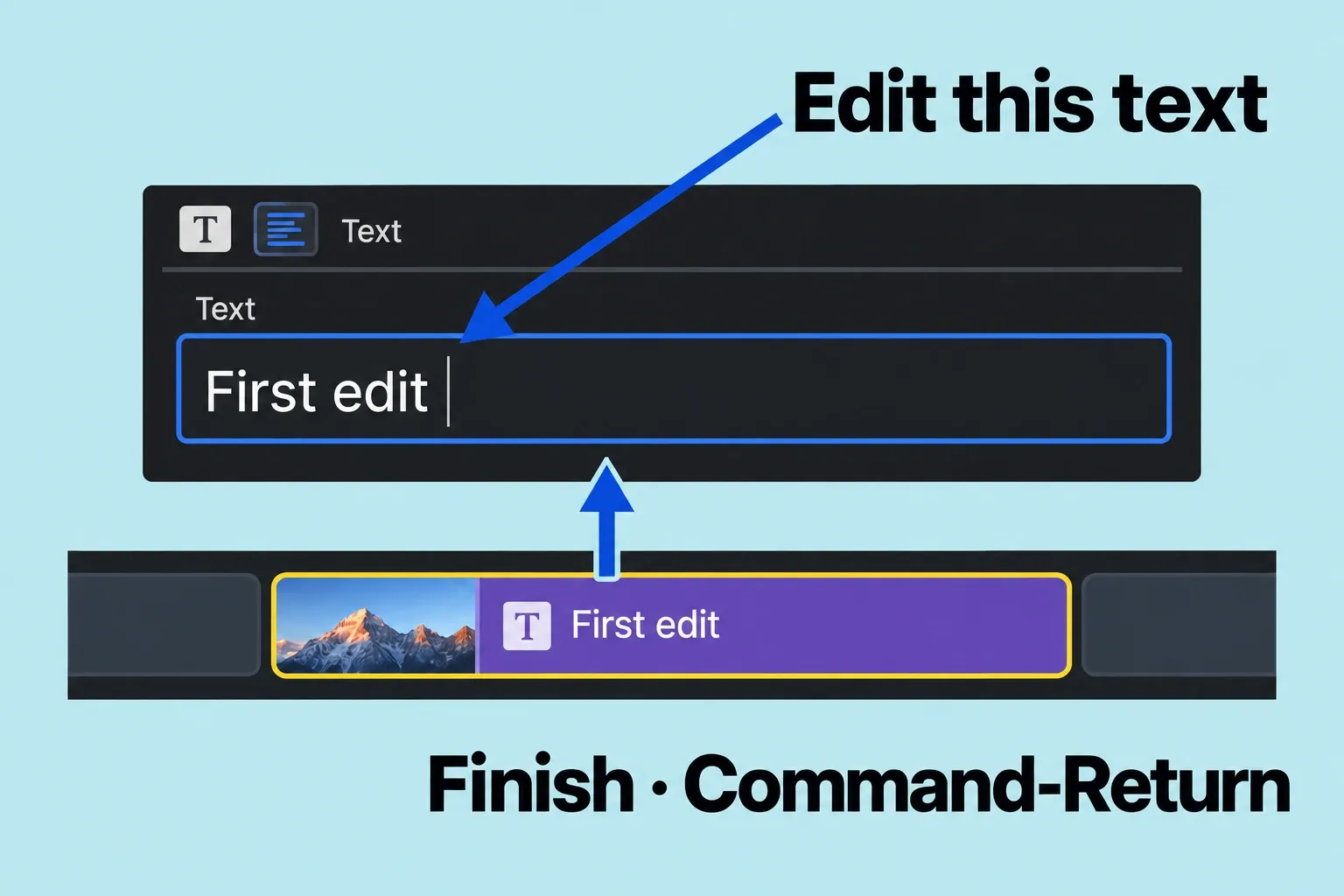
Double-click the title clip, then edit its text in the viewer or Text inspector. Press Command-Return to exit text editing. Trim the title’s duration with Select (A), and watch it during playback. Use a short name or topic line that stays readable against the actual shot and remains visible long enough to read.
Review the whole sequence once before sharing. Check the title and both end frames, then listen across each dialogue edit. Look for black gaps and missing-media alerts. If the two sources have visibly different color, handle that as a specific color-correction decision; a beginner exercise does not need an effect on every clip.
Export a viewing copy and inspect the finished file
Select the completed First edit project in the browser to share the whole sequence. Choose File > Share > Export File, then open Settings. If you previously switched the project to proxy playback, first open it in the timeline and choose Optimized/Original from the viewer’s View menu, as Apple directs for this export.
For this exercise’s viewing copy, choose Video and Audio under Format, then H.264 under Video Codec when it is offered for your project. Apple lists H.264 as an Export File format for supported source resolutions and frame rates; the choices available depend on your project. This route produces a QuickTime MOV file. Check the actual output type in the summary and keep the extension supplied by the destination.
If the recipient needs a file for further post-production, use the required ProRes variant or other specified format. The Format choice determines the settings offered below it: Video and Audio is a mastering format, while Computer and Web Hosting are publishing formats. Resolution can be changed in the share destination only for publishing formats. When you have a delivery specification to meet, don’t switch formats just to chase a smaller file.
Before clicking Next, read the summary at the bottom of the Share window. Confirm the full project duration and frame size, then check frame rate, audio channels/sample rate, and output type. If the duration is only a small part of the edit, close Share and select the project in the browser again. A selected timeline range limits the export to that range; selecting a timeline clip alone is not the way to specify a partial export.
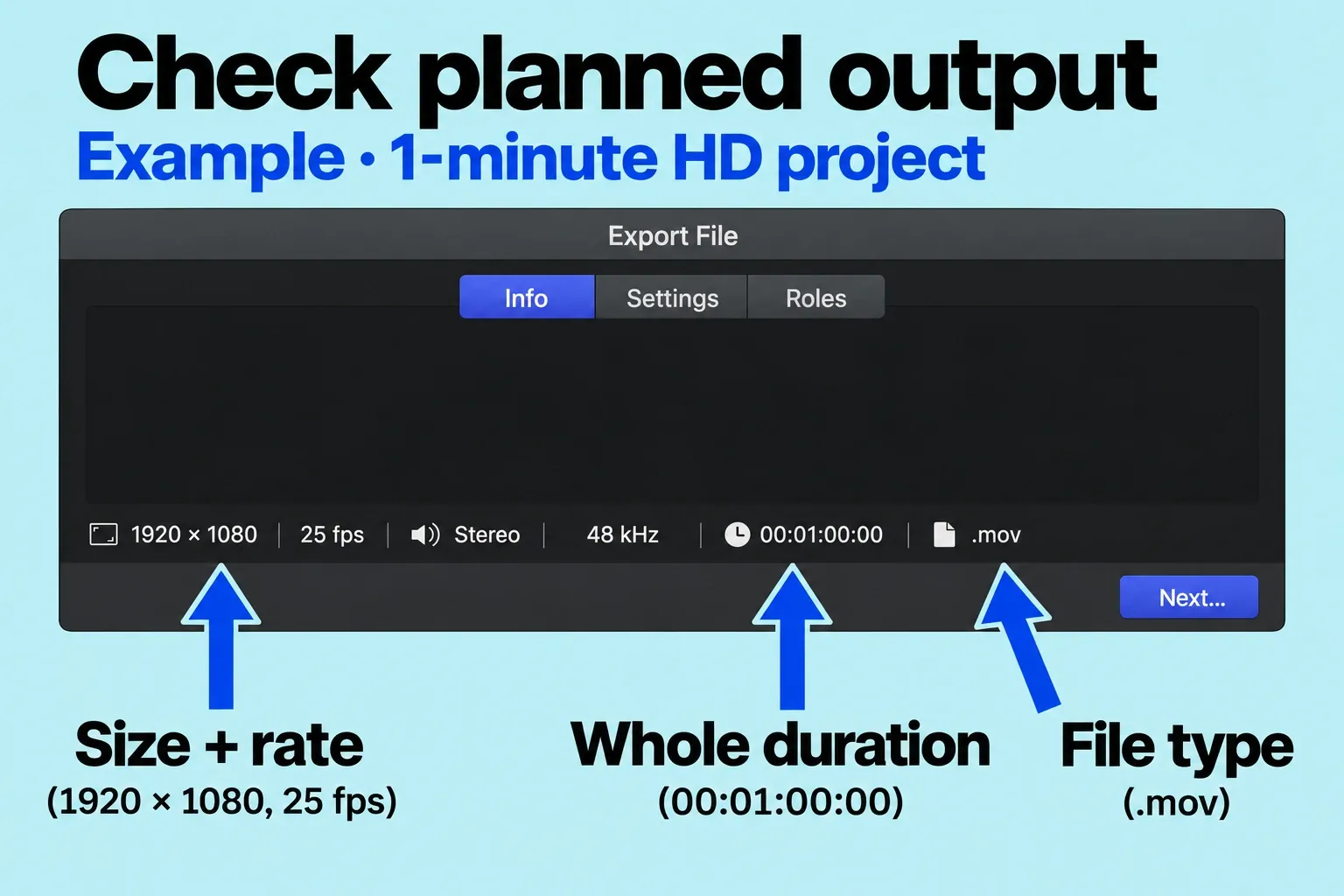
For Action, choose Save only so you can inspect the file deliberately after export. Click Next, choose the Deliverables folder, name the file first-edit-v01, and click Save. Wait until transcoding completes and Final Cut Pro displays its completion notification.
Open the exported movie in a separate player. Check the first and last two seconds, the cutaway edits, and the title; then listen to the loudest phrase and each dialogue cut. Compare the movie’s duration with the completed timeline. If it has a short duration, a black gap, missing sound, or the wrong title, correct that specific problem in the project and export a new version.
Keep the library and its source media after you have a good export. Final Cut Pro’s automatic library backups contain the database, not the media files. Select the library and open File > Library Properties (Control-Command-J) to inspect storage locations. To locate an original file, select its event in the sidebar, select the source clip in the browser, and choose File > Reveal in Finder. Reopen the library and confirm that the project and sources remain available. For a specific YouTube delivery next, continue to the 4K SDR export guide.