Start Final Cut Pro color correction by choosing a representative shot, checking its exposure, and correcting an unwanted color cast. Use video scopes alongside the viewer, then compare adjacent shots in motion. The goal is a coherent image for the intended delivery, not identical slider values on every clip.
This guide covers a basic SDR Rec. 709 correction in Final Cut Pro for Mac.
Establish the color pipeline before correcting the image
Know whether the source is ordinary SDR, log footage, or HDR. Also establish the intended project and delivery color space. A log clip that lacks its intended display transform is not the same problem as a normally interpreted clip with low contrast.
For this exercise, use an SDR Rec. 709 project and a source already interpreted appropriately for that project. If you have HDR footage, first confirm its Color Conform handling. For log footage, check the Camera LUT applied to the source. Do not stack an extra transform simply because a tutorial’s example looks more contrasty.
Pick a shot containing the subject and lighting conditions that matter most. An unusually dark cutaway or a frame mid-transition makes a poor reference for the rest of a normal interview. Apple’s manual workflow similarly starts with a reference shot before matching the surrounding scene.
Open video scopes and Color Wheels
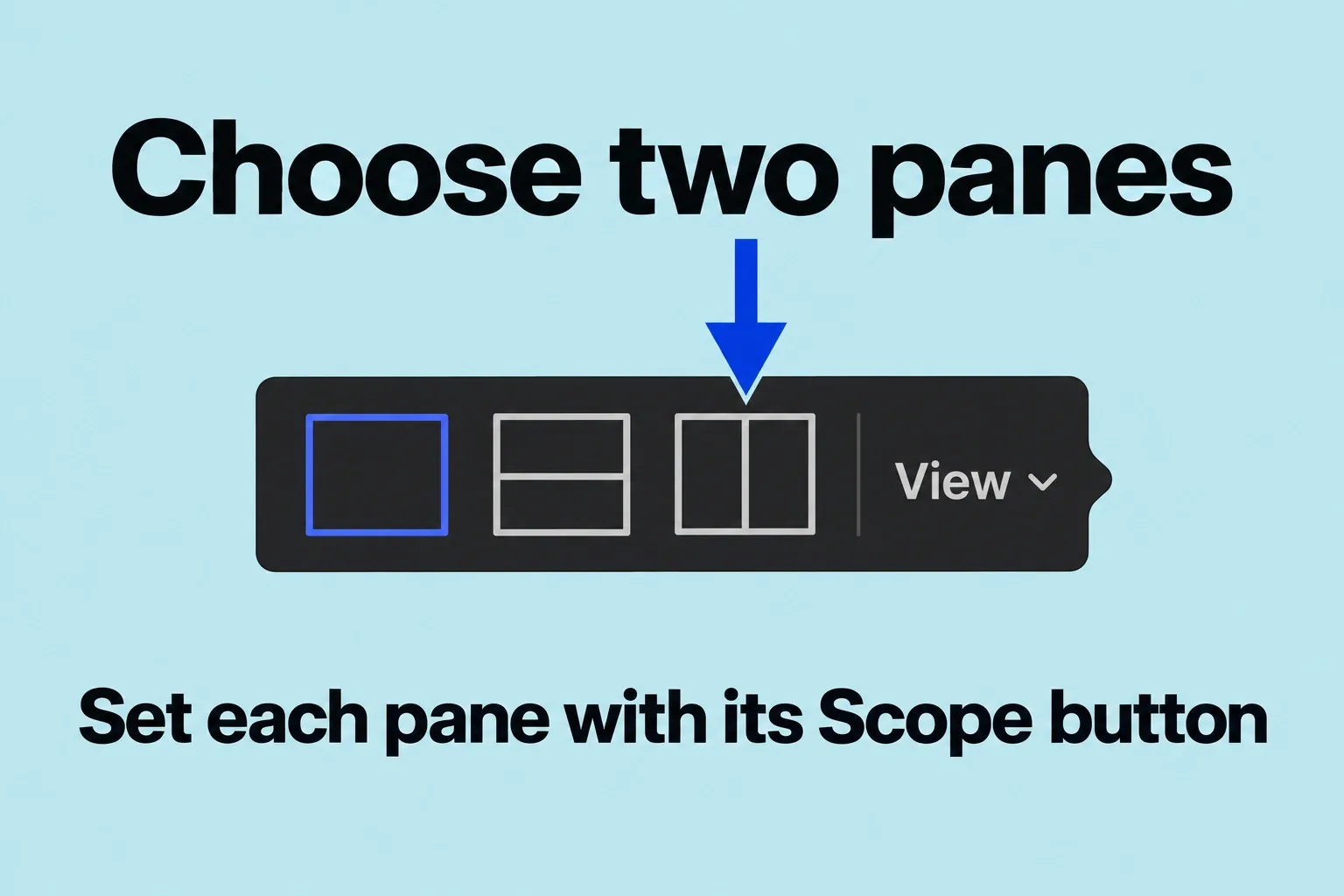
Select a timeline clip and put the playhead on a useful frame. Open View > Show in Viewer > Video Scopes; the default shortcut is Command-7. Use the scopes’ View menu to choose a two-pane layout. In one pane’s Scope menu, choose Waveform, then Luma and IRE for this Rec. 709 exercise. Set the other pane to Waveform > RGB Parade to inspect the red, green, and blue channels separately.
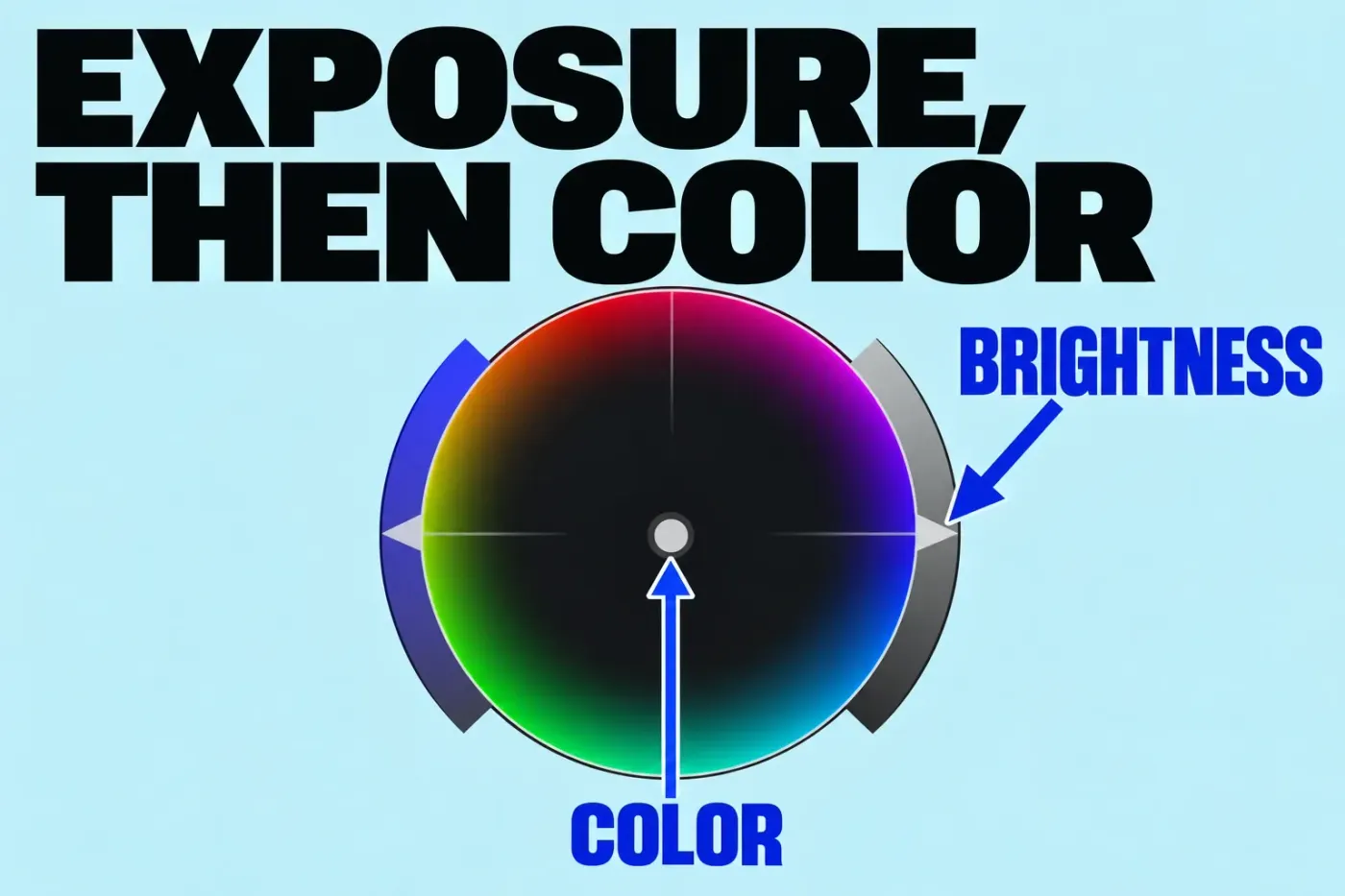
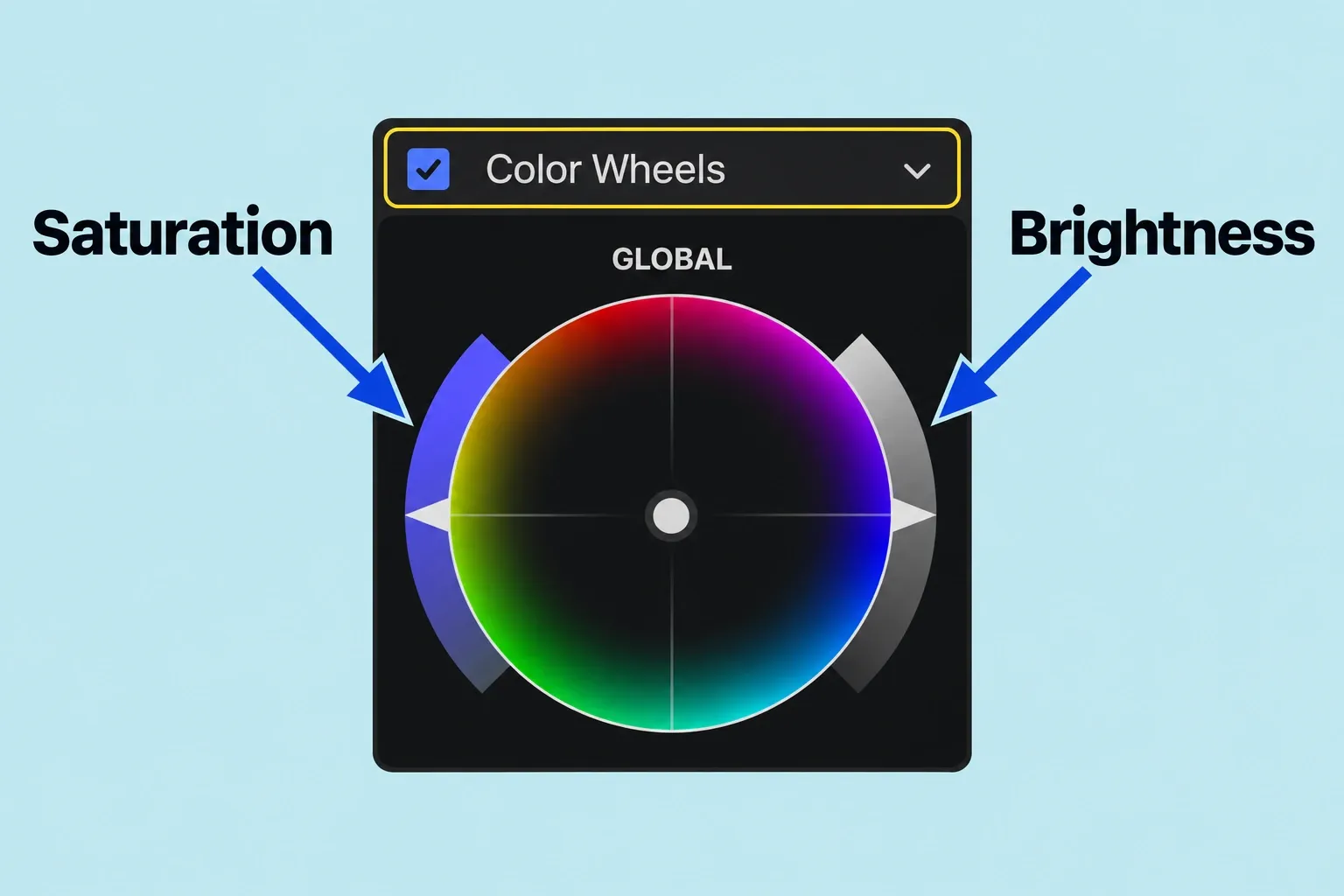
With the timeline clip selected, open Window > Go To > Color Inspector or press Command-6. For a clip with no color correction, the inspector shows the default color correction chosen in Final Cut Pro’s General settings. To add Color Wheels, choose it from Add Correction in the inspector’s pop-up menu. If you already have a Color Wheels correction to refine, choose that instance from Corrections rather than adding another. The Global wheel affects the overall image; the other wheels target shadows, midtones, and highlights. Brightness is the slider on each wheel’s right side; Saturation is on its left.
Correct exposure without forcing every shot to the same extremes
Use the luma waveform to inspect brightness distribution while watching the picture. Its horizontal position corresponds to the left-to-right position in the image; the vertical axis shows signal level, with IRE selected for this exercise. Higher traces represent brighter parts of the image. RGB Parade separates the channels so that a change in their relative levels is easier to see. Choose Global when the whole frame needs a brightness change. For example, if the midtones look appropriate but a bright window dominates the shot, try the Highlights wheel and watch both the window and subject as you adjust. Use Shadows or Midtones when the issue lies in those tonal areas. Move the chosen wheel’s right-side Brightness slider in small steps. Ask what should remain visible: facial detail, a bright window, a dark jacket, or a highlight that is intentionally strong.
Do not force every image to contain both a hard black and a maximum white. A foggy landscape and a contrasty studio interview can legitimately occupy different tonal ranges.
For an SDR exercise, inspect the waveform’s scale and look for unwanted excursions or flattened highlights. The exact delivery limits come from the receiving specification, so don’t treat any waveform shape as universally broadcast-safe.
Toggle the correction and ask whether the change improves the subject while keeping the intended atmosphere. Select the clip and open the Video inspector (Command-4, then the Video button). Find Color Wheels in Effects and deselect that effect’s checkbox. Re-select it to restore the correction with its settings intact. If you can only justify the change by saying the graph now looks tidier, reconsider the adjustment.
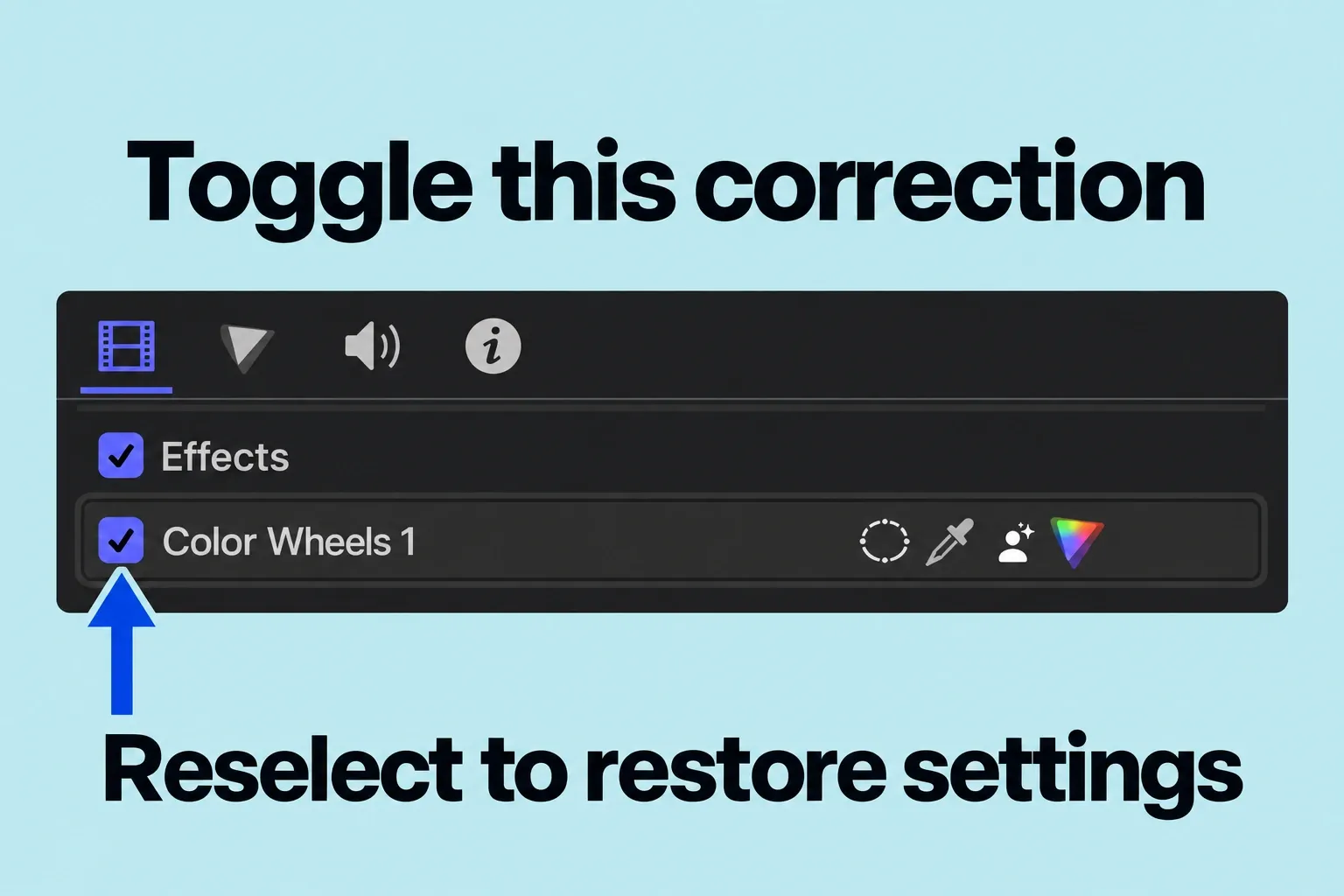
Adjust white balance and tint
Final Cut Pro’s Color Wheels include Temperature and Tint controls. Temperature adds blue when moved left and yellow-red when moved right. If a known neutral object has an unwanted warm cast, try a small move left; for a cool cast, try right. Tint adds green to the left and magenta to the right: move toward magenta for an unwanted green cast, or toward green for unwanted magenta. Watch a genuinely neutral object if one exists; a bright wall or shirt wasn’t necessarily neutral under the scene’s lighting.
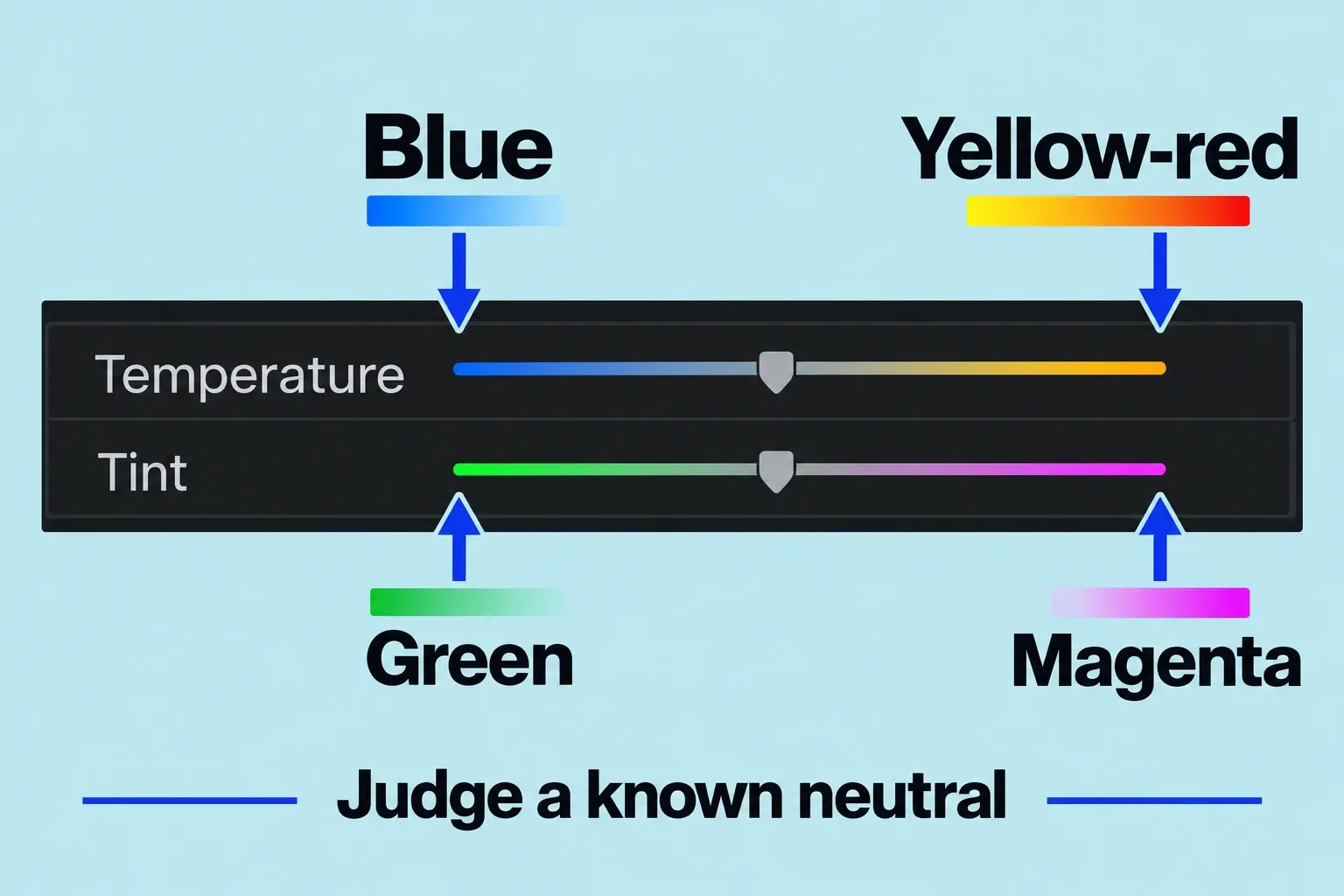
RGB scopes help you inspect the channel relationship, but a deliberately warm practical lamp need not become colorless. An interview lit by two different color sources may not be fixed cleanly by one global adjustment. In that case, identify the local problem before pushing the whole frame further.
The same distinction matters when evaluating skin. Judge the person’s appearance in the context of the lighting and shot instead of forcing every face to an identical numerical target.
Refine saturation and compare neighboring shots
After a basic exposure and balance correction, adjust saturation conservatively. Check prominent colored objects and the subject in motion. A still frame can hide an unpleasant change as someone moves between differently lit areas.
Then play the cut into the next shot. Compare subject brightness, overall color cast, and saturation. Match the perceived scene, not just the correction’s parameter values: clips with different starting exposures will not necessarily converge when given the same settings.
Once the cut no longer creates an unintended visual jump and important detail stays readable, the correction is ready for further review. A stylized grade can follow, but it shouldn’t hide an unresolved technical interpretation problem.
Check the actual export
Switch to full-resolution media for finishing if you used a proxy workflow, and inspect the output file. Follow the YouTube SDR export guide for that delivery scenario.
If the file looks different from what you saw in Final Cut Pro, pin down the project, export, display, and playback conditions before compensating with a new grade. Changing saturation merely to match one unexamined player can damage the underlying correction.
No LUT purchase is required for the basic operations described here. The useful result is a repeatable correction process and a checked output, not a longer effects stack.