Final Cut Pro's Green Screen Keyer removes a selected green or blue color so a foreground clip can sit over another clip. If the result has holes, rough hair, or a green tint, inspect the matte and adjust the key instead of judging the composite alone.
Apply the key
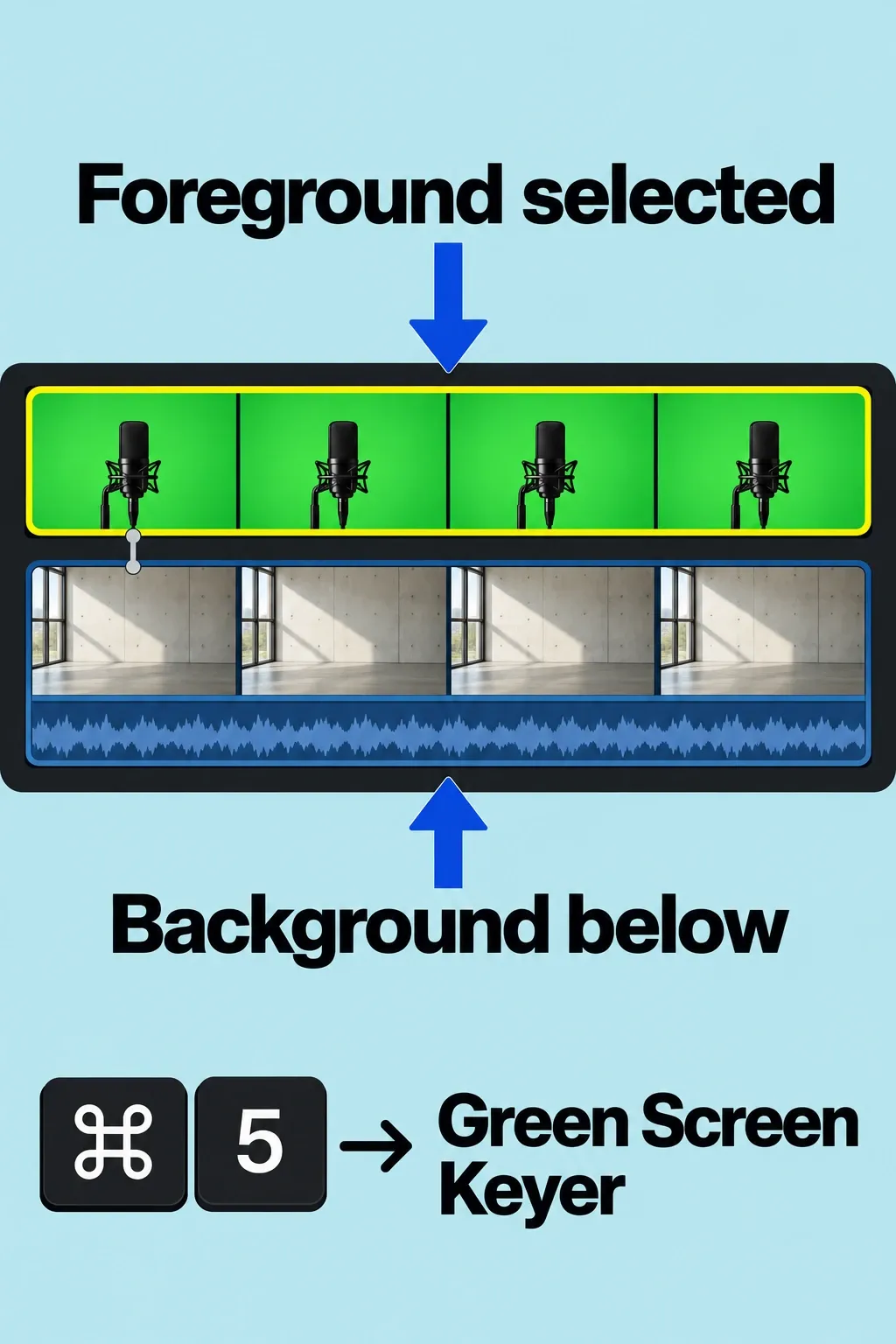
Put the foreground clip, with the color to remove, in the primary storyline. Drag the background clip below it as a connected clip. Select the foreground, open the Effects browser with Command-5, search for green screen, and apply Green Screen Keyer by dragging it to the clip or double-clicking its thumbnail. Apple recommends positioning the playhead over a frame that contains a large, representative area of the key color.
The effect analyzes the foreground for a dominant green or blue color. Treat that as a first pass; it won't always produce clean edges. Lighting, uneven background color, compression, reflections, hair, and motion can all leave areas that need review. Apple also recommends a well-lit, uniform background and avoiding highly compressed source video when recording chroma-key footage.
Read the matte before changing the composite
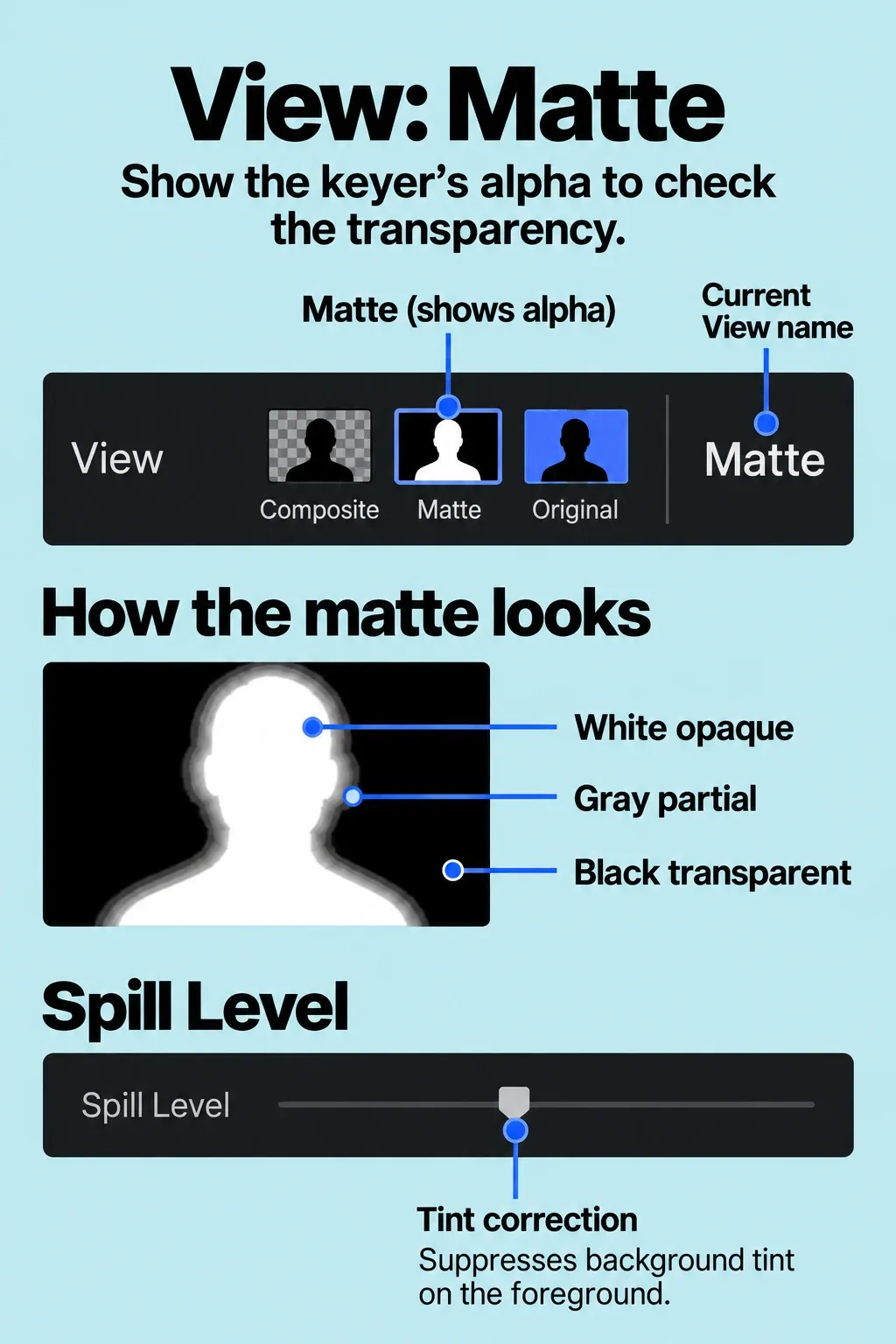
Select the keyed foreground clip. If the inspector is hidden, choose Window > Show in Workspace > Inspector (or press Command-4). Click the Video button at the top of the inspector. In the Green Screen Keyer controls, select Matte in the View area of the Video inspector to inspect the grayscale result. White areas are opaque, black areas are transparent, and gray areas are partially transparent. This view makes unwanted holes and leftover background easier to see than the finished composite.
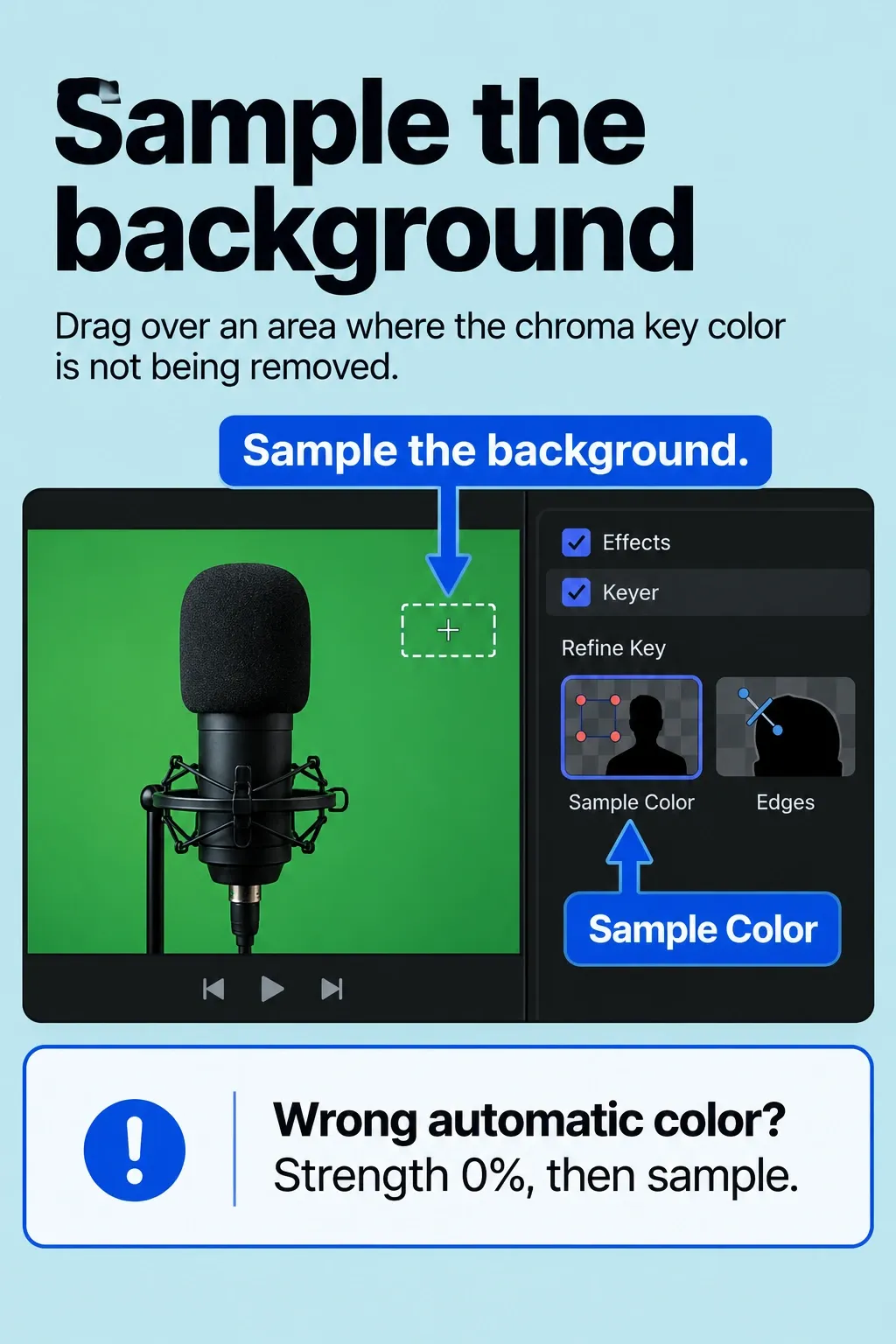
Press A to make the Select tool active. If background color remains, click Sample Color and draw a rectangle over that green or blue area in the viewer. If the automatic key selected the wrong color entirely, set Strength to 0% first, then use Sample Color to choose the color to remove. You can add more sample rectangles where the color varies. For difficult boundaries such as hair or reflections, use Edges and draw a line across the area to keep and remove; adjust the line's handle to change edge softness.
Reduce spill without destroying detail
Green or blue light can reflect onto the foreground subject even after the background is transparent. Green Screen Keyer applies spill removal by default. Adjust Spill Level when a tint remains; set it to zero only when you need to inspect the original color while diagnosing the key. Don't use spill removal to hide holes in the matte; I'd correct the sampled color and edge first, then assess the subject's color again in Composite view.
Use Strength carefully. It sets the tolerance of the automatic color sampling: reducing it narrows the sampled range, while increasing it expands the range and may recover semitransparent detail such as hair, smoke, or reflections. A change that recovers hair can also remove more foreground color, so compare Composite and Matte after each meaningful adjustment.
Repair holes and soft edges
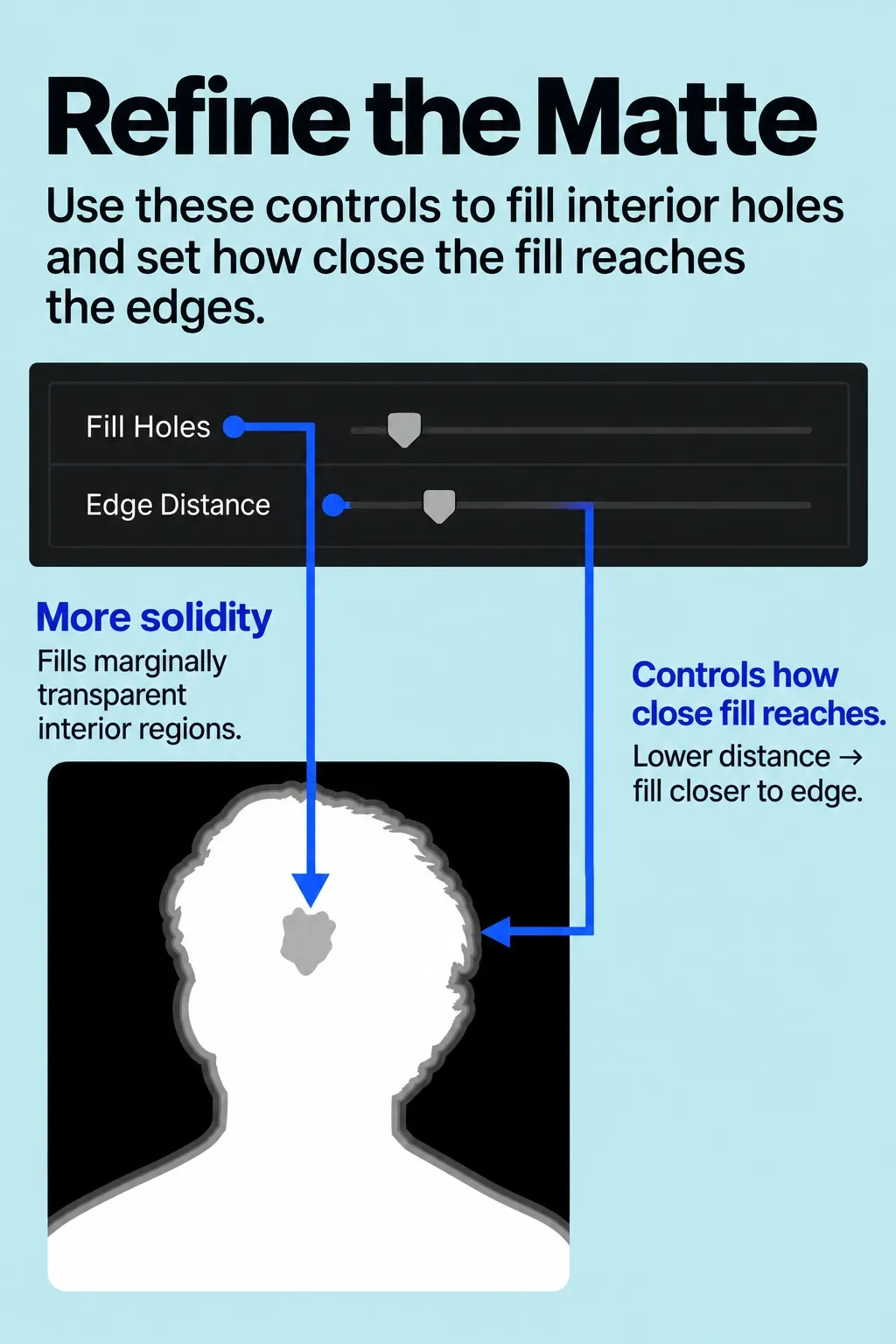
When the edges are acceptable but the subject contains unwanted transparent holes, use Fill Holes. Increasing it adds solidity to marginally transparent areas inside the key. Edge Distance controls how close that fill reaches toward the keyed subject's edge. Reduce Edge Distance to bring the filled matte closer to the subject’s edge, at the cost of edge translucency. Increase it to keep the fill farther from the edge; too much can leave unwanted translucency inside the subject. The right value depends on the source frame; there’s no universal percentage.
Keep Composite selected when judging the final blend, and return to Matte whenever the result becomes uncertain. The Original view shows the unkeyed foreground and helps distinguish a source problem from a keyer adjustment. If the background tint is the only remaining issue, adjust Spill Level rather than repeatedly expanding Strength.
A short review checklist
- Check the foreground and background stacking order.
- Confirm that the sample color covers the actual green or blue range in the frame.
- Inspect Matte for holes, gray fringes, and unremoved background.
- Use Edges for hair and reflections rather than broadening the sample everywhere.
- Adjust Spill Level after the matte is stable.
- Check several frames with motion before treating the key as finished. If lighting or background color changes later in the clip, move the playhead to that point and refine Sample Color or Edges again. Final Cut Pro transitions those settings between sample points.
Before delivery, inspect the exported composite at its intended size, including hair, reflections, and the sections where the lighting changes.