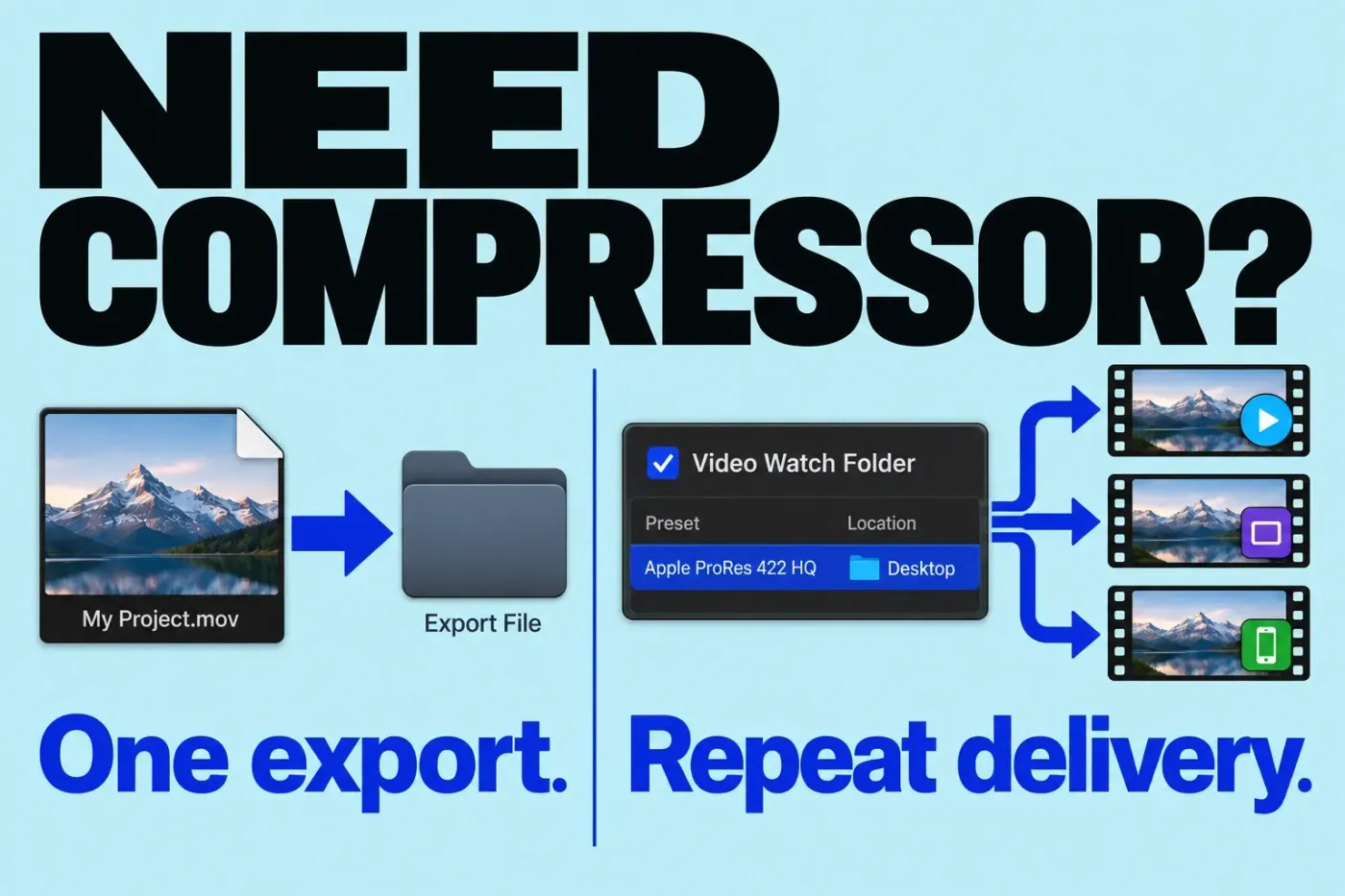
You do not need Compressor simply to export a video from Final Cut Pro. Start with the built-in destinations. I would add Compressor when a delivery specification needs controls the existing destination lacks, or when reusable presets and a separate transcoding queue would remove repeated setup.
For Final Cut Pro 12.4 and Compressor 5.4 on Mac. Documentation checked October 13, 2026.
What Final Cut Pro already does
Final Cut Pro’s Export File destination can produce a viewing file or a master without Compressor. It also supports batch sharing of multiple items, subject to the destination and selection restrictions. A batch selection cannot mix projects and clips.
Several videos to export don’t, on their own, justify another application. Check whether the existing destination and batch options already meet the request.
For a solo creator delivering a normal viewing file, start with the YouTube export workflow. Resolve the specification first: dimensions, frame rate, color space, codec, audio, and captions. Those requirements determine the tool.
When Compressor becomes useful
Compressor is useful when you need to define output instructions beyond the built-in destination, process finished media files in a dedicated queue, or automate recurring deliverables. Its preset and batch workflow lets you save the instructions for repeated use; the benefit depends on which setup or conversion step you need to repeat.
- One ordinary upload: the built-in Final Cut Pro export may already satisfy it.
- Recurring delivery specifications: a named preset reduces repeated setup, provided its settings match the brief.
- A collection of finished source files: a separate transcoding queue lets you produce delivery variants without reopening each edit.
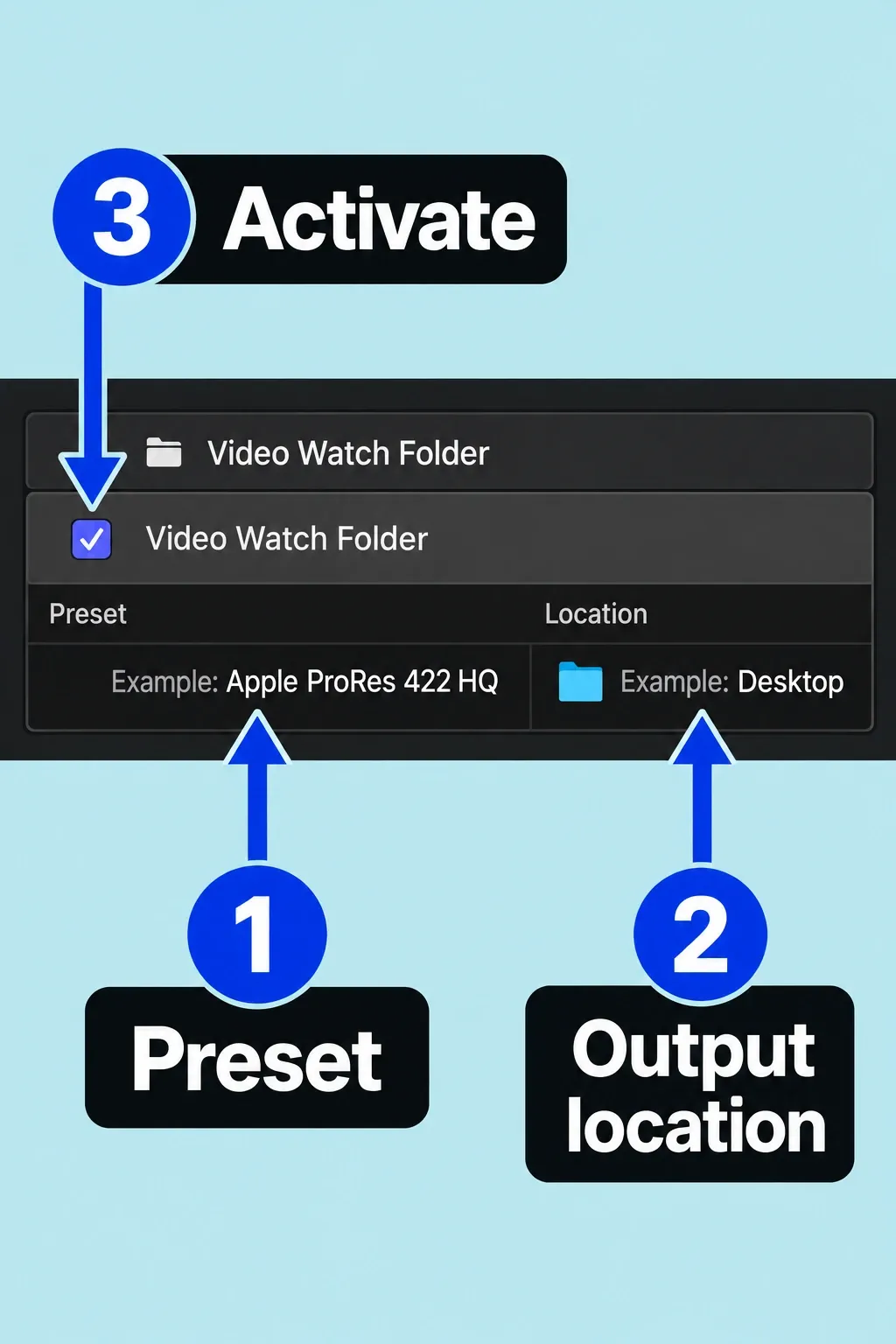
For example, suppose completed master files repeatedly need the same review format. A watch folder automatically transcodes newly added media files using the presets and output location you assign. In Compressor’s Watch Folders pane, add the folder, select its presets and save location, then activate it with the checkbox beside its name. It needs at least one preset to activate. Files already present are ignored by default; enable “When activating a Watch Folder, start processing files already present” if you want those processed too. Processing continues even while Compressor runs in the background.
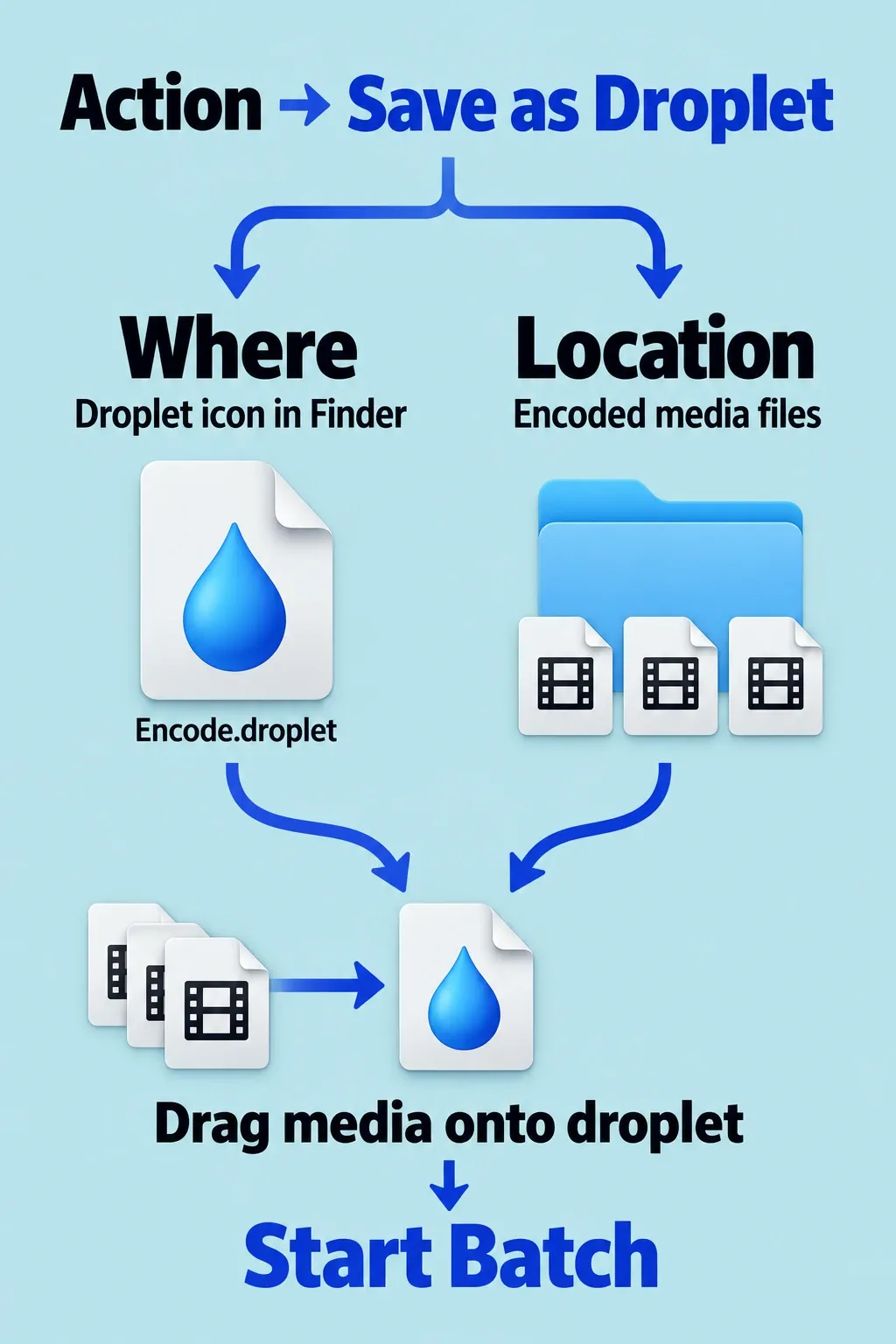
A droplet is a saved preset or destination that you launch with files. Select the presets or destination in Compressor’s Presets pane, choose Action > Save as Droplet, and choose both the droplet’s location and its output location. Later, drag media files onto its Finder icon, adjust the output Location if needed, and click Start Batch. You trigger that conversion yourself; an activated watch folder monitors newly added files. Both process media files, whereas Final Cut Pro’s batch sharing begins with projects or clips selected in its browser.
Ask which required setting or repeated action Compressor adds. If you can’t name one, keep the simpler setup.
Example: a custom HEVC delivery requirement
Suppose a delivery brief asks for a 1920 × 1080 HEVC review file with a specified average video bitrate. Check your Final Cut Pro destination first. If it lacks the needed controls, start with a suitable MPEG-4 preset in Compressor and duplicate it through the Action menu, then name the custom copy.
Select that copy and use the Video inspector’s Frame size and Codec properties to check the requested resolution and choose HEVC if available for your configuration. For MPEG-4 or QuickTime Movie presets, Avg. Bit rate > Custom lets you enter an average bitrate when that option is available. The options you see depend on the source, preset format, other properties, hardware, and software, so check the actual options before relying on the preset.
An average bitrate is not a maximum or peak ceiling. Although Compressor 5.3 added HEVC data-rate limits on Apple silicon, entering an average value does not establish compliance with a peak-limit brief. Inspect a short output against the actual specification before applying the preset to the full video.
Does Compressor improve export quality or speed?
Moving the job to Compressor changes the controls and workflow. It does not automatically make poor source footage sharp or guarantee a smaller file at the same perceived quality.
Compare the same source range, codec, frame size, frame rate, quality or bitrate settings, and audio. A 1080p delivery and a 4K master are different jobs; a shorter export time for one does not establish which application is faster. I would choose based on the required controls first, then assess the actual outputs on your Mac.
Check compatibility before direct integration
For direct integration with both apps installed, Apple says to update each to its latest version and use compatible apps of the same distribution type: both Apple Creator Studio versions or both one-time-purchase versions. Owning one app does not establish access to a matching edition of the other. The received-preset Share route below has a separate documented condition.
Apple Creator Studio includes Compressor for Mac, so check whether your existing subscription already supplies the app. A separate one-time purchase is also available. The U.S. standalone Compressor listing showed $49.99 for version 5.4 when checked on October 13, 2026. That is an additional purchase to consider if you own standalone Final Cut Pro and need Compressor’s app controls.
For a new standalone download, that Compressor 5.4 listing requires macOS 26.6 or later; the current standalone Final Cut Pro 12.4 listing also specifies 26.6 or later. Apple’s general Creator Studio FAQ still lists macOS 15.6 for Compressor. Base the installation decision on the listing for the exact edition and version on offer, not on the lower generic figure; that listing doesn’t settle the requirements of every older or subscription edition.
Check the installed app versions and edition in your account. The Mac requirements checklist separates installation eligibility from feature requirements and workload planning.
Two direct routes from Final Cut Pro
Use a Compressor Presets destination to apply a saved preset through Final Cut Pro’s sharing interface without opening the project in Compressor. It works when Compressor is installed or someone sends you a Compressor preset, so a received preset can be useful without buying the app.
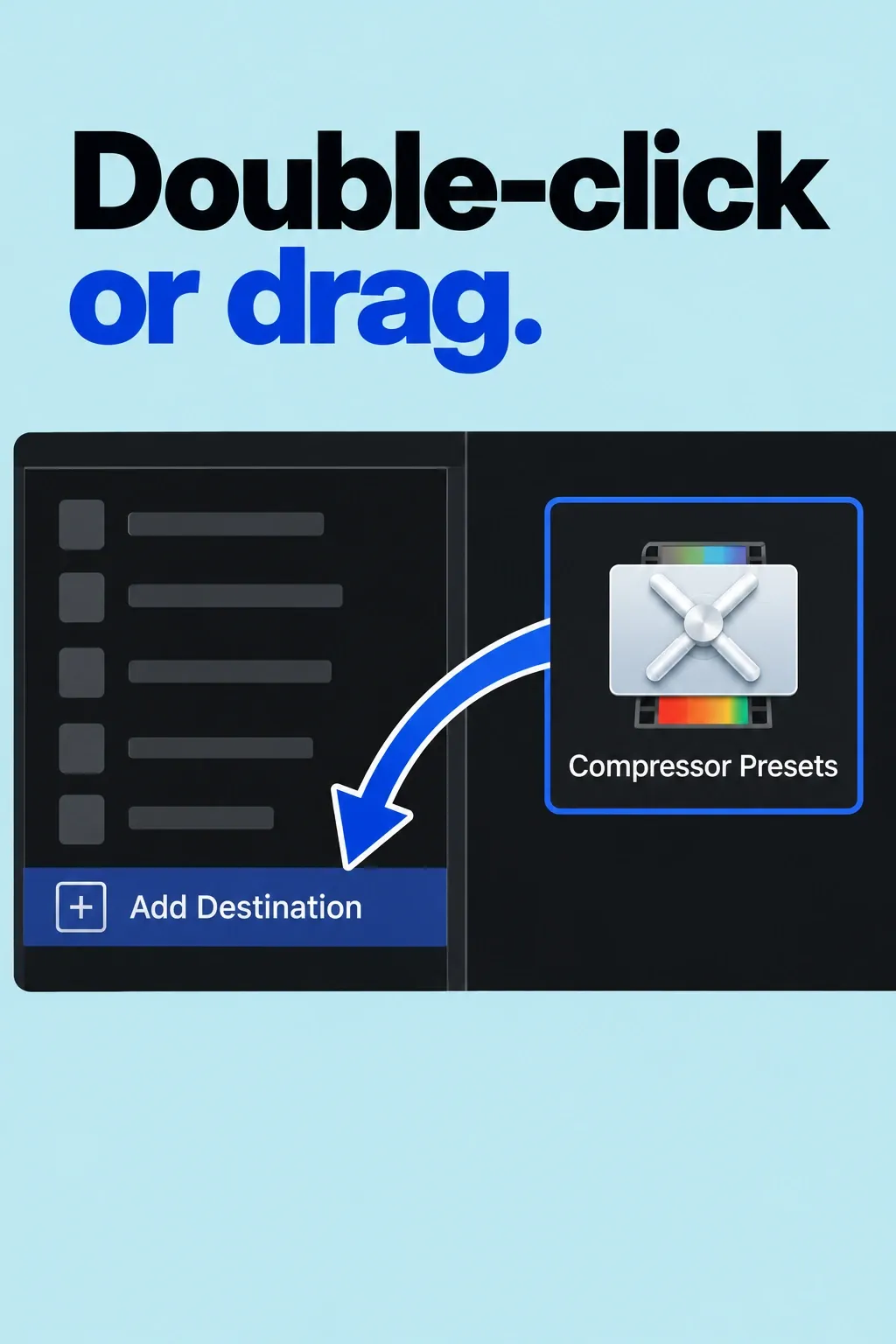
- Choose File > Share > Add Destination. Add Compressor Presets to the Destinations list by double-clicking it on the right or dragging it into the list on the left. It is not a default destination.
- Select the preset in the window that appears, then click OK.
- Select whole projects or clips in the browser. To share only part of a project, make a range in the timeline; a timeline clip selection is not sufficient. Use I and O to set its boundaries, then choose File > Share and your new destination.
- Click Settings to confirm the export options, then Next. For a single selected item, enter a filename; choose the output location and click Save.
If you received a preset and don’t have Compressor installed, the Compressor Presets destination instructions specify this folder, with username replaced by your own Mac account name:
/Users/username/Library/Group Containers/PTN9T2S29T.com.apple.videoProApps/Library/Application Support/Compressor/SettingsYou may need to create the Compressor and Settings folders in Finder. That stores the received preset for the Share route; it does not install Compressor or enable Send to Compressor.
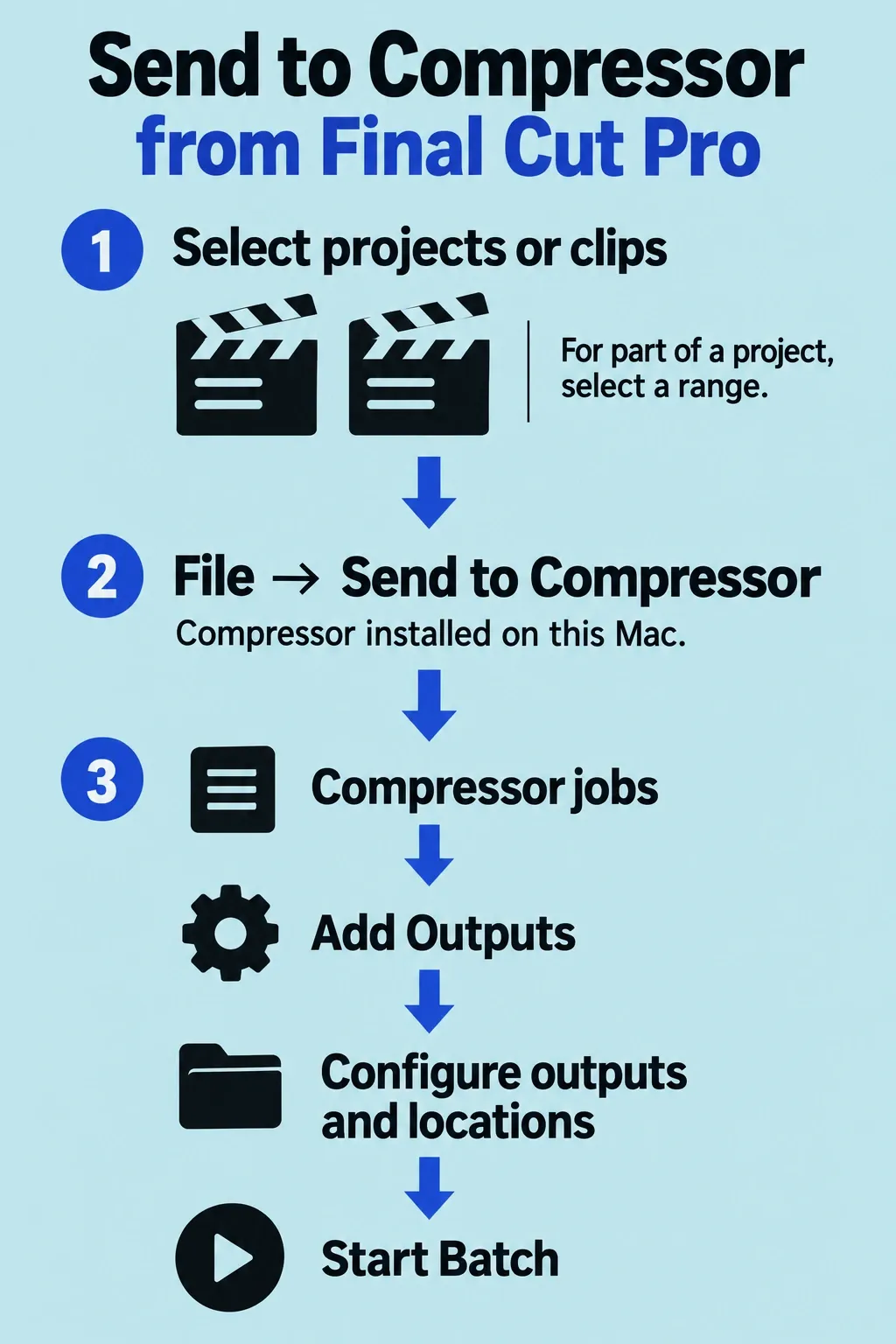
Use File > Send to Compressor to create configurable jobs from the selected items, following the Final Cut Pro–Compressor integration instructions:
- Select projects or clips in the browser. Do not mix projects and clips in one batch.
- For only part of a project, select a range in the timeline. Selecting a clip alone is not sufficient; the I and O keys can set the range boundaries.
- Choose File > Send to Compressor. The command is dimmed if Compressor is not installed on the same Mac. If captions are present, choose the language subrole when prompted.
- Compressor opens a new batch with jobs corresponding to your selected items. Click Add Outputs, configure the output settings and locations, then click Start Batch.
Before sharing a project that uses proxy playback, switch the viewer’s View menu to Optimized/Original. Final Cut Pro uses optimized media when available, otherwise the originals.
Compressor 5.4 removes distributed processing entirely. Older advice about spreading the encoding work across Macs no longer applies to that release.
Check a short output before the full batch
Use a representative section containing motion, fine detail, dialogue, and the captions you must deliver. Confirm the resulting file’s dimensions, codec, frame rate, color, audio, and caption behavior against the brief. Play it in the intended delivery environment before applying the preset to an entire job.
If the delivery needs a separate caption file, check the required format, language, and timing. The SRT import and export guide explains the difference between a sidecar caption file and text made permanently visible in the picture.
Keep a brief record of the preset, app versions, input, and output you checked. “Client Review 1080p” is a useful preset name only when the saved settings actually match that purpose. Choose Compressor when it solves that requirement; if Final Cut Pro already meets it, return to the edit.