For a new download of standalone Final Cut Pro 12.4 for Mac, the U.S. App Store listing for that version requires macOS 26.6 or later, 8 GB of memory, a Metal-capable graphics card on Intel Macs, and 7.2 GB of available disk space. Apple recommends 16 GB of memory. Those are installation requirements; they do not guarantee that a particular feature or editing workload will suit your Mac.
Apple’s published requirements conflict. Apple’s support specifications still say macOS 15.6 or later and 6.5 GB of available space; the current Final Cut Pro product page also says macOS 15.6, with 7.2 GB of space. The App Store’s description and Compatibility field both say 26.6 for the listed standalone 12.4 download. When deciding whether to buy or update, I’d go by that download’s requirement, not the general 15.6 figure.
If you already use an older Final Cut Pro version, record its number before deciding on an update. Check the exact edition and version you intend to install: the standalone listing above is not a universal specification for every previous release, subscription edition, or iPad app.
Current standalone Mac requirements at a glance
| Check | Listed requirement | What to establish separately |
|---|---|---|
| Operating system | macOS 26.6 or later | Whether your exact Mac supports a suitable macOS release |
| Memory | 8 GB minimum; 16 GB recommended | Whether the configuration suits your footage, effects, and simultaneous camera angles |
| Graphics on Intel Macs | Metal-capable graphics card | Both Metal support and eligibility for the required macOS |
| Available app space | 7.2 GB | Space for source media, generated files, exports, backups, and any OS update |
Check the exact Mac, OS, and app version
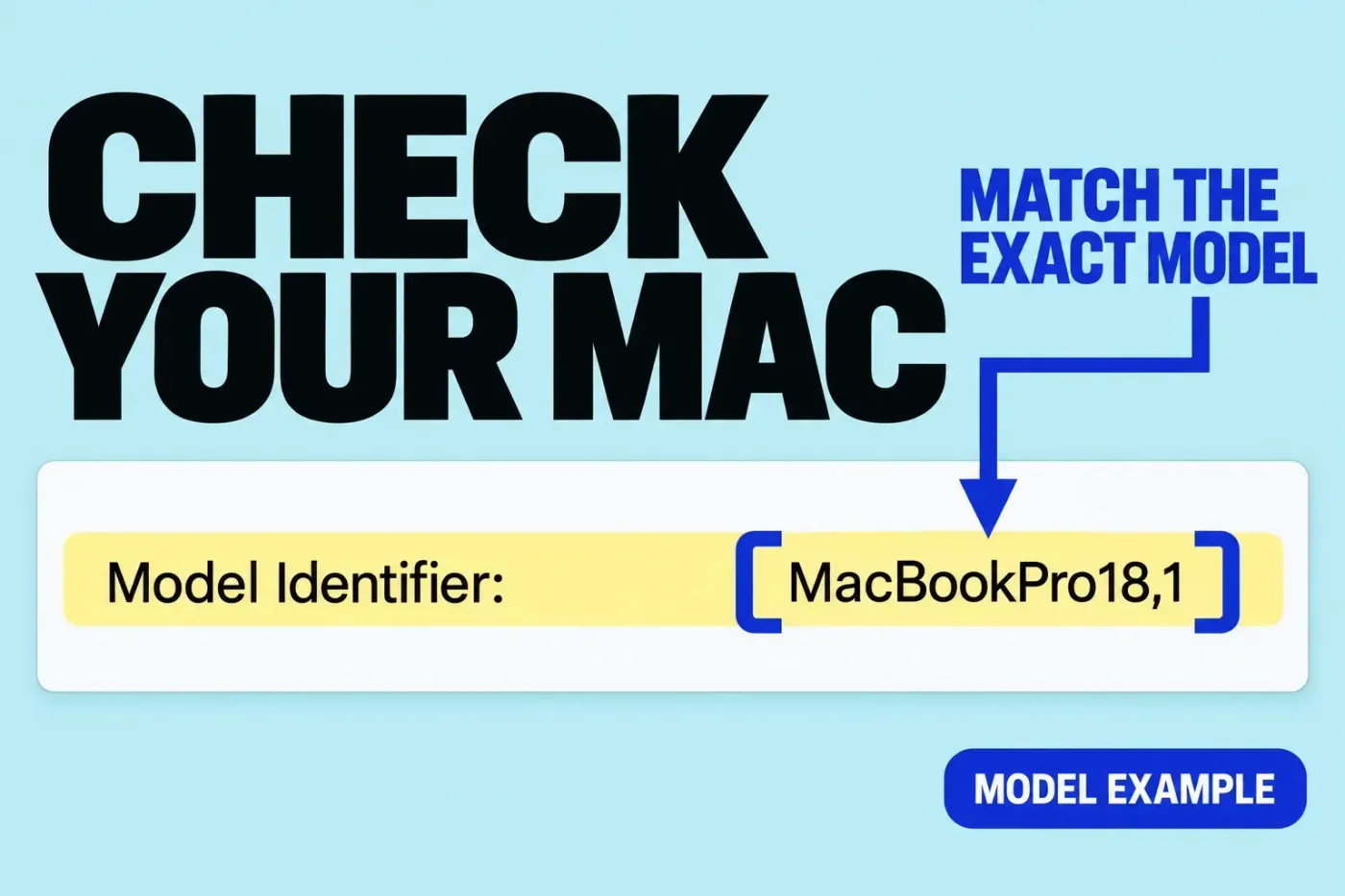
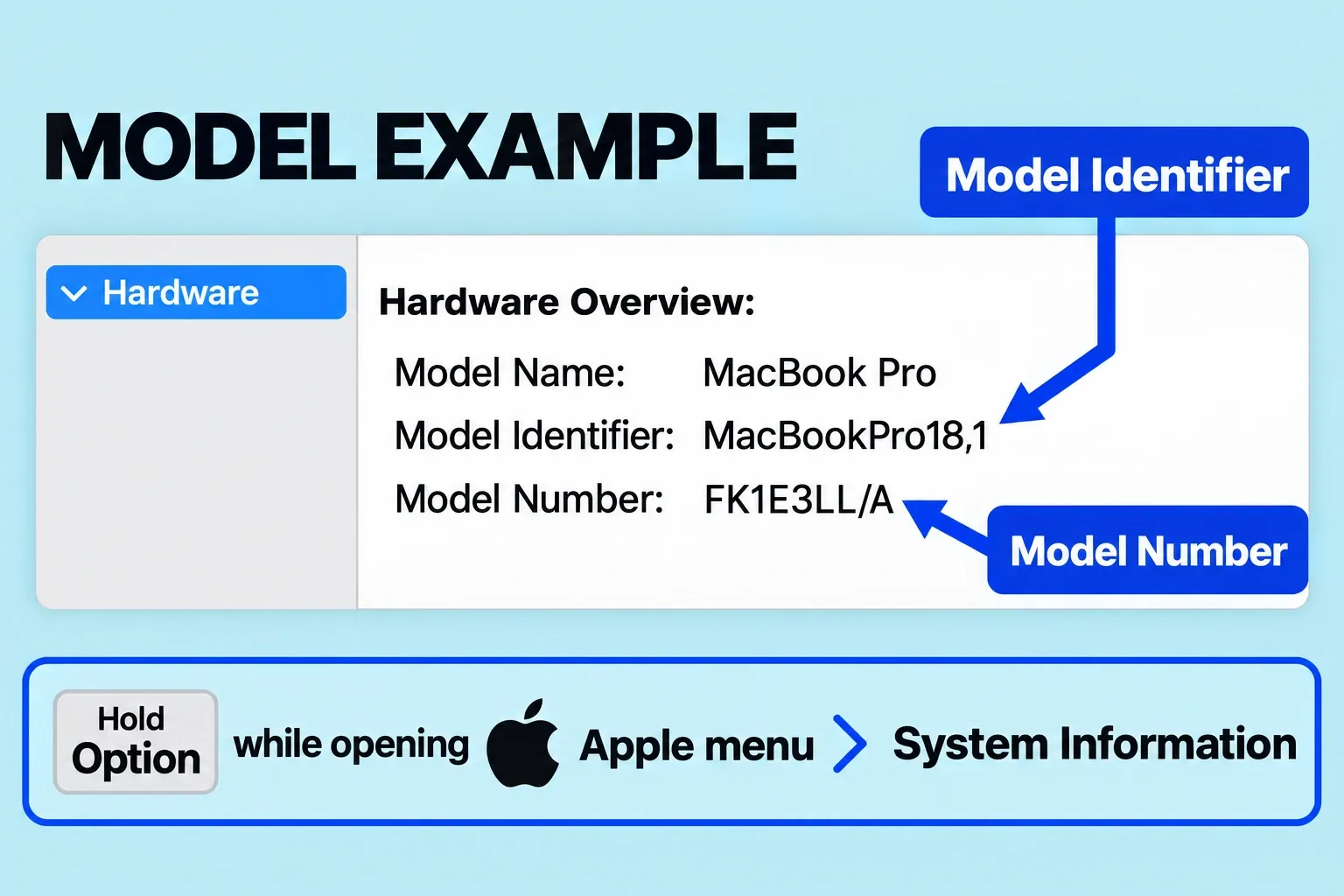
- Find the full model name. Choose Apple menu > About This Mac. If the name is ambiguous, hold Option while choosing Apple menu > System Information, select Hardware, and use the Model Identifier or Model Number with Apple’s instructions for identifying the exact Mac model. “MacBook Pro” alone is not enough to match a supported-model list.
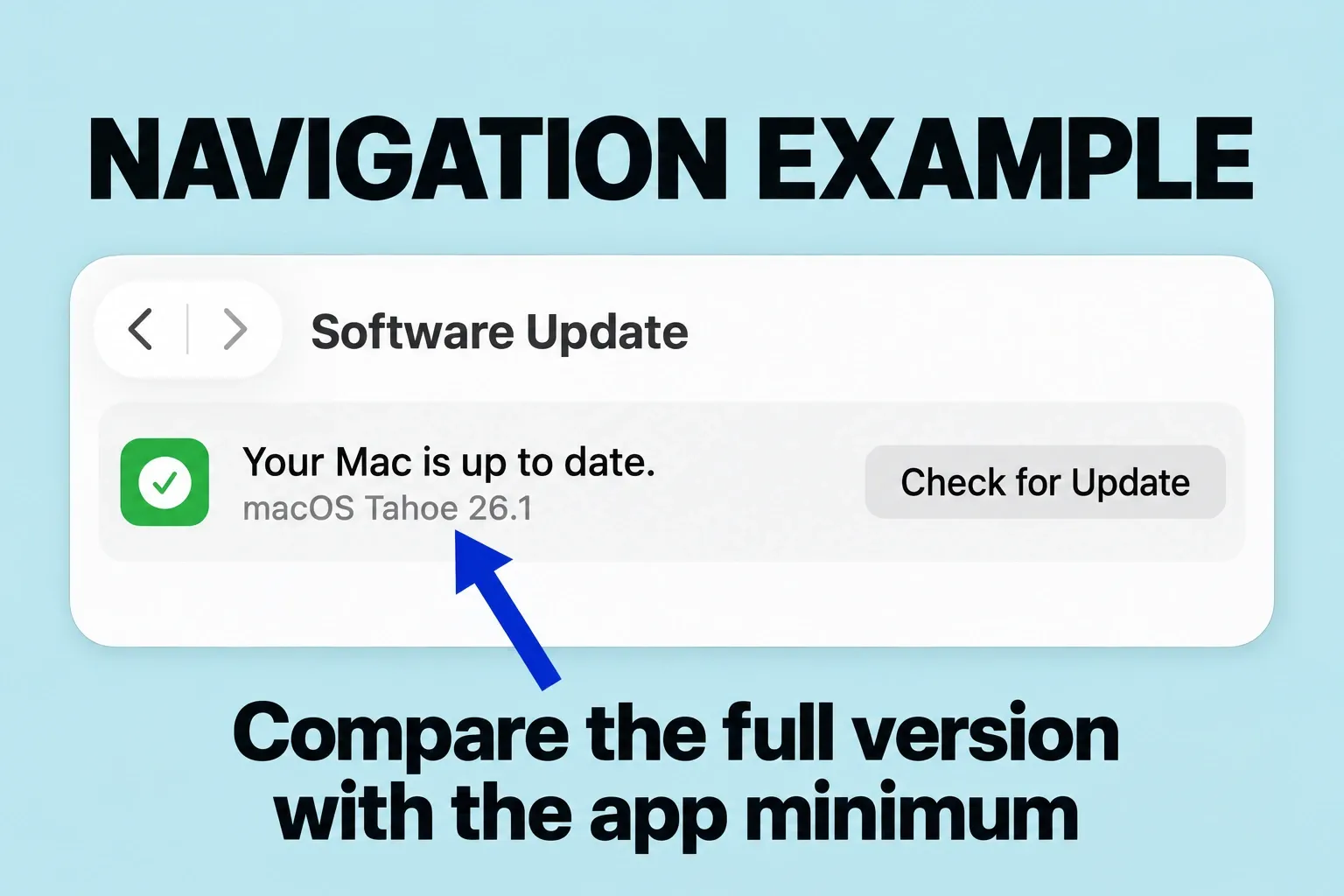
- Record the installed macOS version. On recent macOS versions, go to System Settings > General > About. Clicking the macOS version number there reveals the exact version, a step covered in the system-information guide. Compare the complete number with the target app’s minimum.
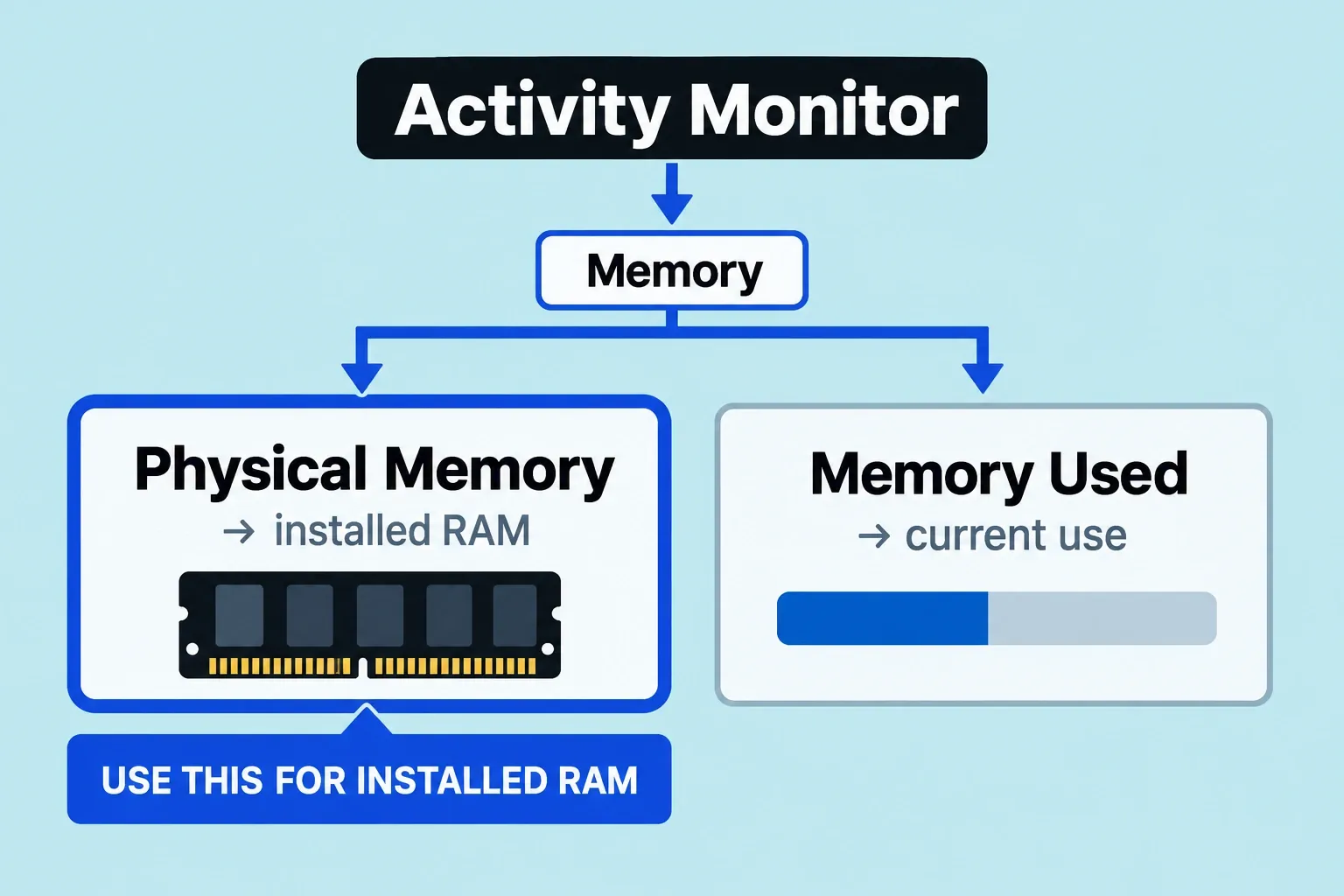
- Check installed memory. Open Activity Monitor and click Memory. Read Physical Memory, which shows the amount of RAM installed; the amount currently used by apps is a different measurement.
- Record the installed Final Cut Pro version. Choose Final Cut Pro > About Final Cut Pro, the same route given in the application backup instructions. Compare that version with the update you are considering.
For the listed 26.6 minimum, match the full model name against Apple’s macOS Tahoe 26 compatible-computer list. Then check System Settings > General > Software Update for a compatible update meeting the app’s minimum. Keep in mind that Software Update only offers software compatible with your Mac model. “Up to date” can also mean that an update is incompatible; it does not prove that the installed OS meets Final Cut Pro’s requirement. If you choose a later major macOS release, use that release’s supported-model list.
On an Intel Mac, also hold Option while choosing Apple menu > System Information, then select Graphics/Displays. Look for Metal Support or Metal Family, the fields named in the Metal compatibility instructions. The Final Cut Pro listing asks for a Metal-capable card; it does not specify a Metal 3 or Metal 4 minimum.
- The model supports the required OS, but the installed OS is older: back up the working setup, confirm your dependencies, and consider the compatible update.
- No macOS release supported by the model meets the target app’s minimum: the current download is ineligible. More free space or proxy media cannot fix that OS boundary.
- OS, memory, graphics, and app-space minimums are met: check the features and project demands next. Installation eligibility is only the first decision.
Check the requirements of the feature you need
The current listing includes an Intel graphics requirement, so do not assume the entire Mac app is Apple-silicon-only. Named features have tighter limits. Apple’s Final Cut Pro release notes distinguish these examples:
| Feature | Introduced in | Additional condition |
|---|---|---|
| Generate Captions | Final Cut Pro 12.3 | Apple silicon; available in U.S. English only |
| Transcript Search and Visual Search | Final Cut Pro 12.0 | Apple silicon; Visual Search and Transcript Search are available in U.S. English only |
| Editing Cinematic mode effects recorded in Final Cut Camera | Final Cut Pro 12.4 | macOS 27 Golden Gate |
A prepared caption file is a separate route from automatic speech transcription. Final Cut Pro can import an SRT caption file directly into a project. If you already have one, follow the SRT import and export workflow; an unavailable Generate Captions command does not settle that task.
Size the setup around the work
For a new Mac, I would start from Apple’s 16 GB recommendation. Then describe the actual workload: source codec and resolution, simultaneous camera angles, essential effects, large stills, and delivery format. Compare independent measurements only when the tested configuration and workload resemble yours. The installation minimum is not a playback benchmark.
If an eligible Mac struggles with source playback, a proxy workflow is worth assessing. Treat proxy playback as a performance and image-quality tradeoff, and switch back to optimized/original media before sharing. Proxies need their own storage allowance, and they won’t make unsupported hardware features available.
Locate the files before counting capacity
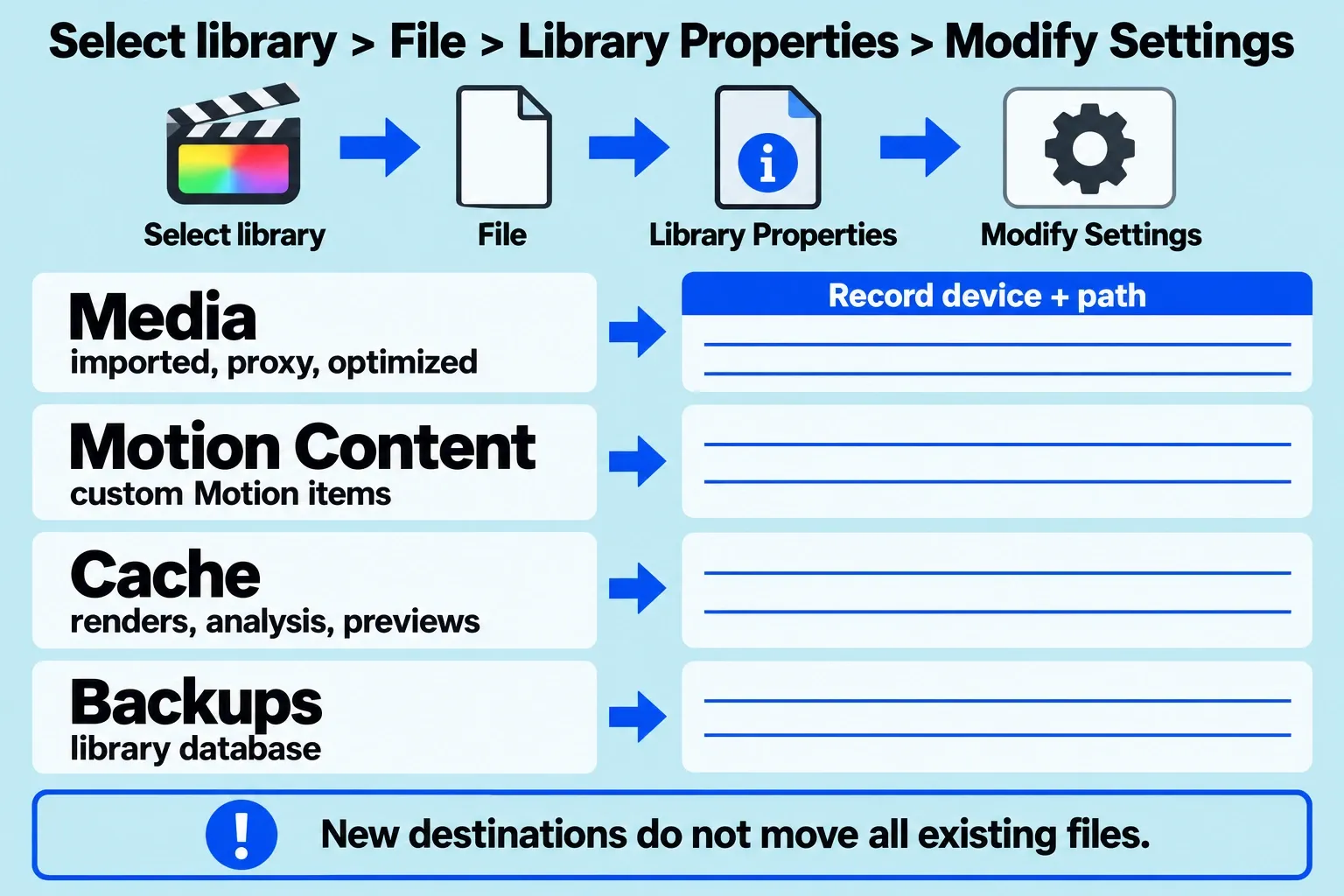
Select the library in the Libraries sidebar and choose File > Library Properties (Control-Command-J). In the inspector described in the library storage-location guide, Storage Used for Media and Motion Content lists existing original, optimized, and proxy media totals on each device. It is not a total for every cache file or export.
In the same inspector, use Modify Settings to check where the library will put Media, Cache, and Backups. Media covers imported, optimized, proxy, and consolidated files; Cache covers renders, analysis, thumbnails, and waveforms. By default, media and cache are inside the library, while database backups are in Movies. Changing a location affects future files: existing source media and backups remain where they are, and changing Cache can prompt a move of active render files.
Our guide to libraries, events, and projects explains the managed/external distinction. Count the actual stored files: media inside a library package is already part of that package’s size; externally linked footage lives at its own path. Timeline clip instances are not extra copies of the source media.
For each library, source folder, cache folder, and export destination, inspect the real files or folders with Finder’s File > Get Info command (Command-I). To see available disk space for the location open in Finder, choose View > Show Status Bar. Record each location’s device as well as its current occupied space.
Make a budget for each destination
| Destination | Record now | Allow for new additions |
|---|---|---|
| Startup disk and chosen app-installation volume | Current available space; whether these are the same storage pool | The app’s stated available-space requirement, any space requested by the OS update, and work files assigned here |
| Each working-media or cache device | Library/media/cache paths and current free space | Footage still to copy, the optimized/proxy files you choose to create, future cache growth, and exports saved here |
| Backup destination | Free space and the files the backup will actually include | A separate copy of the library, required external media, and project dependencies |
Compare new files still to be written with the free space on their destination. Existing files have already reduced that free-space figure; do not subtract them again. Do not count managed footage once inside the library package and again as a separate media folder. If media, cache, and exports share a device, their new additions share the same budget.
Volumes in one APFS container also share the container’s free space, so their displayed available amounts cannot be added as independent capacity. Keep separate physical devices separate in the worksheet.
Future proxy, optimized-media, render, and export sizes depend on your choices. Record the formats, amount of source material, and destinations you intend to use; if the remaining growth is unknown, the storage decision is still open. The 7.2 GB app allowance cannot answer it, and the duration of the finished video cannot substitute for the sizes of the files you will store.
Final Cut Pro’s automatic library backups contain the database, not the media. Budget the media backup separately. I would use a separate physical backup device so the working drive and its backup do not depend on the same drive surviving.
Protect a working setup before updating
Check the developers’ requirements for the exact versions of essential plugins, camera-format extensions, Motion templates, and companion apps. Record the fonts and other dependencies used by the project. A compatible Final Cut Pro installation does not establish compatibility for everything it loads.
Follow Apple’s guidance for backing up the application, libraries, and external media before updating. A library copy alone is not a complete media backup when its footage lives elsewhere. Custom Motion templates, fonts, and third-party plugins count as additional archive dependencies too, so keep those with the project’s recovery plan.
Before committing a deadline to the changed setup, use a copy of representative material to check the import, playback, required effects, and intended export. Inspect the exported picture, sound, duration, and captions. That final check belongs to your actual configuration and delivery requirements.