I would choose Final Cut Pro for a solo Mac workflow built around the Magnetic Timeline, familiar libraries, and delivery of finished videos. I would choose DaVinci Resolve when grading, audio post, and compositing are central to the job, when collaborators use different desktop operating systems, or when the free edition covers the work and buying an editor would strain the budget.
The deciding question is what you must deliver. An approved video file gives you more freedom than a client requirement for an editable native project. A familiar editor also has real value: changing applications means rebuilding habits, templates, and handoff procedures, even when the new app costs nothing.
Which workflow fits the work?
| Requirement | Final Cut Pro | DaVinci Resolve |
|---|---|---|
| Editing model | A primary storyline and connected clips in the Magnetic Timeline; libraries contain events and projects. | Cut and Edit workspaces, with a track-based Edit timeline. |
| Finishing in one application | Built-in color and audio tools; Motion and Compressor are companion applications for additional graphics and encoding work. | Color, Fairlight, Fusion, and Deliver provide dedicated grading, audio, compositing, and output workspaces. |
| Desktop platforms | Mac. This comparison concerns the Mac application, rather than Final Cut Pro for iPad. | Mac, Windows, and Linux. Codec and hardware support still differ by operating system. |
| Entry cost | One-time Mac purchase or Apple Creator Studio subscription. | A free edition, plus paid Studio for specified features and delivery requirements. |
| Editable handoff | A receiving Final Cut editor needs the library, accessible media, and required dependencies. | A Resolve project is appropriate for a Resolve recipient. Importing FCPXML provides an exchange route, with translation limits. |
For a two-camera interview that ends as a finished video, my first concern would be the editing model I want to use every day. For the same interview with a substantial grade, a detailed mix, and compositing revisions, Resolve's dedicated finishing workspaces become a stronger reason to learn it. Neither case tells you which editor is faster.
Compare the actual costs
At the U.S. list prices checked for this comparison, standalone Final Cut Pro for Mac costs $299.99. Apple Creator Studio costs $12.99 a month or $129 a year and includes Final Cut Pro, Motion, Compressor, and other creative apps. DaVinci Resolve is free, and Resolve Studio is listed at $295; Blackmagic's MSRP excludes sales tax and shipping.
Those numbers describe different purchases. If you already own Final Cut Pro and can finish your assignments with it, its purchase price is a sunk cost. If you need several Creator Studio apps, comparing that bundle only with the price of one editor misses part of its value. Apple also reserves some premium content for subscribers, so the standalone purchase and subscription are not a promise of identical content.
Resolve Free includes color grading and multiuser collaboration. Studio adds tools such as temporal and AI spatial noise reduction. For the current 21.1.1 release, Blackmagic says the free edition can ingest higher-resolution media but limits project mastering and output to Ultra HD or lower. Blackmagic's free-edition description also specifies up to 60 fps. A UHD 3840 × 2160 delivery and a wider DCI 4K delivery are different requirements. Choose Studio when a required output or feature exceeds the free edition's limits.
Allow for media storage, backups, any required plugins, and learning time in either budget. Resolve's collaboration feature does not make every cloud service free: Blackmagic Cloud charges based on monthly usage. Its free private Project Server application is a separate option. For Final Cut, direct integration with Compressor requires compatible versions on the same distribution: both Creator Studio editions or both one-time purchases.
The timeline matters more than an “easy” label
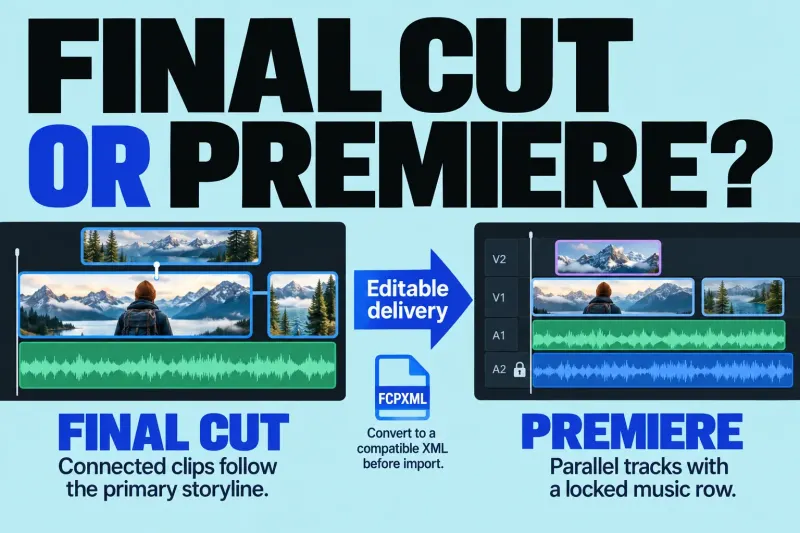
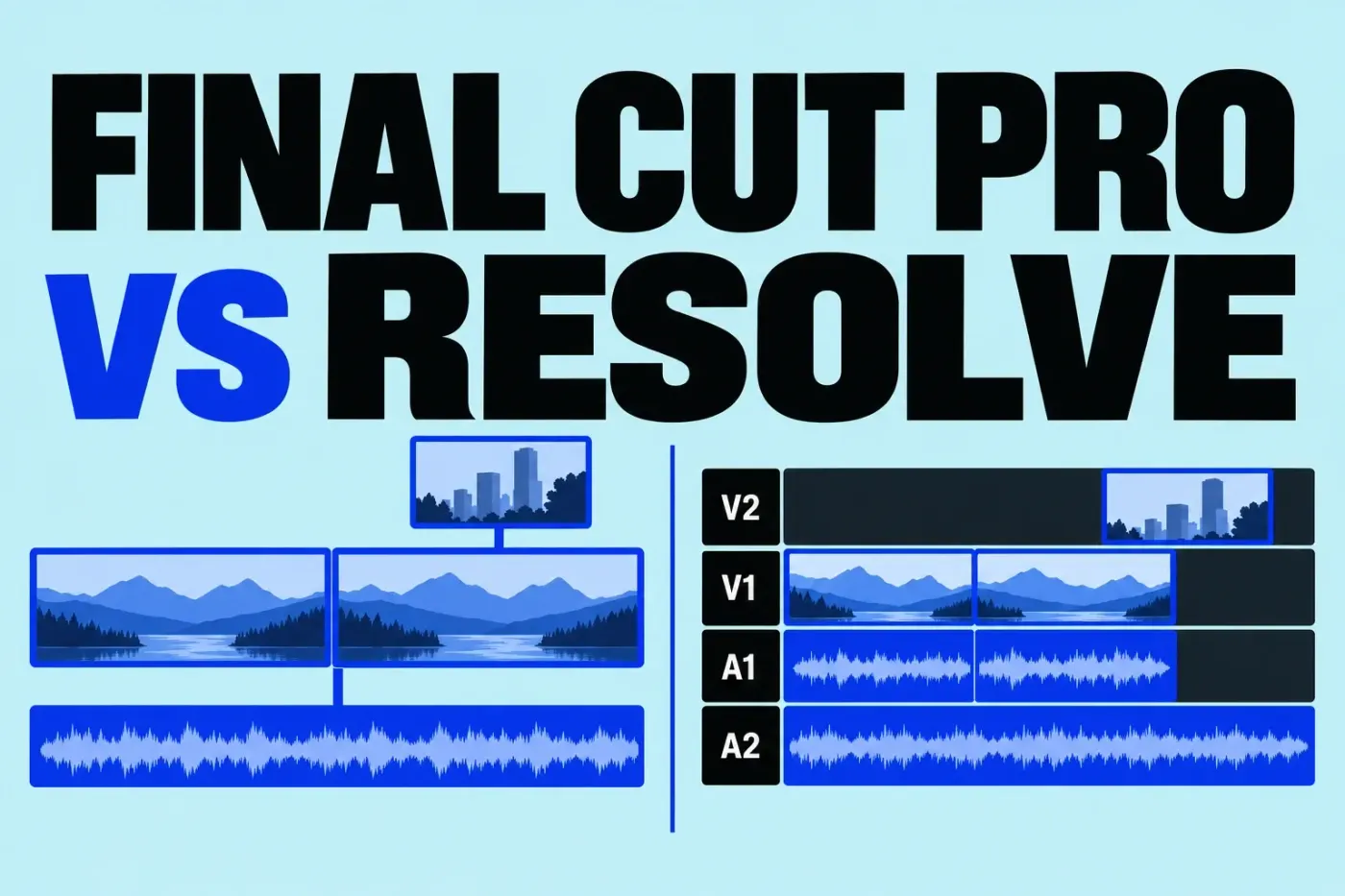
Final Cut organizes work through libraries, events, and projects. Its Magnetic Timeline makes clip relationships part of the edit: connected material follows its connection to the storyline. If you prefer that way of arranging picture, dialogue, music, and cutaways, it is a reason to choose Final Cut.
Resolve divides work into task pages. You can assemble in Cut or Edit, grade in Color, build composites in Fusion, mix in Fairlight, and export in Deliver. The Edit page uses video and audio tracks. That makes a track-based workflow available without requiring you to do all your editing on the Cut page.
One interview revision in both timelines
Consider a simple example: two adjacent interview answers, a cutaway over the second answer, and a music bed spanning the cut. Shorten the first answer by two seconds. The goal is to bring the second answer and its cutaway forward together, then decide what should happen to the music cue.
In Final Cut: put the answers in the primary storyline and connect the cutaway to the second answer. Ripple-trimming the first answer's end brings the following storyline material forward; the cutaway follows the second answer through its connection, as the connected-clip rules spell out. A music clip connected to another moment is a separate relationship: do not expect every beat to remain aligned with newly shortened picture. Inspect its connection point and listen through the revised cut.
If a connected clip should stay at its existing timeline time while you trim the storyline, hold Grave Accent (`) during that edit. If its anchor belongs on a different frame, Command-Option-click the connected clip at that point. Those choices control whether material follows the story or keeps its position; they do not decide which music edit sounds right.
In Resolve's Edit page: place interview video on V1, its audio on A1, the cutaway on V2, and music on A2. Keep Linked Selection enabled to select the interview's linked picture and sound together. The Link Audio/Video button or Shift-Command-L toggles it; Option-click temporarily selects one part. Linked Selection does not make a separate cutaway or music clip part of that interview pair.
Press T for Trim Edit mode, select the outgoing side of the first answer's cut, and ripple its end two seconds earlier. This ripple trim shortens the timeline and brings later material forward. Keep Sync Lock enabled on the picture, dialogue, and cutaway tracks whose relative timing must follow the ripple. Sync Lock is separate from both Track Lock and the Source Track Selector; it is enabled on all tracks by default.
Think about what happens to the music. With its Sync Lock enabled, overlapping music may be cut or trimmed to preserve its relationship to picture; Blackmagic's worked example produces a music jump cut that needs repair. Disable Sync Lock on A2 if the music bed must remain unchanged during the other tracks' ripple, then check the cue against the revised picture. That excludes A2 from ripples on other tracks; it does not prevent editing or rippling A2 directly.
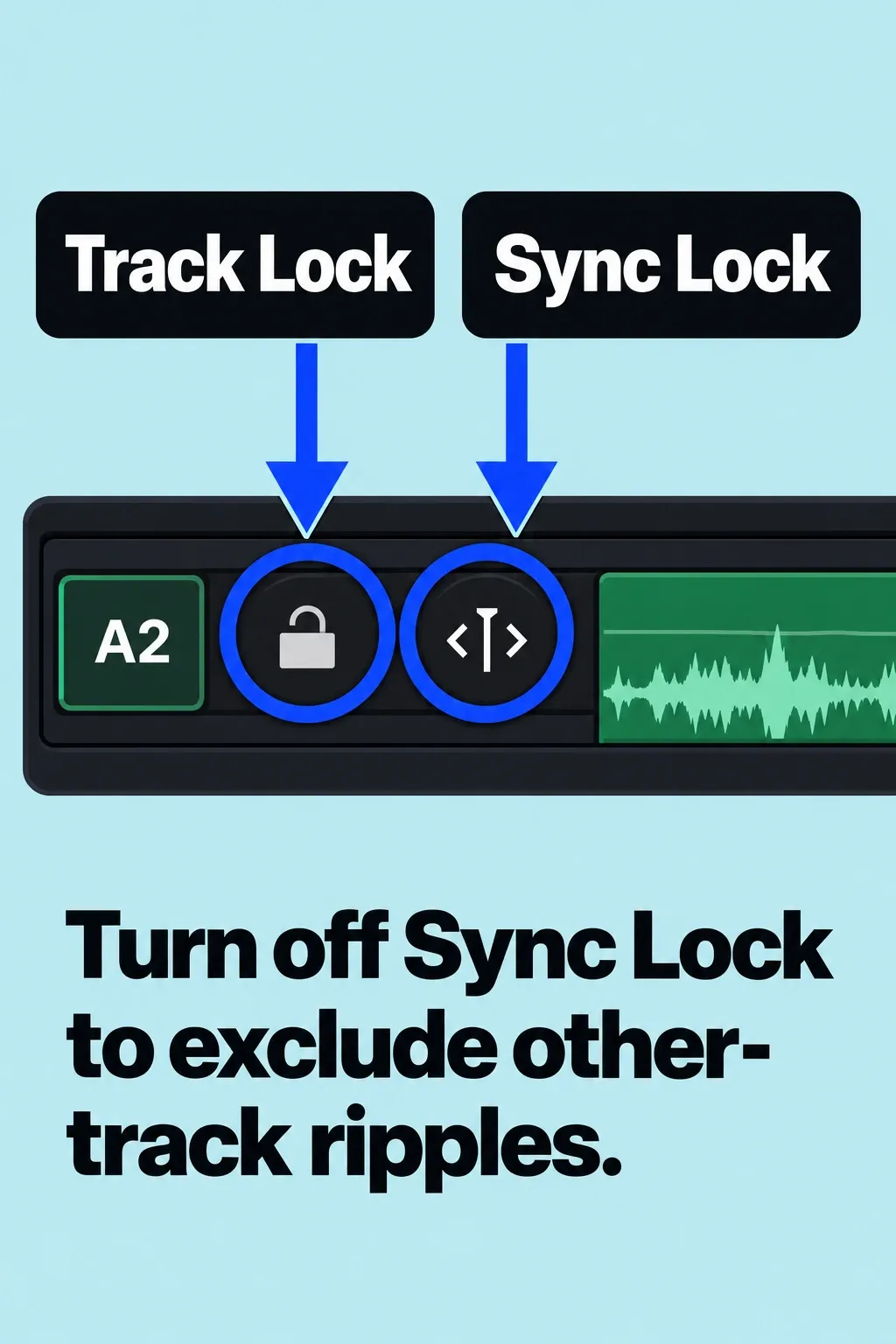
Both models can preserve sync. Final Cut makes the connection to the storyline central; Resolve separates linked selection from each track's participation in the ripple. I would choose the model whose relationships I can inspect and revise confidently, rather than buying on an “easy” label.
Finding dialogue, editing text, and making captions
For an interview, “speech-to-text” can mean three different jobs. Finding the answer is not the same as rearranging it through a transcript or preparing the viewer's captions.
Find a spoken answer in Final Cut: use the browser Search button, then Transcript > Includes for exact words or Is Related To for a related phrase. Transcript Search returns matching ranges with context; it's a browser search, not a transcript Cut/Copy/Paste timeline editor. It requires Apple silicon and U.S. English. It analyzes only the first audio channel. Multicam and synced containers are not analyzed themselves, although their active angles or clips can appear when their sources were analyzed; compound clips are excluded. For a two-camera interview, check the analyzed source clips and the channel carrying the speech.
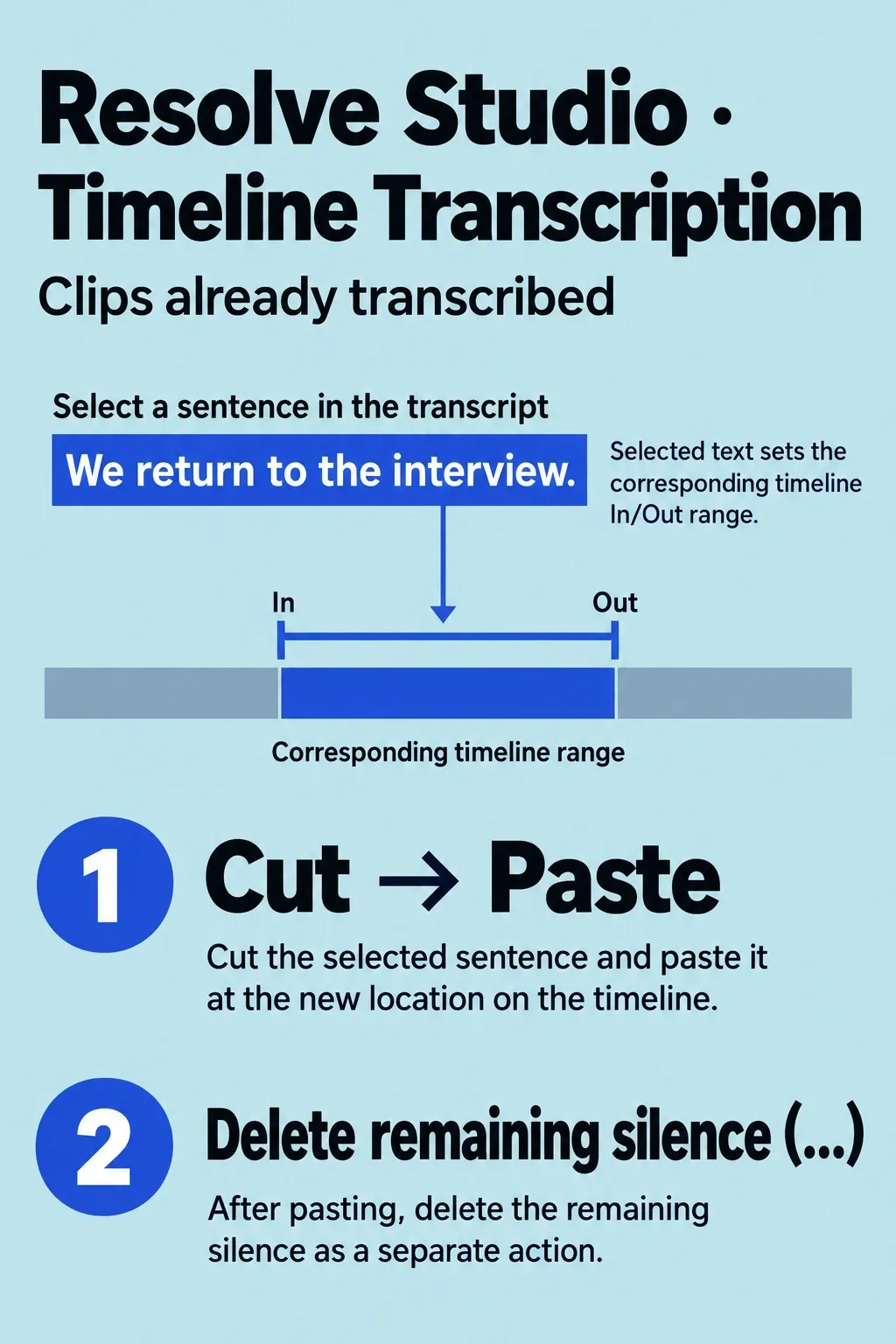
Assemble or revise dialogue through text in Resolve: the 21.1 manual marks Audio Transcription as Studio-only. Select the audio-bearing clips in the Media Pool, then right-click and choose AI Tools > Audio Transcription > Transcribe. In Cut or Edit, highlighting transcript text sets the source In/Out range; Place on Top, Insert, or Append puts that selected range into the edit. Timeline Transcription mode lets Cut, Copy, Paste, and Delete mirror changes to the timeline after the source clips have been transcribed. Its sentence-moving example cuts and pastes the sentence, then separately deletes the remaining silence gap. Deleting words in the source transcript instead marks that range for exclusion from later edits; it does not erase the recorded audio.
Resolve's Project Settings > Subtitle and Transcription > Transcription Setup selects Auto or a supported language model. English and several other languages are included; additional languages require the Extended AI Transcription Support Package. Confirm the particular language instead of assuming every interview is supported. The Mac must also meet the current Resolve requirements below.
Create viewer captions: in current Final Cut, Edit > Generate Captions > Closed Captions creates iTT caption objects, while Generate Captions > Subtitles creates connected standard title clips. Both automatic branches require Apple silicon and U.S. English; those limits do not restrict every manually created or imported caption language. A title clip is not an SRT caption file. In Resolve Studio, Timeline > AI Tools > Create Subtitles from Audio creates subtitle-track clips for the timeline or its selected In/Out range. Select the spoken language in its dialog; extra languages can require the support package. Review the words and timing in either editor. Resolve's manual warns that overlapping dialogue can fail; mute tracks you do not want included in its analysis.
If selecting and rearranging interviews through text is the reason to switch, budget for Studio. If the need is finding English speech and making captions on a supported Apple-silicon Mac, Final Cut's documented tools may already cover it. Neither feature list proves better recognition or faster editing on your material.
I would learn the workspace needed for the current assignment before learning every tool in the application. A beginner making straightforward videos can start with Resolve's editing tools and use its free grade controls; learning Fusion is a separate investment. An experienced Final Cut editor can keep editing there and learn Resolve for a defined finishing role.
Final Cut also has color wheels, curves, LUT support, and audio editing tools. Moving to Resolve is not a prerequisite for correcting exposure, white balance, or matching shots. Our Final Cut color-correction workflow covers those everyday decisions. Resolve becomes more compelling when its dedicated finishing workspaces solve recurring needs beyond that workflow.
A concrete reason to learn Resolve's Color page
Suppose a recurring scene needs a shared base correction, individual shot matching, and a look that will be revised across the scene. Resolve's Color groups provide a useful separation. Select the relevant clip thumbnails, right-click one, choose Add Into New Group, name it, and click OK. Group only shots that should share those adjustments.
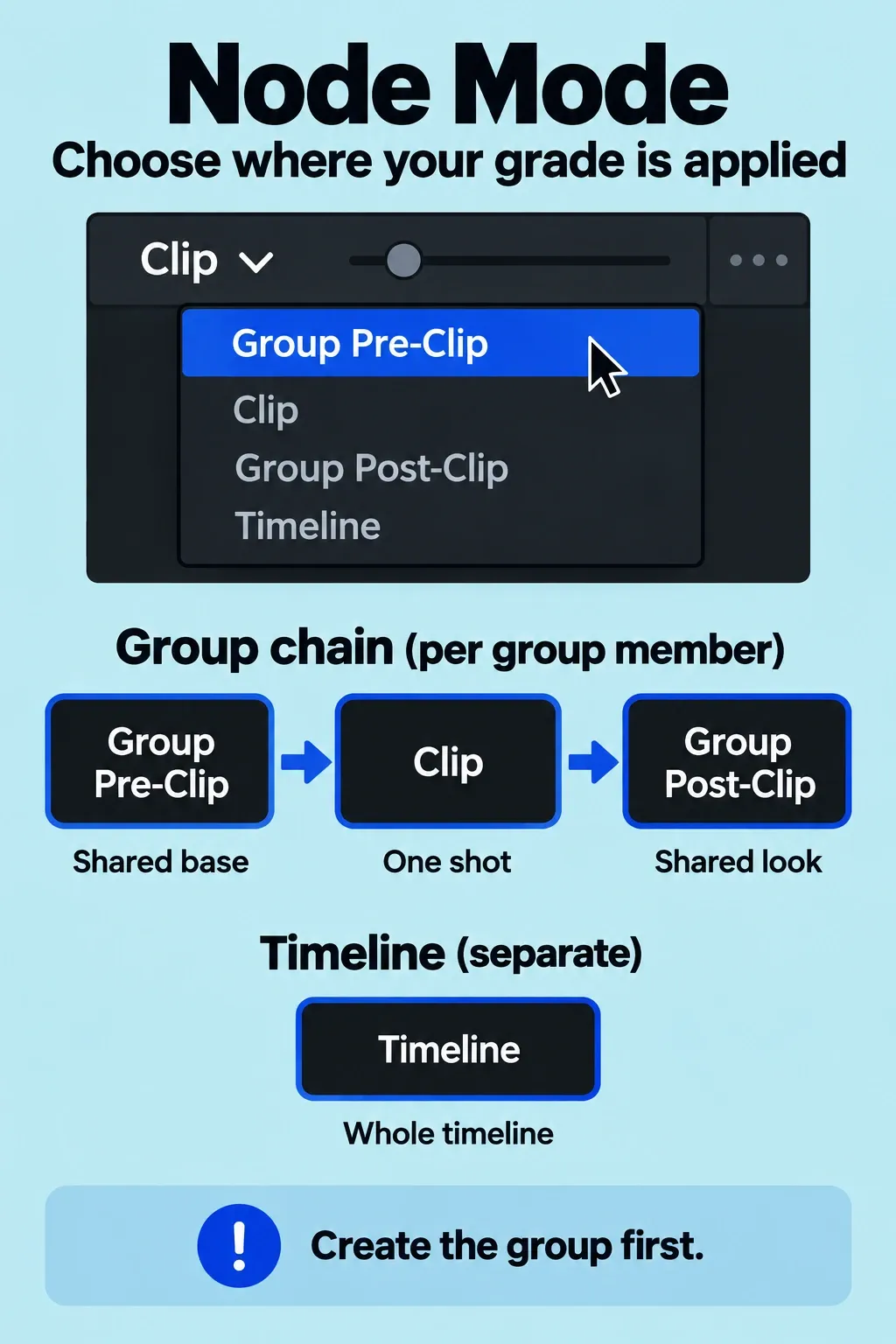
- Group Pre-Clip: make the common starting correction. It affects every group member before that shot's own grade.
- Clip: match exposure, balance, or another shot-specific difference. This stage affects only the selected shot.
- Group Post-Clip: apply the shared creative treatment after the shot corrections. A later look revision here changes every member without replacing their individual Clip adjustments.
The processing order is Group Pre-Clip, Clip, then Group Post-Clip. Timeline mode affects the whole timeline, so it is a different scope. Learn grade management when shared revisions recur; not every scene needs this pipeline. You must learn which mode is active and choose the right group members; a group-wide correction reaches every member. If you keep editing in Final Cut, add the conform work described below. For a few ordinary exposure corrections, I would first use the tools already in Final Cut.
Check the Mac and camera media before choosing
The current U.S. standalone Final Cut Pro 12.4 App Store listing requires macOS 26.6 or later, with 8 GB of memory and 16 GB recommended. Apple's general Creator Studio FAQ still lists macOS 15.6 for Final Cut, Motion, and Compressor. These published requirements differ; the cause is not established. Check the exact edition and version you intend to download instead of treating the general minimum as permission to install the current standalone app. Some Final Cut features require Apple silicon. Blackmagic's Resolve 21.1.1 Mac requirements specify Apple silicon, macOS 15 Sequoia or later, and 8 GB of memory, or 16 GB when using Fusion. An Intel Mac therefore cannot be treated as a supported choice for this current Resolve release.
Meeting a minimum requirement says the system is supported; it does not predict comfortable playback of your camera codec, multicam edit, noise reduction, or Fusion composition. Compare the work you need to do on the Mac you own before budgeting for new hardware.
A file extension is not enough to choose an edition. Check the codec, bit depth, frame rate, container, operating system, and whether you need decoding or encoding. The current Resolve 21.1 Mac codec table lists ProRes RAW decoding, Blackmagic RAW decoding, and ProRes decoding and encoding. Its Mac H.264 and H.265 rows do not impose a blanket Studio-only restriction on all 10-bit footage; GPU acceleration also depends on hardware. Read the specific row and its footnotes; a Windows or Linux restriction doesn't automatically carry over to the Mac.
The Final Cut supported-format list includes ProRes RAW, H.264, and HEVC, while REDCODE RAW and Canon Cinema RAW Light require the camera manufacturer's plugin. For any other camera format, find out the exact supported import route and any extension cost. The Media Extensions workflow handles additional third-party formats, though a given extension may not support every camera mode.
Edit in Final Cut, finish in Resolve: what must survive?
You can use both editors. A good split is a Final Cut edit sent to Resolve for an agreed grade and final master, or for graded media returned under a colorist's delivery specification. Decide that endpoint first. A finished movie, an editable native project, and an XML timeline exchange provide different kinds of access to the work.
Resolve supports importing Final Cut Pro XML timelines. That route describes the edit and references media; it does not turn every Final Cut effect into a native Resolve effect. I would prepare the handoff in this order:
- Keep the original edit and agree the finishing scope. Decide where titles, captions, graphics, and the final audio mix will be completed. Preserve the source library and a separate project copy before simplifying anything for the exchange.
- Make the source media available. Give the recipient the agreed originals or finishing media, with stable filenames and timecode. A library can link to media outside itself, and third-party FxPlug content must be tracked and moved manually; copying a library alone does not supply every dependency.
- Export the project as FCPXML. Select the project, then use File > Export XML. Agree an XML version the receiving Resolve version accepts. You can choose the current version or one of two previous versions; exports using FCPXML 1.10 or later are bundles with the
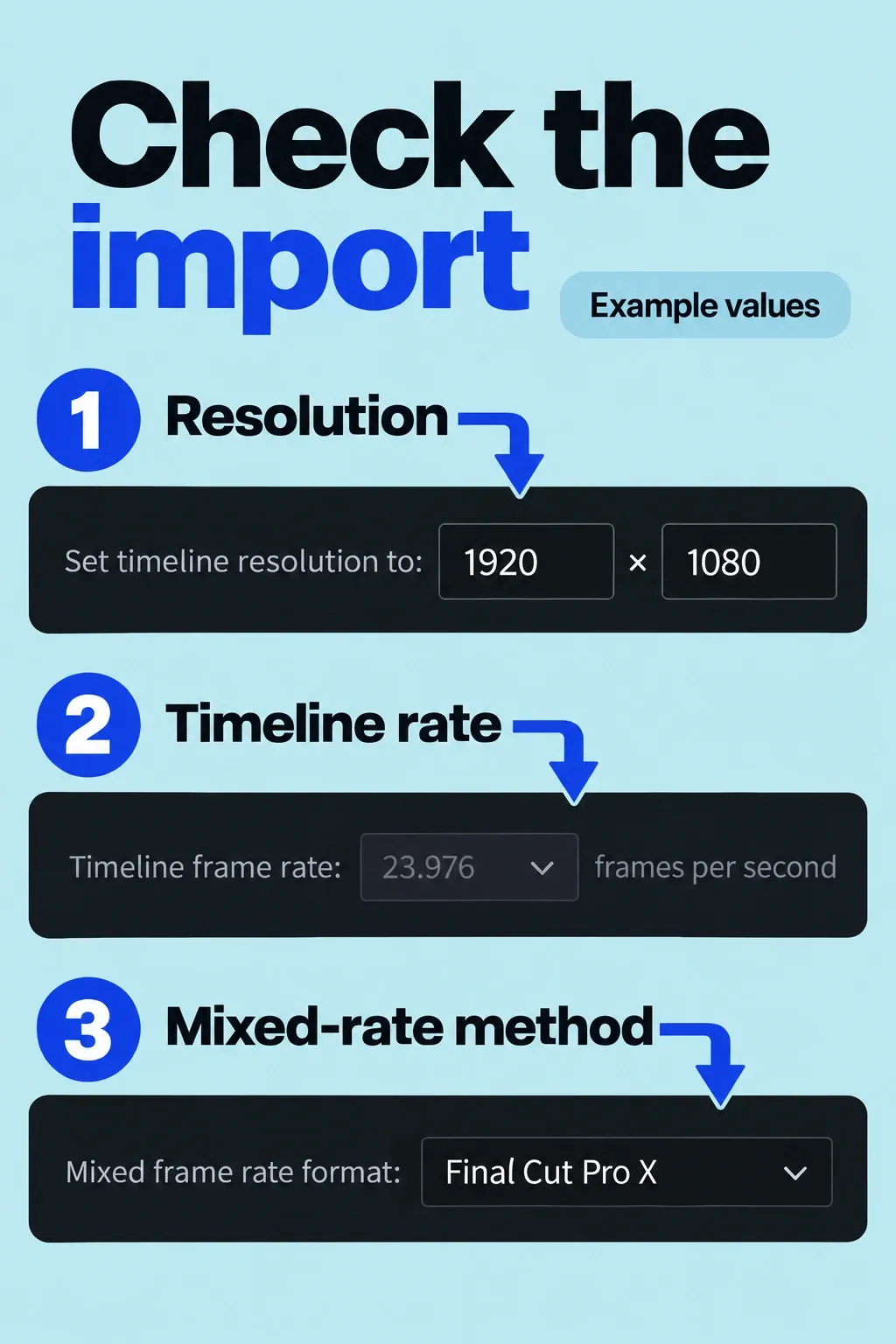
.fcpxmldextension. Don't assume an older receiving application accepts the newest export. - Import and check the conform settings. In Resolve, choose File > Import Timeline. Check timeline resolution, frame rate, start timecode, and mixed-frame-rate handling. The automatic source-import option uses the file paths in the exchange; locate the media folder if those paths do not match the recipient's system.
- Compare against a reference export. Supply a movie of the approved edit and check cut points, duration, sync, framing, speed changes, titles, transitions, and audio against it. Resolve includes an offline-reference comparison workflow for this. Finding the right source files is only the first part of verifying the transferred edit.
The documented translation limits explain why that last check matters. Imported titles become Basic text generators with only some formatting. Compound, multicam, and synchronized clips are represented as compound clips. Linear and variable speed changes can transfer, but interpolation differences can change their appearance. Unsupported effects are not displayed in Resolve; render required unsupported treatments into agreed self-contained media, or retain them for finishing in Final Cut.
Color is another boundary. Resolve can import a subset of Final Cut Color Board corrections as primary grades, but those imported corrections cannot be exported back as Final Cut color corrections. Do not build the delivery around a promise that all grading, plugin settings, captions, or editable graphics will round-trip intact.
What I would choose
Keep or buy Final Cut Pro when you want its Magnetic Timeline, the work stays on supported Macs, and your library workflow already meets the assignment. I would not replace a productive editing setup just to gain a larger feature list.
Choose Resolve Free when its output and media support cover your needs and you want a low-cost entry into editing, grading, audio, and compositing. Choose Studio when you can name the paid feature or delivery limit that makes it necessary. “More professional” is not a useful purchasing requirement.
Use Final Cut plus Resolve when you want to preserve your editing workflow while adding a defined finishing stage. Budget for conform checks and agree what stays editable. That arrangement is worthwhile when the finishing benefit exceeds the extra handoff work.