For a speed ramp in Final Cut Pro, pick one of the preset ramps under Retime > Speed Ramp, or divide the clip into segments with Blade Speed and set each segment's speed. The ramp is the transition between speed segments, so it isn't the same as a clip that's simply faster or slower. I'd start with a duplicate project or a short test passage: retiming can alter clip duration and ripple downstream clips.
Check source and project frame rates
Before choosing a percentage, decide which part of the action needs to slow down and compare the source frame rate with the project frame rate. Apple's Automatic Speed example uses 120 fps footage in a 30 fps project: select the timeline clip and choose Retime > Automatic Speed below the viewer. Every original frame then plays at the project's 30 fps, making the action take longer without skipped or duplicated frames in this example. That gives you a basis for the slow interval; you still need to choose the speed segments and transition timing that fit the action.
Decide whether you need a constant speed or a ramp
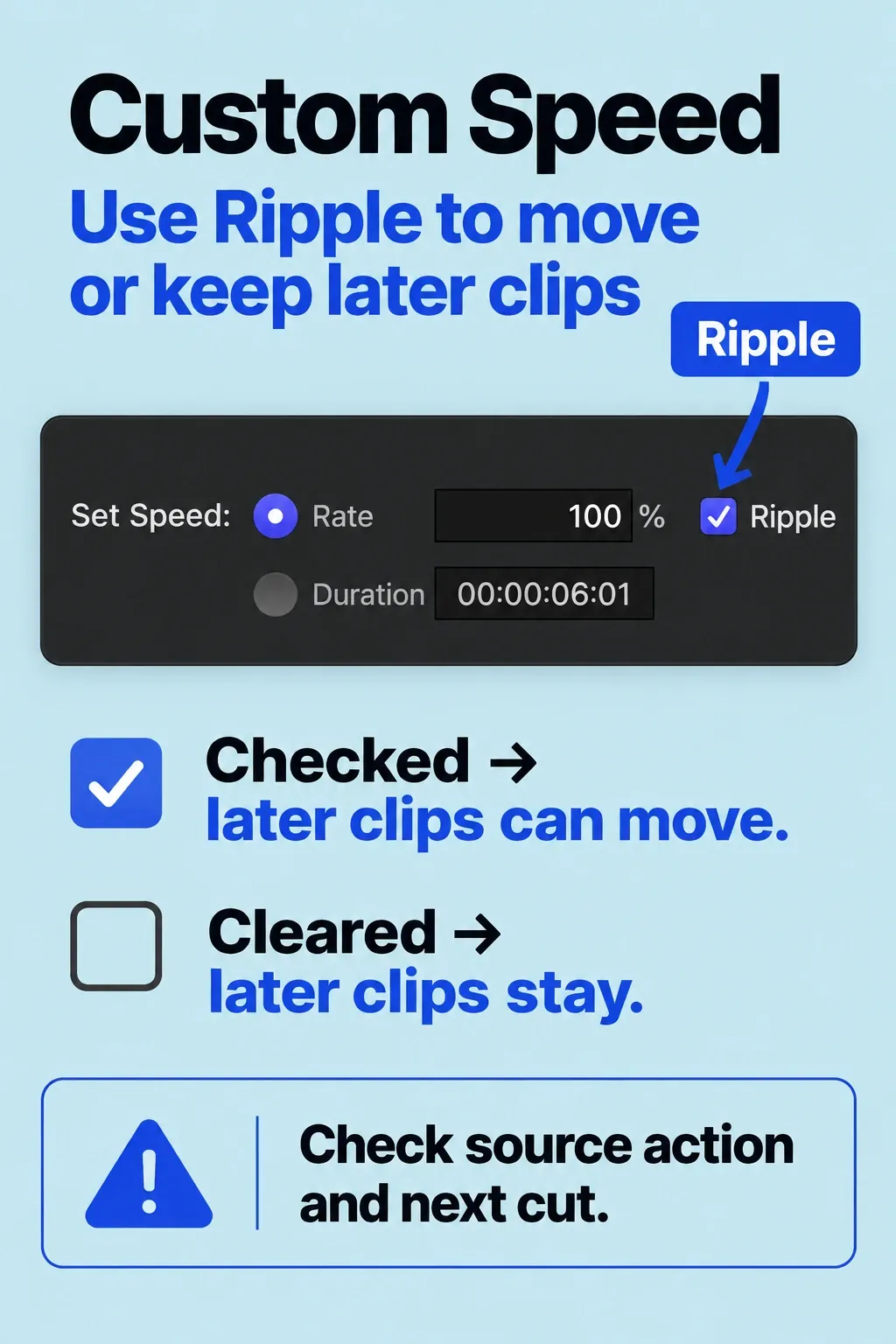
For a uniform change, select a clip or range in the timeline, open the Retime pop-up menu beneath the viewer, and choose Slow or Fast, then a speed from the submenu. Constant speed applies a single percentage to the selection. By default, the changed duration ripples later clips: a five-second clip at 50 percent becomes ten seconds. If you choose Retime > Custom and disable Ripple in the Custom Speed window, the later edit stays in place: slowing can cut short the visible source action, while speeding can leave a gap. I'd turn Ripple off only when the following edit has to stay put, then check both the retimed clip and the cut that follows it.
A ramp calls for at least two speed segments. For a quick preset, select a clip or range, then choose Retime > Speed Ramp > to 0% or from 0%. The preset creates four speed segments; the retiming handles let you adjust their speeds. The preset is only a starting point, so judge the motion by eye.
Make a custom speed change
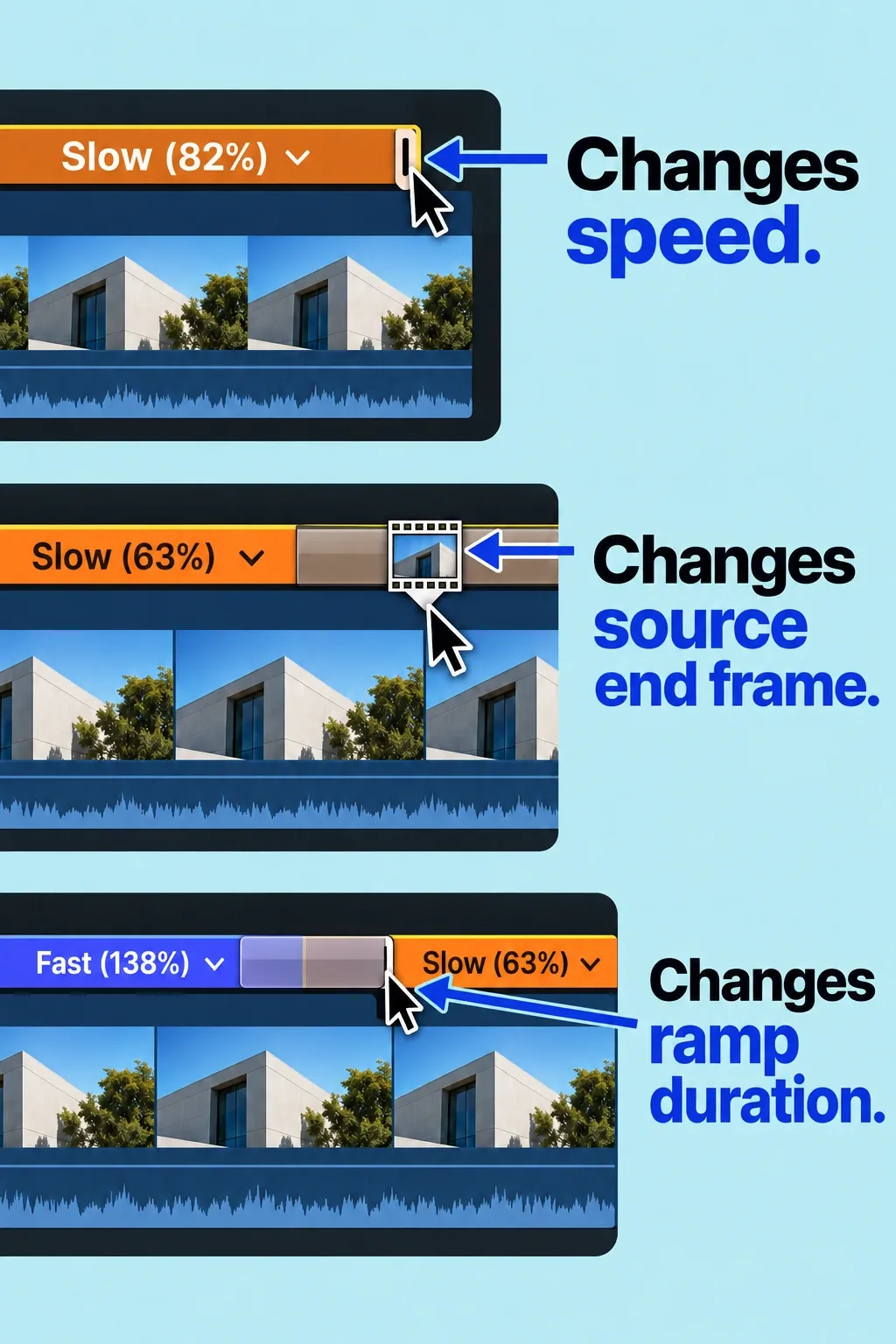
Position the playhead at a proposed boundary and choose Retime > Blade Speed, or press Shift-B. Repeat where the next segment should begin. Double-click the retime editor above a segment to open Custom Speed, then choose Rate or Duration and enter the value. You can also change a segment’s speed by dragging its right retiming handle. Dragging a handle changes speed, not the segment's source end frame. To change a segment’s source end frame, show the retime editor with Command-R, double-click the transition between segments, and click Source Frame Edit in the Speed Transition window. Drag the resulting filmstrip icon left or right while checking the frame in the viewer. Make one boundary adjustment at a time and replay across it.
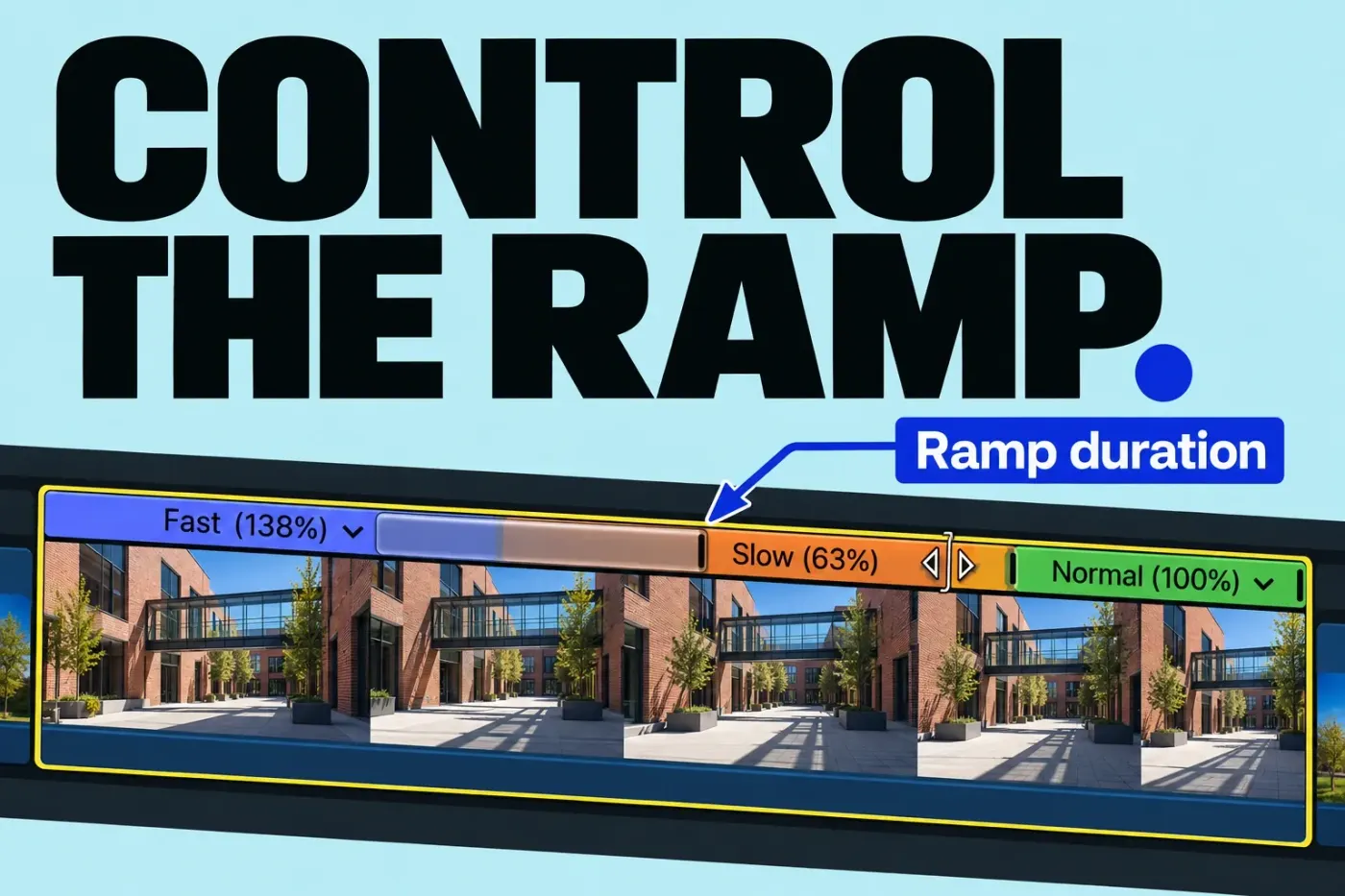
Preset ramps already include speed transitions. Manual segments can switch abruptly: select the clip and turn on Retime > Speed Transitions, then drag a transition bar’s edge to change ramp duration. A shorter bar makes the shift quicker; a longer one spreads it out. You cannot create a smooth speed transition across a forward-to-reverse boundary.
Choose Video Quality for the slow section
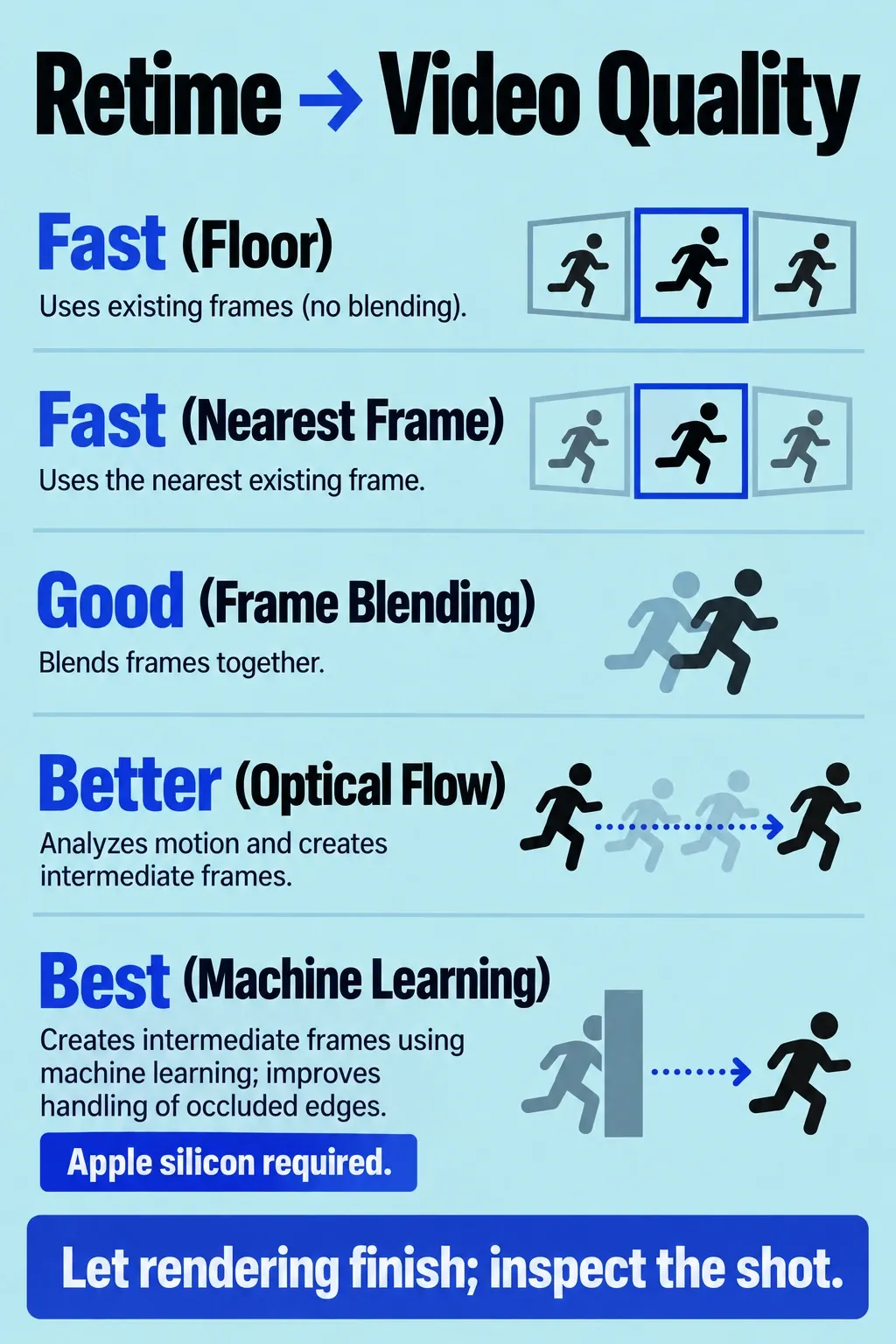
If motion jumps at a speed boundary, adjust the Speed Transitions timing described above. If movement stutters or edges distort inside the slow section, compare frame-handling methods. Select the slowed clip or range in the timeline, open the Retime pop-up below the viewer, and choose Video Quality.
| Preset | Frame handling | Rendering and limits |
|---|---|---|
| Fast (Floor) | The default. Duplicates frames or rounds down to the nearest whole frame. | Rendering is recommended for highest-quality playback. |
| Fast (Nearest Frame) | Rounds up or down to the nearest whole frame. Apple says it reduces artifacts, but it may stutter. | Rendering is required. |
| Good (Frame Blending) | Blends pixels from neighboring frames to create in-between frames. Apple describes smoother playback and less stutter than the Fast methods, with possible visual artifacts. | Rendering is required. |
| Better (Optical Flow) | Analyzes the directional movement of pixels and draws new in-between frames. | Rendering is required and takes longer than frame-sampling methods. Only the used media between the clip's start and end points is analyzed. |
| Best (Machine Learning) | Creates new frames with machine learning and bidirectional optical flow. Apple calls it the highest-quality method, with reduced artifacts and better occlusion handling. | Requires a Mac with Apple silicon. Rendering is required; analysis and rendering take longer than the other methods. |
I'd follow Apple's suggested order: Good (Frame Blending) while you settle the speed, then Better (Optical Flow) or Best (Machine Learning) if artifacts remain or you want higher image quality; Best requires Apple silicon. Let the relevant analysis and rendering finish before judging the result. Inspect a short passage, paying attention to moving edges and overlapping objects. The quality names are options to compare; the actual shot decides which result you can use.
Check picture, sound, and the next cut
Play from before the first boundary through the cut after the retimed clip. Look for an awkward motion jump, a shortened action, or a shifted downstream edit. Listen to the audio separately. Retime > Preserve Pitch is on by default; its checkmark shows the current state. Even with pitch preserved, listen closely to any line or effect that plays faster. For a difficult shot, export a short range and inspect the actual file before applying the treatment to the full sequence.
For edits whose issue is the cut rather than playback speed, use the trim and split guide.