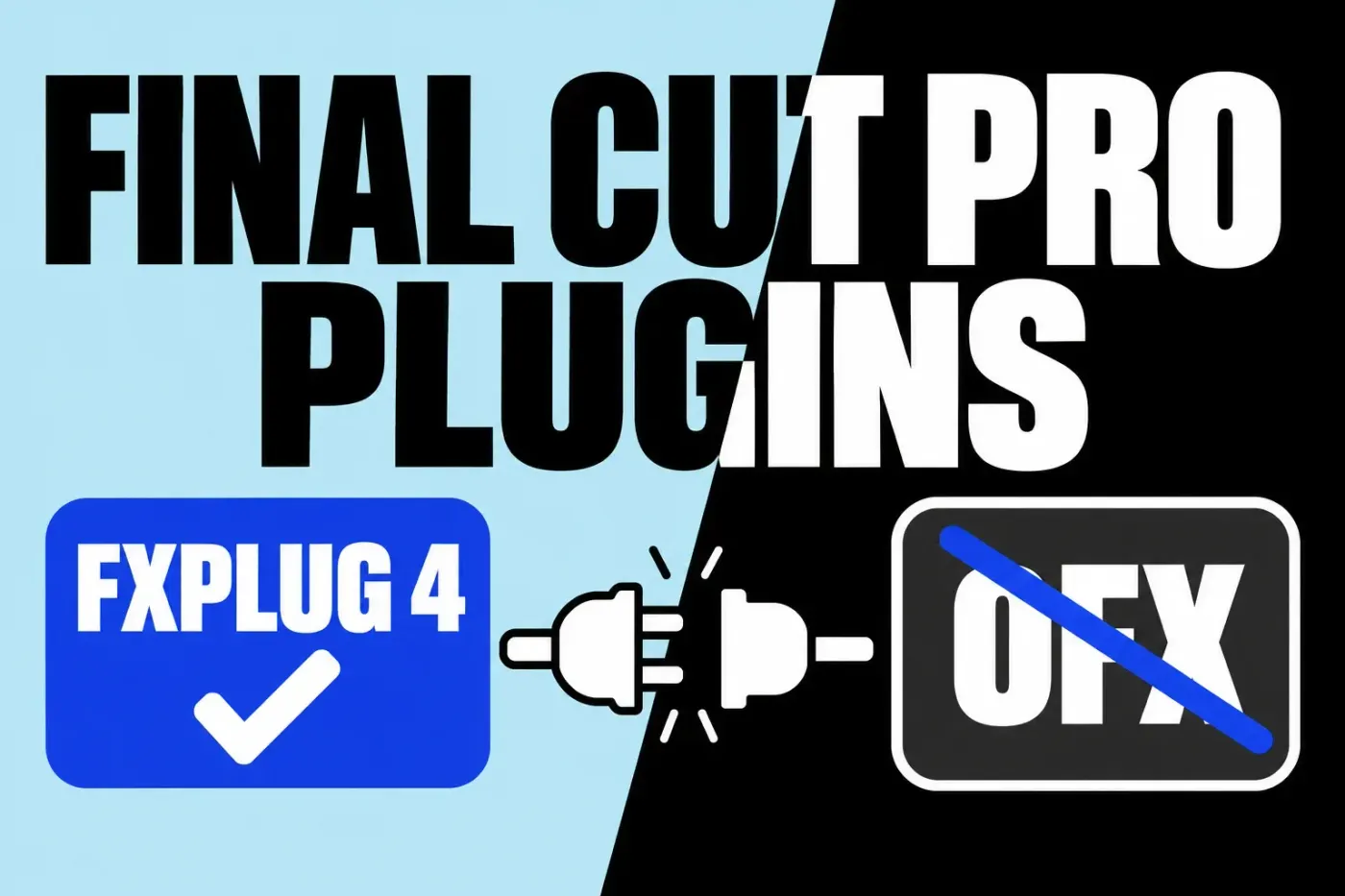
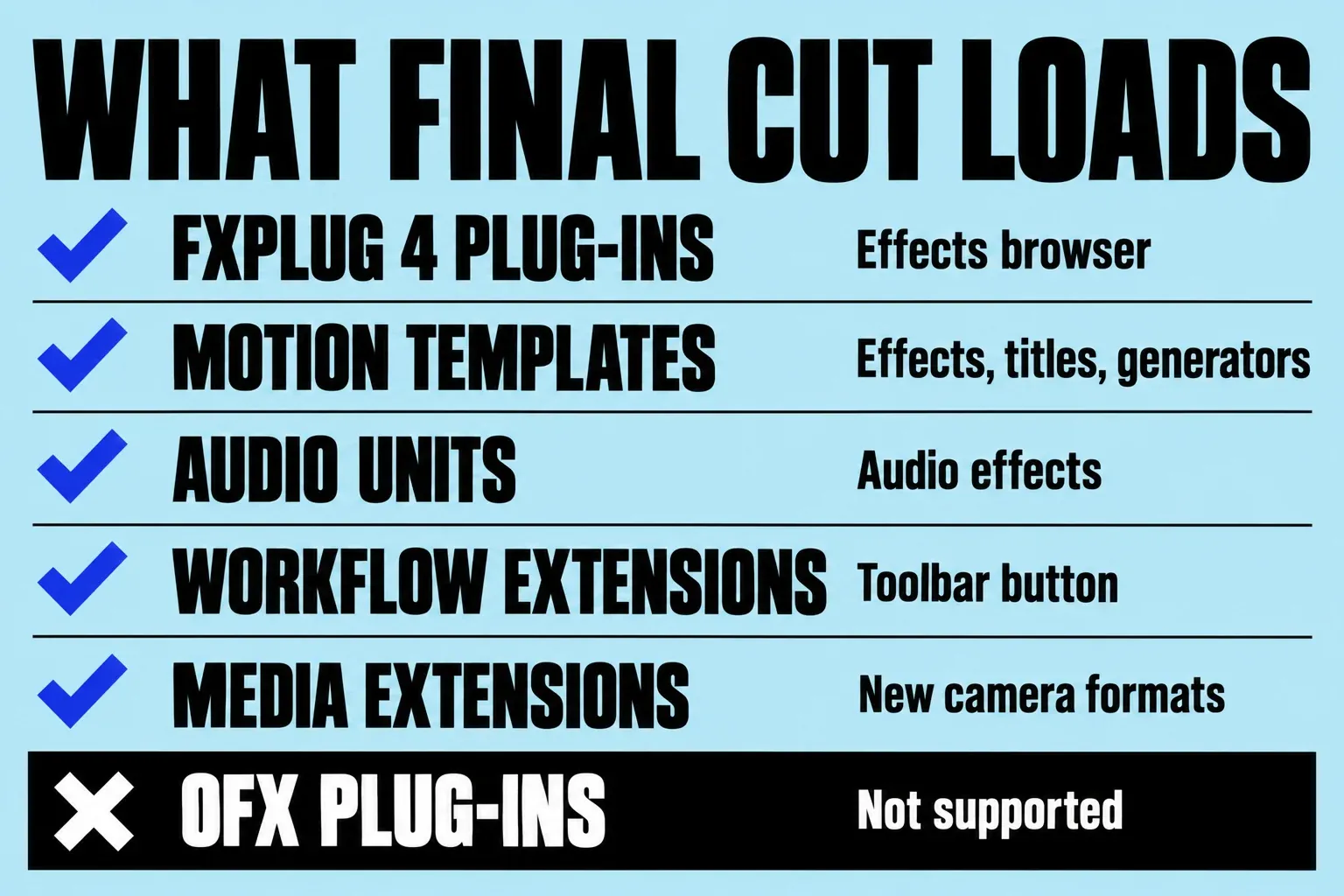
Final Cut Pro doesn't load OFX plug-ins. OpenFX is the open plug-in standard used by DaVinci Resolve, Fusion, Nuke, Flame, and Vegas Pro, and Final Cut isn't one of its hosts: it runs FxPlug 4 plug-ins, Motion templates, Audio Units, workflow extensions, and media extensions. An OFX effect you own works in Final Cut only if its developer also ships a Final Cut Pro version. Before buying anything, I'd open the developer's Final Cut page and confirm two things: there's a current FxPlug 4 build, and your license covers it.
Below are the add-on types Final Cut accepts and where each one shows up, why the same effect comes as separate OFX and Final Cut builds, what to do when a plug-in goes missing or Final Cut flags it as incompatible, and how to keep effects with a library you move to another Mac.
What Final Cut Pro can load
Final Cut takes five kinds of add-ons, and every third-party video effect reaches you through Motion. Apple's guide for plug-in developers says an FxPlug plug-in works in Final Cut only after the developer wraps it in a Final Cut effect built in Motion, and that Final Cut effects "are really just Motion documents." The same guide tells developers to rig parameters for Final Cut users, for example one slider that drives two plug-in settings, so a plug-in can show fewer, simpler controls in Final Cut than in its other hosts.
| Add-on | What it adds | Where it appears in Final Cut |
|---|---|---|
| FxPlug 4 plug-in | Video effects, transitions, titles, and generators that run the developer's own rendering code | Effects browser (Command-5), Transitions browser (Control-Command-5), or the Titles and Generators sidebar (Option-Command-1) |
| Motion template | Effects, transitions, titles, and generators built in Motion, with no plug-in code | The same browsers; files live in Movies > Motion Templates unless you store them in a library |
| Audio Unit | Third-party 64-bit audio effects | Audio effects in the Effects browser |
| Workflow extension | A third-party app's window inside Final Cut, such as stock footage, media management, or review and approval | Extensions button on the left side of the toolbar, which appears only after you install one |
| Media extension | Import of camera and file formats Final Cut doesn't read natively | Nothing to apply: the clip imports, and the Info inspector shows which extension decodes it |
| OFX plug-in | Nothing | Final Cut isn't an OFX host, so OFX files never appear |
Apple documents each route. The Effects browser opens from the button at the top right of the timeline. Final Cut accepts macOS built-in and third-party Audio Units next to its own audio effects. A workflow extension installs with its developer's app, and you uninstall it by removing that app from the Applications folder and reopening Final Cut. Media extensions need macOS 15 or later.
FxPlug vs OFX: why your OFX plug-in won't appear
OFX and FxPlug do the same job for different hosts. OpenFX is an open C programming interface between effects plug-ins and host apps, and the OpenFX site names Flame, Nuke, DaVinci Resolve, Fusion, Vegas Pro, and Natron among the software built on it. FxPlug is Apple's own plug-in kit for Final Cut Pro and Motion. FxPlug 4 plug-ins run in their own process outside Final Cut, and Apple's notes on out-of-process FxPlug plug-ins say that process can become invalid at any point without affecting the app.
So developers build the same product more than once. Boris FX explains that Continuum for Final Cut uses Apple's FxPlug API and is customized for Final Cut Pro and Motion, and its Continuum host list marks the DaVinci Resolve, Nuke, and Vegas Pro versions as OFX. The builds don't always match: Continuum's particle effects can't run in FxPlug, so the Final Cut version leaves them out.
Controls move, too. Video Village's notes on LensNode in Final Cut point out that Final Cut is effect-based and has no node inputs, so you pick the depth-map clip in the Video inspector, and there's no Save Defaults button as there is in its other hosts. Copying an OFX file into a Final Cut plug-in folder won't change any of this, because Final Cut doesn't read OFX at all.
If you already own an OFX plug-in
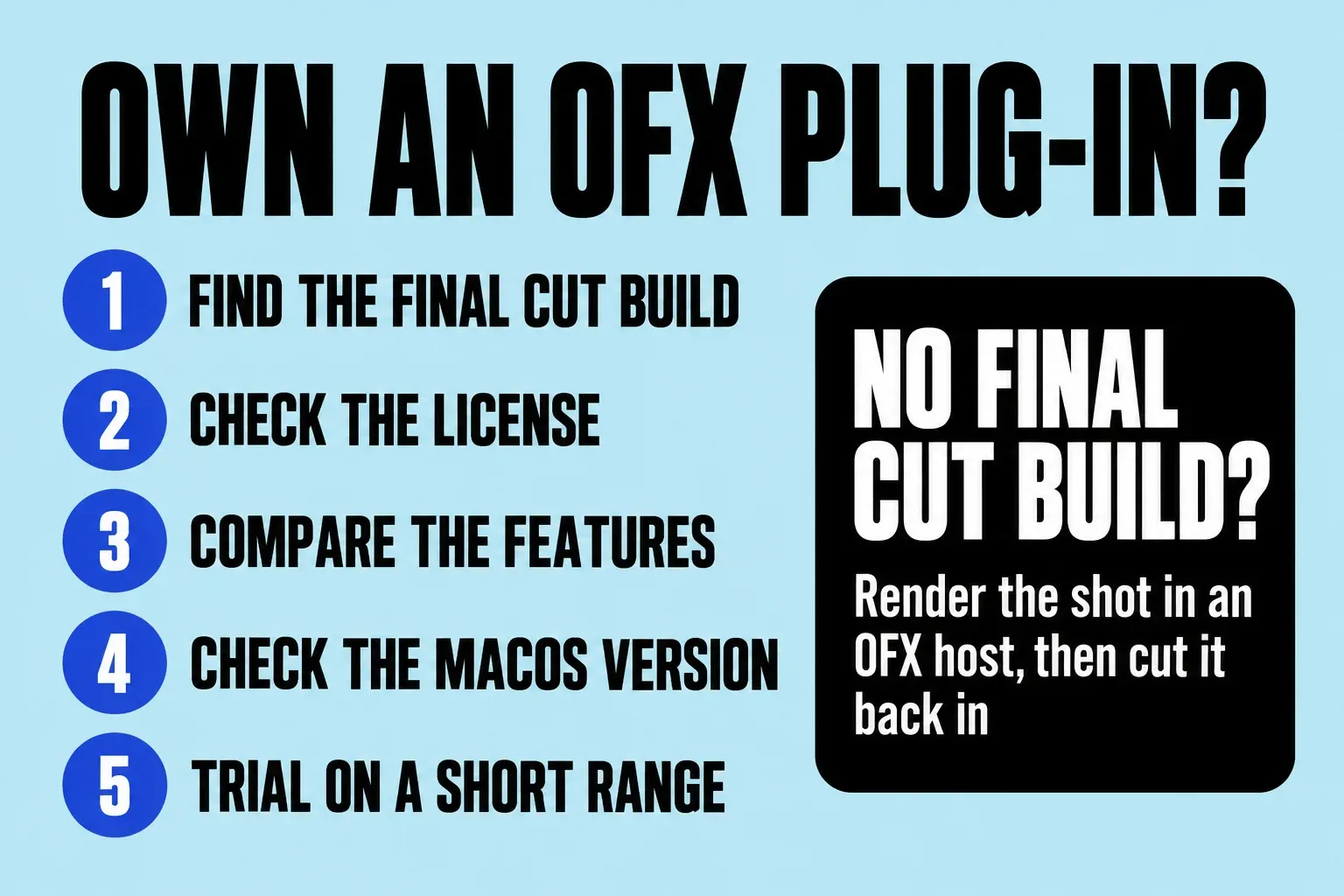
Your OFX license doesn't install anything in Final Cut by itself. Work through the developer's side first:
- Find the Final Cut build. Look for a Final Cut Pro or FxPlug 4 download on the developer's site. Apple's Final Cut Pro ecosystem page lists effects developers that make Final Cut versions, including FxFactory, MotionVFX, Maxon, Boris FX, RE:Vision Effects, CoreMelt, and Digital Anarchy.
- Check what your license covers. Licensing differs by developer. RE:Vision says its Effections license works in After Effects, Final Cut Pro, Premiere Pro, Resolve, Vegas Pro, and other hosts, though not every product runs in every host. Ask other developers before you buy a second copy.
- Compare the feature list. The Final Cut build can lack effects the OFX version has, as Continuum's particle effects show.
- Check the macOS requirement. Requirements can differ by host: Boris FX lists macOS Monterey 12.7 for Continuum but macOS 13.4 or later for Final Cut and Motion. Final Cut itself may need a newer macOS than either, which the Final Cut Pro system requirements guide sorts out.
- Run the trial on a short range. Expect a watermark on trial renders: FxFactory's Final Cut help notes that its trial plug-ins render one with a Buy button.
I'd apply the trial to a ten-second range of your real footage before paying, because a Final Cut build with fewer controls or effects only shows its gaps on your own shots. If the developer has no Final Cut version, I wouldn't move the whole edit for one effect. I'd render just the affected shots in an OFX host such as DaVinci Resolve and cut the rendered clips back into Final Cut. If most of your effects library is OFX, that weighs toward Resolve in the Final Cut Pro vs DaVinci Resolve comparison.
Install plug-ins and find them in Final Cut
Install FxPlug plug-ins and Audio Units with the developer's installer or app, then open Final Cut. FxFactory's help describes the usual layout: its plug-ins appear in their own categories in the Effects browser, titles and generators in the Titles and Generators sidebar, and its audio plug-ins in the Effects browser too.
Motion templates need no installer. Apple's Motion guide says a template you save in Motion automatically appears in the matching Final Cut browser: effects in the Effects browser, transitions in the Transitions browser, and titles and generators in the Titles and Generators sidebar. Third-party presets live in the Effects, Generators, Titles, and Transitions folders inside Movies > Motion Templates, according to Apple's plug-in compatibility article. Building your own templates takes Motion, a $49.99 Mac app, or a Creator Studio subscription, which the Final Cut Pro price guide compares.
If an effect you installed doesn't show up, check these first:
- Search and filter. Type its name in the search field at the bottom of the Effects browser, and clear the field if an earlier search is hiding results. Use the Filter pop-up menu at the top of the browser to switch between installed content and Motion content stored in an open library, as Apple's guide to managing Motion content explains.
- Restart Final Cut. Quit and reopen it after installing, so it finds the new plug-in.
- Turn on media extensions. Choose Apple menu > System Settings > General > Login Items & Extensions, click By Category in the Extensions section, click the Info button next to Media Extensions, and turn on the format readers or decoders. Then quit and reopen Final Cut. In the Info inspector, a green dot next to an extension means it's decoding the selected clip; a red triangle means there's a problem.
Before adding a paid plug-in, I'd check whether Final Cut's own tools already cover the job: the Keyer handles most green screen shots in Final Cut Pro, and the built-in wheels and curves cover a primary grade, as the color correction guide shows. Every plug-in you skip is one less thing to reinstall and update on every Mac you edit on.
When a plug-in is missing or incompatible
Final Cut checks third-party plug-ins for compatibility on its own. Apple says Final Cut Pro 10.3 or later and Motion 5.3 or later list any incompatible plug-ins in a message with their versions and manufacturers. Contact the manufacturer for an update; if there isn't one, Apple's advice is to remove the plug-in until a compatible version exists.
Check the plug-in's age first. Final Cut Pro 10.6.6, released in May 2023, dropped FxPlug 3: MotionVFX's help article says Final Cut Pro 10.6.6 and Motion 5.6.4 no longer support it and that some of its older products won't be updated. Apple's FxPlug documentation now states that FxPlug 3 isn't supported in Final Cut Pro or Motion, and Apple's Apple silicon plug-in article tells you to update third-party video plug-ins to FxPlug 4 to use them on a Mac with Apple silicon. A plug-in last updated before that release is the first suspect.
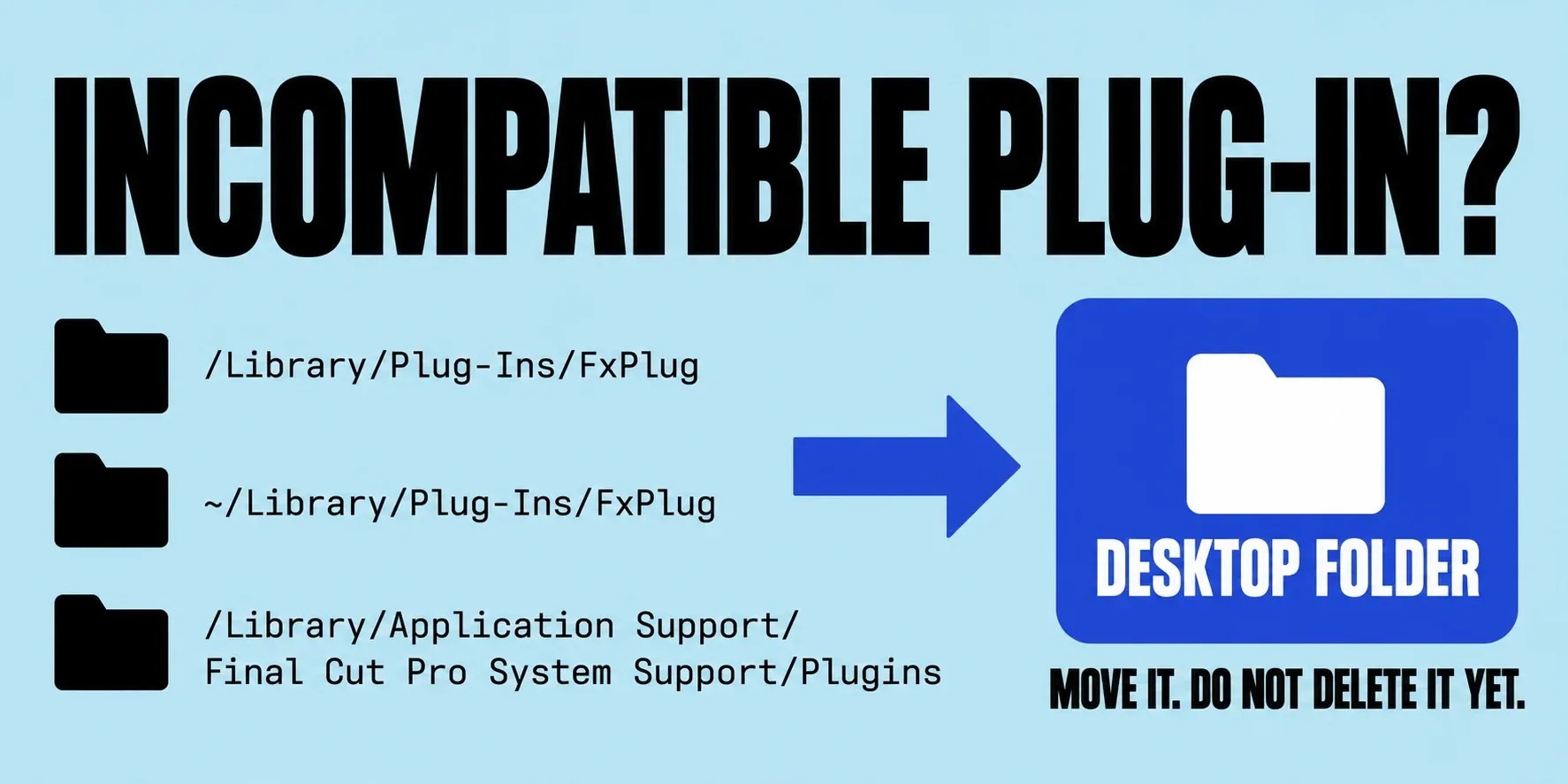
Most manufacturers provide an uninstaller, so use that first. If there isn't one, quit Final Cut Pro and Motion, then move the plug-in's files out of these folders:
- /Library/Plug-Ins/FxPlug/
- /Library/Application Support/Final Cut Pro System Support/Plugins/
- ~/Library/Plug-Ins/FxPlug/ (in the Finder, choose Go, hold Option, and choose Library)
- Its preset files in ~/Movies/Motion Templates.localized/, inside the Effects, Generators, Titles, or Transitions folder
Apple suggests moving the files to another location such as the Desktop. I'd put them in one folder there rather than in the Trash, because you can put a file back if you pulled the wrong one. Do not delete them until Final Cut opens cleanly and your projects still render.
Moving a library to another Mac or drive
A library doesn't carry your plug-ins. Apple's Motion content guide says you must manually track and move third-party FxPlug content, because the Final Cut library doesn't manage it. Custom Motion templates stay in Movies > Motion Templates too, unless you store them in the library.
To bring Motion content along, select the library and choose File > Library Properties (Control-Command-J). Click Modify Settings, set Motion Content to In Library, click OK, then click Consolidate in the Motion Content section. Apple recommends consolidating media in the same inspector as well. The guide to moving a library to an external SSD covers the copy itself and the checks that keep your originals safe.
Before opening the library on another Mac, I'd install the same plug-ins there first, because Final Cut can only render effects that exist on the Mac opening the project. Keep installers and license details with your backups: Apple's backup article lists custom Motion templates, custom fonts, and third-party FxPlug effects, Audio Units, and camera plug-ins among the files to archive alongside a library.
Plug-ins in Final Cut Pro for iPad
Final Cut Pro for iPad doesn't run FxPlug plug-ins. Apple's developer guide states that the iPad app doesn't support FxPlug 4, and the iPad app's App Store listing points you to Final Cut Pro for Mac for third-party content options. Start on the iPad if you like, but plan to add plug-in effects after you send the project to a Mac.
What I'd do before buying a plug-in
Start with Final Cut's built-in effects and add plug-ins for specific jobs the built-in tools can't do. Buy from developers whose Final Cut page names a current FxPlug 4 version, and run the trial on your own footage. If you also edit in Resolve or Premiere, pick vendors whose license covers both hosts so you aren't paying twice. Keep every installer and license with the library backup, since the library won't hold them for you.