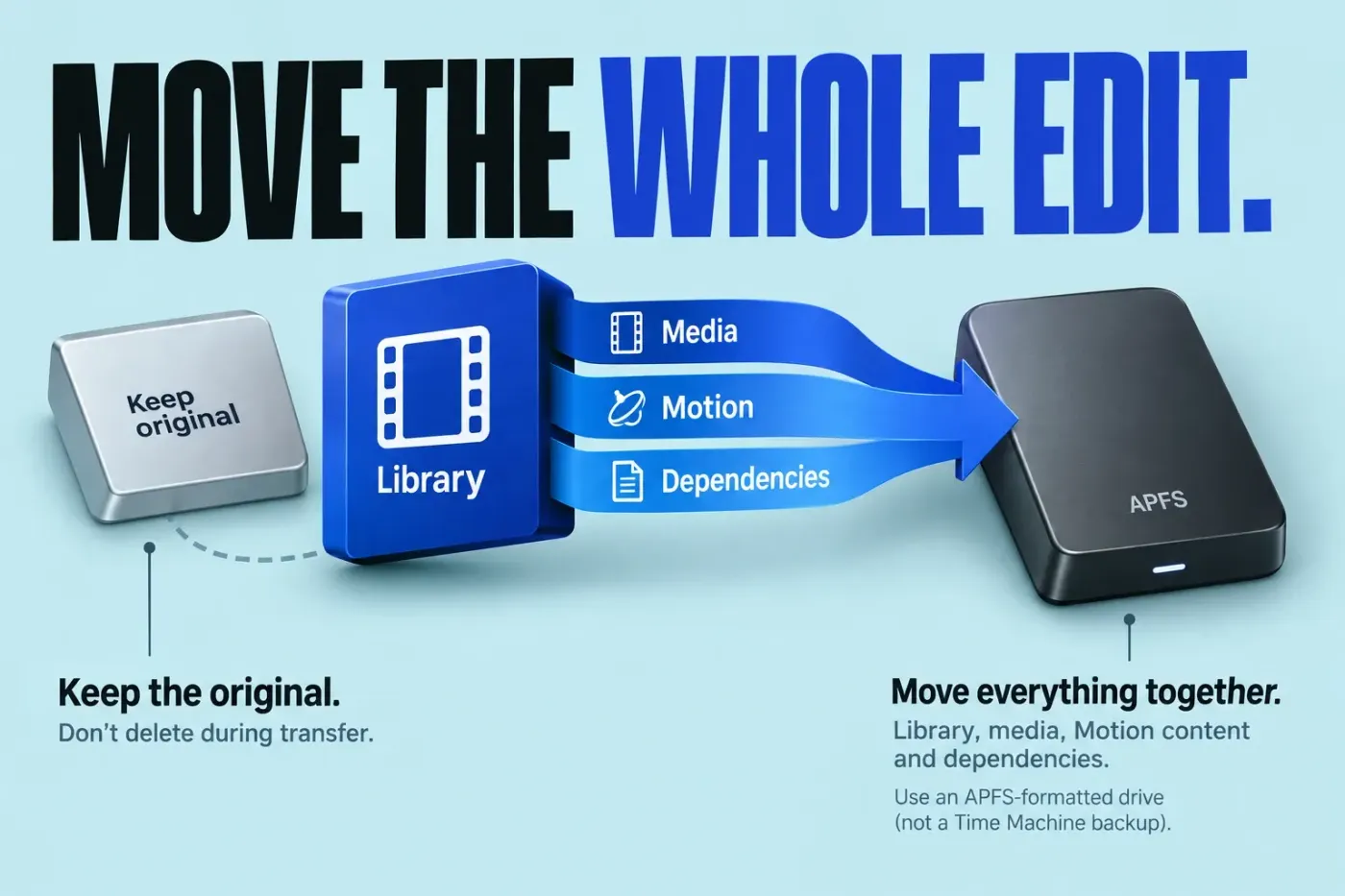
Copy the library to the SSD in Finder, keep the original, then consolidate its media. A Final Cut Pro library alone isn’t the whole edit: it can depend on external originals, Motion content, caches, or assets stored elsewhere.
Start with an inventory
I’d keep the original storage unchanged until the SSD copy’s required media and dependencies have been verified and backed up independently. For the transfer itself, follow Apple's guidance on moving a Final Cut Pro library. Select the working library in the Libraries sidebar and choose File > Library Properties. Record the locations for Media, Motion Content, Cache, and Backups, including the old Motion sources that must remain available while the copy is gathered. For representative sources, select their event and then the clip in the browser; choose File > Reveal in Finder. Note external audio, graphics, fonts, plugins, and LUTs that the timeline needs.
Apple's library-move guide specifies APFS for the destination drive and says a drive used for Time Machine backups cannot store the library. Before reformatting an existing drive, make and verify a separate copy of its data. Confirm available capacity with room for future renders, generated media, and exports.
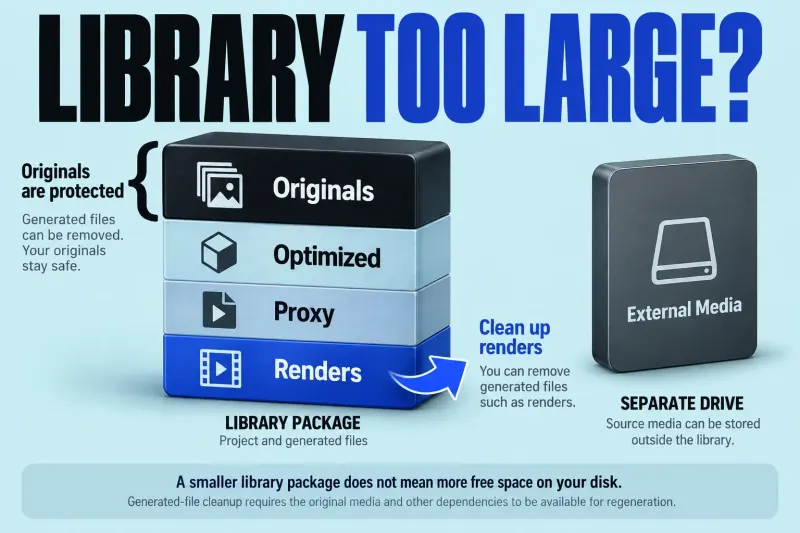
List each dependency by type and location before copying anything. Include the library file, externally stored originals, optimized and proxy media, cache, library backups, Motion templates, custom fonts, LUTs, sound effects, music, stills, and any plugin the timeline requires. Mark each item as essential for opening, essential for matching the current look, or reproducible from originals.
This classification prevents two opposite mistakes: copying terabytes of disposable render files, or moving only the library while leaving a custom title or audio file behind. Aim for the smallest package that can still reproduce the intended result, which is not always the smallest move.
Prepare the SSD and consolidate deliberately
Give the destination a clear job folder with separate Library, Media, Cache, and Deliverables locations if the workflow uses external media. Confirm the drive format, free capacity, and connection type for the Macs that will use it. Do not begin by renaming the old drive or rearranging the source tree.
Decide whether the destination should hold managed media inside the library or a clear external media folder. Use Final Cut Pro's storage and consolidation tools where they apply; don't drag files out of a library bundle by hand.
If moving to another Mac, install third-party plugins and special fonts there using their manufacturers’ installers; copying the library does not install them. Each plugin must also be compatible with the destination macOS and Final Cut Pro versions. Preserve folder names and keep the original copy during the move.
Locate the working package first: select its library in the Libraries sidebar, then choose File > Reveal in Finder. Quit Final Cut Pro and explicitly copy that library package to the SSD in Finder, preserving the original. Open the copied library while the old media and Motion sources remain available. Use the consolidation step below to gather the required media into the chosen destination. A successful open at this stage proves little because references can still resolve to the old volume.
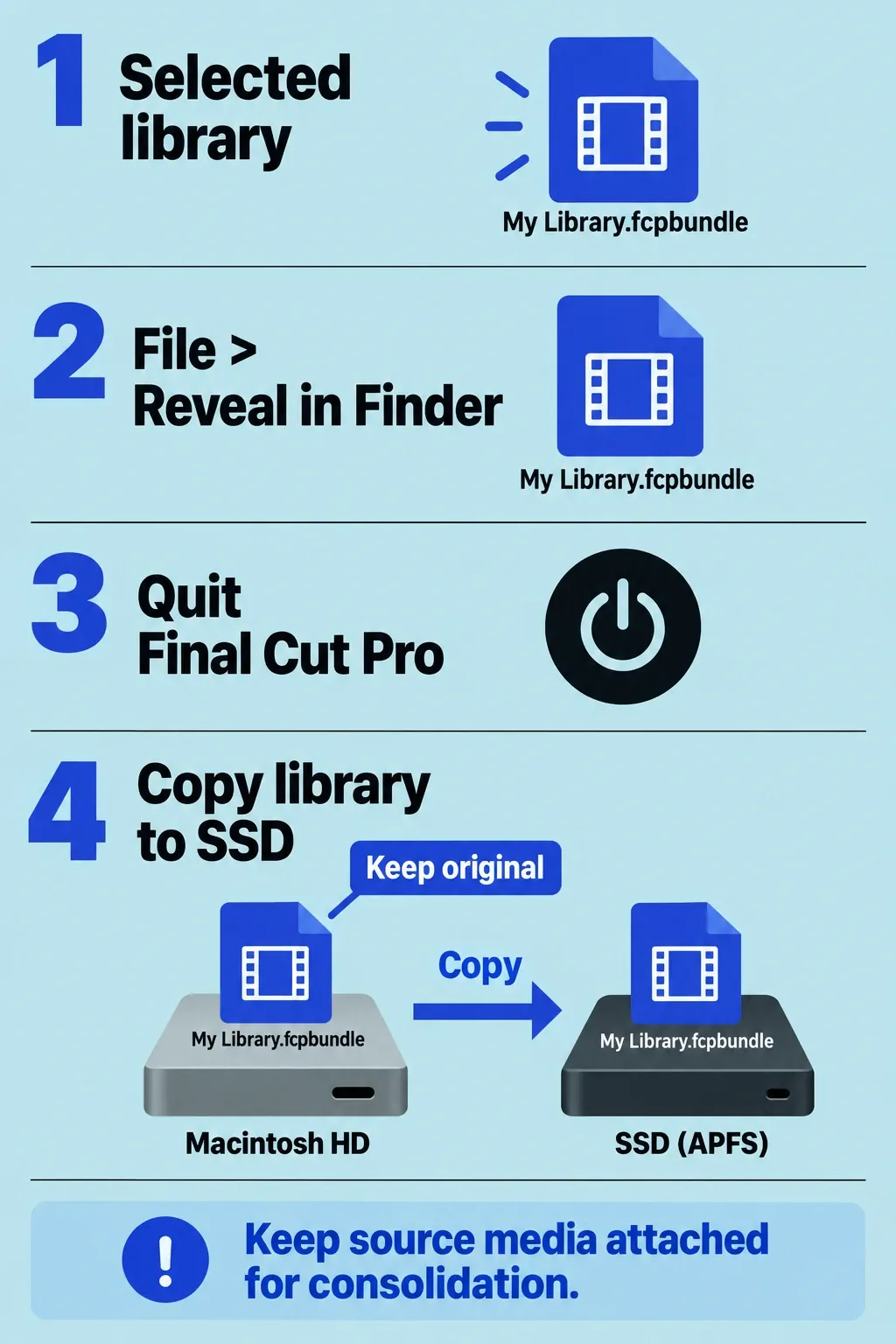
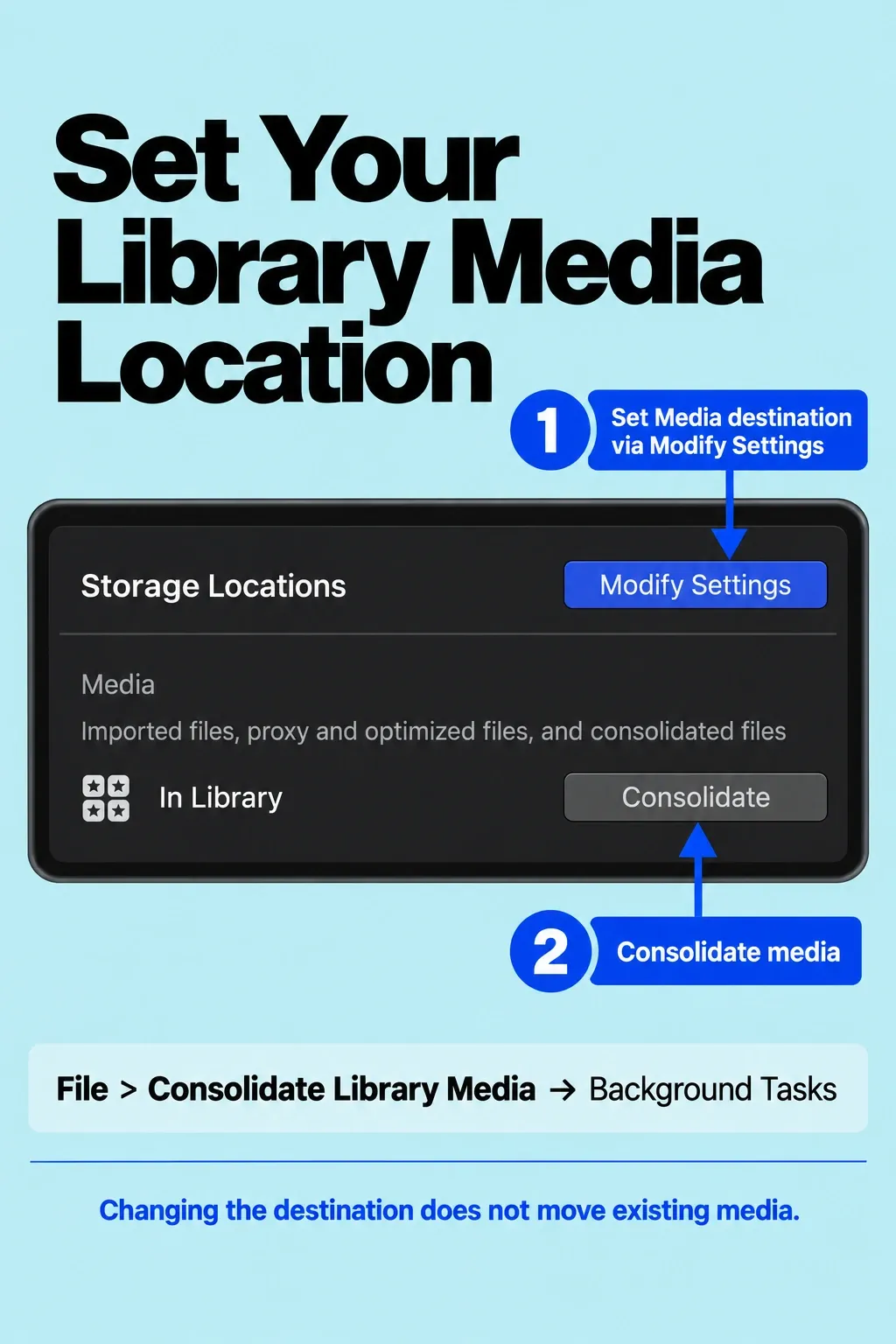
For media that must travel, select the copied library and choose File > Library Properties. Click Modify Settings, set Media to In Library or use Choose to select the intended SSD folder, then click OK. Changing the storage setting alone doesn’t move existing source media. After setting the destination, choose File > Consolidate Library Media. Select original, optimized, or proxy media as needed, confirm the library, and click OK. Choose Window > Background Tasks and wait for consolidation to finish. Keep the referenced source storage connected throughout. Then check the actual media references before disconnecting the old disk. The consolidation guide distinguishes copying from moving: external-to-library and external-to-external consolidation copy files, while library-to-external consolidation moves them. Work on the copy and keep the old storage and backup intact.
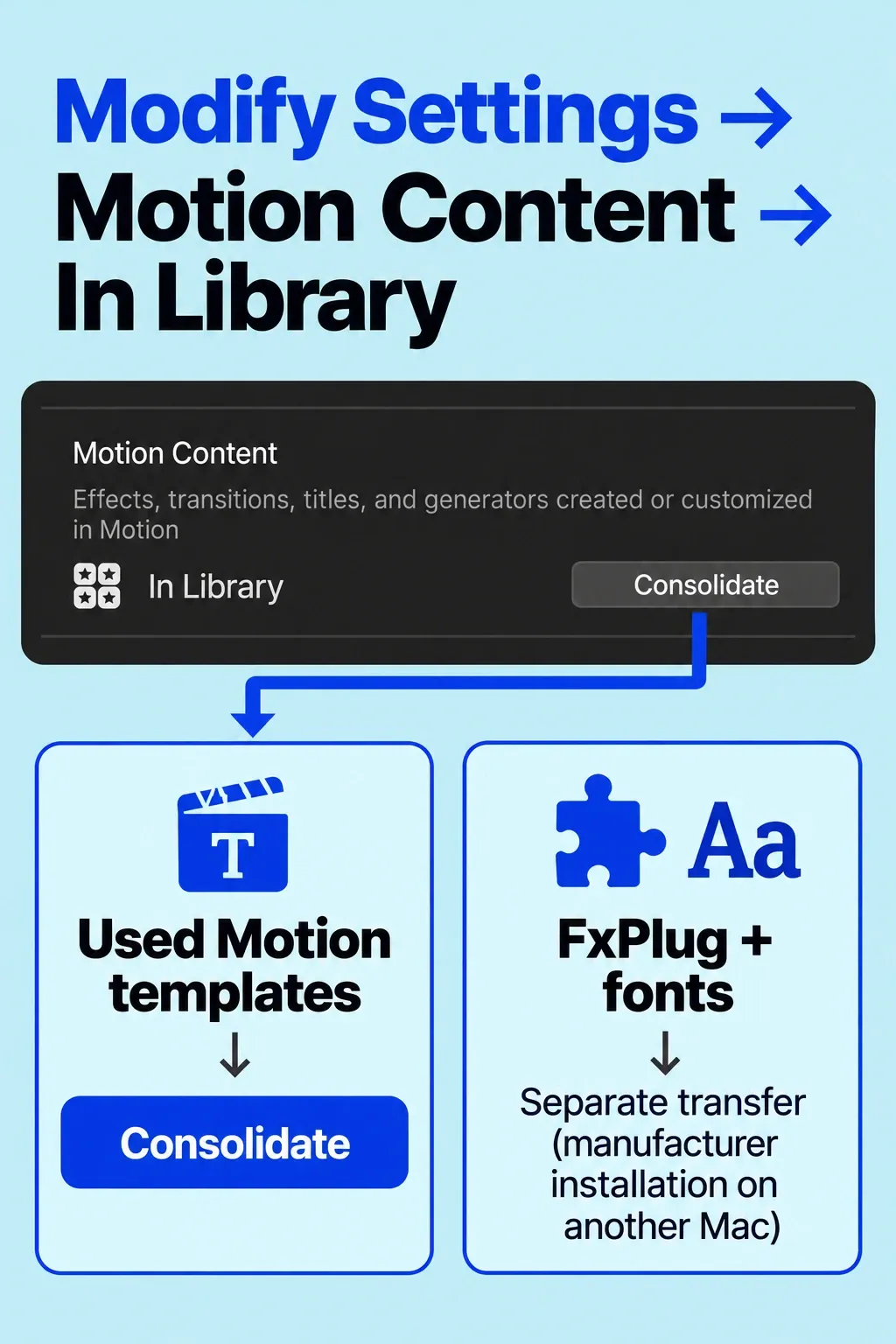
If the edit uses custom Motion titles, effects, transitions, or generators, gather them in the copied library before ejecting their old source storage. Select that copied library, choose File > Library Properties, click Modify Settings, set Motion Content to In Library, and click OK. Choose File > Consolidate Motion Content, confirm the destination library, and click OK. Wait for the operation to finish in Background Tasks and verify the copy’s Motion references. The Motion consolidation instructions cover only content used by the selected library; third-party FxPlug content must be tracked separately. Fonts and plugin installers still need their own transfer plan.
In the copied library’s Library Properties > Modify Settings, make separate Cache and Backups destination choices. Use the intended SSD Cache folder or In Library for renders, analysis, thumbnails, and waveforms. Choose the intended folder for future library-database backups under Backups, then click OK. A Cache change can offer to move existing active render files. If those files are on the old storage you are preserving, decline the move and keep that layout intact until verification is complete; use the new Cache destination for future generated files. Moving cache files changes their location, not their total space use.
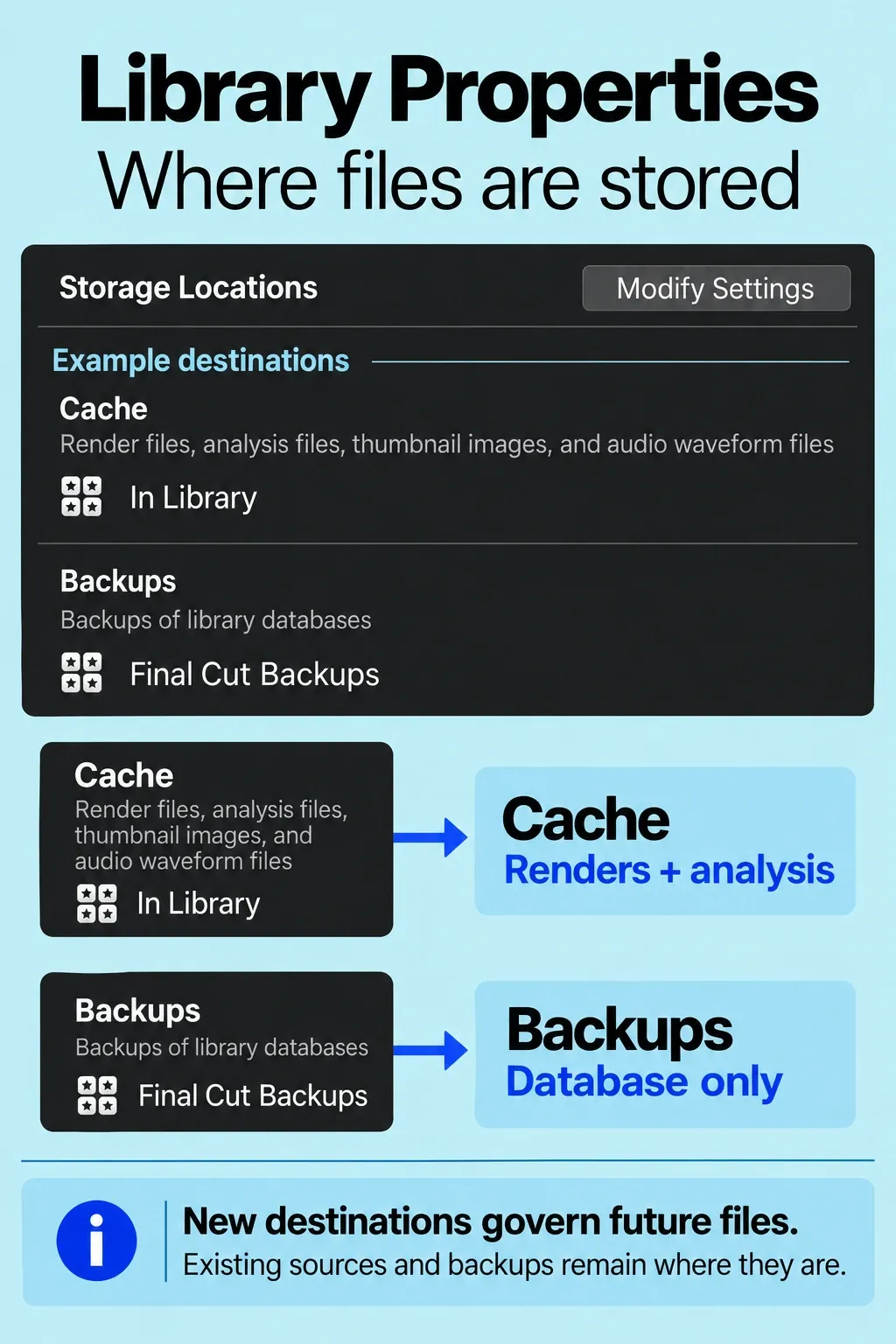
New storage locations govern future operations. Existing source media and backup files stay in their previous locations, so retain the historic backup paths in the recovery inventory. Automatic library backups contain the database, not the footage. To recover from a working SSD failure, I’d keep a restorable copy of the library and its required media on a separate physical device. Apple’s media-backup guidance calls for a different device or partition from the working media; a second folder on the same SSD doesn’t provide that separation.
Verify the SSD copy without relying on the source
After copying and consolidation have finished, check the copy according to its source. If the source is a removable external drive, close Final Cut Pro, safely eject and disconnect that drive, then open the library from the SSD. A successful open while both disks are attached doesn’t prove the move is complete.
If the source is your Mac’s internal startup disk, leave it unchanged and use the path checks below; do not try to eject it. Check every required original and other dependency against your inventory, not just a few sample clips.
For an independent check, I’d open the SSD copy on another compatible Mac with no access to the source storage. That Mac must have the plugins, fonts, and other dependencies required to reproduce the edit. If that setup is unavailable, record the independent check as unfinished and keep the originals. Path checks on the same Mac are useful, but they don’t prove independence from its internal storage.
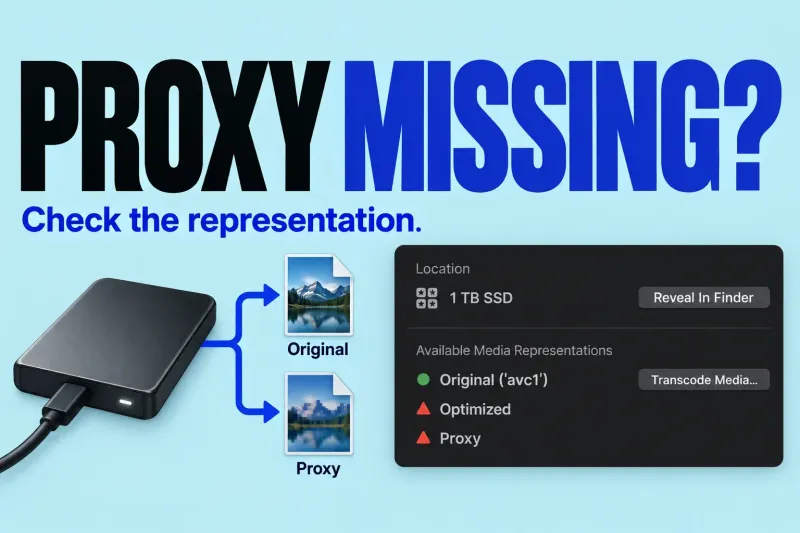
Open the library from the SSD and select Optimized/Original playback. This can use optimized media, so successful playback doesn’t prove the originals themselves are present. Verify the required originals separately: select an event in the Libraries sidebar, select its source clip in the browser, then choose File > Reveal in Finder. Check that the paths resolve to the intended new storage. Sample different events and the beginning, middle, and end of the project, including synchronized audio, multicam angles, titles, fonts, LUTs, effects, captions, and Motion templates. Representative checks don’t certify every item in the dependency inventory.
My first check is a short exported range containing several dependency types. If that succeeds, I’d export the complete project too when the move is important enough to justify the time. Compare duration and file size with the expected output and watch the exported range in a separate player. These are sanity checks on that output; they don’t replace verification of the source inventory.
Keep the original until verification and backup
Keep the original storage unchanged until the SSD copy has passed the verification appropriate to its source, reopened after a restart, and been backed up independently. If you could not complete the independent check, retain the source files and mark that limitation in the acceptance record.
Migration acceptance record
Keep a short text file on the SSD listing the library path, media path, cache and backup destinations, required plugins or fonts, and the Mac and Final Cut Pro versions used for verification. Record only checks you actually completed, with their dates and results; mark unresolved dependencies or unfinished checks. If you verified a master, include its filename and the expected project duration. This record does not replace a backup. It gives a later editor the paths and results needed to understand the new layout without guessing which disk to reconnect.
The copy-versus-leave-in-place import guide explains why copying a library alone may leave source files on another disk.