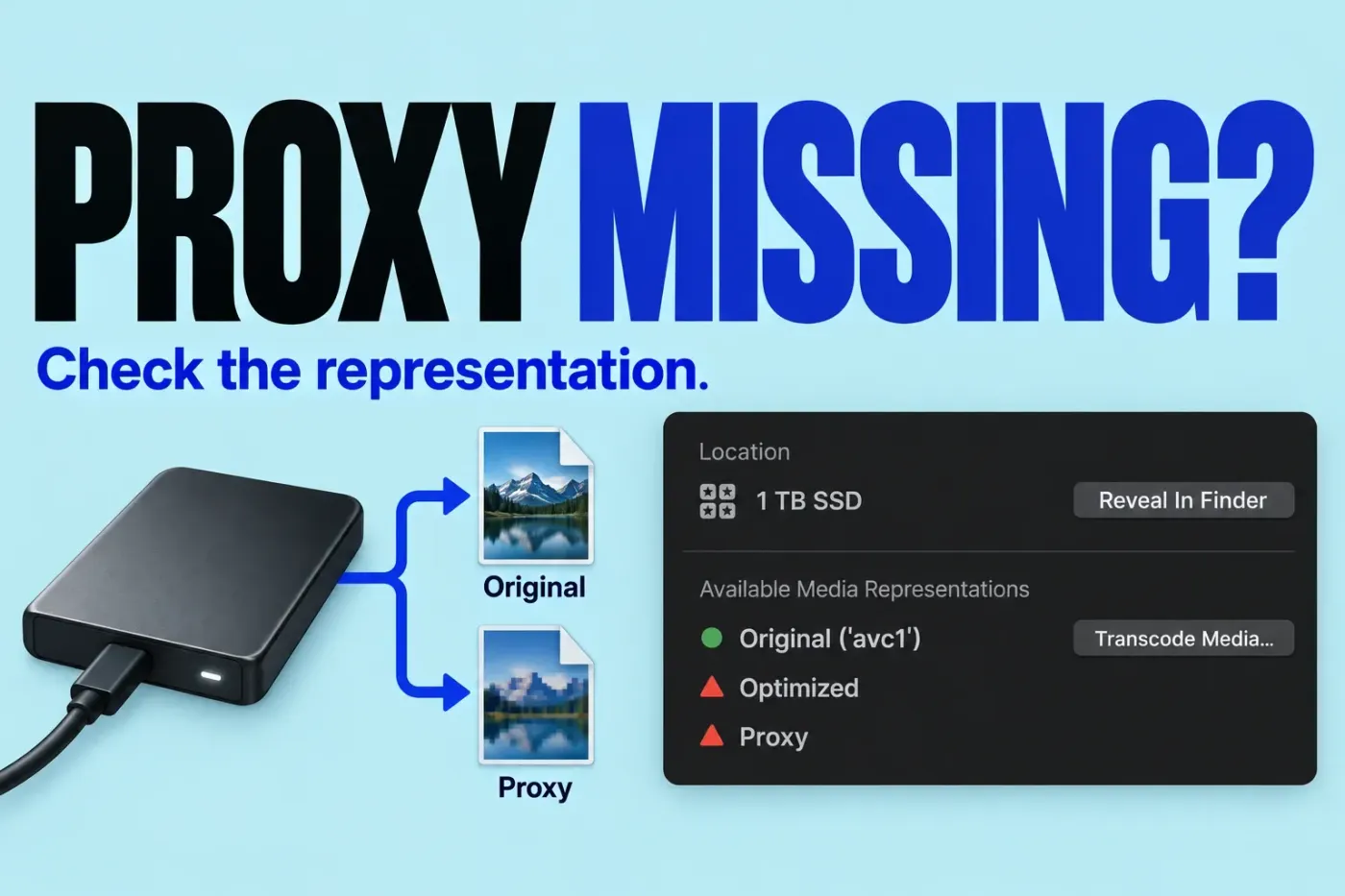
Missing proxy media doesn't automatically mean the edit is lost: a proxy is generated working media. First check the playback mode and whether the original is still available. If it is, switch to Optimized/Original for immediate work, then reconnect or regenerate the proxies from the verified original. Apple's playback-mode guide makes an important distinction: Optimized/Original may play optimized media even when the camera original is offline.
Read the state before fixing it
Check View > Media Playback in the viewer. Then answer two questions separately: which representation plays now, and can Final Cut Pro reach the actual original file? Also establish whether this workstation is supposed to have the proxies. Select the event containing an affected clip in the Libraries sidebar, then select that clip in the browser. If the inspector is hidden, press Command-4; click Info and scroll to Available Media Representations to check that clip’s proxy status.
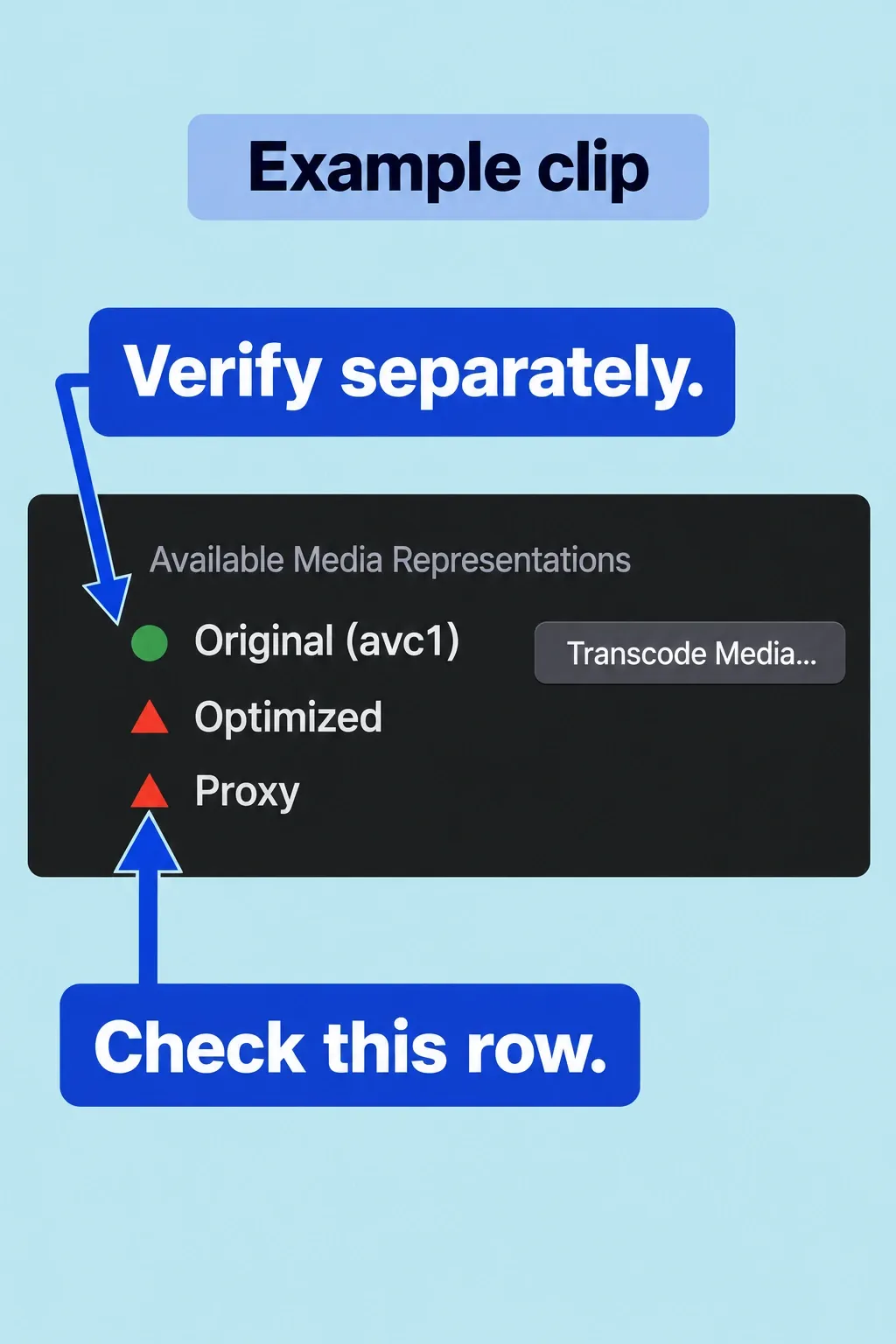
Use the source and proxy location commands for the same selected browser clip: File > Reveal in Finder locates the original reference, while File > Reveal Proxy Media in Finder locates the proxy. If a file can’t be located, check its expected drive and folder before you choose a repair. The library’s current Media destination governs future storage operations; it doesn’t establish a previously imported clip’s actual path.
If neither playback mode works, inspect the exact alert and use the missing original media workflow to check original and optimized files. Otherwise, use the states below to distinguish a working representation from a verified original.
Separate playback from file availability
| Observed state | What it tells you | Next check |
|---|---|---|
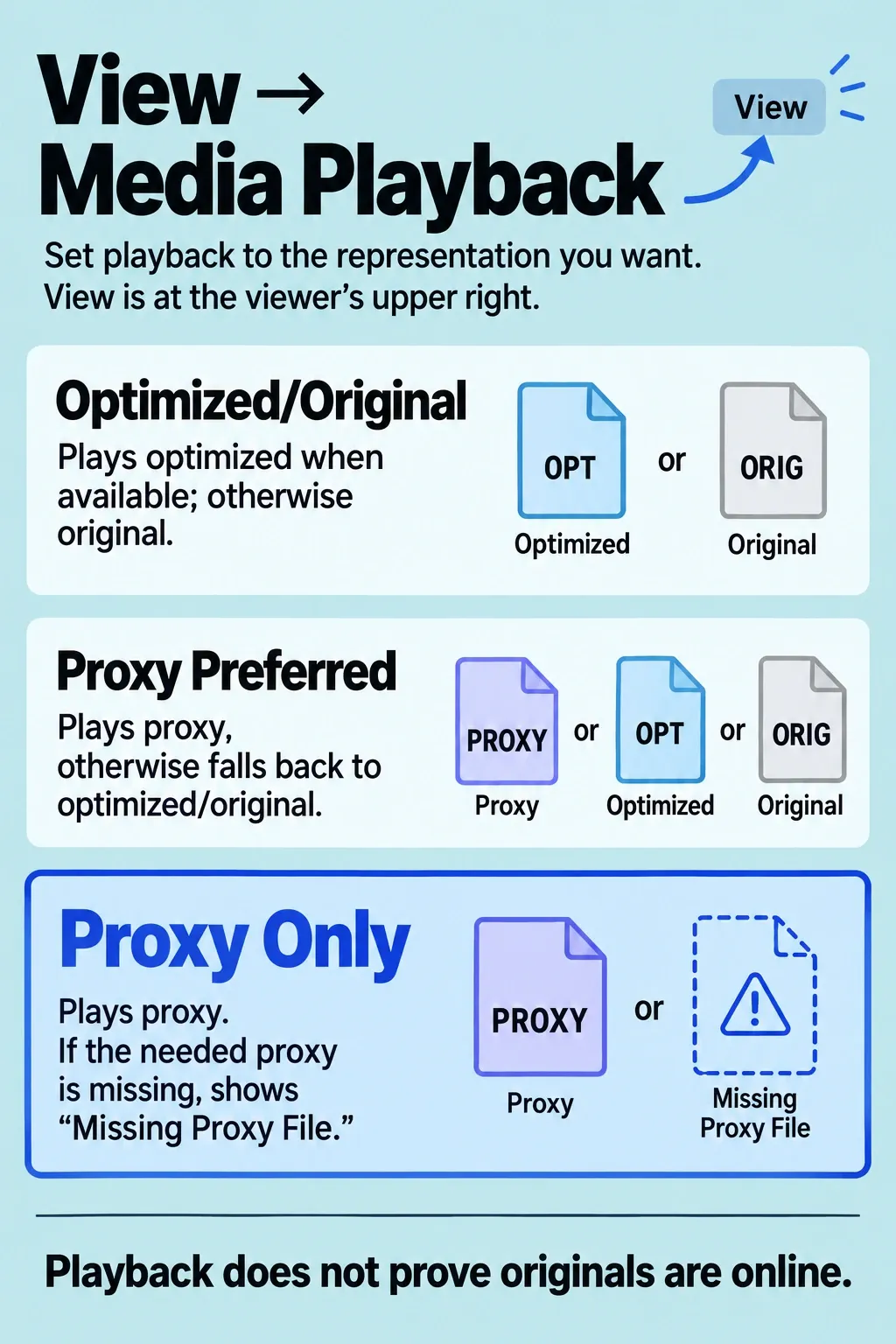
| Optimized/ | An optimized or original copy plays. This does not prove the original file is online. | Check the actual original and proxy locations separately. |
| Proxy Preferred plays | A proxy or fallback representation is usable. | Use Proxy Only to check proxy availability. Verify the original before regeneration; verify usable optimized or original media for finishing. |
| Neither playback mode plays | The problem extends beyond successful proxy playback. | Read the exact alert and inspect original and optimized paths; do not regenerate from an assumed original. |
Reconnect, regenerate, or accept a fallback
Original available, proxy absent: switch to Optimized/Original for immediate work. Once you have separately verified the original file, create replacement proxies if the existing set can’t be recovered:
- Select the affected source clips in the browser and choose File > Transcode Media.
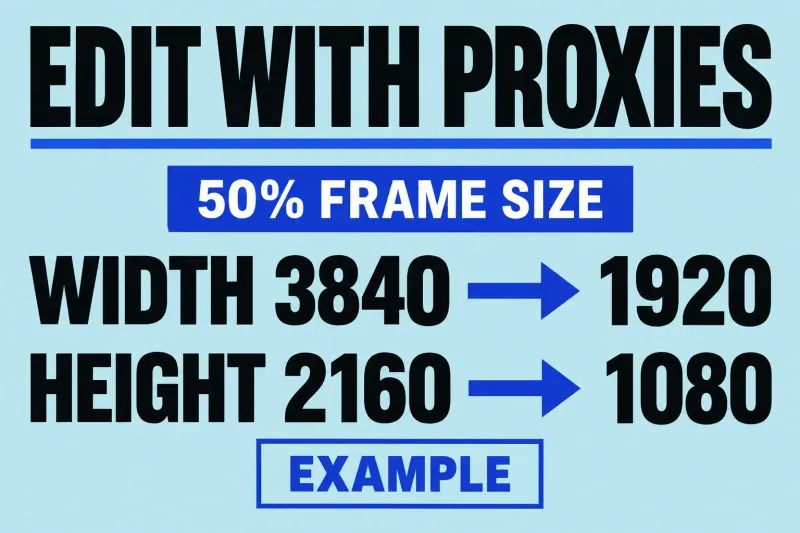
- Select Create proxy media. Choose Apple ProRes 422 Proxy or HEVC and a frame size that suits the edit; check these choices before starting a large job.
- Click OK, monitor Background Tasks, and wait for transcoding to finish.
- Select an affected browser clip, open Info, and recheck Available Media Representations. A green circle beside the proxy item means that clip’s proxy is available. Switch to Proxy Only and check the clip’s playback.
Before a proxy relink: preserve a restorable copy of the current library and its known media dependencies. For an uncertain trial, I’d work in a verified separate library copy, because an ordinary project duplicate doesn’t isolate relinking. A confirmed Relink Files command cannot be undone, and matched clips in other projects or events in the same library are also updated. Both points are about clip references; neither says relinking deletes the camera originals.
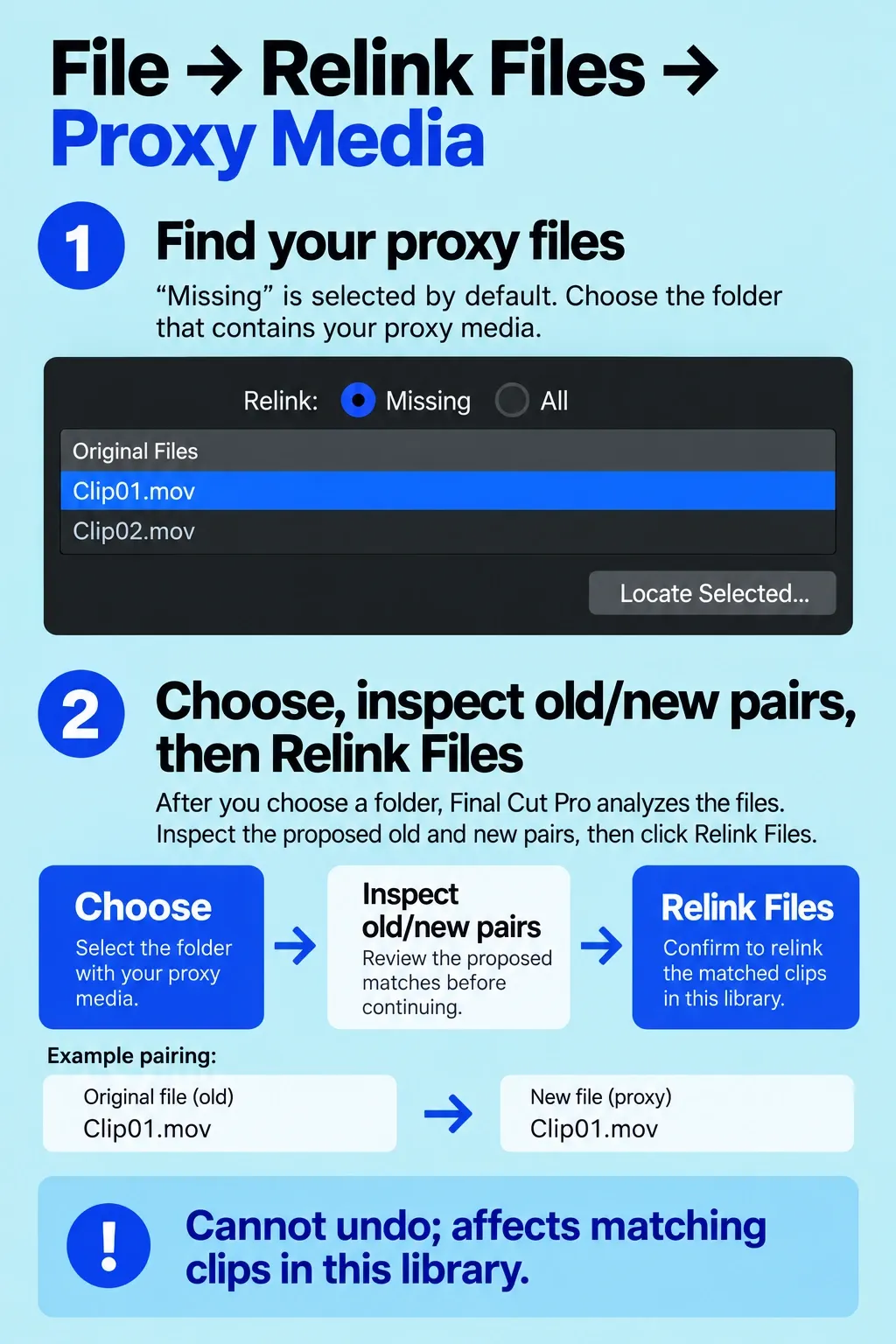
Proxy exists on another drive: reconnect the intended storage. If the files moved, select the affected browser clips in the chosen library copy and follow the proxy relink route: File > Relink Files > Proxy Media. The window shows missing items by default. Choose All only when you deliberately need to change references for items that are already online.
- For part of the listed set, select those items and click Locate Selected. To locate matches for the entire listed set, click Locate All.
- Navigate to the known proxy file or its folder and click Choose. The initial potential matches are based on filenames; Final Cut Pro then analyzes the files’ attributes.
- Expand the disclosure triangle beside the analysis results. Compare the old files on the left with the proposed new files on the right. If a match is wrong, select it and press Delete to remove that proposed pairing from the matched list. Stop if you cannot establish the correct file.
- Click Relink Files only after reviewing the pairs. This confirmation cannot be undone and updates matching clips elsewhere in the same library.
I’d check the old proxy set before creating another one, because a second set can waste space. After relinking, check playback across the affected uses and close and reopen the library to verify that the references persist.
Proxy-only handoff: obtain the library and proxy media from the agreed handoff. A proxy-only project copy can later be moved back into the original library. Plan how the finishing editor will regain access to optimized or original media, and preserve the originals for future regeneration.
Mixed availability: use Proxy Preferred when fallback to optimized or original media is acceptable. In Proxy Only, inspect the missing-proxy alert for each affected clip; don't assume every item in the timeline has the same media representation. The playback-mode guide explains the fallback and alert behavior.
Before regenerating a large job, I'd start with a few affected source clips that cover the formats and frame rates used in your edit. Confirm that each new proxy plays and that its framing and audio correspond to the original. One clean transcode of a conventional clip says little about the rest of the library.
Verify the intended edit and finishing setup
This distinction matters on a portable edit. A timeline can look healthy while fast storage is attached, then reveal missing proxies only after the original-media drive is disconnected. That’s why I’d test the intended mobile configuration rather than the fully connected desk setup.
For finishing, select Optimized/Original and confirm that usable optimized or original media is available. Apple’s mastering export instructions use optimized media when it exists, otherwise originals; usable optimized media doesn’t have to be replaced with camera originals for every high-quality export. Check the actual originals separately for source integrity and future regeneration. For detail inspection, choose the Better Quality viewer option with that full-resolution representation. Skim every scene for warnings and inspect reframing, stabilization, noise reduction, keys, and detailed graphics. A healthy proxy preview may have hidden a missing finishing dependency.
With the intended drives attached, restart Final Cut Pro and repeat playback for each important media type. Record the selected mode, actual paths, and export settings. Before the master, export a short range containing reframing, effects, and detailed motion, then inspect it in the intended delivery environment.
For a proxy-only handoff, record which library was supplied, where the proxies live, the proxy format and frame size, and how the finishing editor will reconnect originals. Without that note, a proxy workflow becomes a collection of files rather than a reproducible process.
The full proxy workflow covers creation, playback selection, and finishing as separate stages.