A compound clip in Final Cut Pro groups selected clips into one clip that you can move, trim, retime, and grade as a single item, then open as its own timeline. Select the clips and press Option-G; double-click the compound to work inside, press Command-[ to get back out, and press Shift-Command-G to break it apart. Every copy shares one parent in the browser, so an edit inside changes them all unless you choose Clip > Reference New Parent Clip first. I'd use one for a unit that gets reused or moved as a block, not just to tidy the timeline.
Group a reusable editorial unit
Group clips that form a real reusable unit: an opener, picture-in-picture demonstration, lower-third assembly, or layered effect. I'd keep project-wide music, captions, and unrelated cutaways outside unless they're genuinely part of that unit. A compound should make it clearer which items belong together; cutting the number of visible lanes isn't reason enough.
Create and inspect the compound
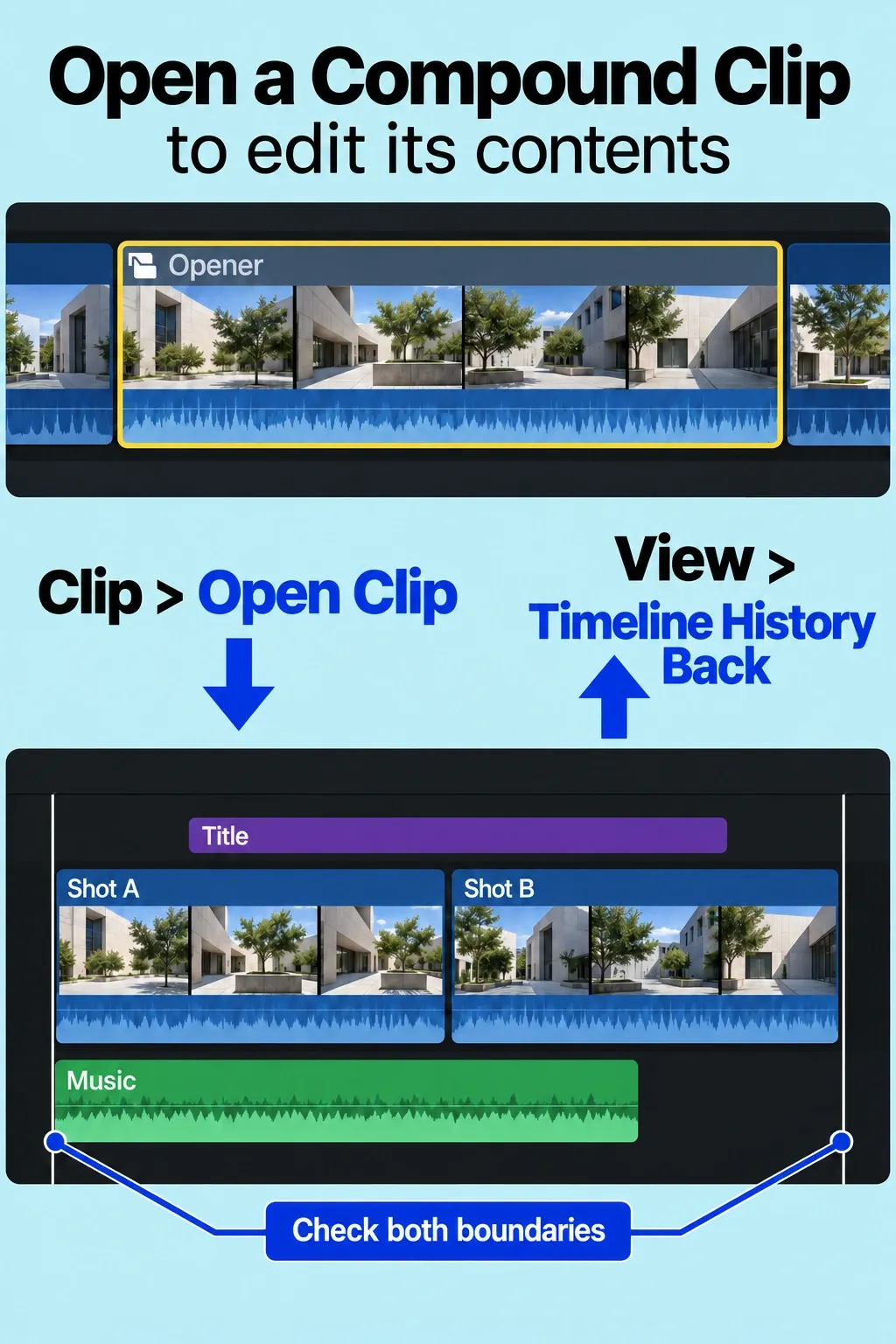
Select the intended timeline items and choose File > New > Compound Clip (Option-G). Name the compound for its editorial purpose. Select the new compound and choose Clip > Open Clip to inspect the grouped items.
Inside the compound, check roles, audio components, effects, retiming, and the first and last frame. Use View > Timeline History Back to return to the containing project, then play across both boundaries. A one-frame gap or audio tail is easy to miss when you're focused on the clean outer clip.
If new material extends into the dark crosshatched area inside a compound, it falls outside the instance’s visible duration. Return to the containing project and extend the outer compound clip if that material should appear.
Make a compound clip from the browser or start an empty one
Selecting clips in the browser works too. Press Option-G and Final Cut Pro adds a new compound clip to the event, with copies of the selected clips laid end to end inside it; the original clips stay in the event. A compound made in the timeline keeps the clips exactly as they were laid out and takes the project's frame size and frame rate.
To start from nothing, select an event in the Libraries sidebar, choose File > New > Compound Clip, and type a name in the window that appears. Use Custom Settings lets you set a Starting Timecode or change the video, audio, and render settings; unless the compound has a specific requirement, Apple recommends leaving “Set automatically based on first video clip” and “Use default settings” selected. Those separate settings are also why a compound can hold a section with settings different from the main project. Apple suggests one more use: sync a video clip with its audio clips, then make them a compound so they can't slip out of sync when you move them.
Open, exit, and move between compound clip levels
To open a compound clip, double-click its video portion, click the compound clip icon in its top-left corner, or select it and choose Clip > Open Clip. The timeline then shows only the contents, with dark crosshatched areas marking where the compound's visible duration starts and ends.
Press Command-[ (View > Timeline History Back) to exit, or click the left arrow at the top of the timeline; Command-] moves forward again. With compounds nested inside compounds, click and hold the left or right arrow and choose a level; the top level is the project or event that holds the compound. When both arrows are dimmed, there's no history to move through. I'd learn Command-[ before anything else on this page, because it's the quickest way back to the project.
Choose shared or independent internal edits
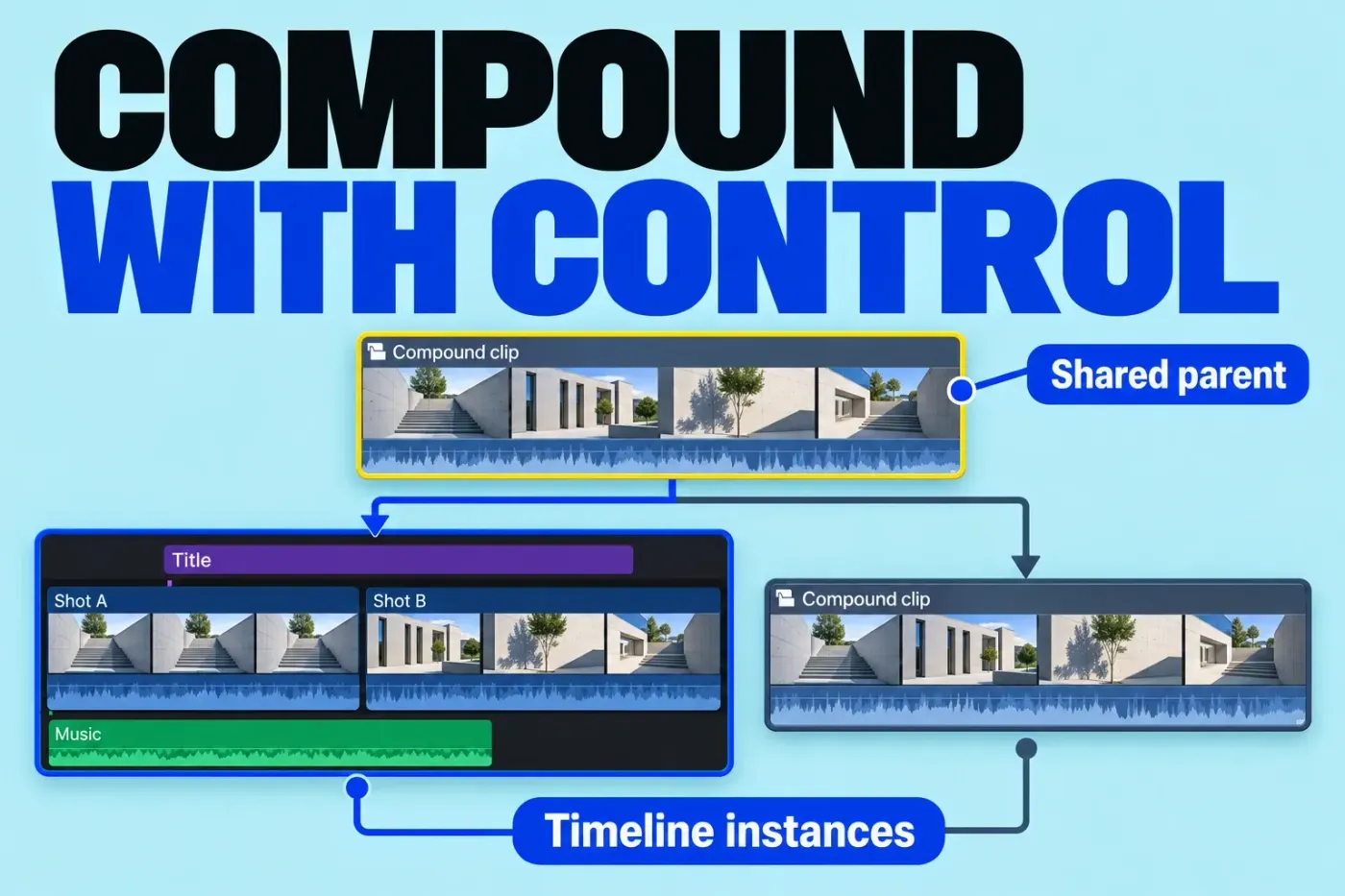
Reusing the same compound clip creates instances of a shared parent. Editing that parent's internal contents changes every instance; trimming or applying an effect to one outer timeline item is a different operation. Decide which scope you intend before opening the compound.
To reuse this compound in another project, use the browser parent created for the timeline compound. Open the destination project and select that same parent in the browser. With no storyline selected, choose Edit > Append to Storyline (E) to add it to the end of the primary storyline. A different compound that just shares the name isn't tied to the same parent.
An internal title change updates every instance that uses the same parent. To preserve the current edit before changing shared contents, create a project snapshot with independent compound parents: select the project in the browser and choose Edit > Snapshot Project (Shift-Command-D). The snapshot embeds copies of compound or multicam parents, so internal changes to other instances do not affect this protected version. Keep a separate backup of the source media as well.
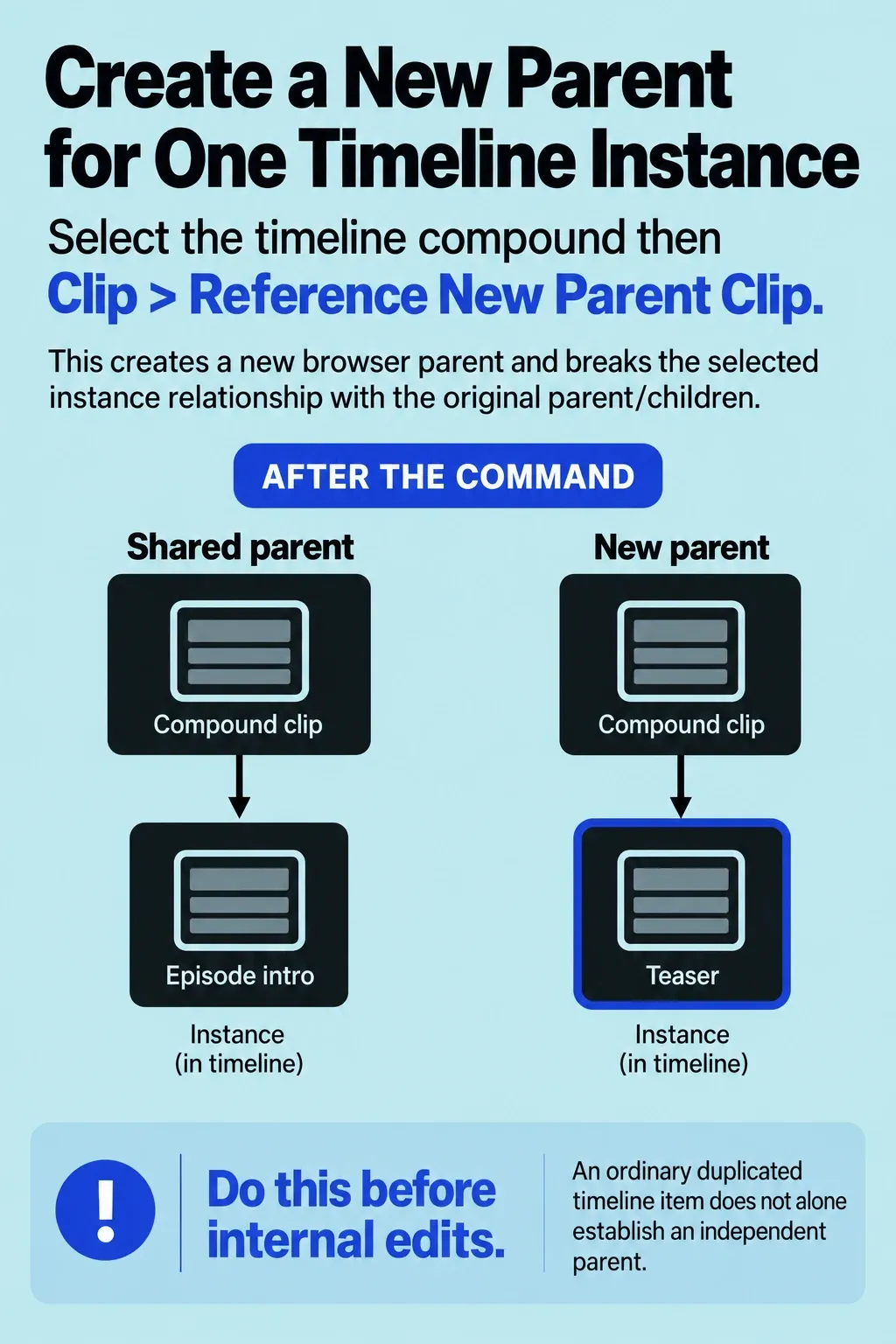
Before an internal edit, decide whether to update every episode intro or only this teaser. For a one-off variation, select the timeline instance and choose Clip > Reference New Parent Clip before changing its contents. Give the new parent a distinct name and verify that its edits leave the original instance unchanged. I'd skip plain duplication here: it won't give the item an independent parent.
Apply one effect, grade, or speed change to the whole group
An effect applied to the compound clip in the timeline sits on that outer clip and covers everything inside it. One color correction, one fade, or one speed ramp can treat a whole sequence at once, which beats repeating the same change on every clip. Because it sits on the outer clip and not on the contents, other instances of the same parent don't pick it up.
The inspector follows the same split. With the compound selected, it shows the compound's own settings, not those of the clips inside. Open the compound and select an inner clip to see or change its settings, and remember that a change made there reaches every instance.
Mix dialogue, music, and effects with role components
A compound clip groups its audio into role components, which Apple compares to a traditional audio bus: clips that share a subrole are mixed together into a single role component. Wrap a finished edit in a compound and you get Dialogue, Music, and Effects components that you can balance against each other.
Select the compound, press Command-4, click Audio at the top of the inspector, and scroll to Audio Configuration. The Show Components as pop-up menu switches between roles and subroles, and deselecting a role's checkbox removes it from the compound. To change a role's volume, pan, or effects in the timeline, select the compound and choose Clip > Expand Audio Components (Control-Option-S), then work on that component.
You can't assign a role to the compound itself. Open it and assign subroles to the clips inside; the role components update on their own when those assignments change. I'd save this for a final mix pass on a locked cut, since the components shift whenever the roles inside do.
Break apart and compare the exposed items
Before changing the timeline structure, keep a project snapshot and note the compound’s duration and connection point. Select its timeline instance and choose Clip > Break Apart Clip Items (Shift-Command-G). The contents appear in the parent timeline; the shared browser parent remains. Compare the exposed items with the internal timeline and check connections, roles, audio, group-level effects, and both boundaries.
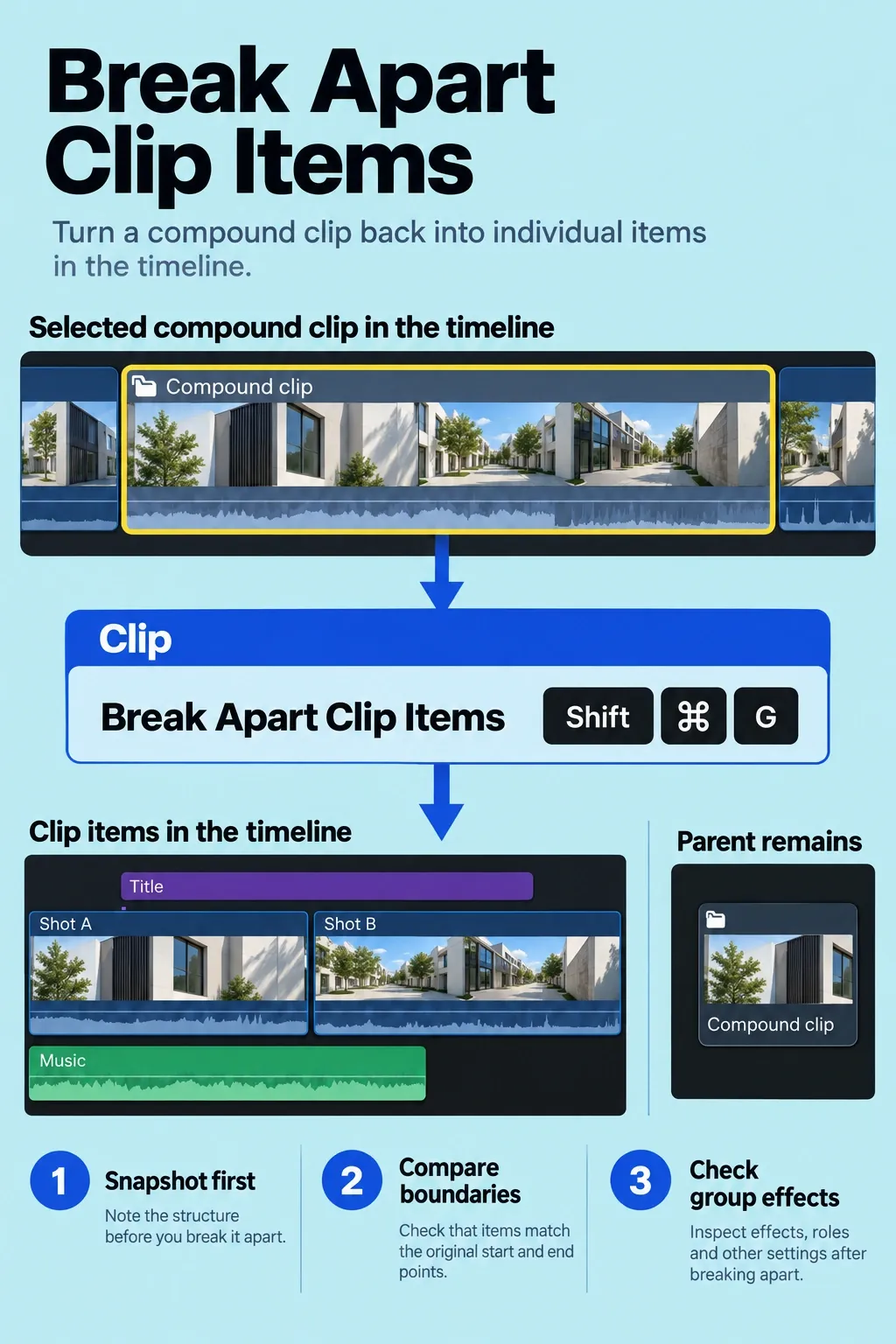
Compare playback, duration, roles, and an export against the intended result before you accept the change; group-level effects may need attention. If the expanded structure is harder to understand or reuse, I'd undo and keep the compound.
Use trim and split operations for ordinary edit-point work and the Magnetic Timeline guide for connection behavior.
Name compounds for future decisions
Use a name that identifies purpose and scope, such as Episode opener — shared or Teaser title stack — independent. I'd steer clear of names like Compound Clip 3 that reveal nothing about reuse. When delivering the library, note which compounds are shared sources and which are safe one-off variants. That keeps later changes deliberate and makes it less likely that someone opens a compound, changes one title, and unknowingly updates several projects.
Also record which parent projects use the compound. That small dependency note makes an intentional global update easier to review and an accidental one easier to reverse.
Find every compound clip in a library
Select the library in the Libraries sidebar, click the Search button at the top-right corner of the browser, then click the Filter button. In the Filter window, choose Type from the Add Filter pop-up menu and pick compound clip; the browser lists every compound in what you selected. To keep that list, click New Smart Collection in the Filter window (New Library Smart Collection when you searched a whole library), and compounds you make later join it automatically.
Two limits come with it. Compound clips aren't analyzed, so they don't show up in Transcript Search or Visual Search results. And the Unused filter skips any clip used inside a compound, so a clip that appears in no project can still count as used.
Fix common compound clip problems
Find the symptom, try the first fix, and play across the compound's start and end before you change anything else.
| Symptom | Likely cause | Try first |
|---|---|---|
| You can't get out of the compound | The timeline is showing the compound's contents | Press Command-[ or click the left arrow at the top of the timeline |
| An edit inside changed other projects | Every instance shares one browser parent | Undo, then choose Clip > Reference New Parent Clip before editing |
| A duplicated copy still changes with the original | Duplicating doesn't create a new parent | Select the copy and choose Clip > Reference New Parent Clip |
| New material inside doesn't play | It extends into the dark crosshatched area | Trim inside the compound, or extend the outer clip in the project |
| Frame size or rate differs from the project | The compound was made in the browser or with custom settings | Make the compound from the clips in the timeline instead |
| The compound stays in the browser after Break Apart | Break Apart replaces only the timeline instance | Leave the parent in place while other instances use it |
| Transcript or Visual Search skips it | Compound clips aren't analyzed | Search the source clips, or filter by Type |
| No way to assign a role to the compound | Roles belong to the clips inside | Open it and assign subroles to the inner clips |
| You need one level for all dialogue or music | The roles are spread across many clips | Wrap the cut in a compound and adjust its role components |
| Double-clicking doesn't open it | Apple's double-click target is the video portion | Double-click the video portion or click the compound icon |