A Final Cut Pro template is a Motion file that shows up in Final Cut as a title, effect, transition or generator. You drag it onto the timeline and change it in the inspector, and a plain template doesn't need a separate FxPlug plug-in. Final Cut ships with its own set, free and paid packs go into the Motion Templates folder in your Movies folder, and you can build your own in Motion, Apple's companion app. The four Motion template types apply to clips and edit points. For a reusable whole timeline, keep a master project and make a Snapshot Project for the next edit.
Below: the four kinds of template and their file types, the built-in set and its one licensing rule, free and paid sources side by side, installing a pack, what you can change in the inspector, editing and making templates in Motion, keeping them with a library, the red screen and other problems, the iPad, and reusing a whole project. Effects that run the developer's own code are plug-ins rather than templates, and the Final Cut Pro plugins guide covers those.
Before applying a pack throughout an edit, try one title or graphic with your actual text and footage. Use the longest name, the intended font and the project's aspect ratio, then set the duration you need. Check the opening, the readable hold and the ending in the intended SDR or HDR project. A preview with short placeholder words won't tell you whether a two-line job title fits or whether the animation finishes before the next cut.
Four kinds of template
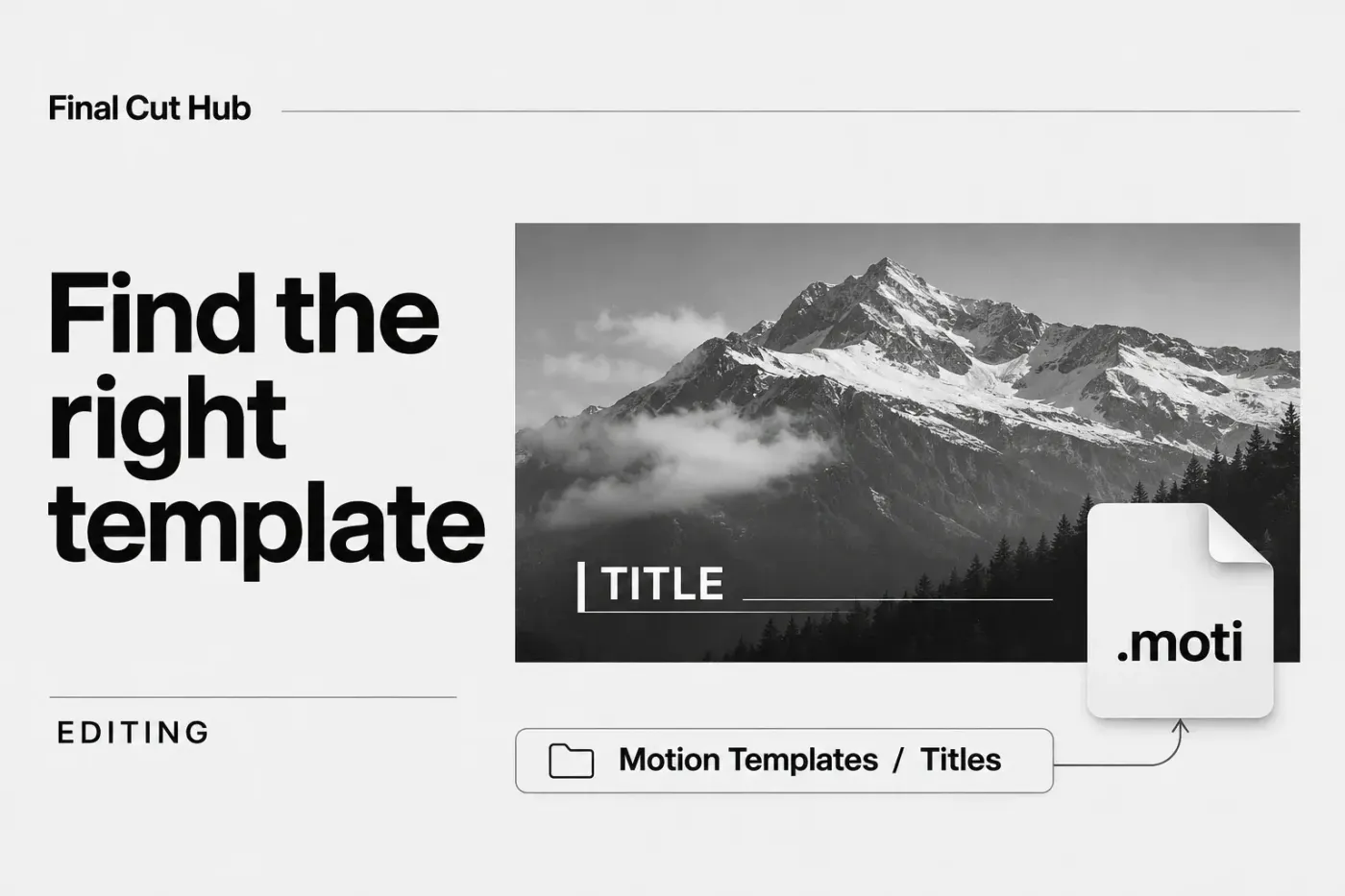
Apple's Motion guide introduces Final Cut Pro templates as the effects, titles, transitions and generators you build or modify in Motion. Each kind has its own file ending, which Motion Master Templates' install notes list, and its own place in Final Cut:
| Type | File | Where it appears | What it does |
|---|---|---|---|
| Title | .moti | Titles and Generators sidebar | Text and lower thirds over the video |
| Generator | .motn | Titles and Generators sidebar | A background or graphic that is a clip itself |
| Effect | .moef | Effects browser | Changes the clip it's applied to |
| Transition | .motr | Transitions browser | Moves from one clip to the next |
Option-Command-1 opens the Titles and Generators sidebar, Command-5 opens the Effects browser, and Control-Command-5 opens the Transitions browser.
A plain Motion template doesn't need a separate FxPlug plug-in, but the pack still has version, font and format requirements to check. Some packs also include FxPlug plug-ins, which come with their own installer and their own compatibility rules. That's why Envato's Final Cut Pro template listing has a "No plugins required" filter. I'd tick that filter whenever it exists, because a plain Motion template doesn't depend on third-party code that Final Cut can flag as incompatible when it opens.
Start with what's built in
Final Cut's own titles, generators, effects and transitions sit in the same browsers, and Apple adds to them with updates. Alex4D's notes on the Final Cut Pro 12.3 update point to new titles, generators and effects in that release. The text and titles guide walks through the built-in titles, including how to set your own default title for Control-T.
If you use Final Cut through Apple Creator Studio, Apple's content license allows eligible content in original personal and commercial projects, subject to any additional terms attached to the selected content. You may not redistribute the content as standalone files, use it inside a logo, corporate ID, trademark or service mark, or use it to train AI models. I'd keep stock titles of any origin out of a logo, because a logo is the one graphic you need to own outright.
Free and paid template sources
The stores differ less in style than in how they license what you download, and that's what matters once a video is for a client.
| Source | Cost and size | License in short |
|---|---|---|
| Motion Master Templates | Free, no account; 114 templates | Commercial and client use; no resale or redistribution |
| LenoFX | Free templates; check the current selection | Check the license for the selected pack |
| Envato Elements | Core from $16.50/month, billed annually ($198/year), before local tax | One registered project per download; completed projects stay covered after cancellation |
| MotionVFX | Subscription; 14-day trial | Use subscription products during the active term; current MotionVFX plans use mExtension |
On the free side, Motion Master Templates offers its 114 templates without an account, and its terms of use allow commercial work for clients while ruling out reselling or redistributing the files. LenoFX's free page is another place to look. The page includes free packs and demos, so check which one you chose and read its license before using it in paid work.
The subscriptions work differently. Envato Elements' pricing page lists Core from $16.50 a month in U.S. dollars, billed annually at $198 before local tax. Budget for the full annual payment and compare the monthly-billed option and your region's checkout price before paying. Complete the licensed project while your subscription is active for it to stay covered after cancellation. A new project needs its own registration while subscribed. MotionVFX's plans include access to a DesignStudio library with 8,000+ design elements and 100+ template collections; the 14-day trial caps downloads at 500 elements. The trial converts to a paid subscription unless cancelled before it ends, charging the payment method you chose. Its subscription-product license lasts for the active subscription term. Apple bought MotionVFX in March 2026, and has since announced built-in MotionVFX content for a November Creator Studio update. MotionVFX still offers subscriptions on its own site.
For a one-off video or an unpaid project, I'd start with the built-in set and a free source like Motion Master Templates, since both cover the usual lower thirds, titles and transitions. A subscription pays off when you turn out videos every week and want a consistent look across them. On a client job I'd note which project each download is licensed for, because Envato's terms tie each license to a single project.
A client receiving a finished video and a client receiving editable template files need different rights. Envato's license for a completed end product doesn't allow redistributing the stock item as a reusable template or source file, even after you modify it. Fonts and preview assets can have separate terms. Agree on the handoff before choosing the pack; the right to render a client video doesn't automatically license the client's next edit.
Install a template pack
Before buying or installing a pack, check its required Final Cut Pro and macOS versions, any required plug-ins, and any listed fonts or formats. Keep app and library backups before an update needed by a pack.
Packs arrive through an installer or as folders you copy yourself. For a current MotionVFX subscription, install mExtension, choose the software plug-ins you need, and activate your Mac. Follow a separately purchased product's own instructions if they name another installer. Motion Master Templates ships a disk image that copies its files into the Titles, Effects, Transitions or Generators folder under Movies > Motion Templates, each in a Motion Master Templates subfolder. Other packs arrive as a zip of folders to copy yourself:
- Quit Final Cut Pro.
- Unzip the download.
- In the Finder, open Movies > Motion Templates. Apple's plug-in compatibility article gives its full path as ~/Movies/Motion Templates.localized, with Effects, Generators, Titles and Transitions folders inside; the Finder hides the .localized ending.
- Drag each folder from the pack into the folder for its type: titles into Titles, transitions into Transitions, and so on.
- Open Final Cut Pro and look for the pack's category in the matching browser or sidebar.
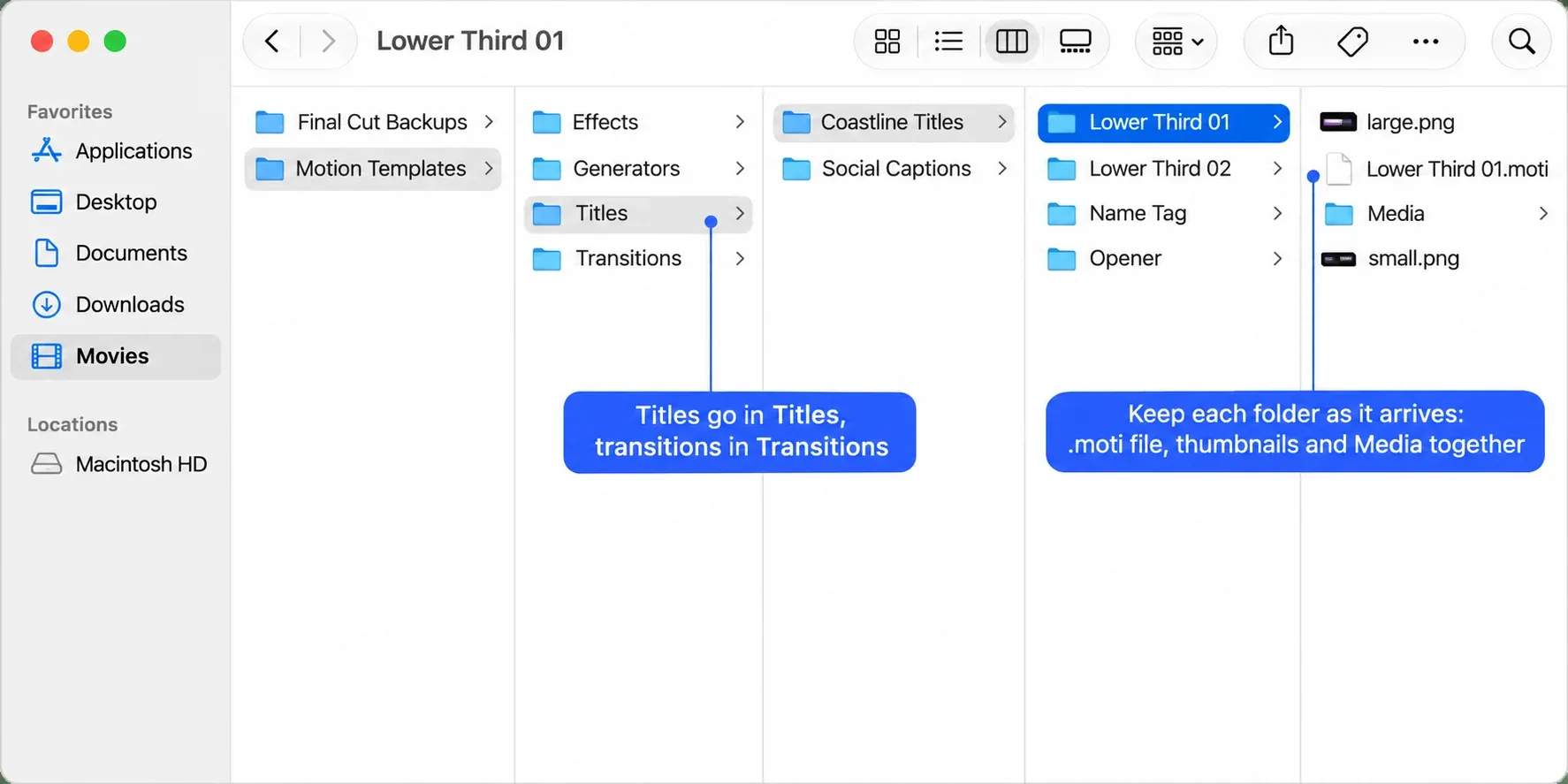
Keep the vendor's folders as they are. Motion stores each template in a folder of its own, holding the template file and its thumbnail images, inside a category folder and sometimes a theme folder, and Final Cut lists the template under that category. I'd copy a pack exactly as it arrives, because pulling the template file out of its folder loses the thumbnails and the category.
The folder in the image below is one example: Titles > Coastline Titles > Lower Third 01. Keep Lower Third 01.moti, large.png, small.png and its Media folder together inside that last folder. Apple's template folder structure also allows an optional theme between the category and the template folder. Don't flatten those folders or copy just the .moti file; the template can depend on the media beside it.
To remove a pack, quit Final Cut Pro and Motion and drag its folder out of Motion Templates, the removal method Motion Master Templates' install notes give. If the pack came with an installer, check the vendor's own app for an uninstall option first.
Change a template in Final Cut
Apply the template before looking for its controls; the object to select depends on its type. Press Command-4 to show the inspector, then use the appropriate route:
- Title: place the playhead where the title should start, then double-click the title in the browser to add a connected title. Select that new timeline clip. Use the Title inspector for published template controls and the Text inspector for text.
- Generator: add it as its own timeline clip. For a background, double-click its thumbnail in the Generators browser. Select the resulting clip, place the playhead over it, and open the Generator inspector.
- Effect: drag its Effects browser thumbnail onto the video clip it should change. Select that video clip and find the effect in the Video inspector.
- Transition: drag it from the Transitions browser onto the edit point between clips. Select the transition itself to open its Transition inspector.
What you can change depends on how the template was made. Apple's Motion guide on publishing controls to Final Cut Pro says a designer can publish no parameters at all, which makes the template a fixed preset, or only the parameters they choose. So when a pack has no slider for the color you want, the slider doesn't exist in Final Cut; you'd need an editable template whose license permits changes in Motion.
Templates built for your own photos or logo use drop zones. Apple's page on creating a title background explains that a title with a drop zone shows a Drop Zone image well in the Title inspector, where you choose the clip or image that fills it. Double-click the drop zone in the viewer to get its onscreen controls, then pan or scale the image inside it.
If you're building a slideshow or a logo opener, confirm that the pack has drop zones for your own material. A picture placed in Motion's Title Background placeholder is only an authoring preview; placeholders and drop zones behave differently. That preview picture isn't carried into Final Cut as your chosen photo. Fill the real drop zone in Final Cut, then check the crop with the actual portrait, landscape shot or logo you intend to deliver.
When a project has many lower thirds from the same template, select them all to change a shared setting together. Alex4D's notes on 12.3 report that changing a parameter the selected titles share changes it in every one of them. Check each title afterward, especially the longest name: a shared value doesn't guarantee that every line fits its box.
Edit a template or make your own in Motion
For an editable template whose license permits changes, use Motion to change its design or animation. It's a $49.99 app on the Mac App Store and part of an Apple Creator Studio subscription, which the Final Cut Pro price guide compares. Templates made in either Motion edition work with either Final Cut Pro edition. For Open a copy in Motion, Apple requires compatible current versions and matching editions: both apps must be one-time purchases or both part of Apple Creator Studio. Check compatibility and keep backups before updating.
To change a built-in template or one you installed:
- In Final Cut Pro, Control-click the template in its browser and choose Open a copy in Motion.
- Make your changes in Motion.
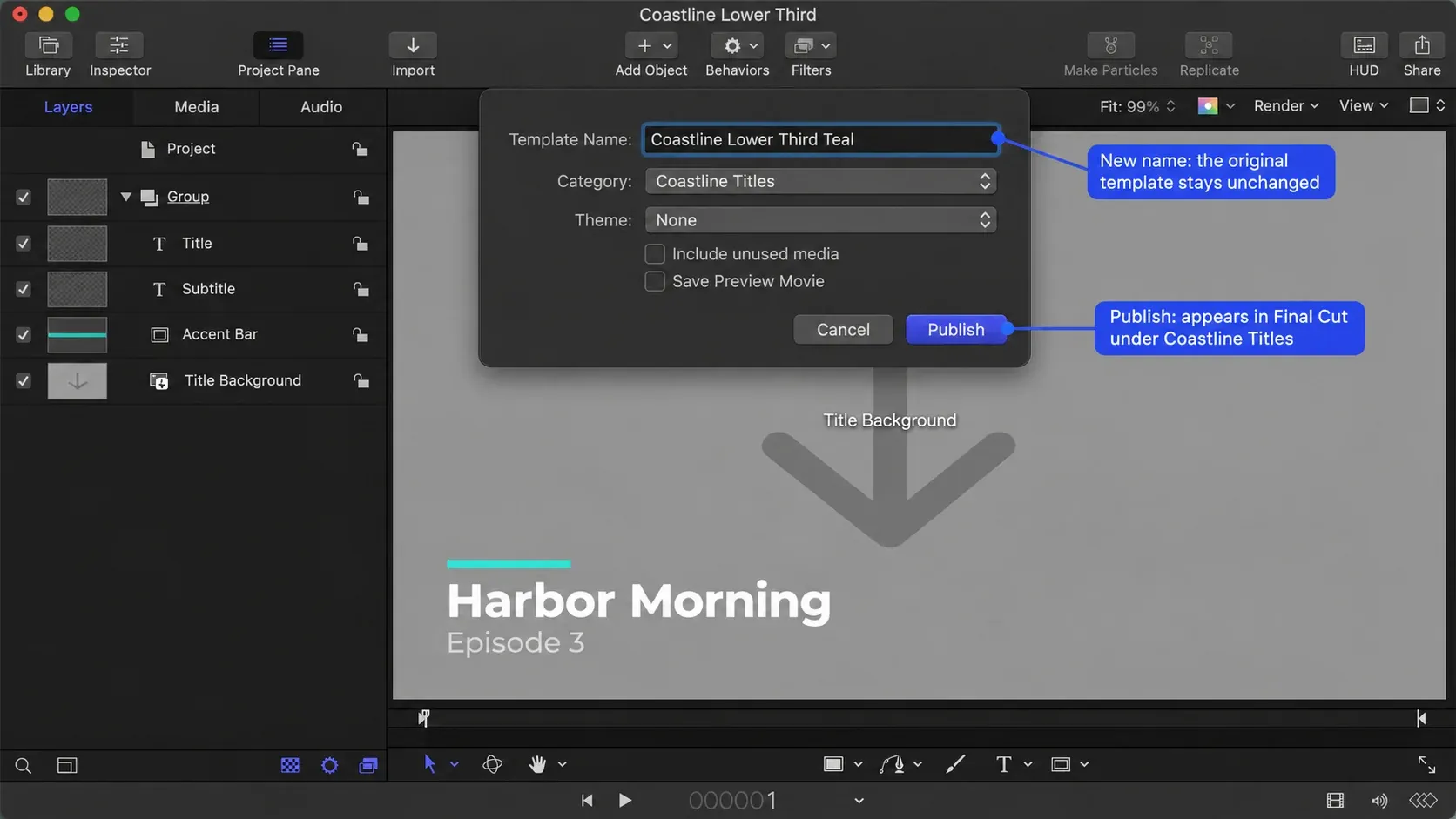
- Choose File > Save As (Shift-Command-S), give the new template a name, pick a category or create one, choose a theme if you need one, and click Publish.
The new version appears in the same Final Cut browser under the category you chose. Plain File > Save works too, but it adds "copy" to the name. Apple has the same steps for effects, transitions and generators.
To start from scratch, pick a Final Cut Title, Effect, Transition or Generator project in Motion's Project Browser. Apple's page on converting a Motion project to a template covers the steps for each template type. Follow the route for the type you're building, choose any placeholder layers that type requires, then save and publish the template. A template saved without a name shows up in Final Cut as "New Template".
Two settings make your template usable in Final Cut. To publish a parameter, Control-click its name in Motion's Inspector and choose Publish, and it becomes a control in the Final Cut inspector. A drop zone (Object > New Drop Zone, or Shift-Command-D) lets the editor drop in their own image or clip. One limit is easy to miss: Apple's list of template items that can't be published includes audio of any kind, so a whoosh built into a Motion title won't play in Final Cut. Put sound effects on the timeline instead. After publishing controls and adding drop zones, save the template again before using it in Final Cut Pro.
Design the timing for the way the template will be used. Apple's template timing rules make an effect follow the length of its clip; a title or generator starts at its saved Motion duration and can then be trimmed in Final Cut. Transitions start at Final Cut's default transition duration unless the template was saved with Override FCP enabled. An animated template's original speed therefore isn't guaranteed just because its design looks right.
Build In and Build Out markers let a designer protect the speed of an intro and outro while the middle adapts to the clip's duration. Without those markers, the whole template can stretch as the duration changes. Check a short and a long use of your template before publishing it. If a transition or loop must align to exact frames, use the intended Final Cut project's frame rate when authoring it in Motion; Apple's template creation guidelines explain why matching rates matters.
Keep templates with your library
Final Cut's library doesn't hold installed or custom templates by default. Apple's guide to managing Motion content says content made in Motion is stored in the Motion Templates folder in your Movies folder, and that it isn't moved or copied with the library unless you change that:
- Select the library in the Libraries sidebar and choose File > Library Properties (Control-Command-J).
- Click Modify Settings next to Storage Locations, set Motion Content to In Library, and click OK.
- Before moving the whole library, click Consolidate in the Motion Content section to copy what the library uses into it.
Copying a project or event into another library is a different case. Select the destination library first, open its Library Properties and set Motion Content to In Library before copying the items. Setting the source library alone doesn't prepare the destination to receive that Motion content. For a whole-library move, use the In Library and Consolidate steps above on the library being moved.
Third-party FxPlug content never travels this way; Apple says you track and move it yourself. The guide to moving a library to an external SSD covers the rest of a library move, and the library backups guide covers what to keep beside it.
On the receiving Mac, install and activate any required FxPlug products through their vendor's supported route, and check the required fonts and their licenses separately. Open a copy of the transferred project and inspect a title, effect and transition that use the pack. The library containing a Motion template doesn't prove that every external plug-in, font or licensed asset it needs is available there.
When a template is missing or shows a red screen
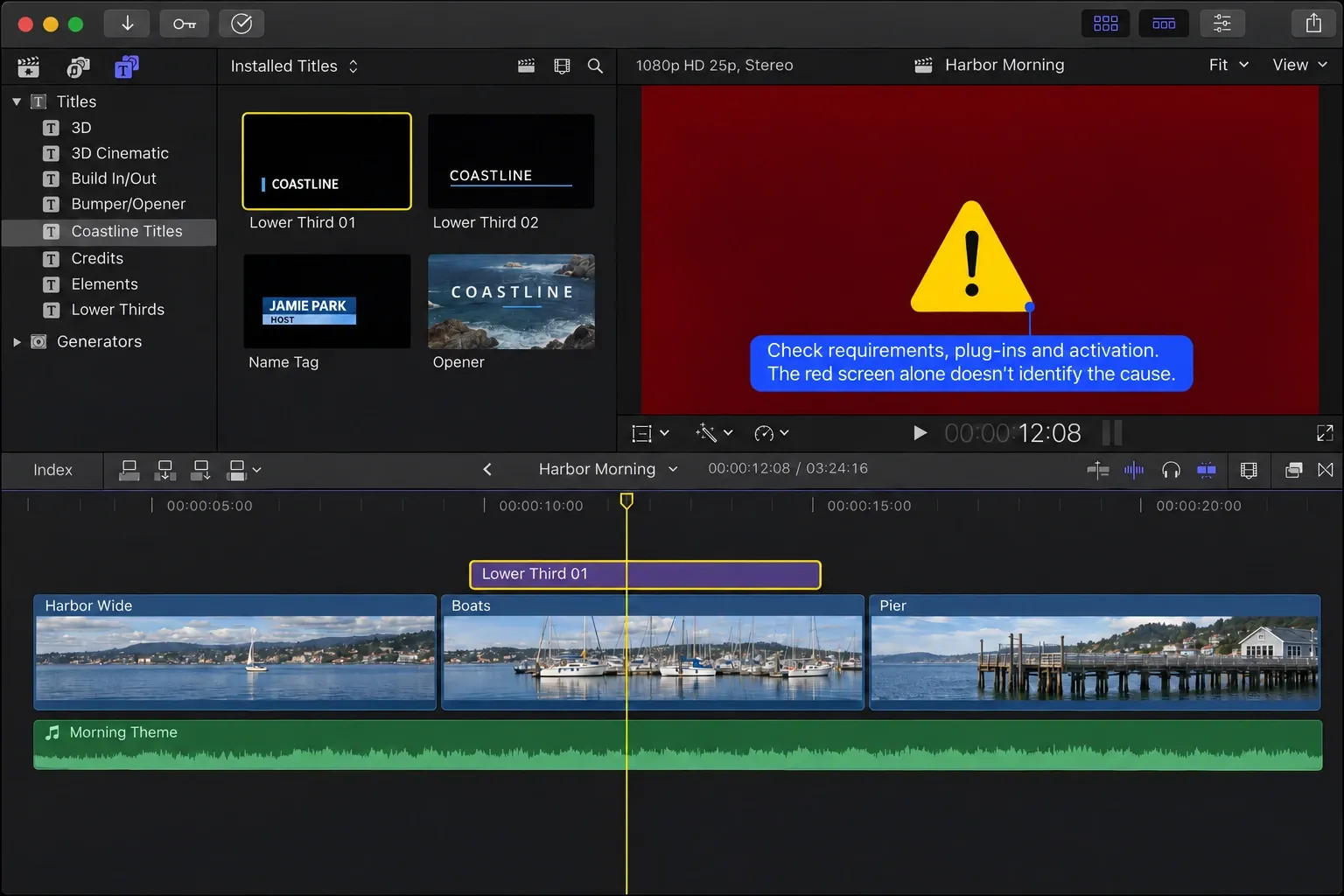
- A red screen with a yellow exclamation mark. MotionVFX's red-screen checks include version and Apple silicon requirements, required plug-ins, and registration. The red screen alone doesn't identify the cause. Check the pack's requirements and activation steps first; keep app and library backups before any required update. For a current MotionVFX subscription, use mExtension; follow separately purchased products' own installer instructions. Motion Master Templates' install notes also identify a newer template version as one possible cause.
- The pack isn't in the browser. Check that the pack is in the correct type folder, then quit and reopen Final Cut. Check the Filter pop-up at the top of the browser, which can show Installed items or the Motion content in one library only.
- Templates missing on another Mac. Check whether the library includes its Motion content. If it does not, set Motion Content to In Library and Consolidate on the original Mac, or copy the packs into Movies > Motion Templates on the new one.
- A message about incompatible plug-ins at launch. Apple's compatibility article says Final Cut Pro 10.3 and later check plug-ins when they open. Identify the plug-in named in the warning and follow that developer's compatibility instructions; the plugins guide covers updates and removal.
- The sound in a template doesn't play. Audio can't be published to Final Cut, so it never left Motion. Add the sound to the timeline.
- A title's font jumps back after you change it. The Final Cut Pro 12.4 release notes list a fix for an issue that could cause a title's font type to revert after being changed. If the pack and Mac support 12.4, back up the app and library before updating.
Templates on iPad
Final Cut Pro for iPad has its own built-in titles and themes; version 3.3 added Creator Themes with support for multiple aspect ratios and more title styles, according to the iPad release notes. Motion runs on Mac. For a project that needs the Mac template setup described here, the Final Cut Pro for iPad guide explains how to move it to the Mac for the finish.
Reuse a whole project as a template
The four Motion template types apply to clips and edit points. To reuse a complete timeline, keep a master project and copy it for each new episode. Apple's page on duplicating projects gives three commands:
- Edit > Duplicate (Command-D) makes a copy next to the original.
- Edit > Snapshot Project (Shift-Command-D) makes a self-contained copy that embeds its compound and multicam parent clips, so later edits to those clips elsewhere don't change it.
- Edit > Duplicate Project As lets you set a new name and new settings, such as the aspect ratio, with a Smart Conform option when the shape changes.
I'd keep one "master" project with the intro, lower thirds and end card in place and start each episode with Snapshot Project. A plain duplicate keeps sharing its compound clips with the original, so if the intro is a compound clip, editing it in one episode changes it in the others. A snapshot doesn't create an independent backup of the source media.
Before committing the series to a pack, check a finished sample from the actual project. Clear an old range with Option-X, press R and drag across the sample section, including the animation's opening and ending. With the required media online, choose Optimized/Original in the viewer's View menu. Choose File > Share > Export File, check Settings and the displayed output details against the delivery you need, then click Next, choose a location and click Save. Open that completed file and check spelling, fonts, drop-zone framing, timing and sound. A clip selection alone doesn't limit the export to that clip; use a range, and clear it with Option-X before sharing the whole project.
What I'd do
I'd start with Final Cut's built-in titles and transitions and add a free set like Motion Master Templates before paying for anything, because they cover most everyday videos when the selected content's license fits the job. If I needed a paid pack, I'd tick "No plugins required" where a store offers it, since plain Motion templates carry no plug-in code for Final Cut to flag at launch. I'd install packs with Final Cut closed and the folders left as they arrive, and set Motion Content to In Library for any project that leaves the Mac. For an editable template whose license permits changes, Open a copy in Motion and Save As provide a separate edited version when both apps have compatible versions and matching purchase or subscription editions. For a series, I'd keep a master project and start each episode with Snapshot Project.