Prepare a vertical video in its own Final Cut Pro project, export a local SDR file, then check platform requirements separately.
A vertical version takes more than a rotated or cropped export: it’s a new composition, and subjects, titles, captions, graphics, and cut timing may all need adjustment for the narrower frame.
Start a new vertical project
If there is no existing edit to repurpose, select the destination event in the Libraries sidebar, then choose File > New > Project (Command-N). Give the project a name and check In Event. If automatic settings are shown, click Use Custom Settings. Choose Format > Custom to enter an arbitrary frame size: this local example uses 1080 × 1920, width by height. Choose the intended Rate before adding clips and click OK. For an existing horizontal edit, use the working-snapshot route below.
Duplicate the edit
I'd make the vertical working version a snapshot whenever the edit includes compound or multicam clips. Select the horizontal project's event in the Libraries sidebar, then select the project in the browser and choose Edit > Snapshot Project (Shift-Command-D). Select or open the new Snapshot itself as the working project. Choose Window > Project Properties (Command-J), click Modify, give it a clear vertical project name, and set the required format and resolution. For this example, Format > Custom allows 1080 × 1920. Click OK. Preserve the intended existing project rate: unless the timeline is completely empty, you can’t change its frame rate. If a different rate is required, create the new project at that rate; changing the format and resolution doesn’t change the frame rate of a populated timeline.
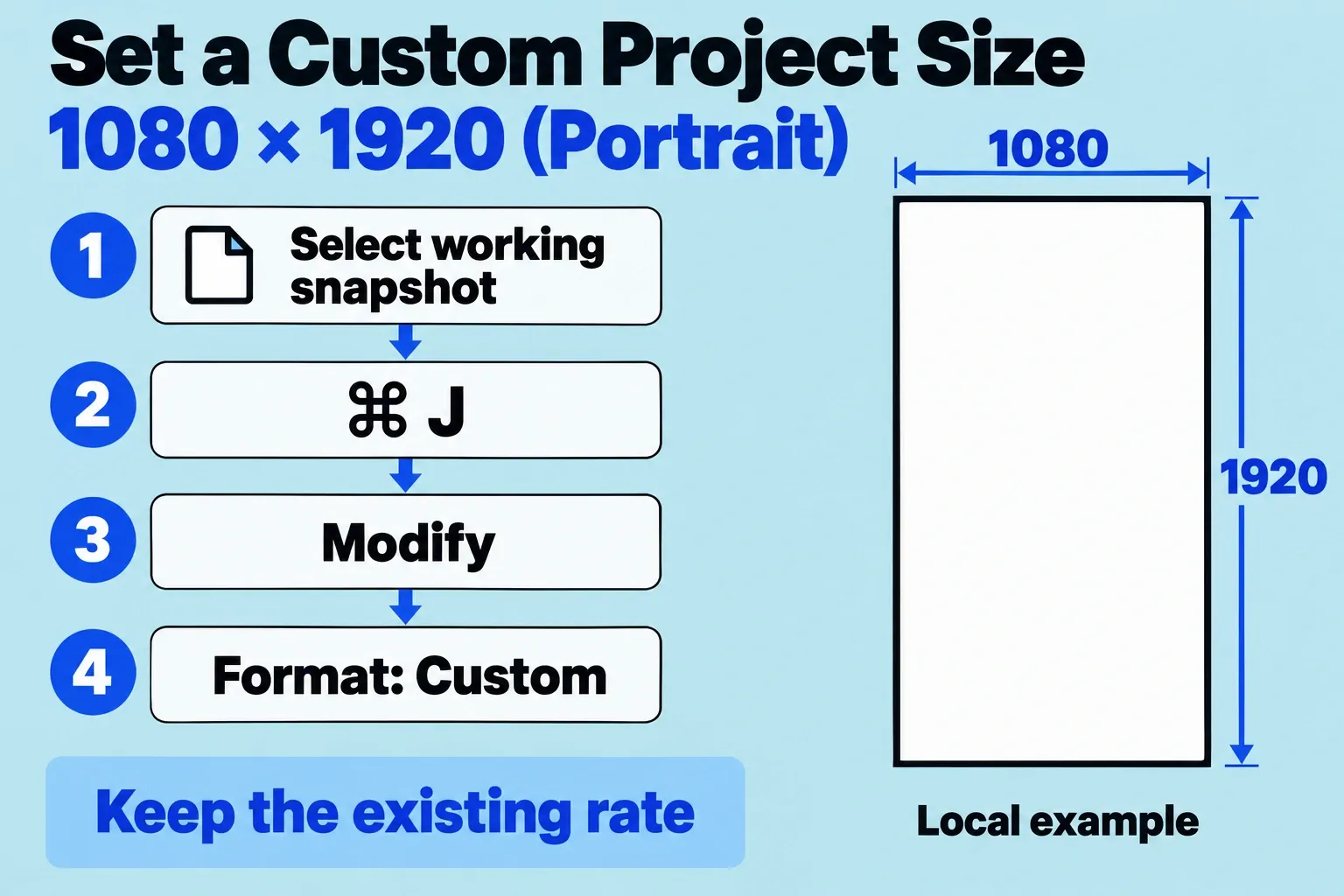
A snapshot embeds copies of compound and multicam parent clips, isolating their internal edits in this working version. It does not create independent source-media files or isolate library-wide color processing, which affects all projects and media in the library. Work in the snapshot and compare the affected parent contents with the horizontal project before delivery.
I’d classify each shot before touching scale controls, since the fixes differ: a centered single subject may need only position adjustment, while a wide two-person shot may require a cut between speakers, a different source angle, or a designed split treatment. Screen recordings may need a new crop sequence so text remains legible. Graphics and lower thirds often need to be rebuilt rather than uniformly reduced.
Reframe for the narrower composition
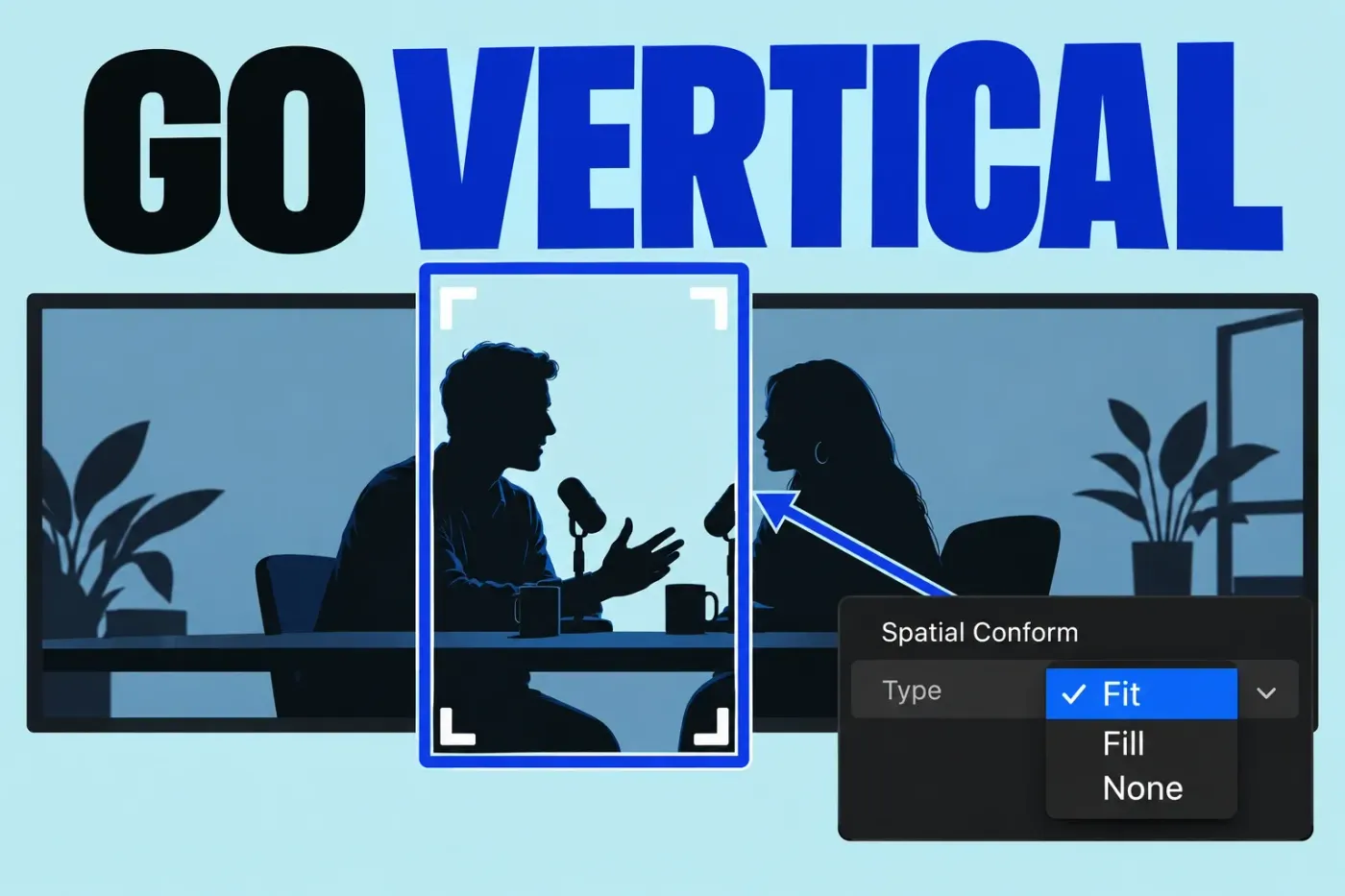
If the project still has a horizontal canvas, correct its dimensions using Project Properties > Modify before enlarging a portrait clip. If the canvas is correctly vertical but a clip has black bars, check Spatial Conform: select the timeline clip, choose Window > Show in Workspace > Inspector (Command-4), and click the Video button. In Spatial Conform > Type, Fit keeps the full image without cropping and can leave bars; Fill fills the project frame by cropping along the clip's longer dimension; None keeps the clip's frame size unchanged, so a larger clip appears cropped and a smaller one is surrounded by bars. This section doesn't appear when clip and project resolutions match. I'd choose Fill only when that crop works for the shot, and even then I'd inspect the required subjects and action before adjusting Position.
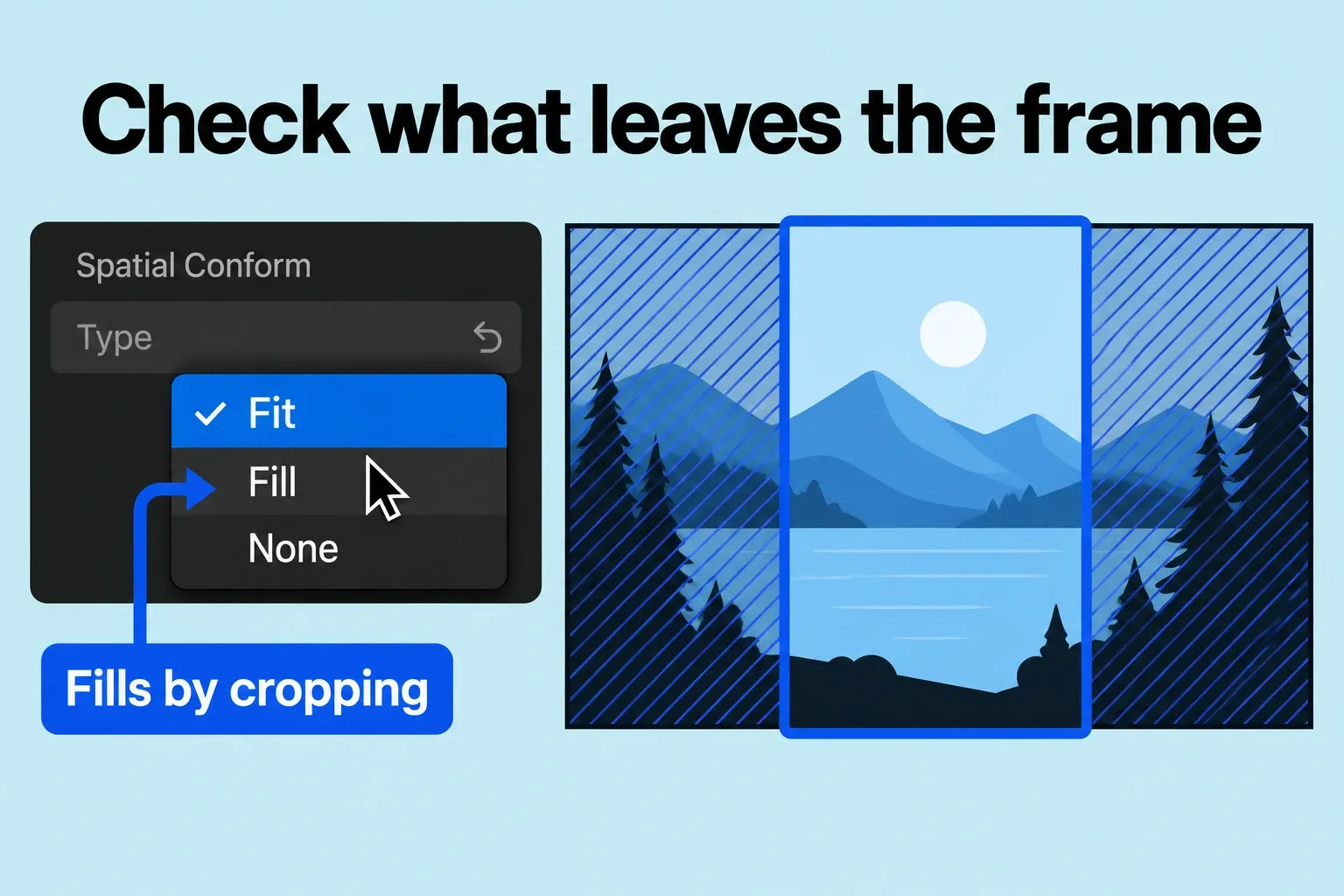
Select the clips whose aspect ratio differs from the vertical project, then choose Modify > Smart Conform. It analyzes faces and areas of visual interest and reframes each clip. Use the result as a starting point: adjust Transform > Position if necessary and inspect the movement through each shot.
For each clip, identify the primary subject and the movement that must remain visible. Check the first frame, the point of largest movement, and the last frame. Automatic reframing can establish a starting position, but inspect occlusion, quick pans, multiple faces, and any moment where the subject crosses the vertical edge.
When a single static position loses required action, use Transform position keyframes or recut to another view. Select the clip in the timeline, put the playhead at its start, and press Shift-T to show Transform controls. Drag the image to set the starting position, then click Add Keyframe in the upper part of the viewer. Move the playhead to a later moment and drag the image to the required position; a keyframe is added automatically. Add further positions where needed, then click Done in the upper-right corner of the viewer. Play the action between the keyframes, not only the keyed frames. If the required subjects still cannot share the narrow composition, cut between them or use an alternate source angle.
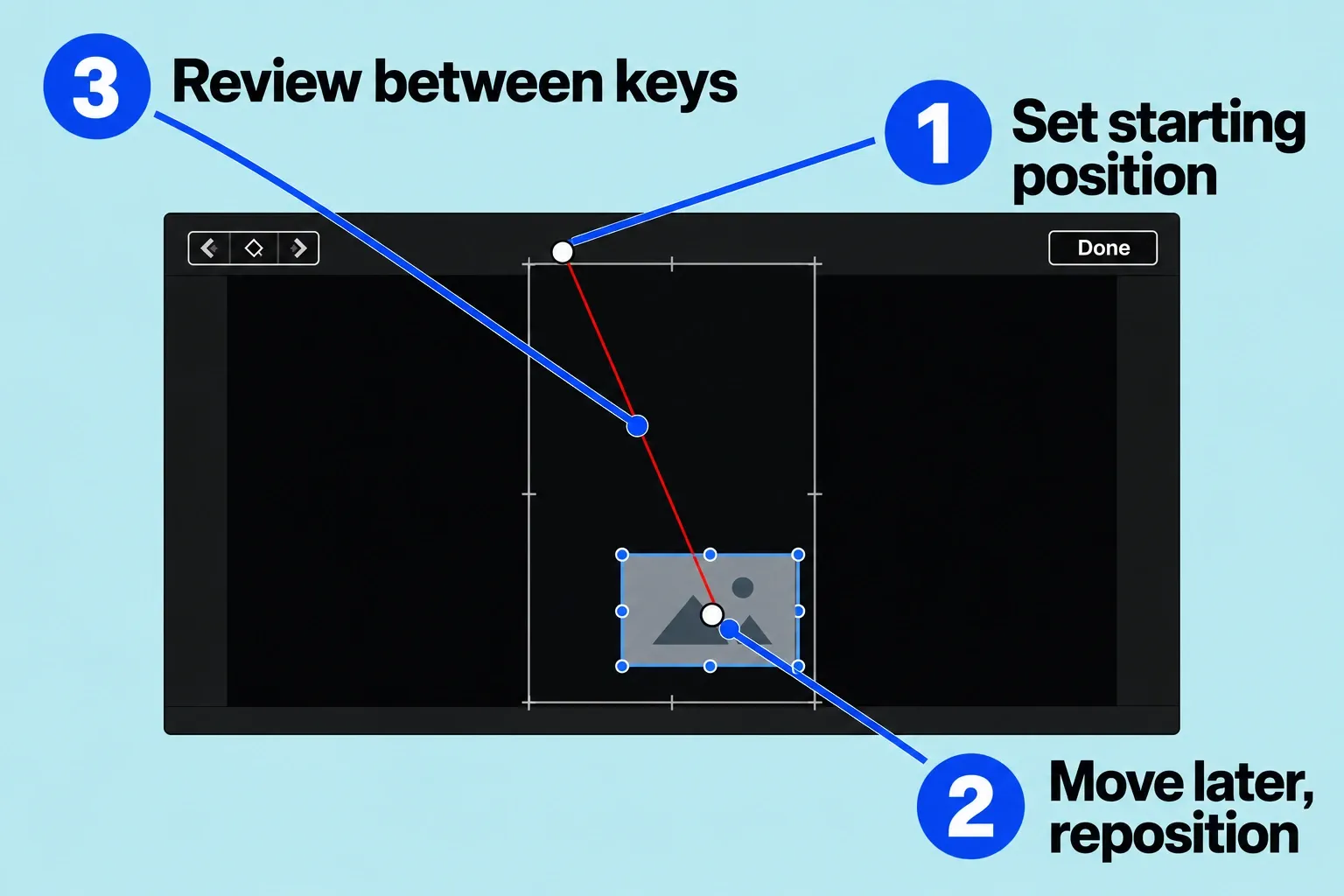
Avoid scaling beyond what the source can support at the intended output size. When a crop becomes visibly soft, I’d choose another shot or accept a designed background treatment rather than hide the loss at desktop preview size. Inspect stabilization and spatial effects again because a new crop can expose edges or change perceived motion.
Rebuild titles and choose the caption representation
Horizontal title layouts often become too wide or too small. Check line breaks, text size, edge spacing, and contrast in the final vertical frame. For YouTube, SRT can be uploaded as a separate caption file. Do not assume the same sidecar delivery exists for organic Reels; verify its current rules and account flow first. Burned-in text is a separate choice.
For Subtitle title clips created with Generate Captions, select the clips, press Command-4, and click the Title button in the inspector. Enable Vertical Social Media Safe for 9:16 framing. Apple describes that placement for most social platforms, so I’d use it as a starting layout and still check the target app’s preview.
Shorten lines and keep essential words away from the controls you see in the actual target app and device instead of trusting a universal pixel margin. With a YouTube SRT upload, preview player line breaks; with burned-in text, check contrast over every shot. Use a passage with two lines, punctuation, and a speaker change to judge readability at phone size.
Export a local vertical SDR example
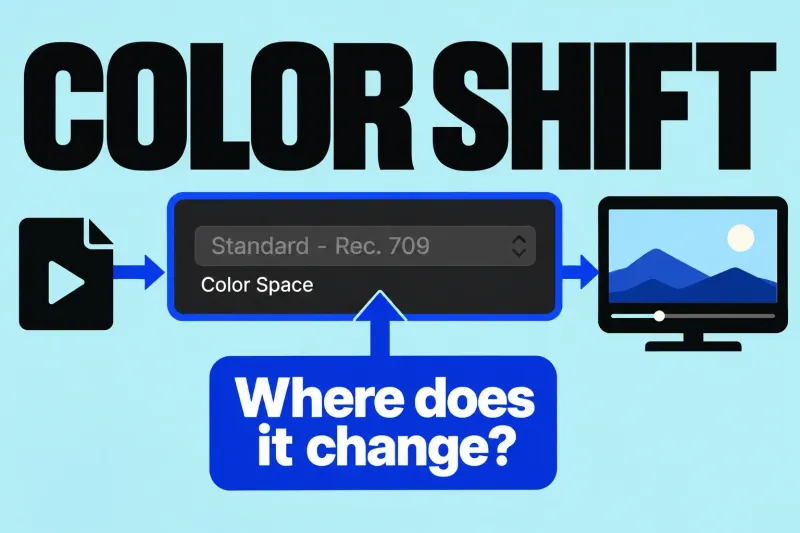
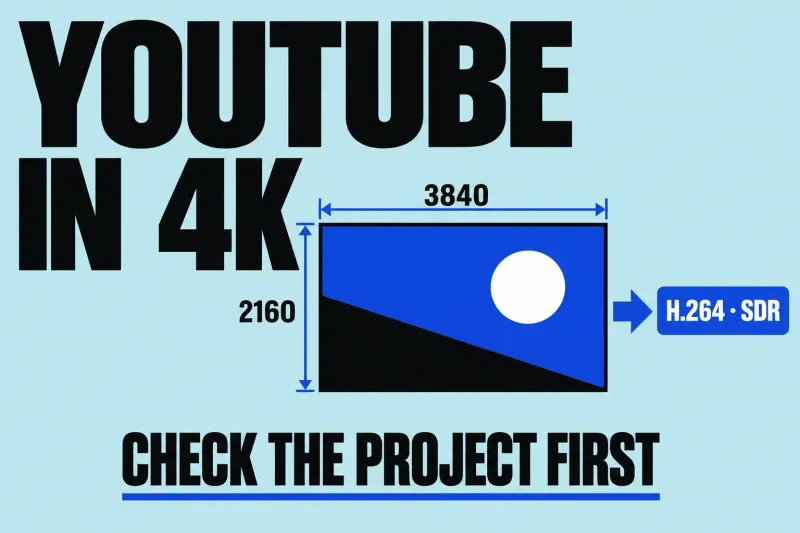
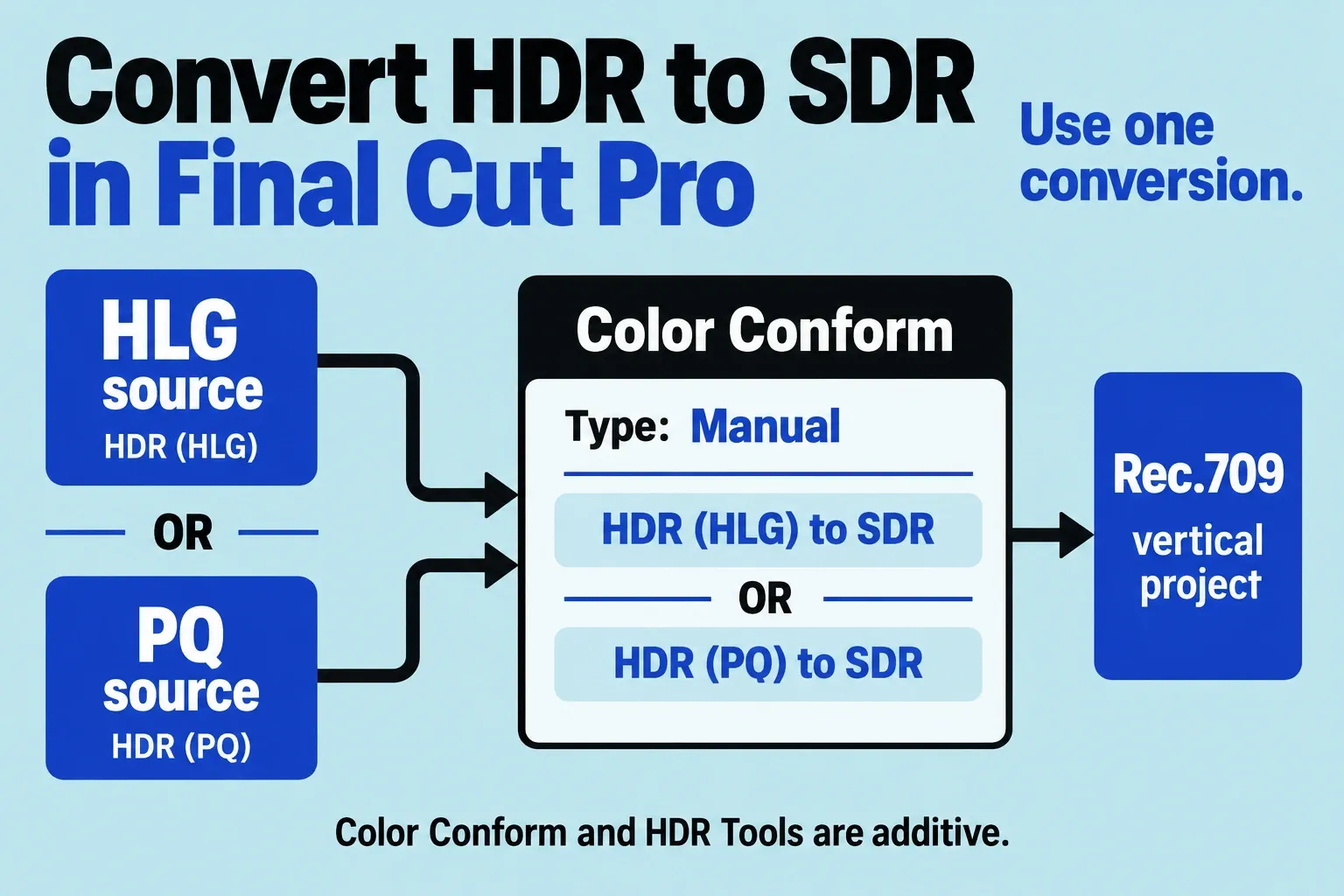
This example is a 1080 × 1920 SDR file, not a shared Shorts/Reels upload specification. In the vertical working project, verify the intended dimensions, intended project frame rate, and Rec. 709 output. If the project's Color Space menu is available, choose Standard - Rec. 709 in Project Properties > Modify for this SDR example. HDR footage must be conformed to that SDR project space as described below; changing a resolution or export label does not replace the conversion. If the brief needs HDR or another size, use settings appropriate to that deliverable.
Check the applied conversion when HDR source footage is used in the SDR project. Automatic Color Conform converts a clip to the project's color space when enabled and the clip and project spaces differ; Color Conform is set to Automatic by default. Projects created in Final Cut Pro 10.6.3 or earlier have Color Conform set to None, so check the actual setting. For a manual conversion, select the timeline clip, choose Window > Show in Workspace > Inspector (Command-4), and click the Video button. In Color Conform, choose Type > Manual, then set Conversion Type to HDR (HLG) to SDR or HDR (PQ) to SDR, matching the source. Use Color Conform or the legacy HDR Tools effect on a clip: the two conversions are additive and should not both be applied.
If the vertical project uses proxy media for playback, open it in the timeline and choose View > Optimized/Original from the pop-up menu in the viewer’s upper-right corner before finishing. If optimized media does not exist, Final Cut Pro uses the original media. Choose File > Share > Export File (Command-E). In Settings, select Web Hosting from Format and choose H.264 when offered for this project. Verify the output summary shows 1080 × 1920, the intended frame rate, audio, duration, and file type; check Color Space rather than inferring SDR from the codec. These steps follow the documented Export File route; your choice of Format controls destination options. Click Next, choose a Deliverables folder, and click Save.
For a short sample, I’d set a timeline range with I and O before sharing, because a clip selection alone doesn’t restrict export. For the complete deliverable, select the project in the browser instead of a timeline range and check the full duration in the summary. If the requested codec, resolution, or color space is unavailable, stop and review the project and destination rather than exporting a different file under the same name.
Inspect the file before platform delivery
Transfer the short sample without extra messaging-app recompression and view it at realistic phone size. Inspect orientation, dimensions, frame rate, audio, title and caption readability, and both end frames. A platform preview is a separate check for processing and interface overlays; choose upload visibility deliberately.
Review the complete export, the widest subject movement, title changes, longest caption, and most heavily scaled shots. Confirm no graphic falls outside the frame. In the target platform’s preview, check whether its controls cover text. Keep the vertical working snapshot distinct from the horizontal project, and compare any edited compound or multicam contents in both before delivery.
For current YouTube uploads, square or vertical videos up to three minutes qualify as Shorts. That page also explains an important restriction: a Short longer than one minute with an active copyright claim is blocked globally until the claim is resolved. Recheck requirements before delivery, and check organic Reels independently; one platform’s duration, caption, or safe-area rules do not establish the other’s.
See captions versus subtitles and the YouTube export workflow for related decisions.