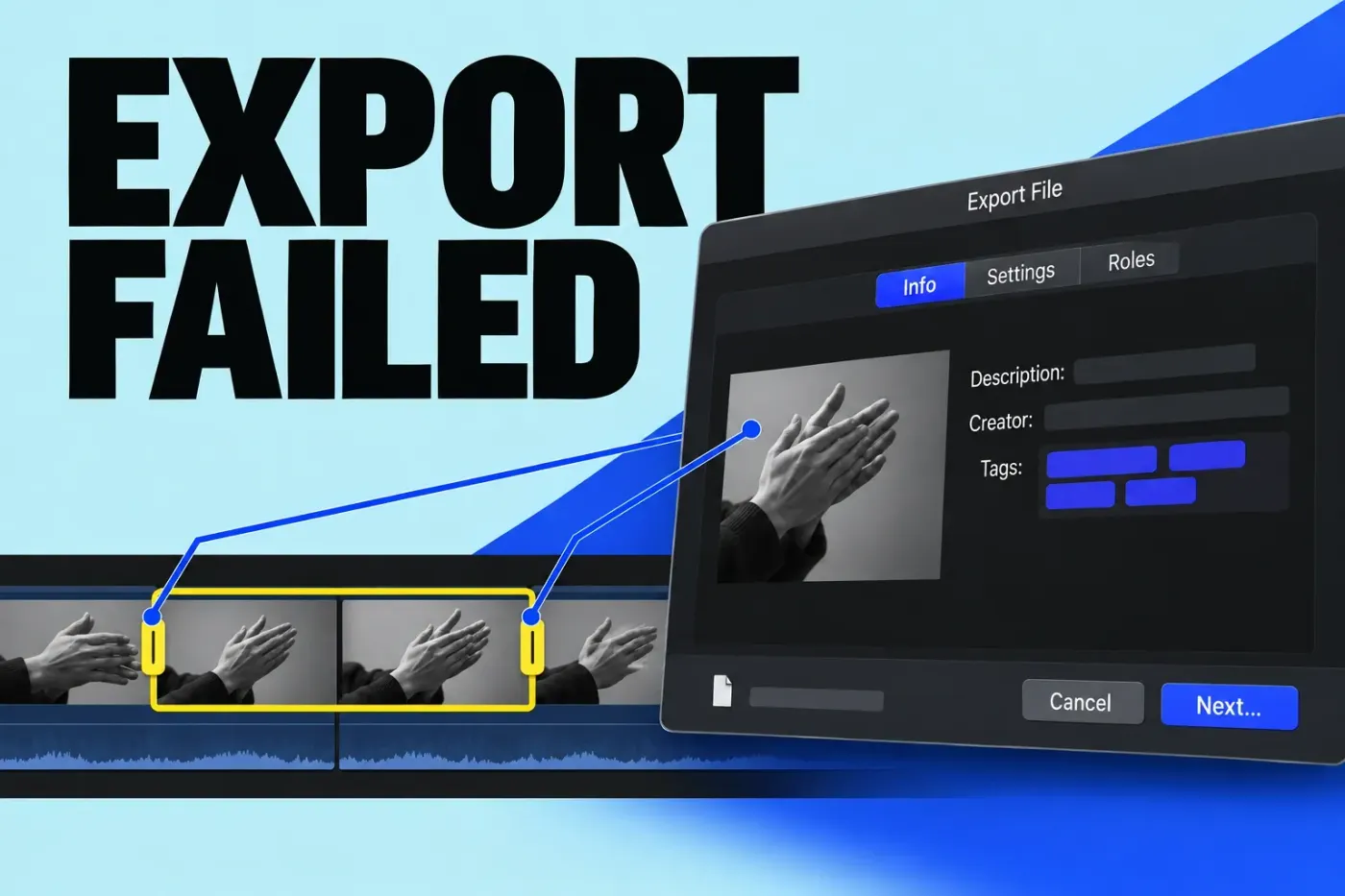
Preserve the edit and read the exact alert. Then reproduce the failure with one controlled local export. If the location is unknown, narrow the timeline with I/O ranges while keeping the codec, destination and media state unchanged. A shorter export that works is evidence for the next comparison; the repair is complete only when the intended full delivery passes review.
Start with the source-import branches below if the alert names an unusable clip or says the project still references camera media. Otherwise, protect the project, check storage, and establish a repeatable range test before resetting preferences or replacing anything.
Protect the edit and record the failure
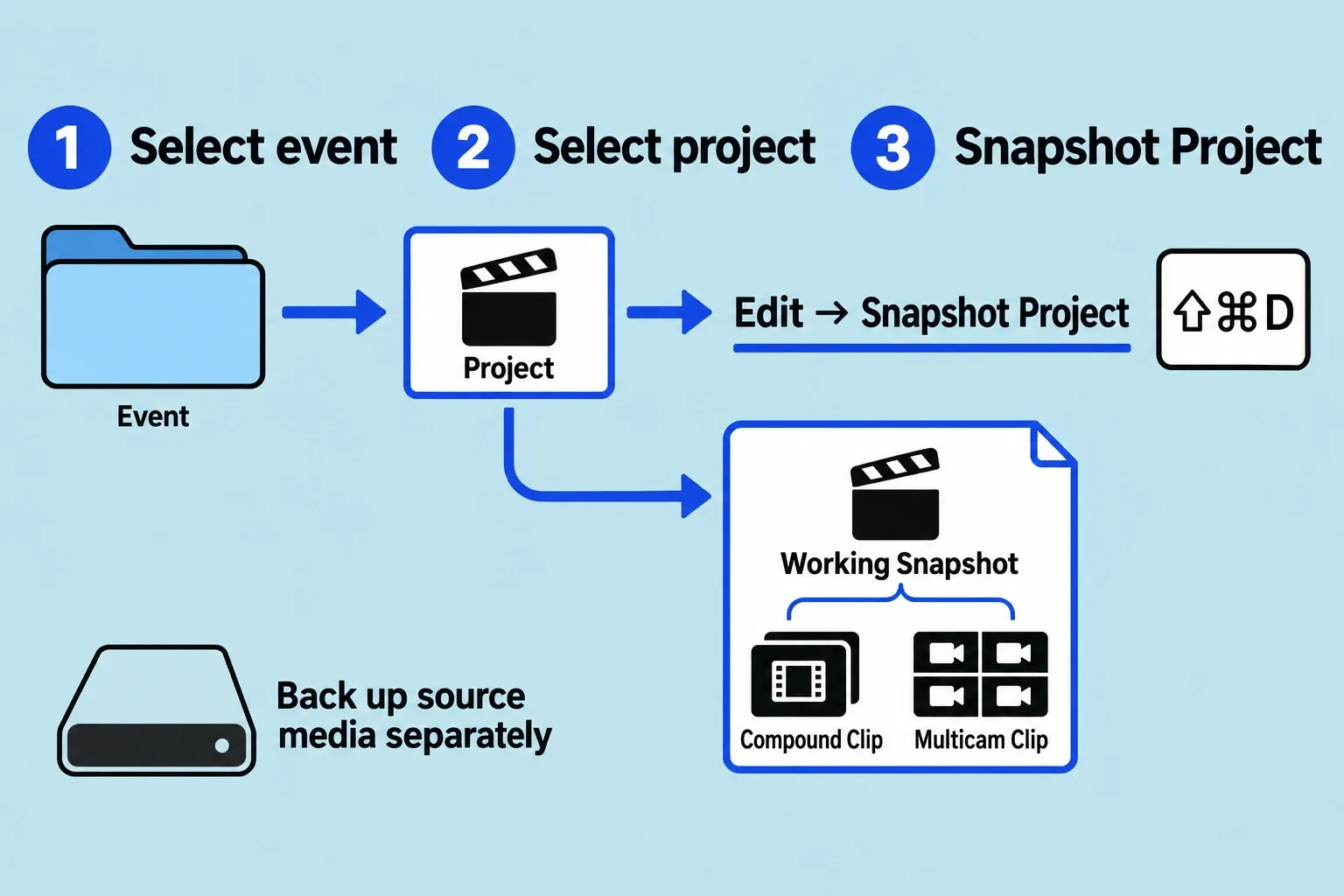
Before changing the timeline, select its event in the Libraries sidebar, select the project in the browser, and choose Edit > Snapshot Project (Shift-Command-D). Work in the resulting snapshot and keep the original project intact.
A snapshot embeds independent copies of compound and multicam parent clips. An ordinary project duplicate can still share those parents with the original, so it is insufficient protection before changing their contents. The snapshot does not replace a backup of source media: keep an intact source backup separately, and do not overwrite or delete the only remaining recording during diagnosis.
Save the complete error text, including any clip name, frame number or timecode. Record the Final Cut Pro and macOS versions, Mac model, project frame rate and start timecode, share destination, codec, resolution, output path and available storage. Note whether the failure repeats at the same location, changes location, or produces no alert. Don’t turn an export percentage into an exact timeline timecode; use the location explicitly named in the alert or the range comparisons below.
Follow the exact source-import alert
Video rendering error: 10008 or RenderFrameAt
For these specific alerts, Apple identifies the clip shown in the alert as unusable. Use its clip name and timecode to locate it, then import the source clip again from an intact protected copy. Reimporting cannot recreate a recording that is lost or corrupt in every available copy. Apple warns that, without a source backup or camera archive, recording the clip again may be necessary.
Keep the intended source in/out points, retiming, audio and effects as your comparison reference when repairing the snapshot. Deleting the indicated frame may make a different edit export, but it also removes content. If the file is merely offline after a move, use the missing-media relinking workflow to restore its location; do not treat every missing file as an unusable source.
Camera icon or “still referencing media on the camera”
A camera icon indicates that the clip never successfully imported into the library. It can appear together with the camera-reference alert and dimmed Share options, so check for this import problem whenever you see those symptoms.
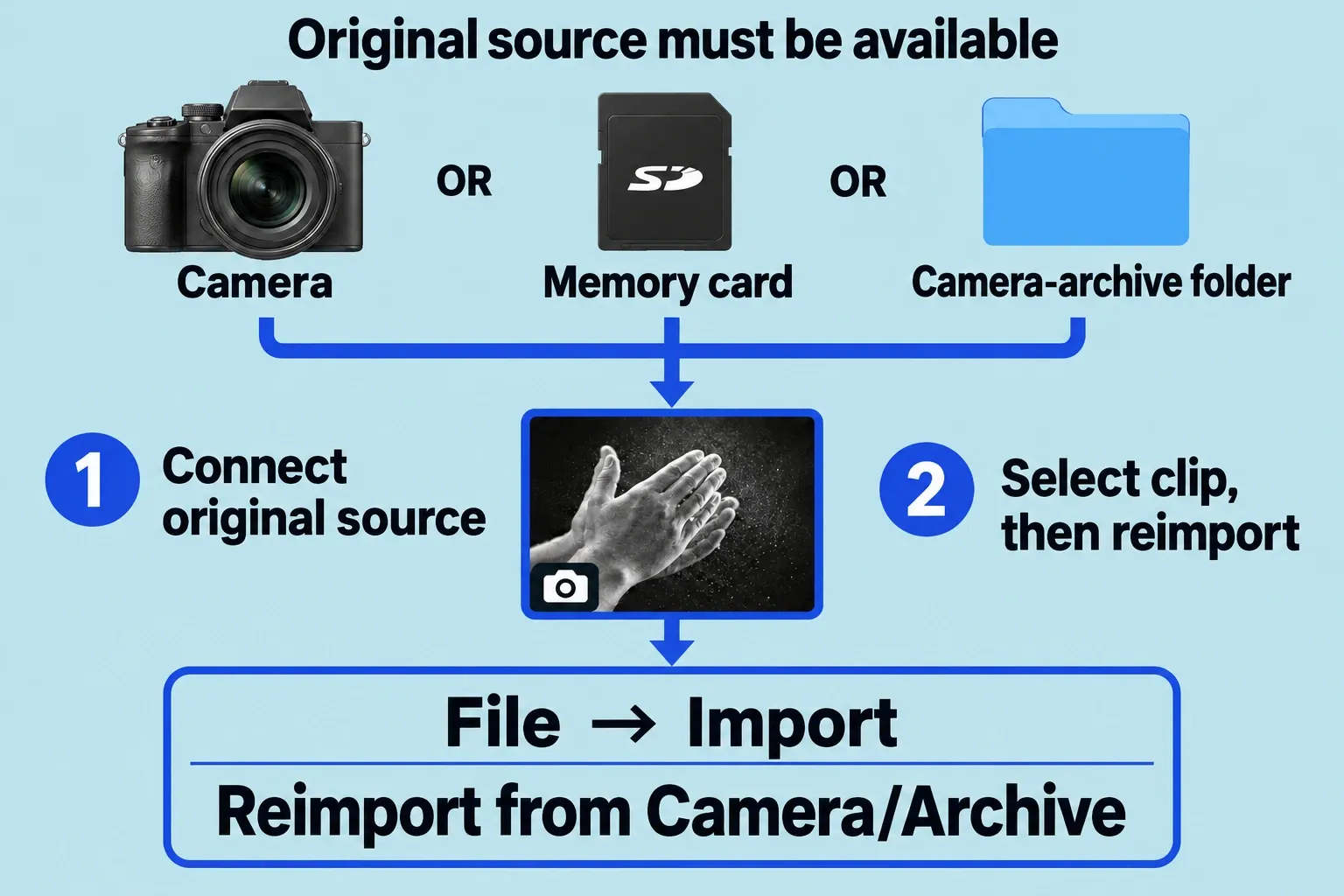
- Make the original source available: connect and power on the camera, insert the original memory card, or make the camera archive available on the system. Confirm there is enough space in the library’s designated media storage location.
- Locate the affected clips. In the Libraries sidebar, select the library, event or folder to search, then use the browser’s Search button and enter
missing. Look for the camera icon among the results. - Select an affected clip in the browser, or select its event in the Libraries sidebar to reimport all clips in that event. Choose
File > Import > Reimport from Camera/Archive. - Let the import finish, then repeat the same export. If the original camera, card or archive is unavailable, resolve source recovery before expecting this command to restore the media.
Check storage before more retries
Check the library, media, render-cache and output locations, rather than looking only at the destination’s free space. Render files can reside in the library or a separate location and accumulate over time. Make sure the required volumes remain mounted, the output folder is writable, and there is working space as well as room for the estimated output size shown in the Share window.
For a local library or output volume, select the device in Finder and choose File > Get Info; its format appears in General. Apple specifies APFS or Mac OS Extended for local volumes, recommends APFS, and excludes drives used for Time Machine backups. Network libraries have separate supported shared-storage conditions; this local-volume check isn’t a blanket rule for every network setup.
I’d run the comparison on an already suitable volume rather than reformat a working drive. If reformatting is necessary, first back up its data and verify the backup is usable. Changing a folder or volume is one diagnostic variable; if the export works there, that alone doesn’t tell you what was wrong with the original path.
Establish a controlled Export File test
I’d start with a local Export File comparison, because it leaves a saved file to inspect before any later upload or account stage. Record how this destination differs from the one that originally failed; changing destinations creates a new diagnostic case. Once that case is established, keep its settings fixed while comparing ranges.
- Open the snapshot project in the timeline. If playback uses proxies, open the View pop-up menu at the top right of the viewer and choose
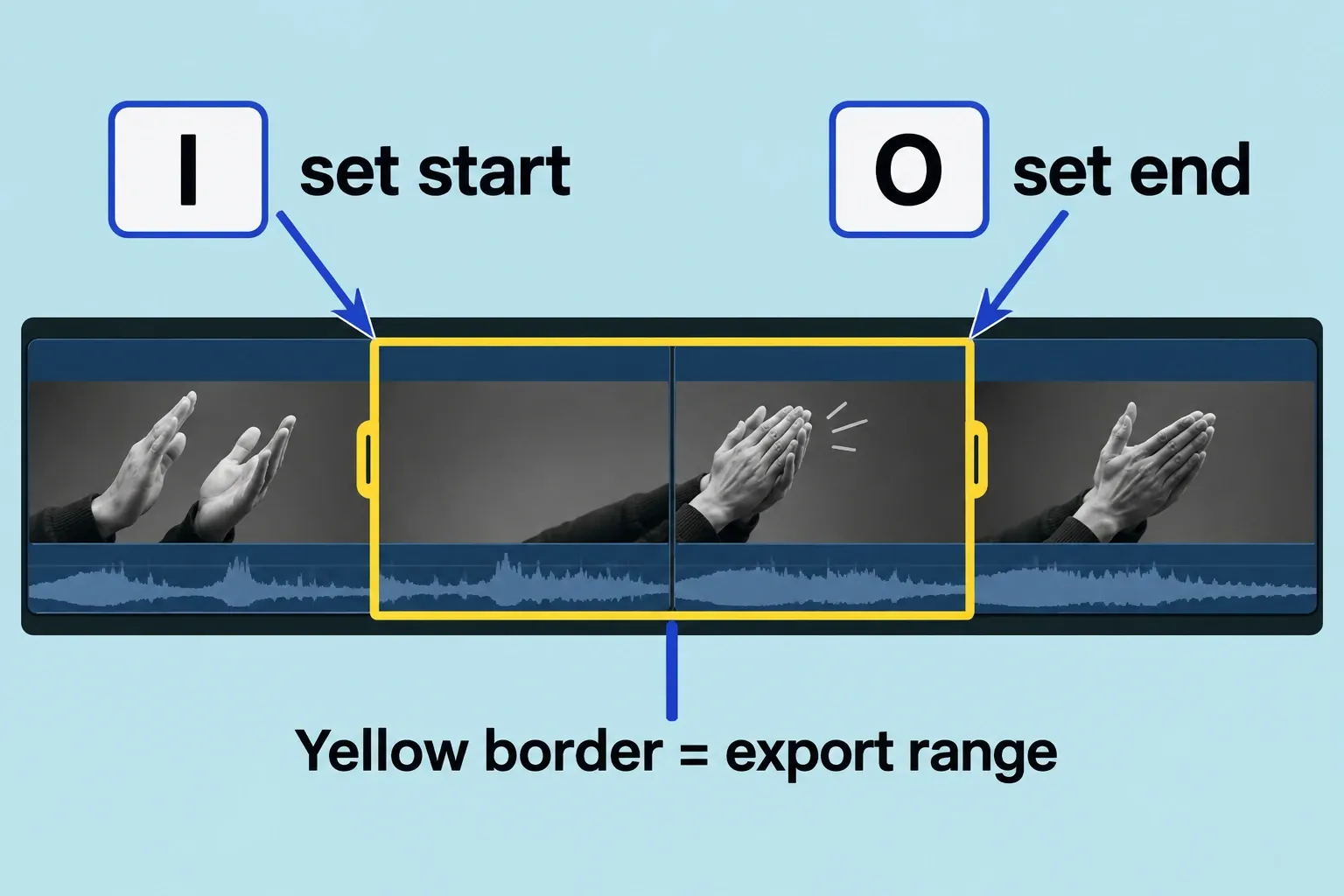
Optimized/Original. This uses optimized media when available and originals otherwise. Confirm the required full-resolution media is available; the menu choice on its own won’t show that every camera original is online. - Set the intended timeline range with
Ifor its start andOfor its end. Exporting part of a project requires a range selection; selecting a clip is insufficient. Record both endpoints. - Choose
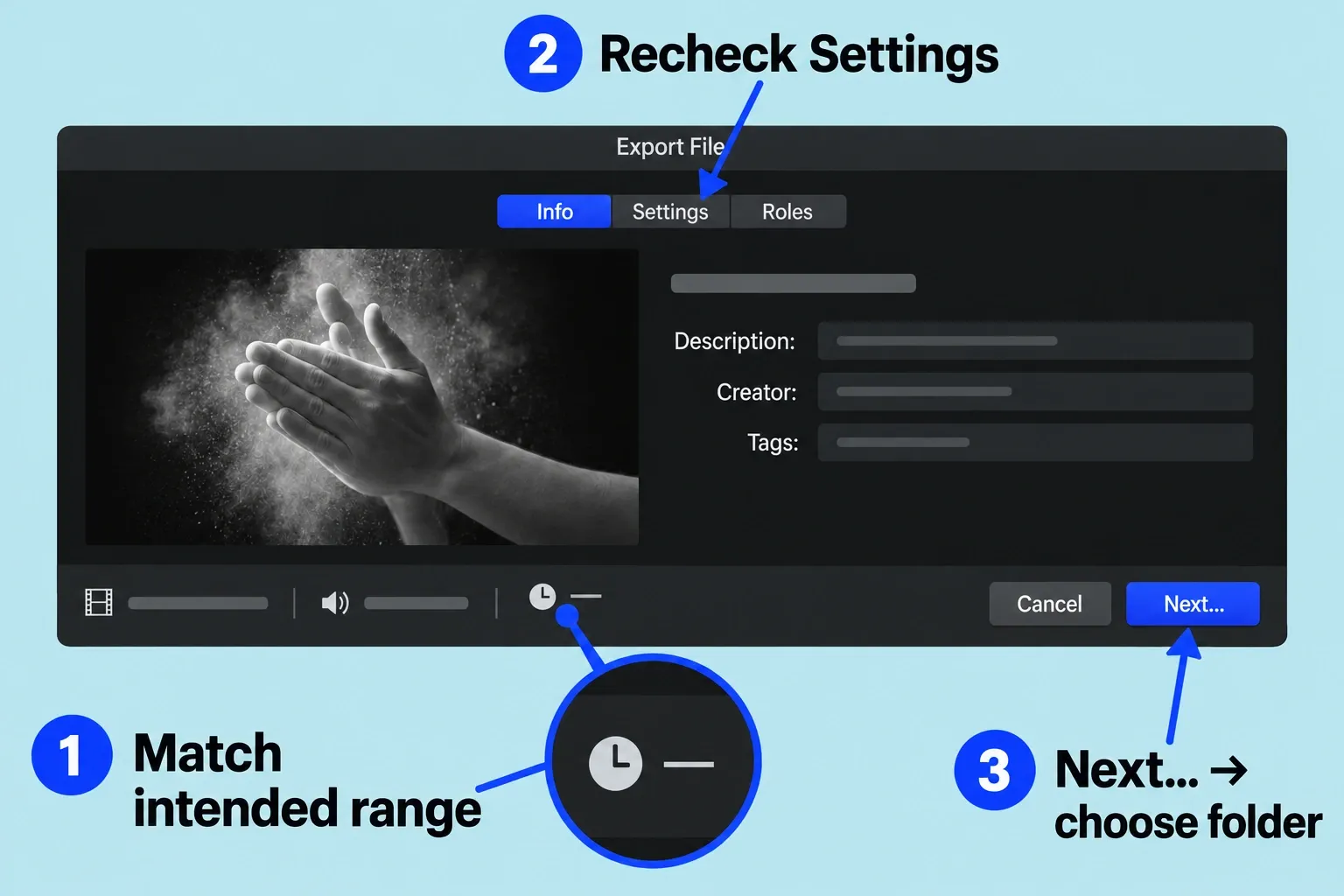
File > Share > Export File. In Settings, record the format and codec; keep them, the destination folder and media state unchanged across the range comparisons. - Check the Share window’s output information before saving. It shows frame size, frame rate, audio channels and sample rate, duration, output type and file size. Confirm the duration represents the range you intended; if it doesn’t, correct the selection before treating the result as evidence.
- Click Next, choose the local output location and save with an identifiable trial name. Record the range, single changed variable, result and exact error. Check the settings again on later trials: changes to a destination’s settings become its defaults.
Narrow an unknown failing range
If the alert gives no usable timeline location, use the following controlled comparison. It narrows the search, but it won’t always lead you to one bad frame.
- First reproduce the failure with the full intended range in the fixed local setup above. If it doesn’t repeat, preserve that result and compare the original destination separately; don’t assume a timeline defect has been reproduced.
- Choose a first portion and a second portion, roughly dividing the failing range. Set each with I/O and check its export duration. Include an overlapping region around the division, especially where a transition, connected title or other element crosses it; do not remove that context just to make two neat halves.
- Export each portion with the same codec, local folder and full-resolution media state. Keep the timeline unchanged during this stage.
- If one portion fails reproducibly, divide that portion again and repeat. Stop shrinking once you have a manageable area to inspect, retaining enough surrounding timeline to include the relevant transition or connected elements. Then compare individual candidates in the snapshot.
| Comparison result | Next action | Limit of the evidence |
|---|---|---|
| One portion repeatedly fails; the other works | Narrow the failing portion, then inspect its clips, audio, titles, transitions, generators and effects. | The range contains candidates; it does not identify a unique cause. |
| Both portions fail | Keep both results and examine smaller portions separately. Recheck shared media, effects and storage conditions. | Do not assume there is only one failing location. |
| Both portions work, but the complete range fails | Retry the overlap and the full range. Preserve differences in duration, processing state and environment for the support case. | Short-range success does not certify the full sequence or prove a particular resource problem. |
| The failure location changes or the result will not repeat | Stop treating the location as deterministic. Stabilize mounted storage and working space, and keep the changing alerts. | More subdivision cannot by itself establish a precise defective frame. |
Change one candidate and keep a retry log
In the snapshot, compare the suspect range with one effect turned off, one title or generator omitted, or one source repaired. Restore the comparison baseline before trying a different candidate. Keep the codec, output folder and range fixed, and record the exact change. If the change affects compound or multicam contents, the snapshot protection must already be in place.
If the failure appears to follow a source clip, check that its full-resolution media is online and inspect the source around the affected section. Clean playback is another clue, but the file can still fail to encode. After any replacement, compare the source range, retiming, sync, audio and effects with the intended edit; copying every effect back immediately could also restore the candidate you are trying to isolate.
A render-file comparison is a separate trial. Once source availability is confirmed, select the snapshot project in the browser, choose File > Delete Generated Project Files, select Delete Render Files only, and click OK. Original media is not deleted by that command. Leave optimized and proxy media unchecked; do not combine render regeneration with a broad deletion of other media.
Log the render deletion before retrying. Regenerating renders adds work, so a change in export time doesn’t mean the underlying failure is fixed. Record the background-task state, but don’t make completed background rendering a universal prerequisite for export. Keep power and mounted storage stable, and pause unrelated copies or transcodes during comparisons so their changing load and space usage don’t obscure the result.
Version-specific reports can point to a candidate, but they don’t give you a general fix. A July 2026 report of silent Final Cut Pro 12.3 export failures on an M4 Mac mini linked the behavior to particular images with transparency; later updates rejected a simple image-size threshold. That report can’t tell you whether the issue affects your installed build. If your own comparison implicates an image, I’d record the actual image and version conditions rather than adopt a universal resizing rule.
Compare destinations without changing the delivery
If an export of the same range with the same codec works in one local folder but fails with an external output path, investigate destination access, free space and volume availability. Keep all other conditions the same on the retry. That points you toward the destination branch, though it doesn’t pin down a specific storage cause.
If the local export completes but an upload or account stage fails afterward, investigate that later stage separately. A local success doesn’t mean every delivery format will encode. Likewise, an H.264 file that works when the required ProRes file fails is a useful comparison, but it has not satisfied the ProRes delivery requirement. Several destinations failing at the same timeline location justify examining project and media candidates, but that doesn’t mean the library is damaged.
Validate the intended deliverable
After a proposed repair, repeat the smallest previously failing range, a neighboring range, and finally the complete program with the intended delivery settings. Check that a diagnostic I/O selection hasn’t left you exporting only an excerpt: verify the full duration in the Share window before saving.
Open the saved file in a separate player. Review the former failure area, the beginning and end, audio continuity and sync, transitions, titles and any repaired or bypassed effects. Confirm duration, frame size, frame rate and the required audio and caption deliverables. A missing effect, deleted frame, different source range or substituted codec changes the result; restore the intended version or obtain an explicit delivery decision before calling it equivalent.
Keep the successful file tied to the exact project revision, settings and changed variable. Once the complete file is sound, the 4K SDR YouTube delivery workflow covers that separate destination’s settings and upload checks.
Stop with useful evidence
Stop broad experiments if a source drive reports errors, several unrelated files go offline, the library won’t reopen reliably, or working storage is exhausted. Protect the surviving source media, project snapshot, error text and log before pursuing storage or library recovery. I wouldn’t change the app, macOS and plug-ins together, because that breaks the one-variable comparison. If an update is the next supported step, check compatibility and keep restorable backups first.
For a supported setup that still fails, send Apple Support or the relevant plug-in vendor the app/macOS versions and Mac model, exact error, project frame rate and start timecode, source and output formats, storage locations and space, I/O endpoints, and the smallest repeatable case. Include which single changes did and did not alter the result. A short non-confidential case with stable conditions is more useful than a list of unrecorded resets.