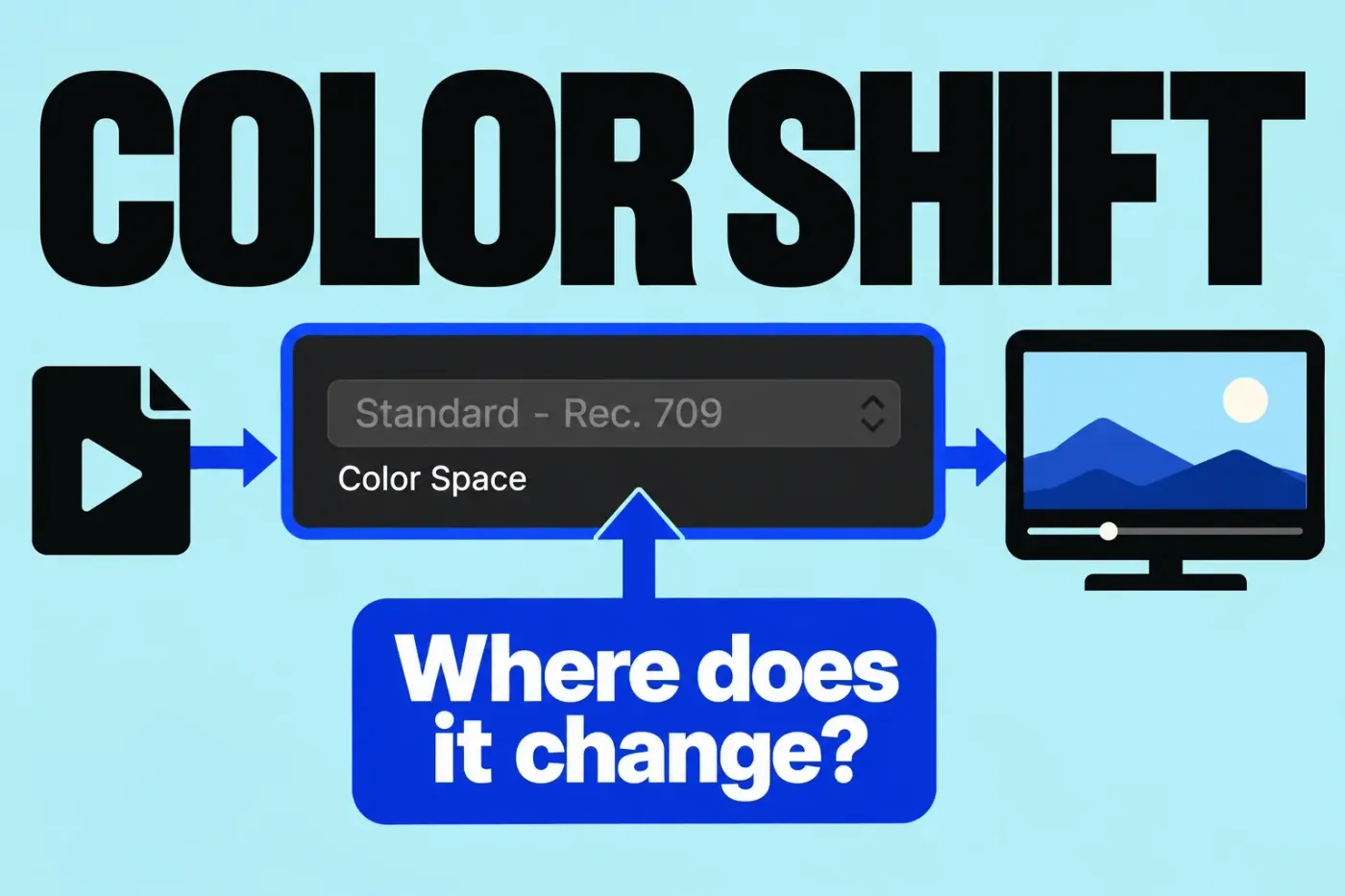
When an export looks different from Final Cut Pro, find where the image first changes before you touch the grade. Check the source interpretation, project color space and exported file, then compare playback and the display. A matching reimport narrows the search to playback and the display, but it doesn't prove that every player or device will show the same image.
The steps below cover movie exports on Mac with the documented Final Cut Pro 12.4 controls, and they keep an SDR Rec. 709 result separate from an HDR HLG or PQ result. A dark exported still image is a different problem, so don't automatically borrow a movie-export remedy for it.
Record the signal path before changing the grade
Write down five states: the recorded source format, its interpretation and active transforms, the library/project color settings, the export color space, and the player/display used to judge it. Record the Final Cut Pro and macOS versions too. I'd keep the grade intact until this record shows a specific mismatch, because a compensating contrast or saturation change can hide the stage you need to fix.
Keep the comparison on the same Mac and display. Comparing Final Cut Pro on one screen with a web player on another can't isolate an export error. Scopes give you a signal-level and channel check tied to the known project space; they aren't proof of identical display rendering. Pick the same representative frames throughout.
Check source interpretation and transforms
Identify one representative source as SDR Rec. 709, HDR HLG, HDR PQ, or log. Check the recording format and file interpretation rather than deciding from a flat or bright appearance. Certain iPhone and iPad models can record Dolby Vision HDR; a phone filename alone does not tell you that a particular clip is HDR.
Select the source clip in the browser or timeline. If the inspector is hidden, choose Window > Show in Workspace > Inspector or press Command-4. Click the Info button at the top. At the bottom-left, choose Metadata View > Extended and inspect Color Profile. The documented format codes to compare against are:
| Color Profile code | Labelled format |
|---|---|
| 1-1-1 | Rec. 709 HD |
| 9-18-9 | Rec. 2020 HLG |
| 9-16-9 | Rec. 2020 PQ |
If metadata is absent or conflicts with the established original format, choose Metadata View > Settings > Color Space Override and select that original color space. This changes the interpretation metadata, not the clip's luminance. For example, a known HLG source labelled 9-18-9 still needs an HDR-to-SDR conversion for an SDR project; changing its label to 1-1-1 does not perform that conversion.
For log footage, inspect Camera LUT in the Info inspector's Extended, General or Settings view. Final Cut Pro applies a camera LUT at the media level before clip effects, while a Custom LUT is a timeline effect. Camera LUT changes affect all instances of that media in the current library. A flat, untreated log image and an image that got an unintended second conversion need different investigations, so check the actual source and active transforms before you compensate with the grade.
Choose the SDR or HDR working result
Inspect the library before changing it: select it in the Libraries sidebar, choose File > Library Properties or press Control-Command-J, then click Modify at the top. In the window that appears, check the selected color-processing option. Apple's library color-processing procedure distinguishes Standard, which works in linear RGB with Rec. 709 primaries, from Wide Gamut HDR, which uses Rec. 2020 primaries.
I wouldn't switch the entire library as a first experiment. The setting affects every project and its media, and some filters or blend modes can change appearance when you switch from Standard to Wide Gamut HDR. If an old Final Cut Pro 10.3 library offers Wide Gamut (Deprecated), Apple warns that switching away removes that option permanently. When you do need a library-wide change, select the required Standard or Wide Gamut HDR option in that window.
To inspect the project, select its event in the Libraries sidebar, select the project, choose Window > Project Properties or press Command-J, and click Modify at the top-right. Choose the intended output in the Color Space menu and click OK only if a deliberate change is needed. These are the Mac 12.4 project-setting steps; the older Mac 12.3 field reference calls this the project’s Rendering > Color Space.
- SDR: choose Standard - Rec. 709 for an HD SDR result. This project can sit inside a Wide Gamut HDR library; the library and project are separate decisions.
- HDR: choose Wide Gamut HDR - Rec. 2020 HLG or Wide Gamut HDR - Rec. 2020 PQ for the intended HDR transfer function. The plain Wide Gamut - Rec. 2020 choice is a legacy setting, not either of those HDR choices.
The four documented project choices require a Wide Gamut HDR library and an HD-or-larger project format. Project Color Space also determines render-file and scope space, Export File output conditions, and the computer-display image space; the display profile remains part of onscreen playback. A 4K frame size alone does not tell you whether the result is SDR, HLG or PQ.

Convert only the source that needs it
Select the source clip in the timeline. If the inspector is hidden, press Command-4. Click the Video button at the top of the inspector. Inspect Color Conform. By default its Automatic mode converts a clip when its color space differs from the project's. Check the actual state: projects created in Final Cut Pro 10.6.3 or earlier have Color Conform set to None, and automatic management can be disabled.
When a specific conversion is needed, choose Type > Manual, then the appropriate Conversion Type: HDR (HLG) to SDR for known HLG media in a Rec. 709 project, or HDR (PQ) to SDR for known PQ media in that project. Both are luminance conversions listed in the Color Conform guide. Review the resulting SDR image and grade for that deliverable; an export-tag change alone is not the conversion.

Apple warns that Color Conform and HDR Tools are additive and should not both convert the same clip. Because the two stack, I'd pick one per clip. If HDR Tools is your deliberate conversion stage, set Color Conform to None. A required camera-log LUT is a separate transform, so map its input and output too rather than removing it just because another color control exists.
Check the export color space and playback path
Choose File > Share > Export File and open the share window's Settings tab. Inspect Color Space with the format and codec. In the Mac 12.3 destination-field reference, the project settings and destination codec determine it; the current Mac 12.4 destination guide retains that dependency. If the intended space isn't shown, check the project again and use a codec that supports the output; a resolution or codec name alone doesn't guarantee HDR.
The preset isn't enough: inspect the actual exported file. In QuickTime Player 10.5 on macOS Tahoe 26, open the file and choose Window > Show Movie Inspector or press Command-I. Depending on the file, the inspector can show details such as HDR format, compression format, bit depth, size and frame rate. That makes it a useful format/depth check, but don't expect QuickTime to display every raw primaries, transfer-function, matrix or mastering-metadata field.
For the labelled color space, import the file into Final Cut Pro and inspect Info > Metadata View > Extended > Color Profile as above. An intended Rec. 709 export carrying an HLG label needs investigation: check the real project/export space and conversion before deciding whether the pixels or the label are wrong. Correct-looking tags don't prove a correct grade, and overriding a tag to make playback prettier isn't a diagnosis.

Find the first mismatch with a short reimport
- Choose a short representative range with useful neutral, skin, highlight or saturated detail. Use I and O to set the range boundaries; a clip selection alone does not export part of a project. If playback uses proxies, choose View > Optimized/Original in the viewer before sharing.
- Export that range with the recorded project and share settings. Choose File > Import > Media or press Command-I, select the file on your Mac, choose its event/storage settings, and click Import Selected using Apple's local-media import procedure.
- Check the imported file's Color Profile and Camera LUT. Place a fresh instance in an unused part of the same project, outside any graded compound or treatment applied over the edit. Do not paste the original shot's correction or LUT effects onto this already rendered file. On this comparison instance, deselect an extra clip effect's checkbox in the Video inspector if it was added; this keeps its settings while bypassing it. If an unnecessary camera LUT was applied to the rendered file, choose Camera LUT > None in the Info inspector.
- Inspect the comparison clip's Color Conform too, and preserve its actual exported color space. If it already matches the project, avoid a forced extra conversion; if it genuinely differs, record the required conversion instead of quietly disabling it. Keep the original source's necessary transforms and grade intact. Compare the same frames in the same project viewer and display conditions, then compare their scopes.
If the reimport differs at this stage, work back through the recorded source interpretation, active transforms, project and export settings. Repeat the short export with one justified change. Don't change the project space, add a grade, switch codec and change player in the same comparison. If the local viewer and scopes closely match, move to playback/display checks; that apparent match doesn't verify every metadata field or single out a player fault.
When the local player is the first mismatch
Open that same local export in the receiving player on the same display and compare the same frame. Record the player/version and display mode. When the difference shows up only on this path, look at how that player handles the known SDR/HDR file instead of adding a universal gamma LUT or saturation offset.
For HDR, record the Final Cut Pro viewer's View > Display > Show HDR as Tone Mapped state. Tone mapping compresses bright HDR content to fit the display's viewable range and is on by default in most cases. That viewer setting doesn't control HDR shown through external A/V Output; its Playback settings have a separate external-display control. For that path, inspect Final Cut Pro > Settings > Playback > Show HDR as Tone Mapped. It's available only for external displays connected by HDMI or Thunderbolt 3 on macOS 10.15 or later, and it's disabled when a connected Pro Display XDR uses a reference preset such as HDR Video. That connection rule doesn't set the minimum macOS version for your installed Final Cut Pro release. Record which of the two paths you're judging.

On a MacBook Pro with Liquid Retina XDR display, Studio Display, Studio Display XDR or Pro Display XDR, System Settings > Displays > select the display > Preset lets you choose a reference mode. HDTV Video (BT.709-BT.1886) is the HD video-production mode for a controlled BT.2035 viewing environment. Availability varies by display; it is not a calibration prescription for every web viewer. For critical HDR review, the Pro Display XDR reference-monitor setup specifies the display, reference preset, A/V Output and dimmed environment together. An HDR-capable screen or a 4K label alone does not establish that setup.
There is one narrowly documented QuickTime case worth recognizing: iPhone 12 Dolby Vision HDR with extreme scene contrasts shared to Apple devices. Apple suggests a Master File with HLG color space for a QuickTime quality-control review in that case. It does not establish a general SDR QuickTime gamma fault or justify exporting an ordinary SDR project as HLG.
When the uploaded version is the first mismatch
Keep upload processing separate from the local file. Check that you uploaded the intended file, then identify the actual playback variant and device. For SDR, YouTube standardizes supported color values and converts unsupported spaces within its SDR upload rules: it recommends BT.709, standardizes specified or missing color-space values, and passes through matching BT.709/BT.601 or maps unsupported spaces to BT.709. This does not describe correctly marked HDR uploads. The YouTube export guide covers one SDR delivery path.
For an actual HDR upload, follow YouTube's dedicated HDR requirements: an HDR grade in Rec. 2020 using PQ or HLG, 10- or 12-bit color, a Rec. 2020 non-constant-luminance matrix, and the correct HDR metadata in the codec/container. A PQ upload should also include mastering-display metadata and MaxFALL/MaxCLL brightness information; the simple inspectors above do not guarantee access to all those fields. Verify the delivery file against the encoding requirements rather than going by its filename.
YouTube produces HDR transcodes for capable devices and an SDR downconversion for others; the player shows HDR beside HDR quality options. Check whether the difference belongs to the HDR playback or the SDR downconversion. Do not add HDR metadata to footage that was not graded with an HDR transfer function: YouTube warns that this badly distorts it. A local reimport match does not prove which uploaded variant a viewer receives or that a platform bug caused the difference.
Keep the comparison reproducible
Keep the representative frames or reference still, short export, original file interpretation, active transforms, library/project settings, share preset, player/version, metadata and display mode together. Record the first stage that differs and the one change made afterward. If no specific cause is established, I'd preserve the grade and report those conditions: they're more useful for the next investigation than a guess about a universal color-shift fix.