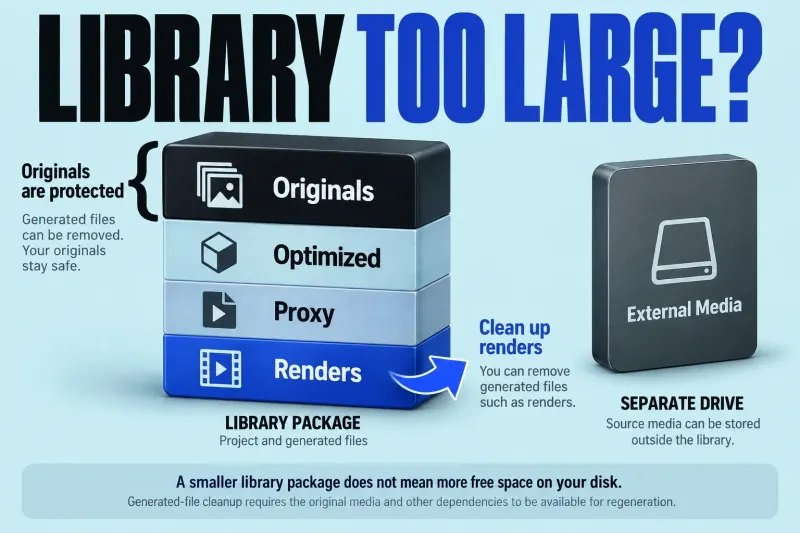
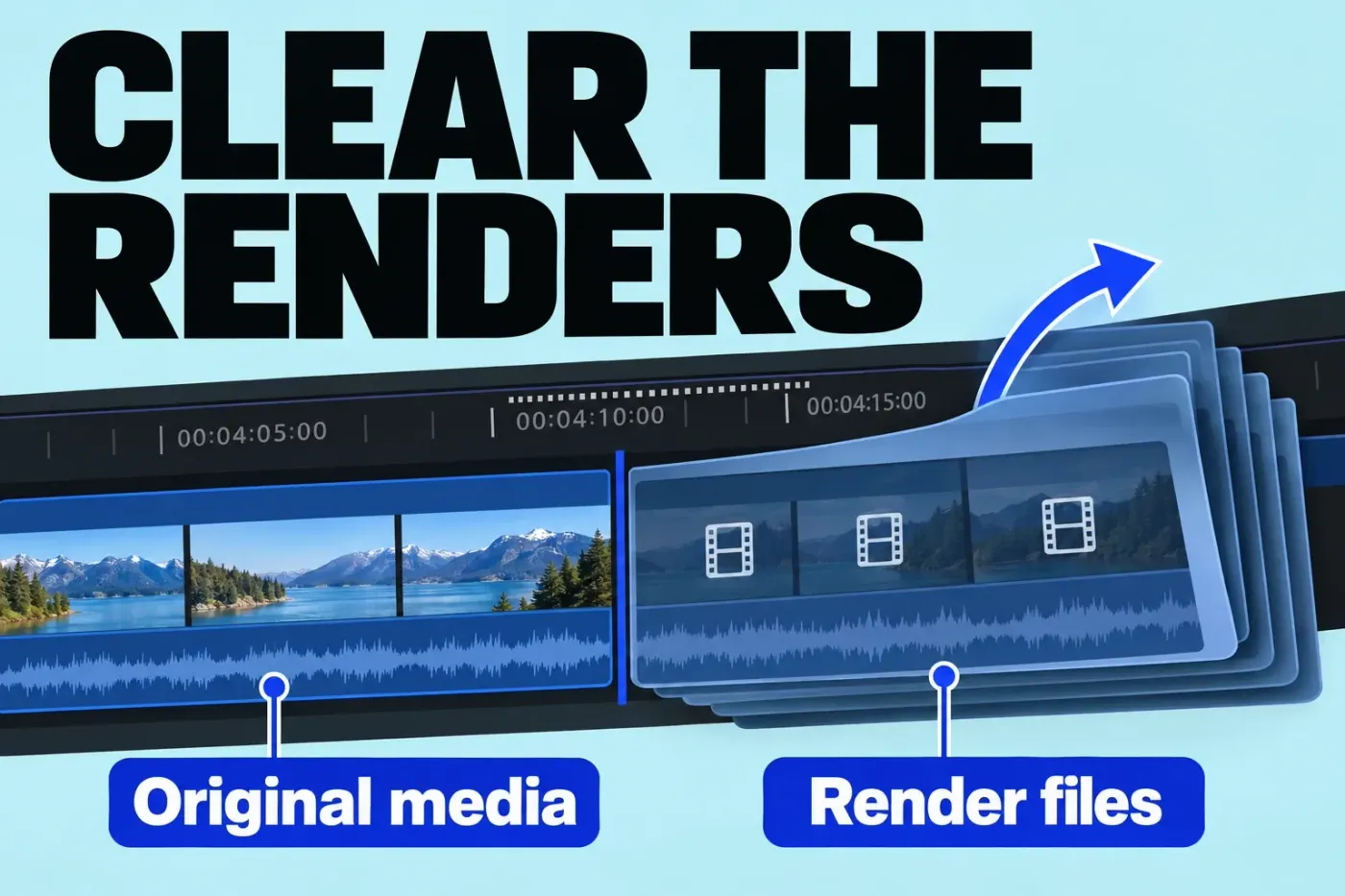
Use Final Cut Pro's Delete Generated Files commands to remove render files, not Finder guesses about files inside a library. Apple's render-file guide says these commands handle render, optimized, and proxy files. When you choose Delete Render Files, the original media is not deleted and render files can be regenerated from it.
Identify which files are taking space
Render files help Final Cut Pro display processed timeline material. As the render-file guide explains, unused renders can pile up as edits change, after application or system updates, or when a library moves between computers with different macOS versions. If the library is large, don’t assume renders are the whole story: original media, optimized files, and proxy files have different roles. Start with the library-size guide to identify the storage category before deleting anything.
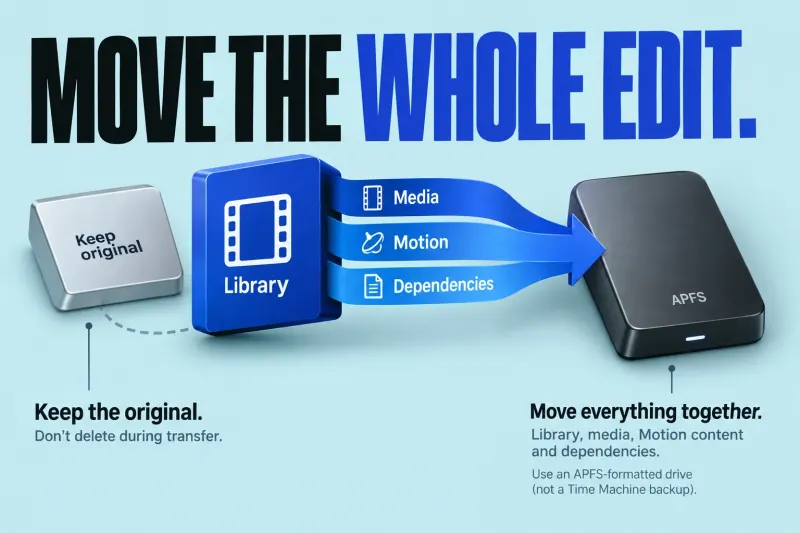
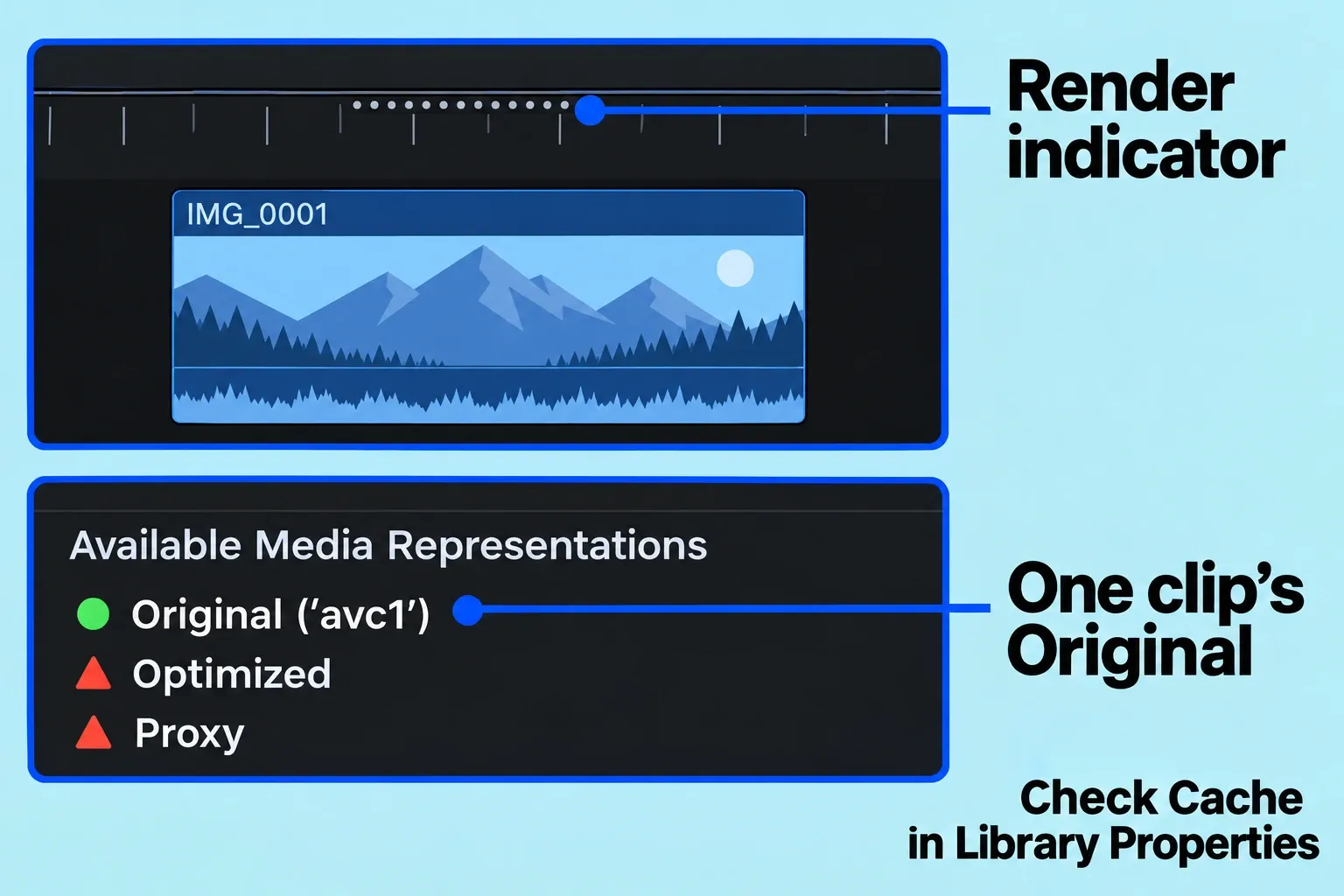
Select the library in the Libraries sidebar, then choose File > Library Properties (Control-Command-J). Check Cache and, if needed, click Modify Settings to see its configured location. The storage-location controls separate Cache for render files, analysis files, thumbnails and audio waveforms from Media for imported, optimized and proxy files. Renders may be inside the library or at the external Cache location. A changed Cache setting applies to future files, and Final Cut Pro also offers to move existing active renders, so the setting alone won’t tell you where every older render lives. If you’re trying to free a particular drive, confirm that the render-file location is on that drive; a smaller library package doesn’t show that a separate external cache shrank.
Choose the smallest useful scope
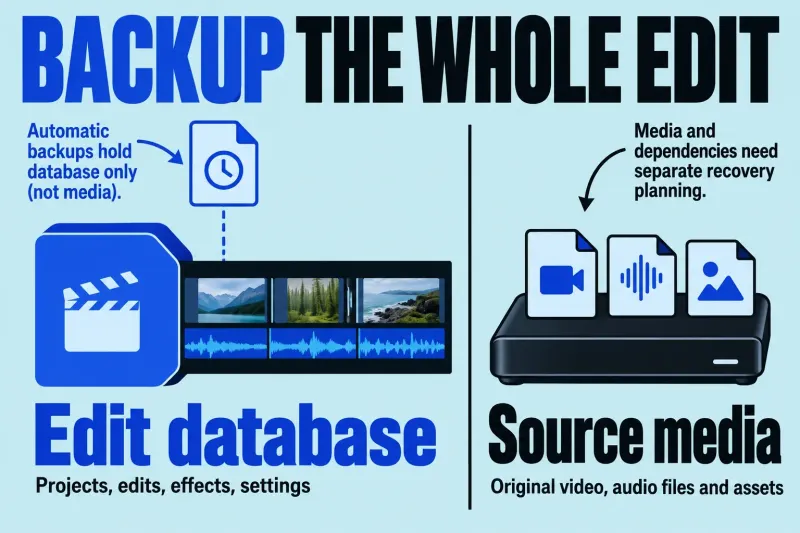
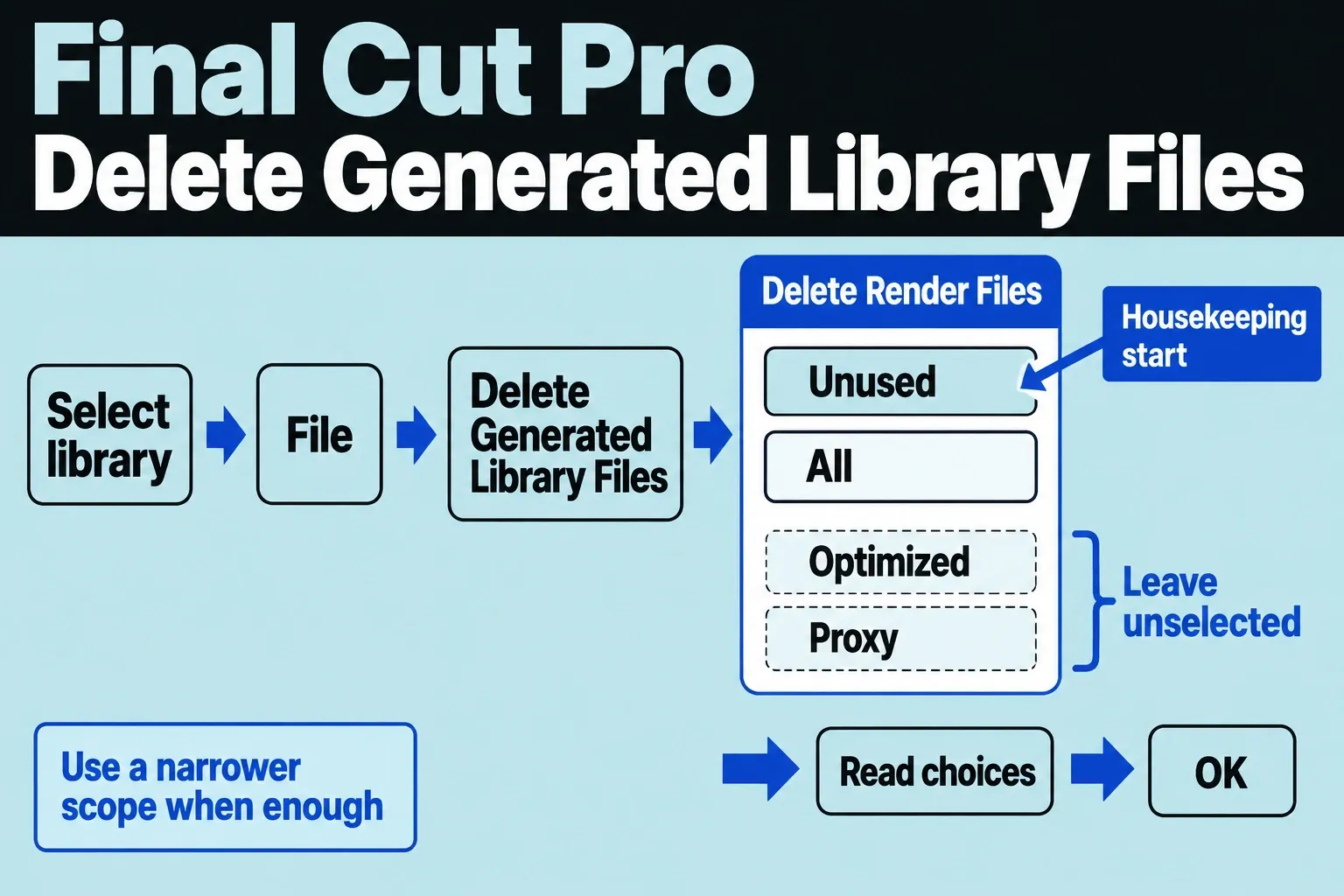
Read the dialog before confirming. If you’ll need to reproduce processed sections, first confirm that their used effects, Motion templates and LUTs, plus any required fonts and compatible third-party plug-ins, remain available along with the originals. The same family of commands can also target optimized and proxy media, so I’d leave those boxes and any other unrelated generated-file categories unselected when the task is only render cleanup. If you intentionally remove a proxy, expect a different workflow; the proxy guide explains why proxy media exists.
To delete clip or project renders, select clips in the browser and choose File > Delete Generated Clip Files, then select Delete Render Files. For selected projects, use File > Delete Generated Project Files and the same render-file choice. Confirm the selected category, then click OK. These scopes are useful when the issue is limited to a particular edit rather than the whole library.
For one or more events in the same library, select them in the Libraries sidebar and choose File > Delete Generated Event Files. For the entire library, select it and choose File > Delete Generated Library Files. In those event and library dialogs, select Delete Render Files, then choose unused or all render files and click OK. For housekeeping I'd start with unused files, because deleting all renders has a wider effect on what Final Cut Pro will need to generate again. Apple's guide notes that deleting all event render files also removes project renders in that event.
Verify what changed
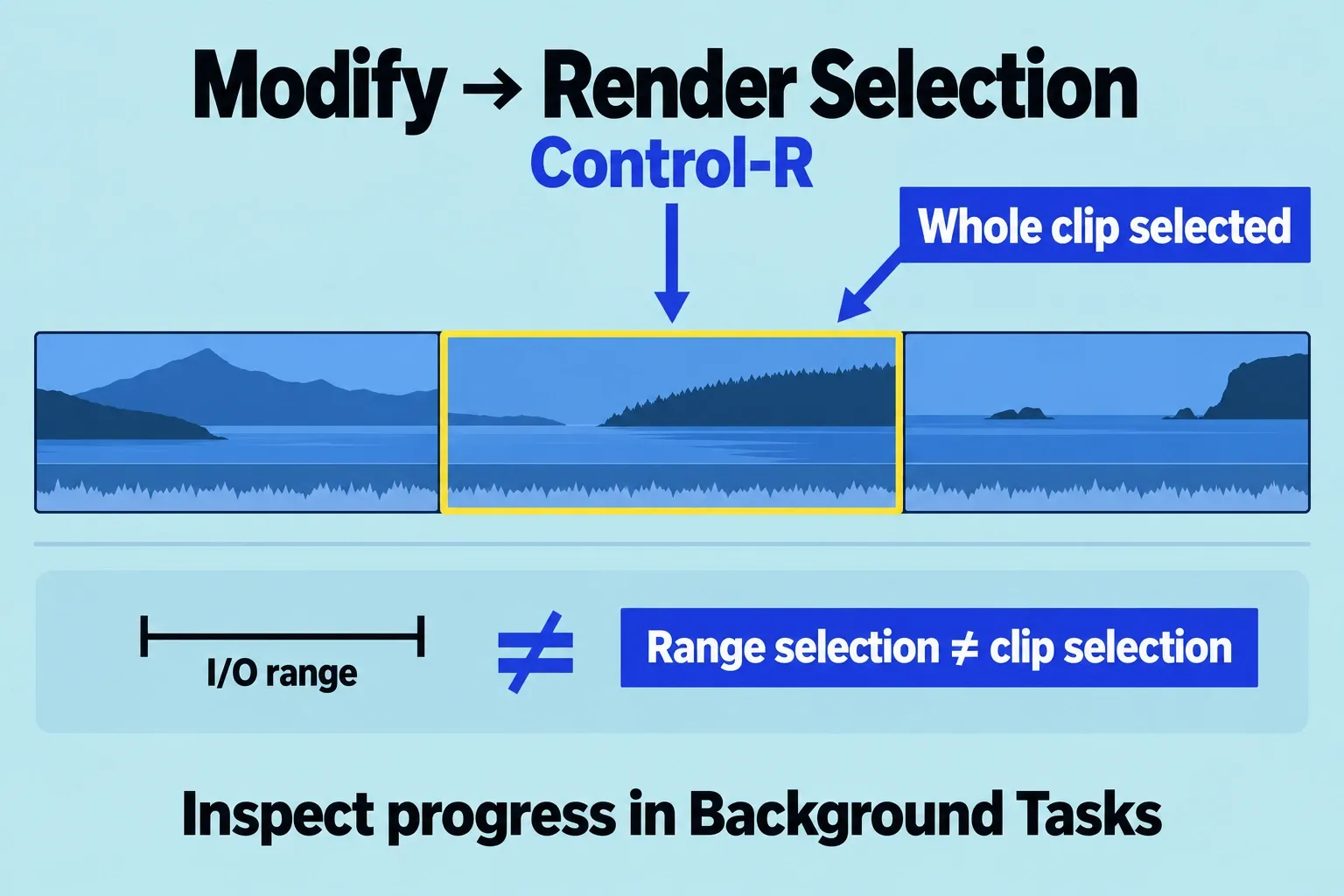
After the command finishes, reopen the project and check that the original clips are online, then play a processed section to see whether it needs rendering. Background rendering has been off by default since Final Cut Pro 12.3, so don’t expect deletion to start an automatic rebuild, although an existing user preference may differ from that default. The manual render commands are Modify > Render Selection for selected clips and Modify > Render All for project portions that need rendering. Render Selection requires a clip selection, not a range selection. Watch Background Tasks for progress.
If storage was the reason for cleanup, record the relevant drive's free space before and after, then check it again after Final Cut Pro has had a chance to render. The gain depends on what was stored and what regenerates. If the original clips appear offline, follow the missing-media diagnosis rather than repeating render deletion.