Choose captions or an SRT sidecar if viewers must switch text off, and burned-in subtitles if the design must stay visible.
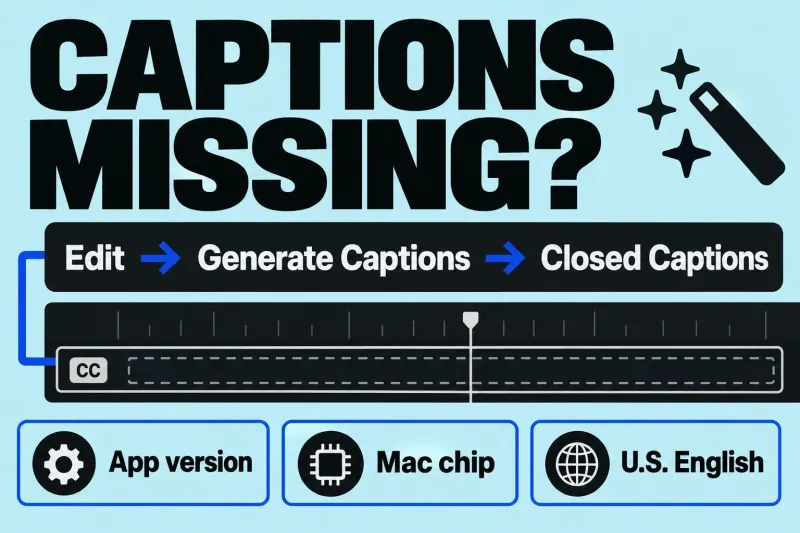
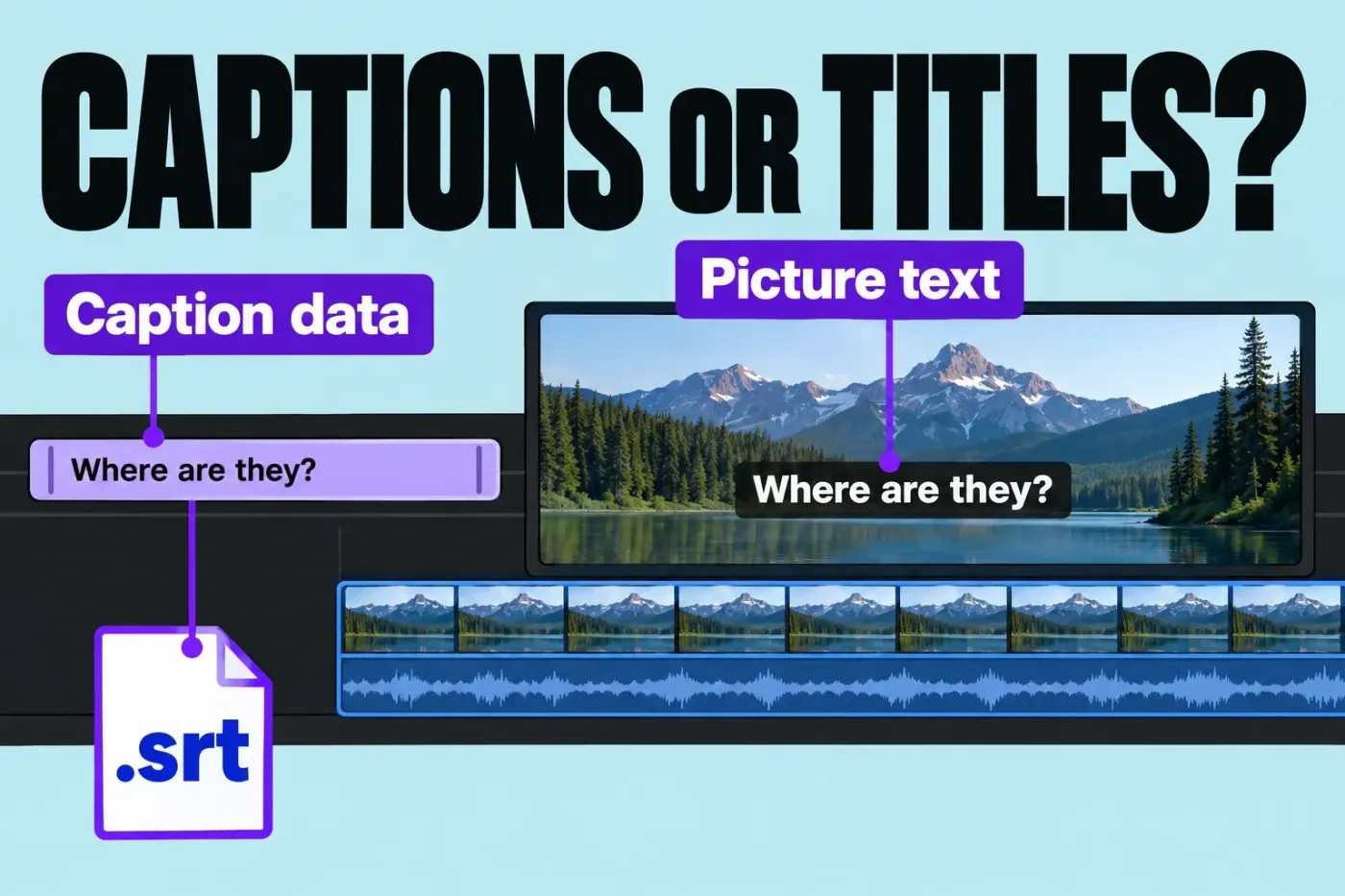
In Final Cut Pro’s Edit > Generate Captions menu, Closed Captions creates connected iTT caption clips, while Subtitles creates standard title clips that render into the picture. Both automatic-generation choices require a Mac with Apple silicon and are available in U.S. English only. The Subtitles command doesn’t create a separate SRT file. See the Generate Captions availability guide for version and first-use checks.
The command name is only part of the distinction. Apple uses captions as a general term for timed text, including translated dialogue and audio transcriptions for deaf or hard-of-hearing viewers or muted viewing. Decide what the audience needs to read, then choose how that text must travel.
If the delivery brief calls for accessibility captions, include speaker identification and meaningful non-dialogue sounds as well as dialogue. A translation of spoken words alone doesn’t carry that information.
Choose the representation by delivery requirement
| Representation | What travels | Viewer control and limits |
|---|---|---|
| Embedded CEA-608 captions | Closed captions embedded in a supported output media file. | Final Cut Pro embeds CEA-608 captions; viewer toggles and language handling still depend on the receiving player. |
| SRT sidecar | Timed text separate from the video. | YouTube accepts plain UTF-8 SRT. Check timing against the exported program; do not expect the animated or positioned title design to travel with this basic caption file. |
| Burned-in title text | The rendered picture, with the text permanently visible. | Title clips from Generate Captions > Subtitles can be edited before export. Their rendered text cannot be switched off and supplies no separate timed caption track. |
If viewers must switch text off or choose a language, use a caption representation the receiving system supports. When the design has to stay visible even when the movie travels alone, burn the text into the picture.
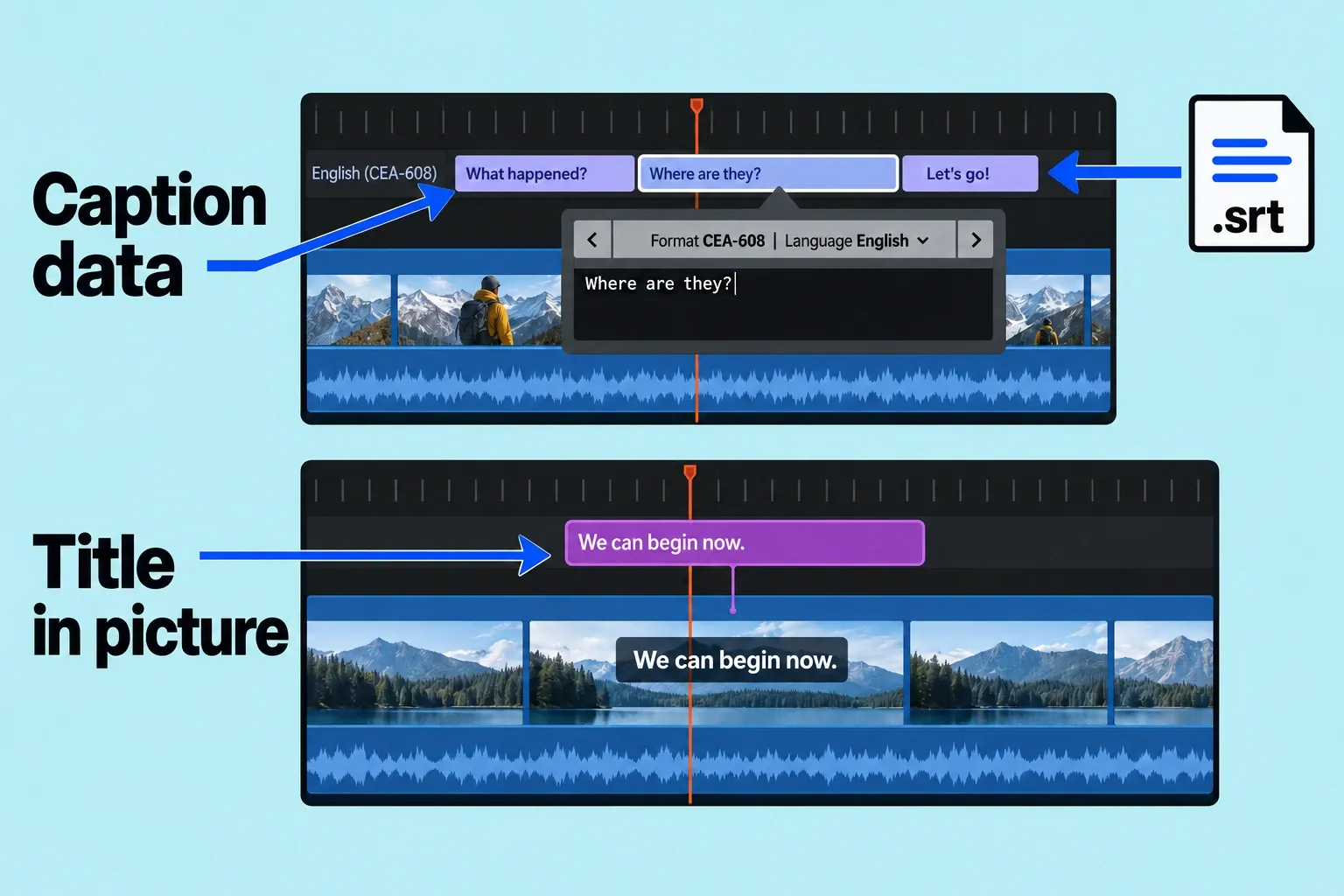
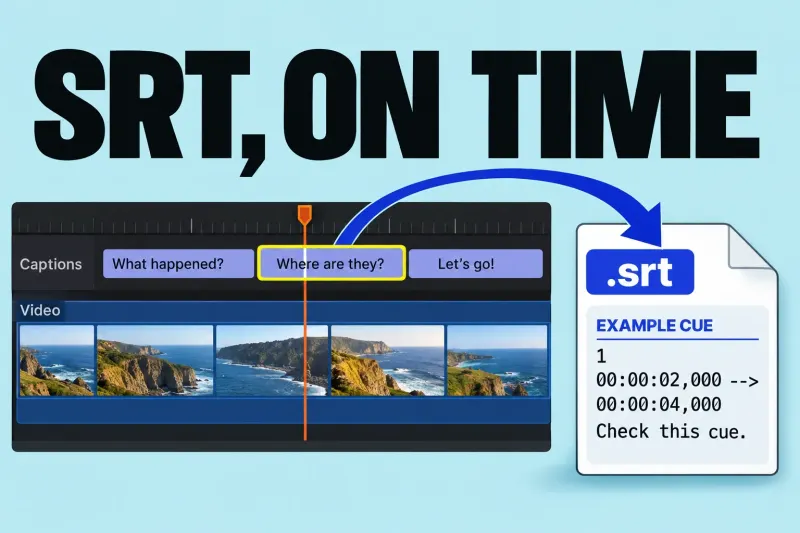
For an SRT handoff: start with caption clips. If they are iTT or CEA-608, select them and choose Edit > Closed Captions > Duplicate Captions to New Format > SRT. If they are already SRT, skip conversion. With the intended project open, choose File > Export Closed Captions, select the SRT language subrole you need, and export. Duplication retains the originals, but conversion can lose text or formatting; check the converted copy.
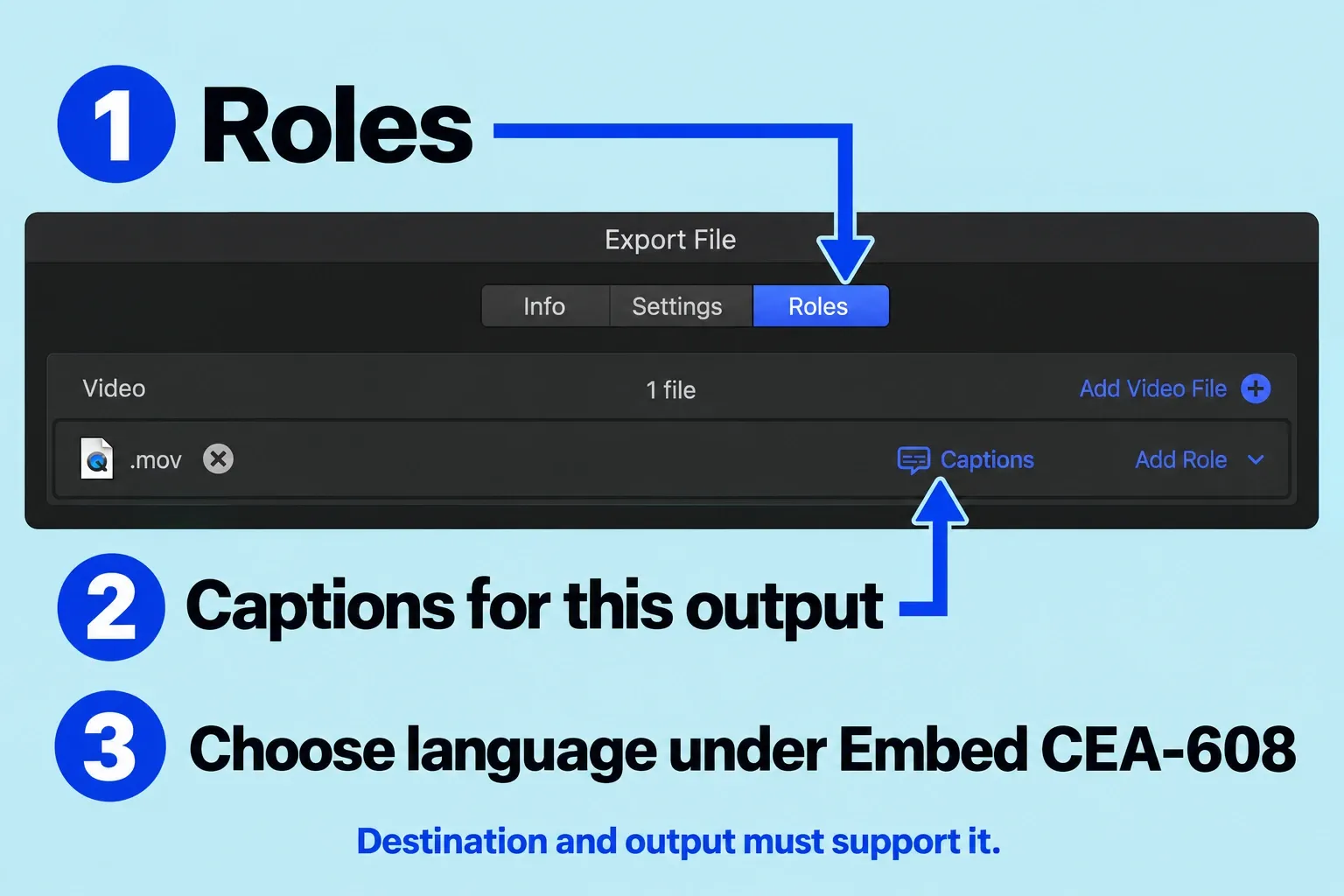
For embedded delivery: use CEA-608 caption clips. If necessary, use Duplicate Captions to New Format > CEA-608 first and check the converted copy. In the supported File > Share > Export File workflow, open Roles; for the intended video output, click Captions, then choose a language version under Embed CEA-608. Available options depend on the destination and output settings.
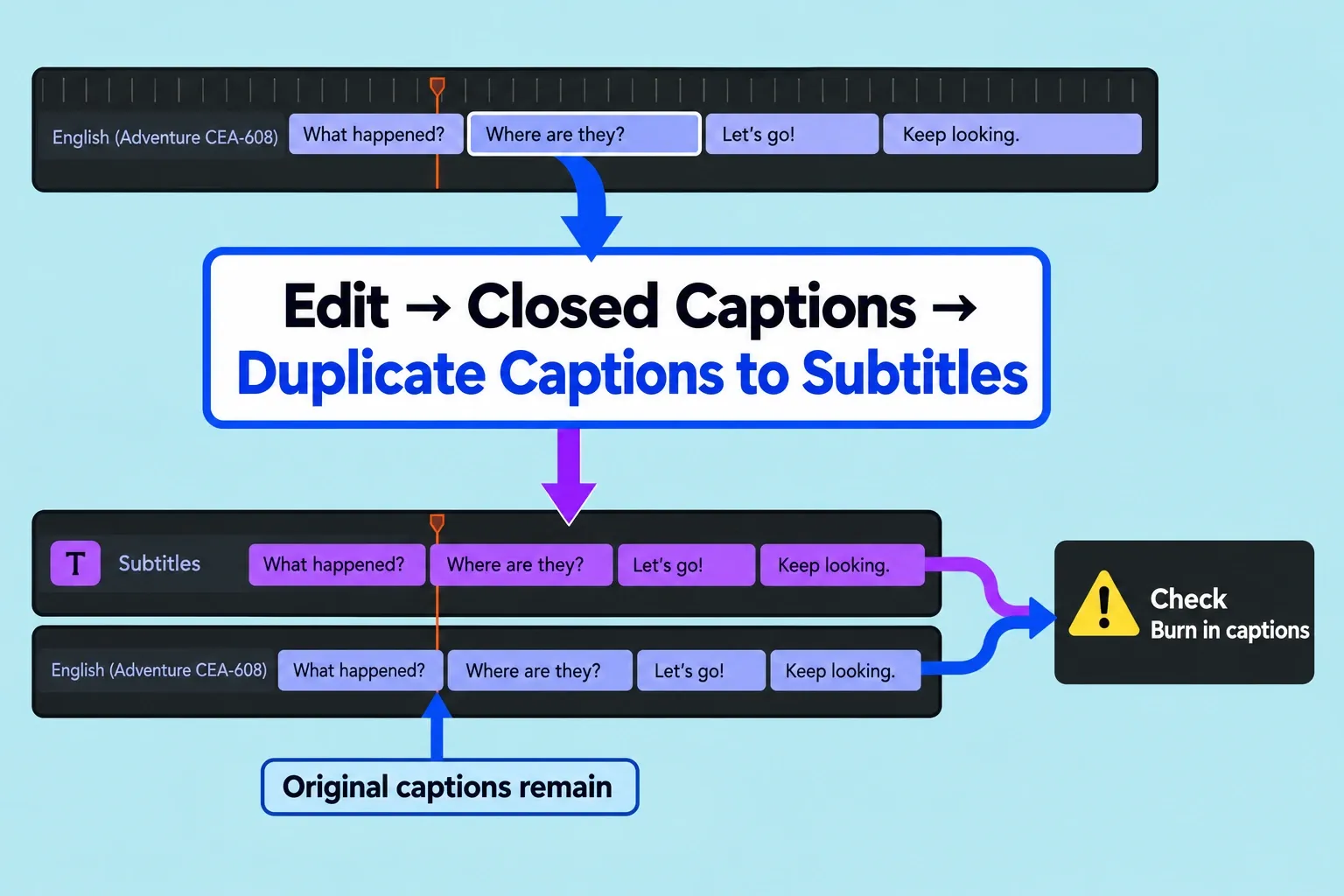
To make styled titles from existing closed captions, select them and choose Edit > Closed Captions > Duplicate Captions to Subtitles. This preserves the original caption set and creates connected title clips with the Subtitles role. Before sharing, decide whether the deliverable needs titles, a caption track, or both. Check the destination’s Burn in captions choice where available: burning in the retained captions over matching Subtitle titles can produce double text. That’s why I wouldn’t rely on hiding a caption role in the timeline instead of checking the destination’s caption settings.
Prepare one sample before the full program
I’d start with 20 to 30 seconds that contain a short sentence, a long sentence, punctuation, two speakers, and a cue close to an edit. Create the selectable or sidecar version and a burned-in version from the same passage. That way you catch line wrapping, speaker identification, timing, safe-area, and font-size issues before you prepare the full program.
Inspect the SRT as text and in the receiving system. Confirm cue numbering, time order, and plain UTF-8 encoding without styling markup for YouTube. SRT is timed text, not the animated or positioned title design from the timeline.
Inspect the receiving environment
Upload or import the sample into the actual destination when possible. Check whether captions default on or off, whether the language is recognized, whether line breaks change, and whether the platform shifts text to avoid its controls. For a sidecar handoff, keep the video and caption filenames clearly related and include the expected frame rate and program start reference.
For burned-in text, watch once with sound muted and once at phone size. Check readability over bright and dark shots and avoid covering important picture. Before you approve delivery, inspect the actual receiving player; a timeline preview alone can’t show how that player handles captions.
Your recipient may call SRT a subtitle file, but it remains a separate timed-text deliverable. Choose the representation for your delivery; the SRT workflow covers import, timing and export.
Handoff package checklist
Deliver the approved video, the caption sidecar when required, a plain-text note naming language and format, and a short reference file or screenshot showing expected timing. Keep caption filenames versioned with the video so a revised picture is not paired with an older SRT. For burned-in versions, label the filename clearly; otherwise a recipient may assume captions can be disabled or replaced when they are permanently rendered into the image.