If Generate Captions is missing in Final Cut Pro, check the app version first, then Mac requirements, language and command location before calling it broken.
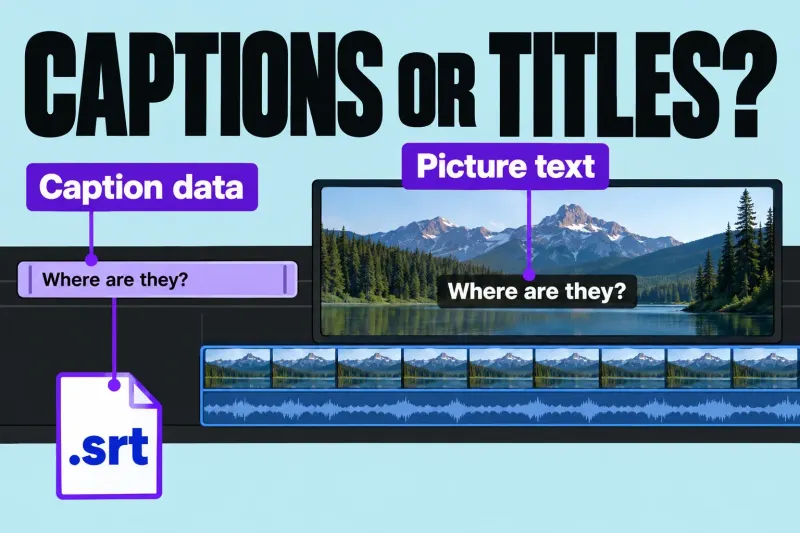
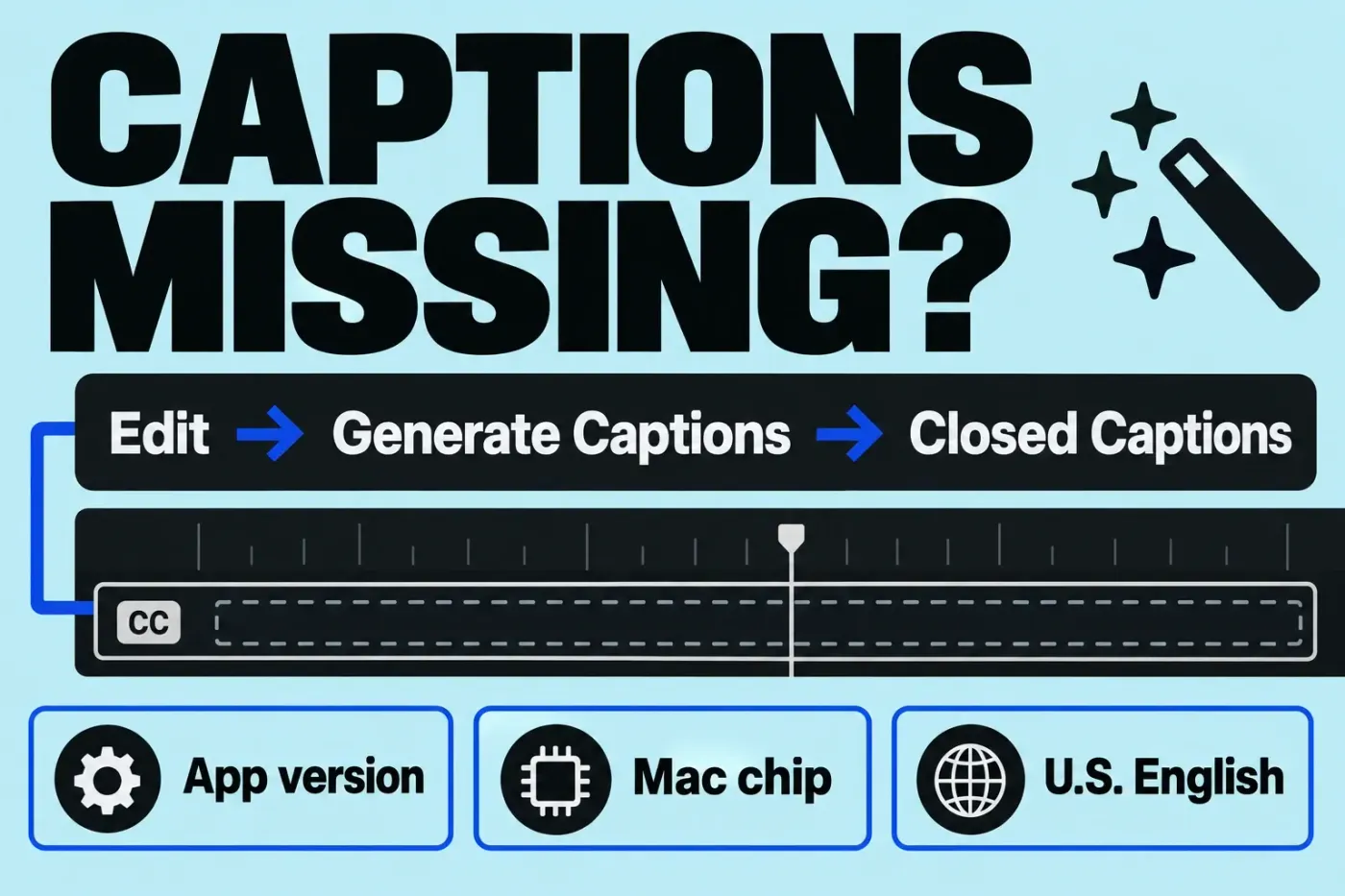
A missing Generate Captions command is first a version and compatibility question. In the current menu, Edit > Generate Captions > Closed Captions creates an iTT caption track, while Generate Captions > Subtitles creates standard title clips that render into the picture. Those subtitle clips are not a separate SRT file. Match the command to the installed release and the deliverable you need before diagnosing a broken installation.
Record the installed version and command
Choose Final Cut Pro > About Final Cut Pro and record the installed version. Do not rely on a tutorial title or App Store update button as proof that the installed build includes the same feature and menu path.
Final Cut Pro 11.0 introduced Transcribe to Captions; at introduction, Apple required a Mac with Apple silicon and macOS Sequoia or later. Versions before 11.0 don’t have that built-in automatic transcription feature. The same release notes list Generate Captions and customizable subtitles as additions in 12.3. Because the two features arrived in different releases, I’d follow only instructions written for the installed release and record the actual command and resulting track.
Add the macOS version, Mac model and chip, spoken language, and selected timeline clips to the note; each is a separate compatibility fact. Do not update a production Mac just to chase a menu item: confirm plugin, library, and OS compatibility and keep a restorable backup.
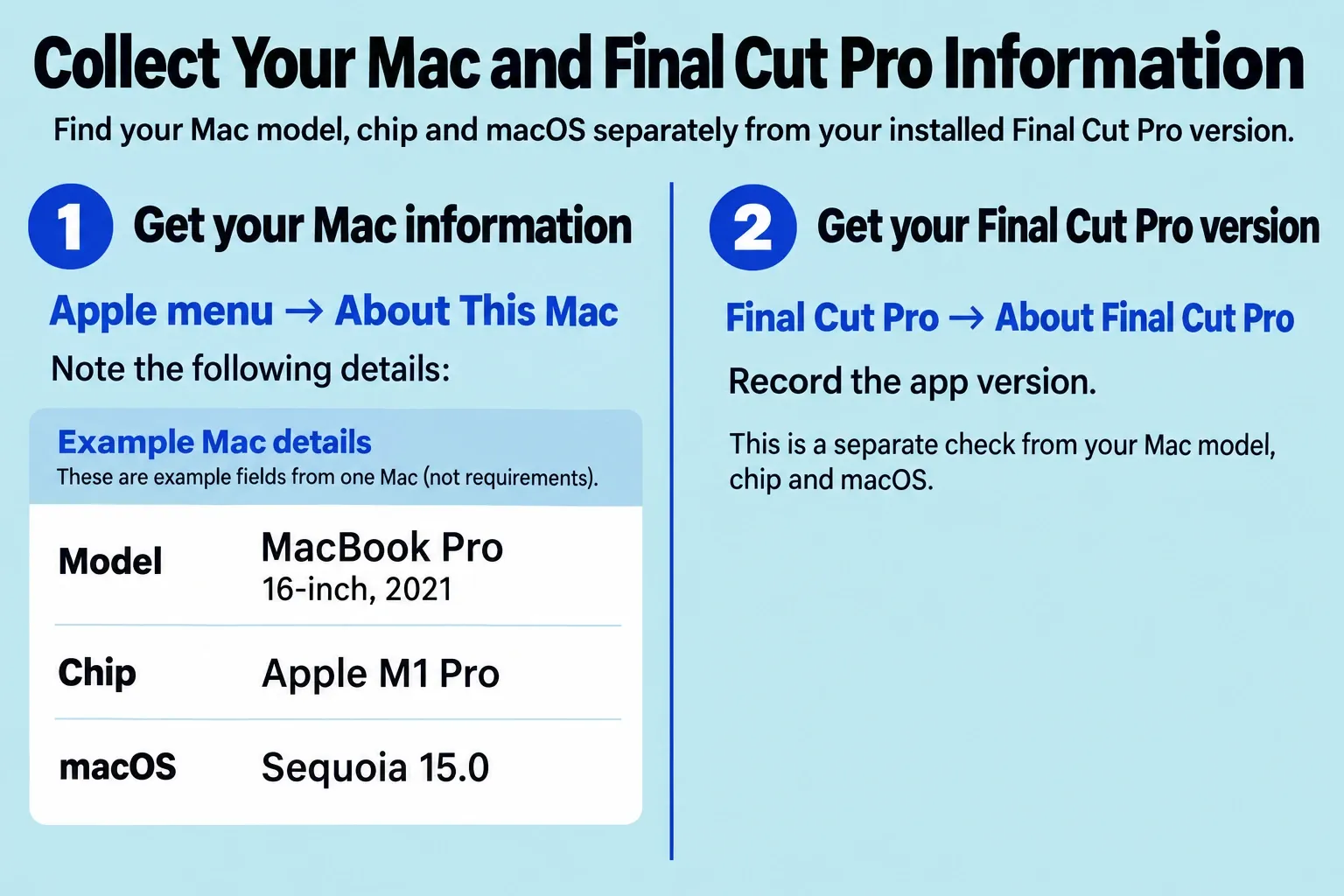
Check the Mac and language conditions
Generate Captions requires Apple silicon and is available in U.S. English only. Confirm the Mac chip, installed app and macOS compatibility, and the spoken language. Importing a prepared caption file is a separate route, so an unsupported speech-transcription setup doesn’t mean caption import is broken.
On first use, Final Cut Pro downloads the language model once, so you need an internet connection; let that download finish. The download is not a documented cause of a missing command, so an absent menu item still needs a version and compatibility check.
Compare a supported selection with the documented path
Select one or more speech-containing clips in the timeline, then choose Edit > Generate Captions > Closed Captions in the applicable release. Note focus and selection too, but they’re hypotheses, and neither is verified as the explanation for every disabled command. Record the exact state before you try a different selection.
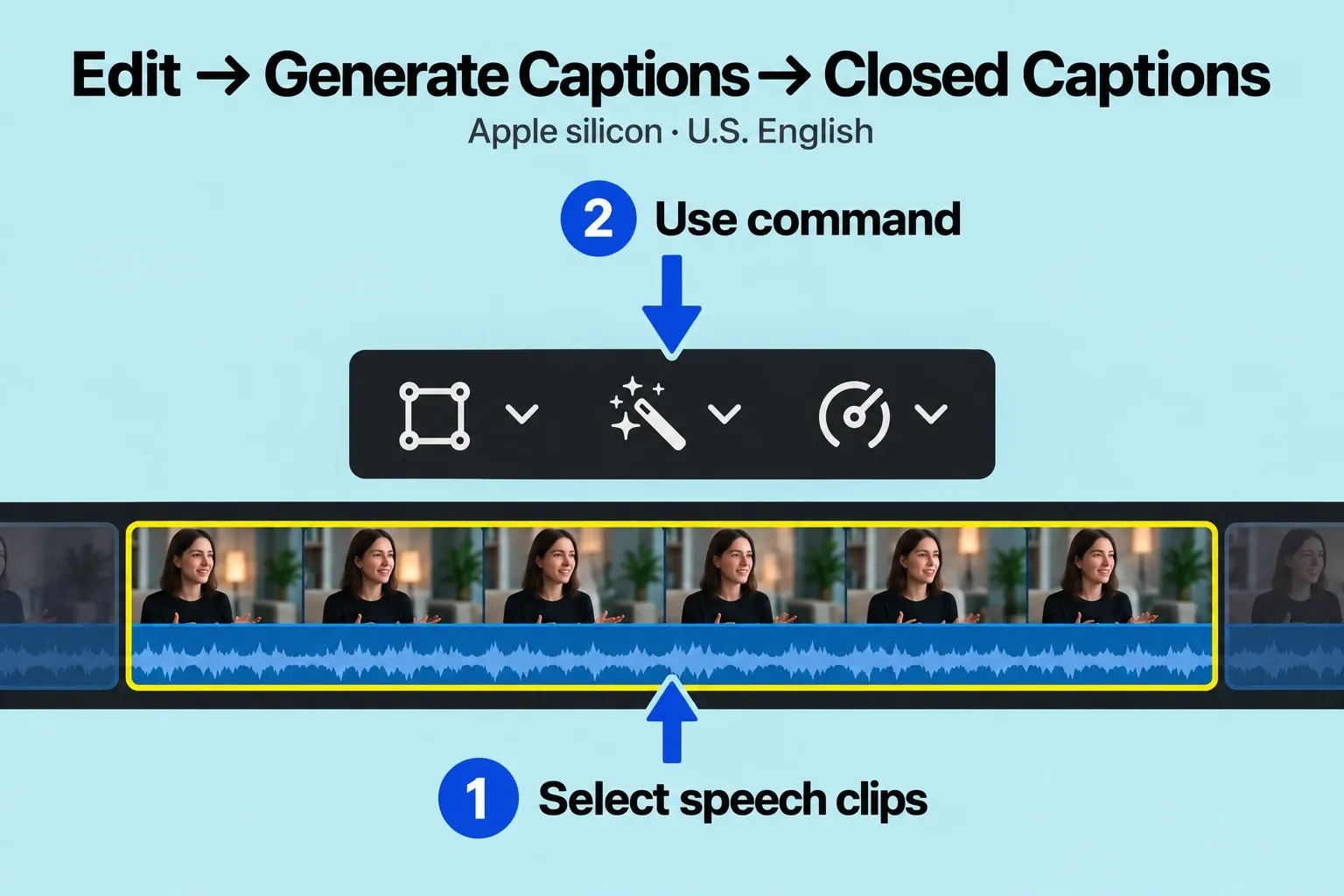
For a comparison, use a short, non-confidential dialogue clip in a duplicate project. Confirm its audio is audible and enabled. Noise, music and overlapping dialogue can affect caption accuracy and timing, but they are not documented explanations for an absent menu. Record the selection, command state and first-use download progress.
Choose a fallback for the required output
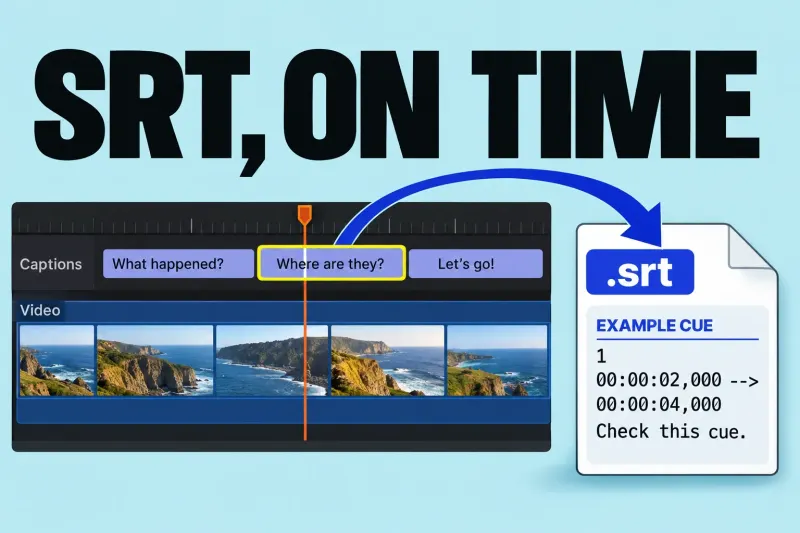
If automatic generation is unsupported, open the intended project in the timeline and choose File > Import > Closed Captions. Use a valid timed SRT (.srt), iTT (.itt) or CEA-608 (.scc) caption file. You can also create closed captions manually or use external transcription with editorial review. A raw transcript needs timings before it becomes a caption file.
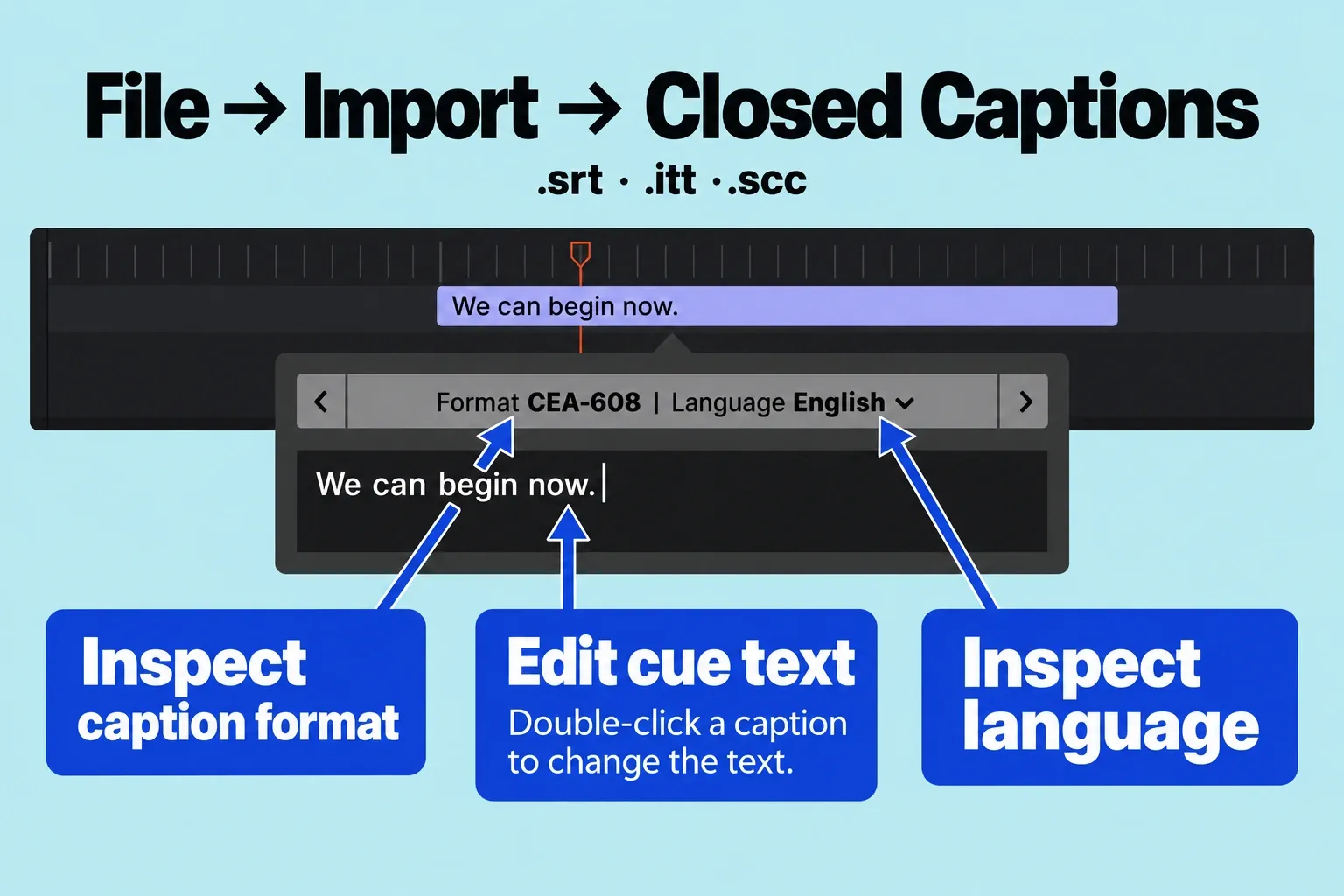
The deliverable decides the fallback, so I’d choose by output: selectable captions, an SRT sidecar, or permanently styled text. Review externally transcribed names, punctuation, speaker changes, and synchronization, then import a short sample before processing the whole program.
Keep a reproducible support case
If a documented supported setup still lacks the command, capture the About window, macOS version, Mac model, selected clip state, spoken language, and the exact menu state without exposing private project content. Note whether the first-use resource download appeared and whether the behavior repeats in a small new library. That comparison can narrow down whether the behavior is project-specific, but it doesn’t prove a unique cause. Send the recorded conditions and result with the support request.
I’d keep the test clip short and non-confidential, so the same case can be repeated after an update without depending on a client library.
After the comparison, record one of three outcomes: the command is present in the supported context, the configuration is unsupported, or a supported configuration still fails reproducibly. Send that specific result with the version and menu evidence when asking for help.
When automatic transcription is unavailable, an existing caption file can still be useful; the SRT import guide covers that separate workflow.